Export Google Contacts to CSV: A Practical Guide
Learn how to export Google Contacts to CSV using built-in tools and Takeout. This step-by-step guide covers preparation, formats, field mapping, and tips for clean, portable contact data.


To export Google Contacts to CSV, use the built‑in export tool. Sign in to Google Contacts, select the desired contacts, click More > Export, and choose Google CSV (or Outlook CSV) as the format, then save the file. For large libraries or special fields, consider exporting via Google Takeout or consolidating labels before export.
Understanding CSV exports from Google Contacts
Exporting Google Contacts to CSV provides a portable, widely compatible format that can be opened in Excel, Google Sheets, or other CRM and marketing tools. The most common option is the built‑in CSV export, which generates a file containing standard contact fields like names, emails, and phone numbers. Depending on the export format you choose (Google CSV vs. Outlook CSV), the exact column headers may differ, and some custom fields might be omitted. According to MyDataTables, CSV remains a practical choice due to its broad compatibility and ease of editing across platforms. If you plan to migrate to another system or run deduplication, CSV is a predictable starting point and reduces the risk of data loss during transfer.
Why you might choose Google Takeout as an alternative
For larger libraries or when you want a more comprehensive data snapshot, Google Takeout offers a broader export scope beyond Contacts alone. Takeout produces a packaged archive that can include many Google services, including your contacts data, and can be a convenient option for full data backups. While Takeout can feel more involved than a quick export, it can be worthwhile when you need a complete archive for archival or recovery purposes. From a practical perspective, Takeout exports tend to be useful when you want to preserve historical edits or attach related metadata that isn’t always exposed in the Contacts export.
Preparing your contacts before export: why labeling matters
Before exporting, organizing your contacts by labels or groups helps you export precisely what you need. This avoids exporting unnecessary data and makes it easier to manage post‑export in a spreadsheet or CRM. MyDataTables analysis suggests this approach improves efficiency and reduces the complexity of the resulting CSV. Ensure that any sensitive contacts are grouped or excluded as appropriate to maintain privacy and compliance when sharing the file externally.
Step-by-step overview for the built‑in export
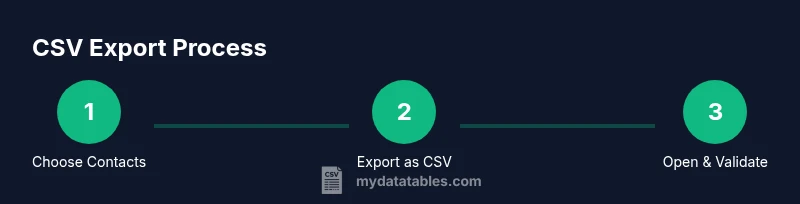
The built‑in export flow in Google Contacts is straightforward but benefits from a quick mental map: filter by the group or label you want, choose the export format, and download the file. You can export a single label or your entire address book, depending on your needs. If you anticipate needing to re‑export regularly, consider maintaining a labeled workflow so future exports remain consistent and easy to reproduce.
Working with the resulting CSV file: what you’ll typically see
A Google CSV export presents a tabular view of contact data with columns for given name, family name, emails, phone numbers, and other fields. Depending on the chosen format, some columns may appear under different headers or be combined with related fields. Open the file in Excel or Google Sheets to review headers and sample values. It’s common to perform a quick cleanup, such as trimming spaces, standardizing email addresses, and ensuring that a primary email field exists for each contact. This careful sweep helps prevent issues when importing the data into another system.
Importing the CSV into other apps: practical mapping tips
Most apps offer an import wizard that lets you map CSV headers to their internal fields. If a field is missing, you can often leave it unmapped or create a custom field if the target app supports it. When transferring to a CRM or marketing tool, aim to align the name, email, and phone columns first, then map additional fields like company, job title, and address as needed. If you’re migrating to another Google product, consider preserving labels as a column to assist in re‑creating organizational structure.
Troubleshooting common issues during export
If you encounter an empty file or missing columns, double‑check that you’ve selected the correct label and that your Google Contacts data actually contains the fields you expect. Some custom fields may not be included depending on the export format. If encoding issues appear (garbled characters), re‑export using UTF‑8 encoding or open the CSV in a robust editor to adjust the encoding before saving. For very large exports, ensure you have a stable internet connection and sufficient local storage.
Best practices for ongoing exports and data hygiene
Schedule periodic exports to maintain up‑to‑date backups, especially after major contact updates. Maintain consistent labeling and naming conventions to simplify future exports, and consider a nightly or weekly backup routine for critical accounts. Store exported files in a secure location and limit access to comply with privacy policies. These habits help ensure your contact data remains portable, clean, and ready for import when needed.
Final checklist before sharing or archiving
Double‑check the exported CSV against your source contacts to confirm that essential fields are present. Verify that sensitive data is protected or encrypted if the file will be shared. Confirm that the encoding is correct and that the file opens cleanly in your target app. By following this checklist, you’ll minimize surprises during downstream use and keep your contact data reliable.
Tools & Materials
- Computer or mobile device with internet access(Any device with a modern browser and Google account access)
- Web browser (latest version recommended)(Chrome is preferred for compatibility with Google services)
- Active Google account with Google Contacts data(Use the account that owns the contacts to export)
- CSV viewer or editor (Excel, Google Sheets, or similar)(Helpful for reviewing and cleaning the output)
- Local storage with sufficient disk space(CSV files can be large depending on your contacts)
- If using Takeout: access to takeout.google.com(Alternative path for full data backups)
Steps
Estimated time: 20-30 minutes
- 1
Sign in to Google Contacts
Open your web browser and navigate to contacts.google.com. Sign in with the Google account that contains the contacts you want to export. Confirm you’re using the correct account to avoid exporting the wrong data.
Tip: Keep your session active to avoid repeated logins during the export process. - 2
Choose the contacts to export
In the left panel, select the label or group that contains the contacts you need. If you want the entire address book, skip labeling and export all contacts. This step ensures you’re exporting exactly what you intend to share or back up.
Tip: Label your groups ahead of time for repeatable exports. - 3
Open the export menu
Click the three‑dot More menu above the list, then select Export. If you don’t see Export, you may be using a different Google Contacts interface or a restricted account.
Tip: If you don’t see the option, switch to the classic interface if available. - 4
Choose the format
In the export dialog, pick Google CSV for broad compatibility (or Outlook CSV if you’re moving to Microsoft tools). Review the available options to understand what headers will appear in your file.
Tip: Google CSV is typically best for cross‑platform use; Outlook CSV can preserve some app‑specific fields. - 5
Download the CSV
Click Export to download the CSV file to your computer. Choose a memorable location so you can find it easily for import or backup.
Tip: Keep a clear naming convention, like contacts-label-YYYYMMDD.csv, for future exports. - 6
Optionally export via Google Takeout
If you need a broader snapshot, visit takeout.google.com and select Contacts. This creates a bundled archive that can include additional metadata and other Google data.
Tip: Takeout is useful for full data backups; expect a longer processing time and larger download. - 7
Open and review the CSV
Open the file in a spreadsheet program to review headers and sample rows. Check that primary emails and essential fields appear correctly, and adjust any formatting if needed.
Tip: Enable UTF‑8 encoding in your editor to preserve non‑ASCII characters. - 8
Prepare for import or archiving
If you’ll import elsewhere, map headers to the target system’s fields. Save a backup copy and store it securely. If you plan ongoing exports, consider scripting or automating the workflow.
Tip: Document field mappings to simplify future imports and backups.
People Also Ask
Can I export only specific contacts to CSV?
Yes. Filter by a label or group in Google Contacts, select those contacts, then export using the built‑in tool. This produces a focused CSV that contains only the chosen data.
Yes. Filter by a label, export, and you’ll get a CSV with just those contacts.
Will the CSV include custom fields?
Custom fields may appear depending on the export format. The standard Google CSV includes common fields, while some apps may not map every custom field automatically.
Custom fields might or might not appear, depending on the export format and target app.
Can I export from mobile devices?
Exporting is primarily performed via Google Contacts on the web. Some mobile clients may offer limited export options or require Takeout as an alternative.
Exporting is mainly done on the web; mobile export options are limited.
What encoding is used in the CSV?
CSV exports use UTF‑8 encoding to support a wide range of characters. If you see garbled text, re‑save with UTF‑8 encoding in your editor.
CSV uses UTF‑8 encoding; re‑save with UTF‑8 if characters look odd.
How do I handle duplicates after export?
Open the CSV in a spreadsheet editor and use deduplication features to merge or remove duplicates before importing elsewhere.
Use deduplication tools in your spreadsheet app before import.
How can I import the CSV into another app?
Most apps provide an import wizard that lets you map CSV headers to internal fields. Start with name and email, then map additional fields as needed.
Use the app’s import wizard and map headers to fields.
Is exporting data from Google Contacts safe?
Exporting is a read‑only action for your own data. Store the resulting CSV securely and restrict access to protect sensitive information.
Exporting is read‑only for your data; keep the file secure.
Should I keep both the CSV and Takeout backups?
Yes, keeping a CSV for quick access and a Takeout bundle for full backup provides flexibility in data recovery and portability.
Keep both a CSV and a Takeout backup for safety and flexibility.
Watch Video
Main Points
- Export via built‑in tool or Takeout depending on scope
- Label organization improves export precision
- Open and verify the CSV before sharing
- Plan for field mapping when importing to other apps