How to Save CSV from ChatGPT: A Practical Guide
Learn reliable, step-by-step methods to save CSV data produced by ChatGPT. Get formatting tips, best practices, and tooling to export clean CSV files efficiently.


You will learn how to save CSV data generated by ChatGPT, including copy-paste workflows, prompts that produce CSV-ready output, and lightweight automation to export clean CSV files. This guide covers formatting, encoding, validation, and practical tooling so you can reuse ChatGPT results in spreadsheets, databases, or data pipelines.
Why saving CSV from ChatGPT matters
In data workflows, CSV is the lingua franca. ChatGPT can generate lists, tables, or structured summaries, but to reuse that output in spreadsheets, databases, or ETL pipelines you need a clean CSV file. Saving CSV from ChatGPT ensures portability, reproducibility, and auditability of your results. According to MyDataTables, many teams rely on a predictable CSV export as soon as a ChatGPT answer is ready, rather than copying messy text. By asking for CSV-ready formatting, you reduce post-processing time and minimize formatting errors. The result is a file you can open in Excel, Google Sheets, or a Python notebook with consistent column order and header semantics. This guide outlines why CSV saving matters across roles: data analysts, developers, and business users all benefit from a reliable, machine-readable data dump that preserves the structure ChatGPT provided. You’ll also learn how to validate that the CSV matches your intended schema and how to scale the process for larger outputs.
Common ways to capture CSV data from ChatGPT
There are several practical paths to getting CSV from ChatGPT, and choosing the right one depends on your needs for speed, accuracy, and automation. The simplest approach is to prompt ChatGPT to emit a CSV block, then copy-paste the content into a plain text editor and save the file with a .csv extension. This works well for small datasets and quick prototyping. If you need repeatable results, craft prompts that produce a single CSV table with a header row and consistent comma separation, avoiding extraneous narration. For automation, you can copy the output into a script that writes lines to a CSV file, or use a small Python/Node.js tool to parse the chat response and export a CSV. Finally, you can rely on browser-based tools or notebook environments to convert structured text into CSV, especially when integrating with existing data pipelines.
Formatting ChatGPT output for reliable CSV export
The reliability of a CSV export depends on consistent formatting. Start by instructing ChatGPT to label every column header and to present data rows only, with no extra text outside the CSV block. Use quotes around values that contain commas or line breaks. If your dataset includes numbers or dates, keep them in plain text for downstream parsing. A practical prompt example is: 'Please provide output in CSV with headers A,B,C. Only return lines separated by newline characters, no commentary.' After receiving the response, verify that all rows have the same number of columns and that there are no stray characters. If you see trailing quotes or unescaped quotes inside fields, adjust the prompt or post-process to escape them properly (replace " with "" in CSV standard).
Step-by-step workflow: from prompt to CSV (example)
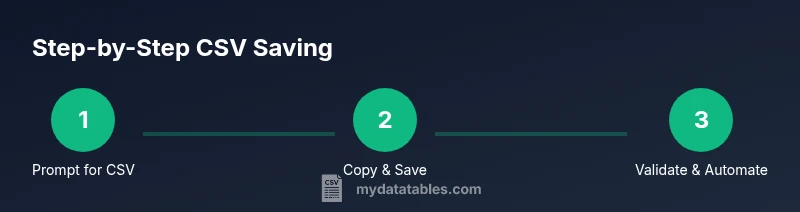
Imagine you’re compiling a quick customer summary. You start by defining the headers (CustomerID,Name,PurchaseTotal,Date). You prompt ChatGPT to return a CSV block with those headers and a few rows of data. You copy the content, paste into a plain text editor, and save as customers.csv with UTF-8 encoding. You then open the file in Sheets or Excel to verify column alignment. If anything looks off, you tweak the prompt or perform a quick post-processing pass to fix quotes or delimiters. This flow keeps the transition from natural language to structured data smooth and repeatable.
Handling encoding and data quality issues
Encoding matters when you move data between systems. Always save CSVs using UTF-8 to preserve characters and accents. If ChatGPT outputs special symbols, verify they render correctly in your target tool. Be mindful of line endings (CRLF vs LF) when moving files between Windows and Unix-like environments. If your data includes commas or quotes inside fields, ensure proper escaping (enclose fields in quotes and double inner quotes). A small mismatch in encoding or escaping can lead to misaligned columns or corrupted data downstream.
Automating and validating CSV exports
For frequent exports, automation is the friend of reliability. Consider a lightweight script that takes a ChatGPT-generated block and writes it to a CSV file via a csv module (Python) or a simple Node.js script. Validation is essential: check the number of columns per row, ensure no stray delimiters, and confirm headers match your schema. You can also incorporate a quick post-processing step to remove extra narration if ChatGPT slips. Automated tests help prevent regressions when prompts change.
Quick tips and common pitfalls
- Always define headers first and verify the number of columns in each row. - Use UTF-8 encoding to avoid character loss. - If ChatGPT returns additional text, constrain prompts to 'CSV only' or wrap the response in a code block. - For large exports, stream data to a file rather than loading everything into memory. - Save prompts and scripts to enable reproducibility and audits.
Next steps and resources
Practice makes perfect. Start with a small dataset to refine prompts and encoding settings, then scale up. Use lightweight validators to catch structural issues early. If you want deeper automation, explore Python’s csv module or JavaScript libraries to build end-to-end pipelines that fetch, format, and save CSV outputs from ChatGPT across many prompts. For buyers and teams, establishing a standardized CSV template and a repeatable workflow reduces errors and accelerates project timelines.
Tools & Materials
- Plain text editor (e.g., VS Code, Notepad++)(Paste ChatGPT output; save as .csv with UTF-8 encoding)
- Spreadsheet software (Excel, Google Sheets)(Validate structure visually and functionally after export)
- ChatGPT session or browser with ChatGPT(Source of CSV-ready text or prompts)
- Python installed (optional for automation)(Use csv module to programmatically write or append CSV data)
- Node.js installed (optional for automation)(Alternatively, use a small Node script to generate CSV)
- CSV validator tool or website(Help ensure consistent column counts and proper escaping)
- Prompts/templates for CSV formatting(Capture a reusable prompt to produce CSV-ready output)
Steps
Estimated time: 40-60 minutes
- 1
Define the data format
Decide which columns you need, their order, and the data types. Draft header names and a sample row to validate structure before prompting ChatGPT.
Tip: Write headers first; use consistent naming to simplify downstream parsing. - 2
Prompt ChatGPT for CSV output
Ask for CSV with headers, and request only the CSV content or a code block containing the CSV. Specify delimiter and escaping rules to avoid extra text.
Tip: Use a precise prompt like: 'Provide CSV with headers A,B,C. Only return CSV lines, no commentary.' - 3
Copy and save as .csv
Copy the ChatGPT CSV content, paste into a plain text editor, and save as a .csv file with UTF-8 encoding.
Tip: Check for stray characters and confirm the file ends with .csv. - 4
Validate CSV structure
Open the file in a spreadsheet or use a validator to ensure each row has the same number of columns as headers.
Tip: If you see mismatched columns, re-run with a tighter prompt or clean the data in post-processing. - 5
Optionally automate with a script
Create a small script (Python/Node.js) to parse the ChatGPT output and write to CSV, enabling repeatable exports.
Tip: Use csv.writer or a simple write with newline='' (Python) to avoid extra blank lines on Windows. - 6
Automate for reuse
Store prompts and scripts together in a repo to reproduce exports consistently for future prompts.
Tip: Version your prompts and outputs to track changes over time.
People Also Ask
Can ChatGPT output a CSV directly?
Yes, you can prompt ChatGPT to output data in CSV format. For reliability, ask for a header row and only the CSV content, then perform a quick validation.
Yes, you can get CSV directly by prompting for CSV format and validating the content afterward.
How should I handle quotes in CSV?
Wrap fields in quotes and escape inner quotes by doubling them. Ensure the final file uses a consistent delimiter.
Wrap values in quotes and double any inner quotes to keep CSV valid.
What if ChatGPT outputs extra text?
Ask for 'CSV only' or put the CSV inside a code block to reduce surrounding narration. Post-process if necessary.
Ask for only the CSV content, or place it in a code block and remove anything else.
How can I save large CSVs efficiently?
Use a script to stream lines to a file rather than loading everything into memory. Consider chunked processing for very large outputs.
For big CSVs, stream data to a file with a script to avoid memory issues.
How do I validate CSV structure quickly?
Open the file in a spreadsheet or use a validator to confirm the header count matches every row.
Open it in Sheets or Excel, or use a validator to check the structure.
Can I automate the whole flow from prompt to export?
Yes. Pair a reusable prompt with a small script to fetch, format, and save CSV outputs automatically.
Absolutely—combine a template prompt with a tiny script to automate exports.
Is there a data loss risk with CSV?
CSV is plain text; ensure proper encoding (UTF-8) and correct escaping to prevent character loss.
There's a risk if encoding isn't correct; use UTF-8 and proper escaping.
Watch Video
Main Points
- Plan CSV structure before prompting.
- Use CSV-friendly prompts and verify output.
- Validate encoding and escaping after export.
- Automate for repeatable CSV exports.
- Store prompts and scripts for reproducibility.