Can You Upload CSV to ChatGPT? A Practical Guide to CSV in AI
Explore whether you can upload CSV to ChatGPT, understand current capabilities, and learn practical methods to feed CSV data into prompts with best practices and examples.


Yes, you can work with CSV data in ChatGPT, but not always by uploading a raw file. Depending on the platform, you may paste CSV content, share a link to a file, or use built-in upload features when available. The most reliable approach is to summarize the data and provide a reproducible excerpt to guide prompts.
What uploading CSV to ChatGPT means in practice
ChatGPT and similar AI assistants are designed to understand and manipulate text. When a CSV dataset is involved, the model can analyze, summarize, or reason about the data if you provide a textual representation that preserves the structure. According to MyDataTables, the platform’s guidance emphasizes working with concise, clearly delimited excerpts rather than raw files in many chat environments. In practice, you typically feed AI prompts with a carefully chosen sample of rows and columns, or with a structured text extract that mirrors the CSV’s shape. This approach helps the model grasp the data’s columns, data types, and key patterns without overloading the prompt. The goal is to balance fidelity with prompt length, ensuring the model can produce meaningful insights without misinterpreting the data.
When you plan to analyze CSV content in AI chats, think about what you want to learn, which columns matter, and how you will validate outputs. The MyDataTables team notes that consistent formatting and explicit instructions improve results. For example, if your CSV tracks product sales, you might focus on date, region, and revenue columns and ask for a summary by month.
As you read further, you’ll see practical methods and examples for feeding CSV data to ChatGPT, plus tips to stay within platform limits while preserving data privacy.
noteNameFirstSection_onlyForStructureNo
typeNameForStructureNote
Tools & Materials
- CSV file (UTF-8 preferred)(Contains a header row and representative rows for context.)
- Text editor or spreadsheet app(Used to view, edit, and copy CSV excerpts.)
- ChatGPT-enabled environment (web or app)(Platform supports text prompts or file-upload features if available.)
- Sample data snippet (small excerpt)(A focused subset that illustrates key columns.)
- Delimiter awareness (comma, semicolon, or tab)(Maintain consistent delimiters when pasting.)
- Optional: JSON converter or CSV preview tool(Helpful for transforming complex CSVs into JSON or structured text.)
Steps
Estimated time: Total time: 25-40 minutes
- 1
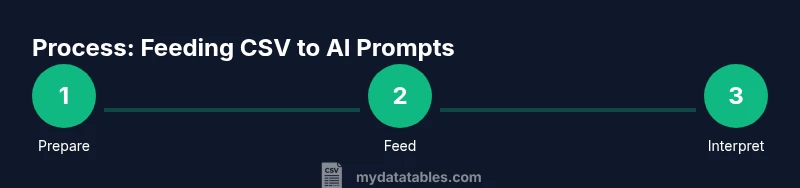
Prepare your CSV
Open the CSV in a editor, confirm UTF-8 encoding, verify the header row, and choose a representative subset of columns and rows. Remove any sensitive data or anonymize it if necessary. This preparation ensures the prompt remains clear and compliant with privacy guidelines.
Tip: Keep the excerpt to a few dozen rows at most to stay within prompt length limits. - 2
Choose how to feed the data
Decide whether to paste the data as text, share a link, or use an upload feature if the platform supports it. Text prompts work well for small excerpts; uploads are helpful for larger but supported datasets.
Tip: If using paste, wrap the excerpt with clear delimiters like commas and newlines. - 3
Provide context and goals
Tell the model what you want to learn (e.g., trends, outliers, summaries) and specify the exact columns to consider. Include any constraints or definitions that matter to your analysis.
Tip: Be explicit about what constitutes an “insight” for your task. - 4
Feed the data to ChatGPT
Paste the excerpt or upload the file through the platform feature. If pasting, ensure clean line breaks and consistent delimiters; if uploading, confirm the platform accepted the file.
Tip: If the paste breaks formatting, correct it by reformatting into a clean, uniform CSV snippet. - 5
Ask precise questions
Pose targeted questions like “What is the average value by category?” or “Show a top-5 list of outliers.” Use prompts that tie results to your business goals.
Tip: Use filter conditions and clear thresholds to avoid vague outputs. - 6
Review and iterate
Assess the model’s outputs for accuracy, ask clarifying questions, and adjust your inputs or prompts as needed. Iteration improves results over time.
Tip: If you get unexpected results, simplify the dataset or reframe the question. - 7
Handle large datasets
For bigger CSVs, break the data into chunks and query sequentially, or identify a small, meaningful subset that represents the whole. This keeps prompts manageable.
Tip: Maintain consistent chunk boundaries to avoid misinterpretation. - 8
Validate outputs
Cross-check model insights with your own analysis or trusted calculators. Document how you derived each result to ensure reproducibility.
Tip: Record the exact prompt and excerpt used for traceability. - 9
Protect privacy
redact sensitive information before sharing, and avoid exposing credentials or personal data in prompts. Use synthetic data where possible.
Tip: Never paste full customer records with identifiers into public prompts. - 10
Close the loop with exports
If you need to export results, summarize findings back into CSV-compatible text or generate structured summaries you can reuse in dashboards.
Tip: Provide a compact, reusable output format for future prompts. - 11
Document your process
Keep notes on how you prepared data, the prompts you used, and the outcomes. This helps you reproduce results and scale your workflow.
Tip: Create a template prompt pack for recurring tasks.
People Also Ask
Can I upload an entire CSV file directly to ChatGPT?
Direct full-file uploads are not universally supported in standard chat interfaces. In many cases, you should paste a representative excerpt or use platform-specific upload options if available. When in doubt, start with a small sample and verify results.
Direct full-file uploads aren’t always supported; start with a small sample and use platform features if available.
What are best practices for formatting CSV data for prompts?
Keep the excerpt concise, ensure a header row, and include only relevant columns. Use consistent delimiters and clear line breaks so the model can parse the structure. Redact sensitive data and provide explicit prompts.
Keep it concise, with a header, relevant columns, and consistent delimiters.
Are there file-size limits for CSV data with ChatGPT?
Platform-specific limits apply; standard chat prompts work best with small excerpts. For larger datasets, work in chunks and summarize results incrementally. Always check the platform’s guidelines on file sizes.
Limits depend on the platform; use chunks for big datasets.
What if my CSV has thousands of rows?
Don’t paste all rows at once. Select representative samples per category, or break the data into logical chunks. Use prompts that aggregate results across chunks and request summaries rather than per-row details.
Don’t paste everything—use chunks and aggregate results.
How can I ensure data privacy when sharing CSV data with ChatGPT?
Redact or anonymize identifiers, avoid sharing credentials, and use synthetic data when possible. Review the platform’s privacy settings and share only what’s necessary for the task.
Redact sensitive data and use synthetic samples when possible.
Which platforms support CSV uploads to ChatGPT?
Support varies by platform and feature set. Look for file-upload options or plugins in your ChatGPT instance. If not available, rely on pasted excerpts and careful prompt design.
Some platforms support uploads; others require pasting data.
Watch Video
Main Points
- Feed CSV data as text excerpts or via supported uploads.
- Prepare a focused subset to keep prompts clear.
- Define explicit goals and output formats.