Import Contacts CSV to Gmail: Step-by-Step Guide
Learn how to import a CSV of contacts into Gmail with clean data, correct encoding, and reliable field mapping. This practical guide covers prep, formatting, importing, and verification with MyDataTables guidance for 2026.


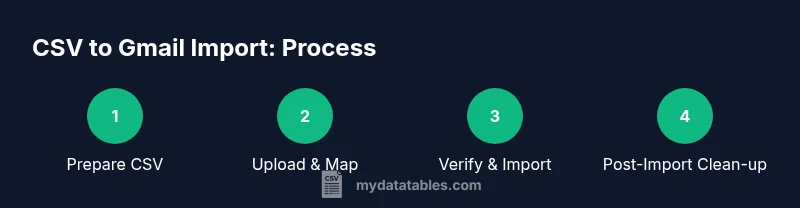
You will import a CSV of contacts into Gmail by preparing a clean, UTF-8 encoded file, aligning header fields with Google Contacts import requirements, and using Gmail’s Contacts import tool to map fields. This step-by-step process minimizes duplicates and ensures essential data (names, emails, and phones) land in the right fields. According to MyDataTables, proper prep is the most important factor for a smooth import.
Preparing Your CSV for Gmail Import
Before you import, ensure your CSV file is ready for Gmail. Start with a clean dataset containing essential fields such as Name, Given Name, Family Name, Email, and optional details like Phone, Address, and Notes. Save the file in UTF-8 encoding to minimize import errors and preserve international characters. According to MyDataTables, encoding and header consistency are frequent causes of failed imports, so verify these basics first. If your source data uses a different delimiter (such as semicolons), convert it to a comma-delimited CSV and re-check any embedded quotes or line breaks that could disrupt parsing. Also, limit the use of special characters in header names to avoid mapping confusion during import.
Understanding Gmail's CSV Format
Gmail (Google Contacts) accepts a specific CSV schema for imports. The header row should reflect recognizable fields such as Name, Given Name, Family Name, Email 1 - Value, Phone 1 - Value, Address 1 - Formatted, and Notes. Gmail will attempt to map these headers to the corresponding contact fields; any deviation can cause data to be misallocated or ignored. If you’re unsure about a header, consult Google’s import guidance or temporarily map to the closest equivalent before final upload. Remember: header names are case-insensitive, but spacing and punctuation matter for mapping.
Cleaning and Standardizing Data
Take time to standardize data formats before import. Normalize names into Given Name and Family Name, ensure all email addresses include a valid structure, and remove duplicate rows. For phone numbers, use a consistent format and a single column (e.g., Phone 1 - Value) to avoid creating multiple entries. Eliminate trailing spaces, unify date formats, and consolidate notes into a single field rather than scattering information across multiple columns. Clean data reduces post-import cleanup and helps you trust the results. MyDataTables emphasizes that a disciplined data hygiene routine pays off when importing large CSV files.
Mapping Fields: What Goes Where
During import, you’ll map each CSV header to a Google Contacts field. Plan your mapping in advance: Email should map to Email 1 - Value, Name or Given Name/Family Name should map to the corresponding fields, and Phone to Phone 1 - Value. If a field is not present in your CSV, Gmail will create an empty field for you. Group related data (address, organization, notes) into their respective columns to maintain a clean structure. If your CSV has custom headers, you can still map them to Google’s fields by selecting the closest match during the import step. This planning minimizes surprises during the upload.
Saving and Testing Your CSV
After cleaning and mapping, save a final copy of the CSV using UTF-8 encoding with a descriptive filename (e.g., contacts_utf8.csv). It’s wise to perform a quick test import with a small subset (e.g., five contacts) to confirm the mapping behaves as expected before importing your entire list. If you encounter errors, re-open the CSV in a text editor to inspect for stray characters, mismatched quotes, or non-printable characters. Testing saves you time and avoids polluting your main contact list.
Step-by-Step: Importing into Google Contacts
Open Google Contacts and choose Import from the left-hand menu. Click Select File and upload your prepared CSV. Google will attempt to parse and display a preview of the contacts; verify that the fields line up correctly with the on-screen mapping. If any field is misaligned, use the available mapping controls to relocate it to the correct Google field. After confirming the mappings, click Import to add the contacts to your account. This flow is straightforward but hinges on solid pre-import preparation.
Mapping During Import: Confirm Field Alignment
During the import, confirm that each CSV header corresponds to a supported Google Contacts field. If Gmail cannot recognize a header, you may need to adjust it in the CSV or use the Import Preview to remap manually. Ensure that Email and Phone fields are in the correct positions to avoid data ending up in the wrong fields. If possible, test with a small batch to validate the mapping before performing a full import. A correct mapping reduces post-import edits.
Handling Duplicates and Errors
Duplicate contacts are a common issue after imports. Use Google Contacts’ built-in duplicate detection features after the import to merge or remove duplicates. If an error occurs during import, read the error message carefully; it often points to a problematic row (bad email format, extra quotes, or a missing required field). Correct the issues in the CSV, re-save, and re-upload only the affected subset. Proper error handling saves time and keeps your contact list clean.
Verify Imported Contacts in Gmail
Open Gmail and navigate to Google Contacts to confirm that the newly imported contacts appear as expected. Check that key fields (Name, Email, Phone) are correctly populated and that no essential information was accidentally omitted. If you need to resize your contact groups, create labels and organize the newly added records accordingly. This final check confirms the end-to-end success of the import.
Advanced Tips: Automation and Scripts
For large or recurring imports, consider automation. Simple scripts can format and validate CSVs, enforce UTF-8 encoding, and generate a clean header row compatible with Google Contacts. Tools like Python's csv module or Google Apps Script can help standardize your data pipeline. Automation reduces manual steps and ensures consistency across import cycles. MyDataTables recommends building repeatable workflows to minimize human error and speed up delivery.
Post-Import Organization and Verification
After a successful import, organize your contacts by creating groups or labels, updating missing information, and setting up default contact fields for easier future imports. Periodic maintenance—such as removing duplicates, updating stale addresses, and archiving inactive contacts—keeps your Gmail address book healthy. A well-maintained contact base improves outreach efficiency and reduces bounce rates in communications. MyDataTables Team emphasizes ongoing data hygiene as part of best practices.
Alternatives and Next Steps
If the standard Gmail import workflow doesn’t fit your needs, consider exporting to and from Google Sheets or using third-party CSV tools that offer more granular field control. For larger organizations, look into Google Workspace admin tools that provide centralized contact management. Regardless of the method, ensure encoding, header consistency, and data hygiene remain a priority. This approach gives you reliable imports and clean, usable contacts over time.
Tools & Materials
- CSV file of contacts(Ensure headers match Gmail import format (Name, Given Name, Family Name, Email 1 - Value, etc.).)
- Text editor (e.g., Notepad++, VSCode)(Use for quick header checks and edits.)
- Spreadsheet program (optional)(Helpful for data cleaning and previewing column alignment.)
- Web browser with Gmail access(You’ll import via Google Contacts in the browser.)
- UTF-8 encoding verifier (optional)(Helpful to confirm encoding before import.)
Steps
Estimated time: 25-40 minutes
- 1
Prepare CSV with clean headers
Open your source data and ensure there are clear headers like Given Name, Family Name, Email 1 - Value, Phone 1 - Value, and Notes. Remove duplicates and ensure UTF-8 encoding. This step reduces mapping errors later.
Tip: Keep headers simple and consistent across rows; avoid merged cells in the header row. - 2
Standardize name fields
Split full names into Given Name and Family Name fields if needed. Consistent name formatting improves sorting and display in Google Contacts.
Tip: If a contact lacks a Given Name, place the available name in the Name column to avoid missing fields. - 3
Verify and normalize emails
Check that each Email 1 - Value is a valid address format. Remove trailing spaces and duplicates within the CSV. Invalid emails will cause an import error.
Tip: Use a quick data-cleaning rule to trim spaces and lowercase all emails for consistency. - 4
Save as UTF-8 CSV
Export or save the file in UTF-8 encoding with a clear filename. This guarantees compatibility with Google Contacts and preserves special characters.
Tip: Avoid BOM for broad compatibility unless your editor requires it. - 5
Open Google Contacts Import
In your Google account, navigate to Contacts and choose Import from the left menu. This is where you’ll upload your CSV for processing.
Tip: If you don’t see Import, switch to a modern browser or ensure you’re signed in to the correct Google account. - 6
Upload and preview
Click Select File and upload your UTF-8 CSV. Review the preview to confirm mappings align with Google’s fields before importing.
Tip: If a header isn’t recognized, adjust it in the CSV and re-upload for accuracy. - 7
Map fields and import
Use the interface to map CSV headers to Google Contacts fields. Then click Import to add contacts to your account.
Tip: Double-check that Email is mapped to Email 1 - Value and that Phone maps correctly to Phone 1 - Value. - 8
Check for duplicates
After import, use Google Contacts’ duplicate detection to merge or remove duplicates to keep your list clean.
Tip: Run a quick audit by filtering on Email to spot accidental duplicates. - 9
Verify in Gmail and organize
Open Gmail to confirm the new contacts appear, then add labels or groups for easier future management.
Tip: Label new imports as 'Imported 2026' to distinguish them from existing contacts.
People Also Ask
Can I import contacts directly from Google Sheets to Gmail?
Yes, you can export from Google Sheets as CSV using the File > Download option, then import that CSV into Google Contacts. You may need to adjust headers to match Gmail’s expected fields before importing.
Yes, you can export CSV from Sheets and import it into Google Contacts after aligning the headers.
What encoding should my CSV be in for Gmail import?
Use UTF-8 encoding to preserve special characters and prevent garbled text. Encoding issues are a common cause of import failures, especially with non-English names.
UTF-8 encoding helps avoid garbled characters during import.
What if some emails don’t import correctly?
Check the error message from Google Contacts, fix the problematic rows in your CSV, and re-upload the affected portion. Common causes include invalid emails or extra quotes.
Review errors, fix the rows, and re-import the affected rows.
Do I need to remove duplicates before importing?
Removing duplicates before import reduces clutter, but Google Contacts also offers a deduplication feature after import. Consider cleaning first if the list is large.
You can deduplicate after importing or clean first to reduce duplicates.
Can I update existing contacts with an import?
Importing will create new contacts or update based on matching email addresses. If you need strict updates, enable the deduplication and review the results after import.
Imports can create or update contacts when emails match.
What fields are required for a successful import?
At minimum, an Email address is typically required to import, along with consistent name fields. Including Given Name and Family Name helps display names correctly.
Email is essential; names improve display and search.
Watch Video
Main Points
- Prepare a clean, UTF-8 CSV with standard headers.
- Map fields carefully to Google Contacts during import.
- Test with a small batch and fix issues before full import.
- Verify duplicates and organize after import.
- Maintain ongoing hygiene with periodic checks.