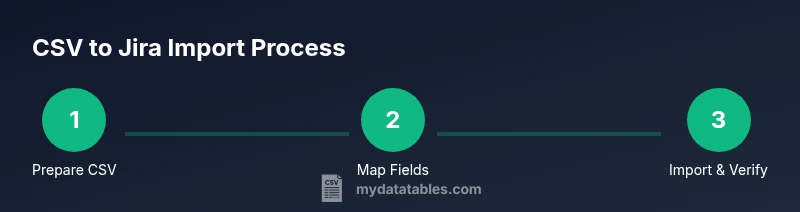
Import CSV to Jira: A Practical How-To Guide for Imports
Learn how to import CSV data into Jira to bulk-create or update issues. This comprehensive, step-by-step guide covers preparation, field mapping, validation, and best practices from MyDataTables.


In this guide you will learn how to import a CSV file into Jira to bulk-create or update issues. We cover preparing CSVs, mapping fields, using the Jira Import Wizard, and common pitfalls. This quick answer outlines prerequisites, such as field schemas, file encoding, and permission requirements. By following the steps, you can set up a reliable, auditable import process.
import csv jira: Understanding the workflow
In practice, the import csv jira workflow lets you bulk-create and bulk-update Jira issues from a CSV file. By starting with a clean CSV and a mapped plan, teams can migrate data with fewer errors and more auditability. According to MyDataTables, initiating the process with defined field mappings and validation rules dramatically reduces post-import cleanup. This article walks through prerequisites, best practices, and a clear step-by-step path so you can move data into Jira with confidence.
Prerequisites and planning
Before you begin, confirm you have access to the Jira instance and the target project, plus the right permissions to run an import. Assemble a small, representative CSV sample that uses your intended field names, and prepare a mapping plan that shows which CSV columns correspond to Jira fields. MyDataTables's guidance emphasizes data hygiene, a backup, and a test project for validation. Also verify that your CSV encoding is UTF-8 and that dates, users, and statuses follow Jira's expected formats.
Preparing your CSV for Jira import
Your CSV should have a header row with clear, Jira-friendly field names (for example: Summary, Description, Issue Type, Priority, Assignee, Labels, Customfield_10010). Remove problematic characters and ensure consistent date formats. Normalize user names to Jira accounts or use account IDs, and decide how to represent multi-value fields like labels. Always save a backup copy before you start and keep a separate “mapping” sheet that records how each CSV column maps to a Jira field.
Using Jira's Import Wizard
Open Jira and navigate to the External System Import wizard (or Import CSV, depending on your version). Upload your CSV file and let Jira parse sample rows. Review the sample data to catch obvious mismatches early. If your instance supports a validation step, run it first to catch field-mapping or type-errors before committing changes.
Mapping fields and dealing with custom fields
During the mapping screen, connect each CSV column to a Jira field. Standard fields like Summary and Description map directly, while custom fields require the exact field name or ID (for example, customfield_10001). If a required field is missing for some rows, decide whether to fill a default value or skip those rows. For users and dates, ensure you choose the correct user picker and date format.
Validation, testing, and common pitfalls
Always run a dry run on a non-production project to validate the import logic. Validate that issues appear with correct types, priorities, and field values. Watch for common issues like mismatched field names, missing required fields, or date parsing errors. Save a log of errors and adjust your CSV or mapping accordingly.
Best practices and tips
- Keep a versioned CSV template and a mapping sheet for every project.
- Encode as UTF-8 without BOM if possible and avoid unusual characters.
- Use a small test import to confirm mappings before a full import.
- Back up Jira data before importing large datasets.
- Document the final mapping so future imports stay consistent.
Next steps and post-import actions
After a successful import, validate a few randomly selected issues in Jira, check that linked fields and workflows behave as expected, and adjust any screen schemes or issue types as needed. If you imported into a new project, consider reindexing to ensure search results reflect the new data. Update your mapping documentation for future imports.
Tools & Materials
- CSV file(UTF-8 encoding recommended; comma-delimited by default)
- Jira instance with appropriate permissions(Admin or Import role; access to the target project)
- Sample data mapping sheet(Template mapping CSV columns to Jira fields)
- Backup/export of existing Jira data(Create a project-level backup before bulk import)
- Test project or sandbox(Use for validation and dry runs)
- UTF-8 BOM awareness(Save without BOM if issues arise)
Steps
Estimated time: 60-120 minutes
- 1
Prepare CSV
Ensure UTF-8 encoding, a clear header row with Jira-friendly field names, and consistent data types. Create a backup and a small representative sample for initial testing. Validate that required fields are present and date formats match Jira expectations.
Tip: Tip: Include a header row that maps directly to Jira fields to minimize later mismatches. - 2
Identify required fields
List the Jira fields you plan to populate (e.g., Summary, Description, Issue Type, Priority, Assignee). Decide sensible defaults for optional fields and document any field-specific rules.
Tip: Tip: Create a mapping table that shows CSV columns to Jira fields and any default values. - 3
Open Jira Import Wizard
Navigate to Jira's Import Wizard (External System Import or CSV Import depending on version) and start a new import task. Confirm you are in the correct project and instance.
Tip: Tip: If a validation step exists, enable it to catch errors before committing. - 4
Upload CSV and preview
Upload your CSV file and allow Jira to parse a sample. Inspect the sample rows for alignment with expected field types and values. Correct any obvious mismatches in the CSV or mapping.
Tip: Tip: Use the sample view to verify that the headers align with Jira fields. - 5
Map fields to Jira fields
Match each CSV column to a Jira field, using exact field names or IDs for custom fields. Ensure required fields are always populated and apply any default values where appropriate.
Tip: Tip: For custom fields, record the exact field name or ID (e.g., customfield_10001). - 6
Configure project and issue types
Select the target project and default issue type. If your project uses specific screens or workflows, align them in the import configuration to avoid post-import edits.
Tip: Tip: Align field defaults with the project’s workflow to reduce edits after import. - 7
Run a test import
If allowed, perform a test import in a sandbox project or enable a validation mode. Review the imported issues for accuracy and adjust mappings as needed.
Tip: Tip: Treat the test import as the most important quality gate before the full run. - 8
Review test results and fix errors
Analyze any errors reported by the import tool. Correct the CSV or the field mappings and re-run the test until it passes.
Tip: Tip: Maintain a log of errors and fixes to guide future imports. - 9
Execute final import and verify
Run the full import on the target project. After completion, verify a representative sample of issues, validate links, and confirm security and permissions. Document the process for future imports.
Tip: Tip: Schedule post-import checks to catch issues that surface only after indexing.
People Also Ask
Can I import CSV into Jira without admin rights?
Most Jira import features require at least project editing permissions and access to the import tool. If you lack those, coordinate with an admin to perform the import or request temporary access. Always test in a staging project first.
You usually need admin or project-level import access. If you don’t have it, ask an admin to run the import or set up a test in a staging project.
What encoding should my CSV be?
Use UTF-8 encoding to maximize compatibility, and avoid BOM if you encounter parsing issues. Ensure all date and user fields conform to Jira's expected formats.
UTF-8 encoding is recommended, and avoid BOM if there are parsing issues.
How do I map fields for custom fields?
Custom fields require exact field names or IDs, such as customfield_10001. Include these in your mapping sheet and verify that required custom fields are populated.
You’ll map custom fields by their exact IDs, like customfield_10001, ensuring they’re included in the import mapping.
Is there a dry-run or validation step?
Many Jira versions offer a validation or test-import step. Use it to catch mapping or data-type errors before committing to the production project.
Use a validation step if available to catch errors before the real import.
What should I do about duplicates?
Plan a dedup strategy using unique keys (like summary + project + issue type) and decide whether to create new issues or update existing ones. Avoid accidental overwrites.
Define a dedup rule before importing to prevent duplicates or unwanted updates.
How long does it take to import a large CSV?
Import duration depends on CSV size, field complexity, and Jira performance. Run tests with a smaller subset first to estimate time and resource impact.
It varies; start with a small test and scale up to gauge time and impact.
Watch Video
Main Points
- Map CSV fields carefully to Jira fields.
- Validate the import in a test project first.
- Back up data before large imports.
- Document the final field mappings for future imports.