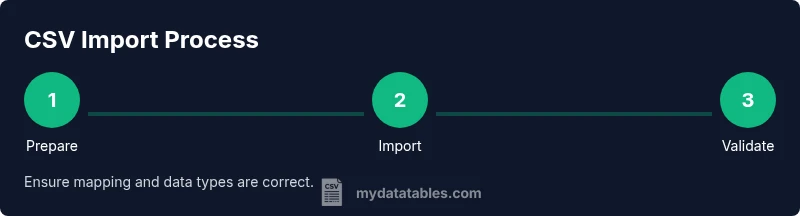
Import Data from CSV: A Practical Step-by-Step Guide
Master importing data from CSV with MyDataTables. This guide covers formats, encodings, header validation, and practical checks to ensure clean imports into spreadsheets, BI tools, and databases.


You will learn how to import data from CSV into your analytics workflow with confidence, handling common formats and encodings, validating headers, and resolving typical import errors across popular tools. By following these steps you will streamline CSV imports, avoid encoding pitfalls, and ensure your data lands cleanly in spreadsheets, BI dashboards, or databases. You'll learn how to choose the right delimiter, preview data types, and set up repeatable import routines that save time for data teams.
Why CSV import matters in data workflows
CSV (comma-separated values) files are a universal, lightweight format for exchanging tabular data. They’re easy to create, human-readable, and supported by nearly every data tool—from spreadsheets to databases to BI platforms. For data analysts, developers, and business users, importing CSV data is often the first step in any analysis workflow. A reliable import process saves time, reduces errors, and accelerates downstream tasks like transformation, validation, and visualization. In the context of MyDataTables, the goal is to make this routine predictable so you can focus on insights rather than data wrangling. As you work through this guide, you’ll see practical checklists, examples, and best practices you can apply immediately in your daily projects.
Key takeaways
- CSV is ubiquitous and easy to share across environments.
- A robust import process minimizes data loss and misinterpretation.
- Encoding, delimiters, and header mapping are common sources of import errors.
- Validation and repeatable templates save time on future imports.
Understanding common CSV formats and encodings
CSV is not a single standard; it varies by delimiter, text encoding, and quoting rules. The most common delimiter is a comma, but many regions use semicolons or tabs. UTF-8 is the safest default encoding, but you may encounter UTF-16 or legacy encodings in older datasets. BOM (byte order mark) can affect how software reads the file, especially on Windows. When you import, you should specify the correct delimiter and encoding, and you may need to remove or normalize problematic characters. Knowing these nuances helps you avoid subtle data shifts—like numbers being read as strings or dates misparsed due to locale differences. MyDataTables emphasizes validating encoding early to prevent downstream issues.
Preparing your CSV for import
Before you import, take a few preparatory steps to improve accuracy:
- Ensure the first row contains headers that clearly describe each column.
- Review sample rows to confirm consistent data types (numbers, dates, categories).
- Normalize missing values (empty cells vs. explicit placeholders) to avoid misalignment.
- Check for stray delimiters inside fields and ensure correct quoting rules are applied.
- Confirm the file uses a single consistent delimiter throughout. A clean CSV reduces post-import cleaning work and speeds up automation.
Choosing the right tool for your import task
Your choice of tool shapes the import experience. Spreadsheet apps like Excel or Google Sheets are convenient for quick analyses and small datasets. For larger datasets or repeated tasks, documenting an import in a database, data warehouse, or ETL pipeline ensures consistency. Programming languages such as Python (pandas), R, or SQL-based loaders offer repeatable, auditable imports. MyDataTables recommends starting with the simplest tool that meets your needs, then scaling up to automation as data volumes grow. Always verify support for the file’s encoding and delimiter in your chosen environment.
Step-by-step: import data into a spreadsheet app
- Open your spreadsheet application and locate the Import or Open CSV option. This initializes the import dialog where you can configure how the file is read. Why: early configuration prevents misreads.
- Select the CSV file and choose the correct encoding (prefer UTF-8) and delimiter (commonly a comma). Why: wrong encoding or delimiter can corrupt data types.
- Review the data preview to confirm headers map to columns correctly and that values appear in the expected formats. Why: visual validation catches issues before they enter the worksheet.
- Finish the import and perform a quick spot-check on several rows, ensuring that numeric fields are numeric and dates align with your locale. Why: post-import validation saves time downstream.
- Save a reusable import template or create a small script to reproduce the import in future analyses. Why: automation reduces manual steps and errors.
Data validation and quick checks after import
After importing, run quick checks to validate data integrity. Confirm row counts match the source file (or expected subset), inspect a sample of rows across different columns, and validate critical fields (IDs, dates, numeric values). For automated environments, run a lightweight data quality pass: verify null-handling rules, ensure no unexpected type conversions occurred, and log any anomalies for review. A disciplined validation routine helps catch issues early, especially when data sources are updated regularly.
Handling errors and common pitfalls
Common issues include mismatched headers, incorrect delimiters, and encoding problems. If the first row isn’t recognized as headers, you may need to specify that headers exist or adjust the import layout. Delimiters can silently split fields if not set correctly, producing spurious columns. Some tools inject quotes automatically; ensure quotes are handled consistently to preserve data integrity. When in doubt, start with a small sample file to isolate the error and gradually scale up to the full dataset.
Automation and repeatability: saving time with templates
Create templates for repeated CSV imports to standardize how you bring data into your environment. Save delimiter, encoding, and header mapping settings as a named import profile. Pair templates with simple validation checks to catch issues automatically. If you work with multiple data sources, consider a lightweight ETL workflow that orchestrates sources, transformations, and loads. Over time, these practices build trust that your CSV data lands where it should, ready for analysis.
Tools & Materials
- CSV file(Source file with clearly defined header row)
- Spreadsheet or data platform(Excel, Google Sheets, SQL client, or BI tool)
- Text editor or viewer(Helpful for inspecting headers or edge cases)
- Encoding-aware importer(Prefer UTF-8; handle BOM if present)
- Delimiter awareness(Know whether the file uses comma, semicolon, or tab)
Steps
Estimated time: 15-30 minutes
- 1
Open the import dialog
Launch your target tool and navigate to the import function. This first step determines which configuration options you'll control next. Make sure you’re starting from the correct project or dataset to avoid confusion later.
Tip: If you can’t find the import option, check the menu for 'Data' or 'File' -> 'Import'. - 2
Select the CSV file
Browse to the CSV file you want to import and select it. Ensure the file is the correct version and located in a known directory to prevent accidental loading of an old copy.
Tip: Keep a record of the source path in your import plan for reproducibility. - 3
Configure encoding and delimiter
Choose UTF-8 as the encoding when possible and set the correct delimiter (comma, semicolon, or tab). The right settings prevent data corruption and misparsed fields.
Tip: If you’re unsure about the delimiter, run a quick preview with different options to identify the one that aligns with the data. - 4
Map headers to fields
Review how each CSV header maps to your destination’s fields. Adjust any mismatches and consider renaming headers if needed for clarity in your downstream processes.
Tip: Keep header names consistent across datasets to ease future joins and transformations. - 5
Preview and finish
Look at the data preview to confirm types and values. If everything looks correct, complete the import and perform a quick validation pass on a sample of rows.
Tip: Disable any automatic type inference if you need explicit control over data types.
People Also Ask
What is CSV and why is it so common?
CSV is a simple text format for tabular data. It’s widely supported because it’s human-readable and easy to generate, making imports across apps straightforward.
CSV is a simple format for tabular data that many tools understand; it’s common because it’s easy to generate and read.
How do I handle different text encodings when importing?
Always start with UTF-8 if possible. If you encounter characters that don’t render correctly, check for BOM and confirm the source encoding before re-importing.
Try UTF-8 first, and verify the source encoding if you see odd characters.
What if headers don’t match fields in my destination?
Adjust the field mapping during the import. If needed, rename headers to align with destination fields or create a mapping table for consistency.
Map headers to the correct fields during import; rename if necessary to match your destination.
Can I import into Excel and Google Sheets the same way?
The high-level steps are similar, but each tool has its own import dialog and settings. Always review the preview and adjust delimiters as needed.
Excel and Sheets share import concepts, but check each tool’s specific settings and preview the data.
What are common import errors and how can I fix them?
Common issues include wrong delimiter, mismatched headers, and encoding problems. Resolve by rechecking settings, re-importing a small sample, and validating data types.
Delimiter, header, or encoding problems are the usual culprits; fix by rechecking settings and re-importing a sample.
Watch Video
Main Points
- Master the import process to reduce downstream data issues.
- Always validate encoding, delimiter, and headers before loading.
- Document and template your imports for repeatability.