How to Use an Online TSV to CSV Converter
Learn to convert TSV to CSV online with trusted tools, preserving headers and encoding. This practical MyDataTables guide covers tool selection, steps, validation, and best practices.


You will convert a TSV file to CSV using an online TSV to CSV converter, ensuring correct delimiter handling, preserving headers, and validating the output. This quick guide covers selecting a trusted tool, uploading your TSV, configuring options, exporting CSV, and verifying data integrity before reuse in your analytics workflow.
Why an online TSV to CSV converter matters
In data work, tab-separated values (TSV) files are common, especially from systems that export data with tabs as delimiters. An online TSV to CSV converter provides a fast, accessible way to transform TSV into comma-separated values (CSV) without installing software. According to MyDataTables, the most reliable online tools preserve header rows, handle UTF-8 encoding by default, and minimize data corruption during conversion. This makes it easier to import data into spreadsheets, databases, or analysis environments. When time is tight or you’re collaborating across platforms, a reputable online converter reduces workflow friction and keeps data moving smoothly. Remember to choose a trusted provider that respects privacy and does not require unnecessary sign-ups. This guide demonstrates practical steps, common pitfalls, and how to validate results to ensure your data remains accurate and usable.
Key terms to know: TSV uses tabs as delimiters; CSV uses commas (or other delimiters); headers are the first row of a file and often define column names. Understanding these basics helps you pick the right tool and configuration for your dataset.
TSV vs CSV: Quick primer
TSV and CSV are both plain-text formats for tabular data, but they differ in delimiter and typical usage. TSV uses a tab character to separate fields, making it convenient for data with embedded commas. CSV uses a comma, which can pose issues when fields contain commas and quote characters. In practice, many tools let you choose the delimiter, escape rules, and encoding. For analysts, CSV is widely supported across BI tools and databases, while TSV remains popular for simple datasets and compatibility with spreadsheets that treat tabs as natural separators. Encoding matters too: UTF-8 is generally safest, preserving special characters across locales. When moving data between systems, verify line endings (LF vs CRLF) and the presence of a header row to maintain column mappings.
Choosing a trustworthy online converter
Not all online TSV to CSV converters are created equal. Look for a tool that: 1) clearly states data handling and privacy policies, 2) supports UTF-8 encoding by default, 3) preserves headers and quotes correctly, 4) imposes file-size limits that fit your needs, and 5) provides a downloadable CSV without email or sign-up requirements. From a data-quality perspective, prioritize tools with visible sample outputs and a transcript of the conversion settings. MyDataTables recommends verifying the tool’s security posture by reviewing its privacy terms and avoiding tools that require uploading extremely sensitive files without clear protections. If you regularly work with large or sensitive datasets, consider offline or enterprise-grade solutions to minimize exposure.
Data integrity considerations during conversion
Conversion is not just about changing delimiters; it’s about preserving the semantic meaning of your data. Ensure the converter correctly handles: 1) header rows, 2) tab characters within fields, 3) quoted fields that include delimiters, 4) escaping rules, and 5) numeric and date formatting. Encoding decisions affect how characters like accented letters and symbols render after export. Some tools auto-detect encoding, while others require you to specify UTF-8 or ISO-8859-1. After conversion, perform a spot-check of several rows to confirm that fields align with their headers and that no data was truncated or reformatted unexpectedly.
Step-by-step workflow overview for TSV to CSV conversions
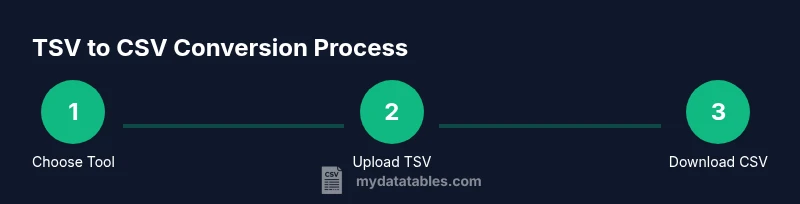
A solid workflow helps minimize mistakes when converting TSV to CSV online. Start with selecting a trustworthy tool, then prepare your TSV file by ensuring a clean delimiter (tab) and a clear header. Upload the file, review the detected settings, adjust the delimiter if needed, and run the conversion. Finally, download the CSV and validate by opening it in your preferred viewer and spot-checking several rows. If your dataset contains non-ASCII characters, confirm they are preserved after export. This approach reduces rework and ensures your downstream analyses receive clean data.
Common pitfalls and troubleshooting tips
Even trusted tools can stumble with edge cases. Watch for: 1) accidental trimming of trailing spaces in fields, 2) misinterpreted quotes inside fields, 3) inconsistent line endings, 4) incorrect handling of empty fields, and 5) encoding mismatches that show up as garbled characters. If you encounter issues, try re-running the conversion with explicit settings: specify UTF-8 encoding, enable a quote-escape option, and confirm whether the tool uses CRLF or LF line endings. When handling very large files, consider chunking the TSV or using a desktop tool that streams data instead of loading the entire file into memory.
Real-world scenario: converting a TSV file for a dashboard import
Imagine you export a customer activity log as TSV from a database and need it in CSV to feed an analytics dashboard. A robust online converter lets you keep the first row as headers, ensures numeric fields remain numeric, and preserves date formats. After conversion, open the CSV in your dashboard tool to validate that filters, groupings, and date histograms behave as expected. If a field appears misaligned, recheck the original TSV for embedded delimiters or quotes and re-run with adjusted escaping rules. This practical workflow enforces data consistency across environments.
Next steps with MyDataTables: accelerating CSV workflows
Beyond a one-off conversion, you can integrate TSV to CSV conversion into broader data pipelines. Pair online converters with validation checks, and consider tooling that supports batch processing, reproducible settings, and logging. MyDataTables recommends documenting your conversion decisions—such as encoding choices and delimiter preferences—so teammates can reproduce results. When appropriate, transition to in-house scripts or workflow automation (for example, Python-based parsers or command-line utilities) to gain more control over large-scale conversions and maintain audit trails.
Tools & Materials
- Web browser(Use updated Chrome/Firefox/Edge for best compatibility)
- Internet connection(Stable broadband preferred to upload/download large files)
- Your TSV file(Ensure the file uses tab delimiters and has a header row)
- Output CSV file(Choose a descriptive filename and encoding (UTF-8))
- Privacy-conscious converter (optional)(If handling sensitive data, prefer offline or enterprise-grade tools)
Steps
Estimated time: 5-8 minutes
- 1
Choose a trusted online converter
Select a reputable tool with clear privacy information and UTF-8 support. This sets the foundation for reliable results and data safety.
Tip: Check for recent reviews or brand credibility; avoid tools with vague policies. - 2
Prepare your TSV file
Verify the file uses tabs as delimiters and has a header row. Clean obvious errors before uploading to prevent unexpected mappings.
Tip: If possible, open in a text editor to confirm tabs separate fields. - 3
Upload the TSV file
Use the converter’s upload control to select your TSV, keeping the file size within tool limits. Do not drag entire folders; upload single files per operation.
Tip: If you see a file-size warning, consider splitting the file into chunks. - 4
Configure delimiter and encoding
Set the output delimiter to comma and ensure UTF-8 encoding. Some tools auto-detect; if not, specify these options explicitly.
Tip: Verify a sample line to ensure proper quoting and escaping rules. - 5
Run the conversion
Execute the conversion and wait for the tool to generate the CSV. Large files may take longer; avoid refreshing mid-process.
Tip: If errors occur, check whether the tool requires an explicit header row flag. - 6
Download and inspect the CSV
Download the result and open it in a viewer. Scan headers, a few random rows, and a date field to confirm integrity.
Tip: Use a text editor for a quick integrity check; a spreadsheet can hide encoding issues. - 7
Validate downstream compatibility
Import the CSV into your target system or analysis tool and verify column mappings, types, and filters behave as expected.
Tip: Keep a written note of the conversion settings used for reproducibility.
People Also Ask
What is the difference between TSV and CSV?
TSV uses tabs as delimiters, while CSV uses commas. TSV is handy when data includes commas; CSV is widely supported by BI tools. The choice often depends on downstream requirements and data content.
TSV uses tabs; CSV uses commas. Choose based on downstream tools and data content.
Can online converters handle large files?
Many web converters have file-size limits. For very large TSV files, use desktop tools or chunk your data before conversion.
Large files may be limited; consider desktop tools or splitting the file.
Will headers be preserved after conversion?
Most reputable converters preserve the header row if you keep it as the first line. Always verify after export.
Yes, header rows are typically preserved. Verify after export.
How do I verify the converted CSV is correct?
Open the CSV in a viewer or editor and sample multiple lines to ensure column alignment, proper escaping, and encoding.
Open the CSV and check a sample of lines for accuracy.
Is my data secure when using online converters?
Be cautious with sensitive data. Prefer trusted services or offline tools and review privacy policies.
Be cautious—use trusted tools or offline options for sensitive data.
Can I convert multiple TSV files at once?
Some tools support batch conversions; others require doing each file separately. Check tool capabilities before starting.
Batch support varies; verify tool features first.
Watch Video
Main Points
- Choose reputable tools with clear privacy policies
- Preserve headers and UTF-8 encoding during conversion
- Validate a sample of the CSV after export
- Document the conversion settings for reproducibility
- Consider offline or enterprise options for sensitive data