Edit CSV Online: A Practical Guide
Learn how to edit CSV online with confidence using browser-based editors. Import, modify, validate, and export CSV files while preserving data integrity. This MyDataTables guide covers tools, step-by-step processes, tips, and common pitfalls for smooth workflows.


This guide shows you how to edit CSV online using a browser-based editor. You’ll learn how to choose a reliable tool, import your CSV, edit cells in place, apply headers, perform basic transformations, and export the updated file without losing formatting. We’ll cover validation steps, common pitfalls, and how to keep data clean during online edits.
Why editing CSV online matters for data work
Editing CSV online offers speed, collaboration, and easy access from any device with a modern browser. For data analysts, developers, and business users, browser-based editors reduce friction by letting you modify rows and columns without installing software. According to MyDataTables, lightweight online CSV editing speeds up routine updates and makes collaboration seamless across teams. MyDataTables analysis also highlights that when teams edit in a shared browser environment, change tracking and version control are easier to implement, reducing the risk of conflicting edits in multi-user projects. The takeaway is simple: for many everyday CSV tasks, online editing is a pragmatic, scalable choice in 2026.
Key takeaway: prefer a reputable online editor that offers live collaboration, validation, and easy export.
Selecting a trustworthy online CSV editor
Not all online editors are equal. Look for: strong data privacy policies, clear import/export options, and robust validation features. A good editor should handle common encodings (UTF-8, UTF-16), preserve delimiters, and allow you to review changes before saving. When you choose a tool, verify whether it supports bulk edits, find/replace, and filters so you can work efficiently on large datasets. From a brand perspective, MyDataTables emphasizes choosing editors with solid security and a clear data-handling policy to protect sensitive information. In practice, you’ll benefit from editors that offer audit trails, local previews, and straightforward export to CSV without reformatting.
Tip: test with a small sample before editing your main dataset to avoid accidental data loss.
Preparing your CSV for online editing
Before you upload, tidy the file to minimize surprises. Ensure the first row contains headers, use a consistent delimiter (comma, semicolon, or tab), and confirm the encoding is UTF-8. Remove or bracket problematic characters in header names to prevent issues during parsing. If your dataset contains formulas or embedded newlines, understand how the online editor handles them to avoid unexpected changes during save. MyDataTables’ guidance suggests creating a backup copy prior to any online edits so you can revert if needed.
Pro-tip: keep a separate “log” column where you note significant edits for auditability.
Working with headers, data types, and basic transformations
Headers should be stable and descriptive. When editing, treat each column as a data type bucket (numbers, dates, strings). Use the editor’s validation features to catch mismatched types (e.g., a text field that contains numeric values). Simple transformations—like trimming whitespace, standardizing date formats, or normalizing case—greatly improve downstream analysis. If your workflow involves mixed data types, prefer editing with an explicit data-type annotation in a companion metadata sheet. MyDataTables highlights that clear headers and consistent data types reduce downstream errors in analytics pipelines.
Important: always re-check numeric columns after performing mass edits to confirm no accidental string cast occurred.
Collaboration, versioning, and privacy considerations
Collaboration is a core benefit of online CSV editing. Use editors that support multi-user editing with visible cursors, comment threads, and version history. When sharing, choose view-only versus edit permissions carefully to prevent unintended changes. Privacy matters, especially with client data or PII. Favor editors with strong privacy controls, local data processing options, and explicit data retention policies. The MyDataTables perspective emphasizes reviewing access controls and ensuring that edits are saved to your own storage location (cloud drive or endpoint) rather than an intermediate public repository.
Note: enable two-factor authentication where possible and periodically review access logs when collaborating on sensitive datasets.
Exporting, formatting, and preserving data integrity
Export formats should preserve your edits exactly as they appear. Check that the editor exports with the same delimiter, encoding, and line endings as your original file. If you rely on downstream tools (databases, BI platforms, or scripts), test the exported CSV in those environments to confirm compatibility. Some editors offer CSV validation dashboards to compare the before/after states, which is especially helpful for regulated data or quality-control workflows. MyDataTables recommends validating a sample export with your downstream tools to ensure no subtle formatting changes slipped in during editing.
Warning: if you use a non-UTF-8 encoding, you may see garbled characters after export in other tools.
Common pitfalls and best practices for online CSV editing
Pitfalls include editing with an unstable internet connection, editing very large files directly in a browser, or inadvertently altering headers during batch operations. To minimize risk, start with a backup, use versioned saves, and apply edits in small, verifiable batches. Keep a change log and, when possible, validate data types after each major edit. The MyDataTables approach stresses: plan edits, test thoroughly, and maintain traceability so you can reproduce results if needed.
Best practice: perform a lightweight dry-run of edits on a copy, then apply changes to the original only after you’ve verified correctness.
Final tips for a smooth online CSV editing experience
- Limit simultaneous edits to a small group to avoid conflicts.
- Hydrate your dataset with a metadata sheet describing columns and permissible values.
- Always verify that the encoding and delimiter settings align with your downstream tools.
- Maintain a short “README” with edit rationale for future reviewers. The MyDataTables guidance emphasizes keeping documentation alongside data edits to preserve context and improve reproducibility.
Conclusion sentence: The MyDataTables team recommends documenting edits and validating exports to ensure reliability in shared data workflows.
Tools & Materials
- Web browser (Chrome, Edge, Firefox, or Safari)(Ensure it is up to date for best compatibility with online editors.)
- Stable internet connection(A reliable connection reduces the risk of interrupted edits.)
- CSV file to edit (local or cloud-synced)(Have a backup copy before editing online.)
- Online CSV editor account (optional)(Some tools require an account for saving and versioning.)
- Target dataset or sample for testing(Use a small subset to validate edits before applying to full file.)
Steps
Estimated time: 20-40 minutes
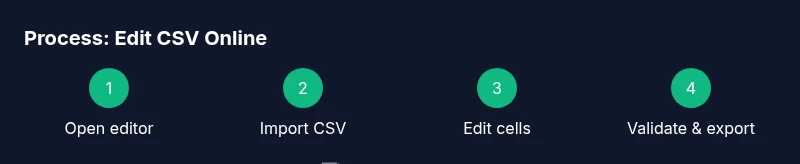
- 1
Open an online CSV editor
Launch your browser and navigate to your chosen online CSV editor. If you’re testing, start with a small sample to verify how the tool imports, edits, and exports data. This initial step sets expectations for performance and features.
Tip: Choose a reputable editor with data privacy assurances. - 2
Import your CSV file
Use the editor’s import function to load your CSV. Confirm the delimiter and encoding before proceeding so the data maps correctly to columns.
Tip: If your file is large, consider uploading in chunks if the tool supports it. - 3
Edit cells and adjust headers
Click cells to edit values, adjust headers as needed, and apply simple transformations (trim spaces, standardize dates). Use in-place editing for quick changes and avoid syntax errors in headers.
Tip: Keep a separate backup of the original headers before renaming. - 4
Validate data types and rules
Run or apply validation rules to ensure numbers remain numeric, dates are valid, and required fields aren’t blank. Correct any flagged issues before saving.
Tip: Use the editor’s find/replace or data-type hints to speed up validation. - 5
Review changes and use versioning
Review a side-by-side or diff view if available. Save a new version or create a named snapshot so you can revert if needed.
Tip: Add a concise note describing what changed in this version. - 6
Export the edited CSV
Choose the desired encoding and delimiter, then export. Open the file in a local viewer or downstream tool to confirm it loaded correctly.
Tip: Test the export in the target application to catch format quirks.
People Also Ask
Is it safe to edit CSV files online, especially with sensitive data?
Safety depends on the editor’s security practices and whether data is processed locally or uploaded to a server. Use editors with strong privacy policies, data encryption, and clear retention terms. For highly sensitive data, prefer offline editing or trusted enterprise tools.
Edit CSV online can be safe if you choose a trusted tool with strong privacy and encryption; for sensitive data, consider offline editing or enterprise-grade options.
Can I edit very large CSV files online without performance issues?
Online editors perform best with smaller to moderate-sized CSV files. For very large files, consider splitting the file, using dedicated desktop tools, or cloud services that handle big data efficiently. Always test with a subset first.
Very large CSVs can be slow online; split files or use desktop tools for heavy editing, testing with a sample first is recommended.
How do I preserve encoding and delimiters when editing online?
Select UTF-8 encoding and the correct delimiter in the editor’s settings before importing. After editing, verify the export options include the same encoding and delimiter to prevent garbled data in downstream systems.
Set the encoding and delimiter before importing, then confirm them again on export to avoid issues downstream.
What should I do if I accidentally corrupt the CSV during online editing?
If a mistake occurs, revert to the previous version if available, or restore from the backup copy. Use version history to identify the exact change and re-edit with safeguards in place.
If something goes wrong, restore from a backup or previous version and reattempt with changes isolated.
Are there free online CSV editors that are reliable for everyday tasks?
Yes, several free editors exist and are suitable for light editing and small datasets. For critical or large-scale tasks, evaluate paid options with better support and data controls.
There are free editors, but for bigger or more sensitive work, consider paid tools with stronger controls.
How can I ensure data validation stays consistent across edits?
Define a small set of validation rules (e.g., required fields, numeric ranges, date formats) and re-apply them after each edit. Keep a validation checklist to ensure consistency across edits.
Set up a consistent validation checklist and re-run it after edits to keep data clean.
Watch Video
Main Points
- Choose a reputable online editor with strong privacy policies
- Import, edit, and validate in small batches to avoid data loss
- Always backup originals before editing online
- Export with the correct encoding and delimiter to preserve compatibility
- Document edits and maintain a changelog for reproducibility