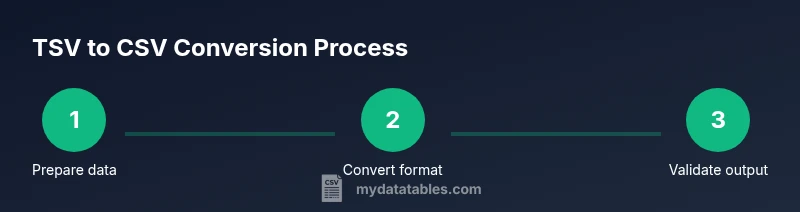
TSV to CSV Converter: How to Transform Your Data
Learn how to convert TSV to CSV with simple tools, CLI options, and scripts. This step-by-step guide from MyDataTables covers best practices, edge cases, validation, and repeatable workflows to keep data clean and interoperable.


You can convert TSV to CSV by replacing tabs with commas, while carefully handling quoted fields and header rows. A dedicated tsv to csv converter, a spreadsheet tool, or a scripting solution can perform the change in one pass. This guide walks you through practical methods, common pitfalls, and validation checks to keep data intact.
What is a TSV to CSV converter?
A TSV to CSV converter is a tool or script that transforms tab-delimited data into comma-delimited data. TSV uses a tab character, commonly represented as \t, as a separator, while CSV uses a comma, sometimes with quoted fields. Converters must preserve headers, quotes, and embedded newlines. According to MyDataTables, TSV to CSV conversion is a common data-cleaning task that improves interoperability across data pipelines and analytics tools. The MyDataTables team found that many datasets start as TSV during data export from databases or pipelines, then need to be shared with teams that rely on CSV for ingestion in spreadsheets and BI tools. The core challenge is to correctly interpret fields that contain tabs or quotes, and to choose an output encoding that preserves all characters.
Why this matters for data teams
Converting from TSV to CSV is not just a format shift; it affects downstream ingestion, validation, and reporting. CSV is widely supported in spreadsheet applications, BI platforms, and ETL pipelines. Selecting the right conversion approach reduces the risk of broken imports, misaligned columns, and corrupted text. MyDataTables emphasizes that starting with clean, consistently encoded CSV strengthens data interoperability across tools and teams.
Core differences: TSV vs CSV mechanics
- Delimiter: TSV uses a tab, CSV uses a comma (or another separator in some locales).
- Quoting: Fields containing delimiters or newlines should be quoted in CSV; TSV typically relies on escaping conventions rather than quotes.
- Headers: Both formats often include a header row, but the handling of quotes and embedded newlines varies.
- Encoding: UTF-8 is a common baseline; mismatches can introduce character corruption when moving data between systems.
Understanding these differences helps you choose the best method and avoid common pitfalls, such as losing data or misinterpreting empty fields. This is especially important when characters like tabs appear inside text fields, or when data includes international characters.
Three practical conversion approaches
Conversion can be accomplished through three broad approaches: manual editing for small datasets, command-line tools for repeatable runs, and scripting with a programming language for automation. Each method has trade-offs in speed, reproducibility, and error checking. The MyDataTables team recommends starting with a small sample to verify that the output matches expectations before running on full datasets.
- Manual editing: Use a capable text editor to perform a find-and-replace from tab characters to commas. This approach is quick for tiny files but error-prone for larger datasets.
- Command-line tools: Utilities like awk or sed can transform delimited files efficiently. A typical approach is to set the input field separator to \t and the output separator to , then print fields in order. Example: awk 'BEGIN{FS="\t"; OFS=","} {print $1, $2, $3}' input.tsv > output.csv.
- Scripting: Languages with a CSV library (for example, Python's csv module) provide robust handling of quotes, embedded newlines, and various encodings. A simple script reads TSV, writes CSV, and validates the output. This method scales well for larger datasets and automation.
Handling headers, escaping, and embedded characters
When converting, ensure the header row remains intact. If a header contains a delimiter character, it should still be treated as a header label, not as a data delimiter. For quoted fields, CSV requires quotes around fields that contain the delimiter, quote characters, or newlines. Embedded quotes within a field are typically escaped by doubling them (""), depending on the CSV dialect you choose. Always test with representative samples containing tabs inside fields, long text blocks, and non-ASCII characters to confirm your output remains valid and readable.
Validation and quality checks
After conversion, perform several checks: verify the row count remains consistent with the input (minus intentional header row adjustments), confirm the header labels align, and inspect a few random rows to confirm fields did not merge or split unexpectedly. For large files, consider sampling 1,000 rows to spot anomalies. Automated tests, such as re-importing the CSV into a destination system and comparing key fields, help catch issues early.
Automating the process in workflows
If you convert TSV to CSV as part of a data pipeline, integrate the conversion into an ETL or data orchestration workflow. Use version-controlled scripts, parameterize input/output paths, and log each run. Schedule conversions during off-peak hours to minimize impact, and emit a summary report for auditing. Consistent encoding (prefer UTF-8) and explicit delimiter choices (comma for CSV) improve repeatability across environments. MyDataTables suggests documenting the conversion steps in a README or data dictionary so teammates understand the transformation rules.
Quick-start example workflow
This quick-start shows a minimal end-to-end flow using a scripting approach. Start with a small TSV sample, run a Python script to convert to CSV, and validate the output by inspecting the first few lines. This approach scales up for larger projects and fits neatly into CI pipelines. By beginning with a clear plan and a test dataset, you reduce surprises when you run the conversion on real workloads.
Tools & Materials
- Computer or laptop(Any modern OS (Windows/macOS/Linux))
- Text editor(Plain text editor (Notepad++, VS Code, etc.))
- Spreadsheet software (optional)(Excel, LibreOffice, or Google Sheets for quick verification)
- Command-line tools(awk, sed, tr, or similar utilities)
- Python with csv module (optional)(For scripting-based conversion)
- Sample TSV data file(The file to convert)
- Converter tool (generic)(CLI tool or library; e.g., a script or online converter)
Steps
Estimated time: 30-60 minutes
- 1
Identify delimiter and header presence
Open the TSV file to confirm that the delimiter is a tab and that there is a header row. If your file lacks a header, plan how you will label columns in the CSV.
Tip: Check the first few lines to see if there’s a header and count columns to ensure consistency. - 2
Choose conversion method
Decide whether you’ll convert manually, via the command line, or with a script. For large datasets, automation minimizes errors and saves time.
Tip: For repeatable tasks, favor scripting or a CLI approach over manual edits. - 3
Prepare the input file and encoding
Back up the original TSV and confirm encoding (prefer UTF-8). If the data uses a different encoding, convert or normalize before processing.
Tip: Always back up before transformation to prevent data loss. - 4
Run the conversion
Execute the chosen method. If using a CLI command, ensure the input and output paths are correct and the delimiter options are set (FS="\t" and OFS=",").
Tip: Test with a small sample before scaling up. - 5
Validate the output
Check row counts, header integrity, and a sample of rows for correct delimiter placement and text quoting. Re-import into a target system to verify seamless ingestion.
Tip: Use a quick diff between input-derived CSV and a newly generated sample to spot issues. - 6
Document and version-control
Record the method, tool, and options used. Store the script or command in version control with a short README.
Tip: Include encoding, delimiter, and edge-case notes in the docs. - 7
Handle failures gracefully
Plan for edge cases like embedded tabs, quotes, or multiline fields. Have fallback rules and re-run checks if needed.
Tip: Maintain a small test suite to catch common pitfalls.
People Also Ask
What is the main difference between TSV and CSV formats?
TSV uses a tab as the delimiter, while CSV uses a comma. CSV often requires quotation for fields containing the delimiter or newlines. Headers are common in both, but quoting rules differ. Encoding consistency is essential to preserve data integrity.
TSV uses tabs as separators; CSV uses commas and typically quotes fields with special characters.
Can TSV files contain tabs within data fields?
Yes, but they must be escaped or quoted properly in the conversion process to avoid misinterpreting tabs as delimiters. A robust converter will treat such fields as single records.
Tabs inside fields must be quoted so they’re not treated as delimiters.
How should I handle quotes and embedded newlines in fields?
Use a converter that adheres to a standard CSV dialect, typically doubling internal quotes and preserving embedded newlines within quoted fields. Validate by re-importing to ensure fields remain intact.
Quoted fields should keep internal quotes escaped and newlines preserved.
Which tool is best for converting very large TSV files?
For large datasets, scripting with a streaming approach or CLI tools that process data in chunks is preferable to avoid loading entire files into memory. Test performance on representative samples first.
Use streaming or chunked processing for big TSV files.
Is there a built-in converter in Excel or similar spreadsheet apps?
Excel can import TSV and re-save as CSV, but this may require manual steps and can mishandle special characters if not meticulously configured. Automation via scripts is often safer for repeat tasks.
Excel can do it manually, but automation is safer for repeat tasks.
How can I automate TSV to CSV in a data pipeline?
Embed a conversion step in your ETL workflow using scripting or a CLI tool, and store logs for auditing. Ensure consistent encoding and delimiters across environments.
Automate with a scripted or CLI conversion step and keep logs.
Watch Video
Main Points
- Identify TSV structure and encoding before converting.
- Choose a method that matches dataset size and repeatability.
- Validate output with sampling and re-import tests.
- Document the process for reproducibility and team clarity.