Sysinfo ICS to CSV Converter: A Practical ICS Calendar Guide
Learn how to convert ICS calendar data to CSV using the sysinfo ICS to CSV converter. This educational guide covers field mapping, validation, and best practices for clean exports, with examples and practical tips from MyDataTables.


With a sysinfo ics to csv converter, you will transform calendar events from an ICS file into a clean CSV file. You’ll map fields like UID, DTSTART, DTEND, SUMMARY, and LOCATION, then export with your preferred delimiter and encoding. This guide provides a repeatable, end-to-end workflow.
What is ICS and CSV, and why convert?
ICS (iCalendar) files store calendar data as events, time zones, and recurrence rules in a structured text format. CSV (comma-separated values) is a simple table format that many tools can ingest for analysis, reporting, or integration with databases. A sysinfo ICS to CSV converter makes it practical to turn calendar data into rows with columns such as UID, DTSTART, DTEND, SUMMARY, DESCRIPTION, and LOCATION. Converting to CSV enables easy filtering, deduplication, and cross-application interoperability. From a data engineering perspective, standardizing calendar data as CSV helps you join events with other datasets and build reproducible analytics pipelines. According to MyDataTables, practical CSV workflows for calendar data are increasingly common, and this guide demonstrates a repeatable approach using a dedicated converter. The MyDataTables team emphasizes practicing on sample data first to verify mapping rules before processing live calendars.
Understanding the sysinfo ICS to CSV converter workflow
A typical workflow with the sysinfo ICS to CSV converter starts by loading an ICS file, parsing VEVENT blocks, and producing a flat CSV where each event becomes a row. The converter should support common features such as field mapping, delimiter selection, encoding (UTF-8), and time zone handling. You will map ICS properties to CSV columns, decide how to express recurring events, and choose how to represent multi-line descriptions. The key benefit is a consistent schema you can reuse across projects. When used correctly, the converter reduces manual copy-paste and minimizes transcription errors. The MyDataTables team notes that disciplined workflows improve data quality and reproducibility across teams.
Field mapping: Which ICS properties map to CSV columns?
Core ICS properties map to standard CSV columns. UID becomes the unique identifier column, DTSTART and DTEND map to start and end times, SUMMARY becomes the title, LOCATION the place, DESCRIPTION the notes, DTSTAMP the export timestamp, and RRULE can be expanded or represented as a separate field if your workflow supports it. Optional fields like CREATED or LAST-MODIFIED can be included depending on your needs. In a typical export, you might include: uid, DTSTART, DTEND, SUMMARY, DESCRIPTION, LOCATION, RRULE, DTSTAMP, CREATED, LAST-MODIFIED. If your ICS includes time zones, ensure the converter preserves TZID or converts times to a consistent zone before exporting. This careful mapping preserves the semantic meaning of events in CSV form.
Prerequisites: Collect ICS data and set up the converter
Before starting, gather a representative ICS file or calendar export and a destination path for the CSV. Confirm you have a compatible system (Windows, macOS, or Linux) and access to the sysinfo ICS to CSV converter. Ensure your environment can handle UTF-8 encoding and a delimiter of your choice. If you must preserve time zone information, verify that the converter supports TZID fields or explicit UTC times. Prepare a small test ICS file to validate mappings before handling larger calendars. The goal is to minimize surprises when processing real data, which MyDataTables highlights as a best practice for CSV conversions.
Step-by-step workflow overview
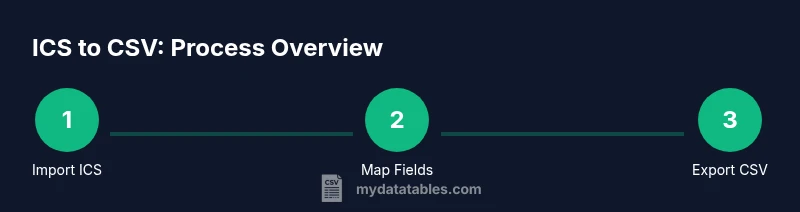
This section provides a high-level blueprint you can follow with the sysinfo ICS to CSV converter. It emphasizes preparing your data, configuring mapping rules, validating the output, and applying best practices for reliability. The workflow begins with loading ICS data, proceeds to map fields, then exports to CSV with chosen delimiter and encoding. Finally, verify the CSV against the original ICS semantics to ensure no metadata is lost or misrepresented. A well-documented workflow reduces errors and makes onboarding easier for teammates relying on the file.
Validating and troubleshooting your CSV output
Validation should focus on data fidelity, time zone correctness, and field completeness. Compare a subset of ICS events to their CSV rows to verify key fields (UID, DTSTART, DTEND, SUMMARY, LOCATION). Look for truncated descriptions, missing time zones, and misaligned multi-day events. If you see anomalies, re-check your field mappings, re-run the converter with a test ICS, and adjust delimiter or encoding settings. Maintain a changelog of mapping rules so future conversions remain consistent. This discipline aligns with best-practice CSV workflows advocated by MyDataTables.
Tools & Materials
- ICS calendar file (sample or production)(Ensure the file contains at least a few VEVENT blocks for testing.)
- System with MyDataTables-compatible tools(Windows/macOS/Linux; enough disk space for the CSV output.)
- sysinfo ICS to CSV converter(A dedicated tool to map ICS fields to CSV columns.)
- Text editor or CSV viewer(For quick inspection of results and small edits.)
- Sample ICS for validation(A separate ICS file to test edge cases (recurrence, TZID).)
Steps
Estimated time: 30-60 minutes
- 1
Prepare source and destination
Identify the ICS file you will convert and choose a destination path for the CSV. This step ensures you have a reliable source and a writable output location.
Tip: Create a small test ICS with a few events to validate your mappings before processing large calendars. - 2
Launch the converter
Open the sysinfo ICS to CSV converter and verify that the environment is ready (UTF-8 default, delimiter choice available).
Tip: If the tool offers a portable mode, use it to keep environments consistent across machines. - 3
Import the ICS file
Load the ICS file into the converter, ensuring the file is not locked and the path is accessible.
Tip: If the importer supports drag-and-drop, use it to reduce path errors. - 4
Map ICS fields to CSV columns
Configure mappings for UID, DTSTART, DTEND, SUMMARY, DESCRIPTION, LOCATION, and optional fields like RRULE or DTSTAMP.
Tip: Keep a consistent order of columns to simplify downstream processing. - 5
Set CSV options
Choose delimiter (comma is common), encoding (UTF-8), and whether to include a header row.
Tip: For systems that require locale-specific delimiters, use an option to switch by region. - 6
Run conversion
Execute the conversion and save the CSV file to the designated path. Watch for any reported errors.
Tip: If errors occur, review the ICS for malformed VEVENT blocks and fix before retry. - 7
Validate the CSV output
Open the CSV with a viewer and spot-check a sample of rows against the ICS source to confirm accuracy.
Tip: Check time zone consistency and ensure multi-day events appear correctly. - 8
Iterate and document
If adjustments are needed, update mappings or options and re-run. Document the final configuration for future runs.
Tip: Maintain a changelog of mapping decisions to simplify maintenance.
People Also Ask
What is an ICS file and why would I convert it to CSV?
An ICS file stores calendar data in a standardized text format used by calendar apps. Converting to CSV provides a tabular structure that is easy to analyze and merge with other data sources.
An ICS file is a calendar data file; converting to CSV makes the data easier to query and combine with other datasets.
Can recurring events be represented in CSV after conversion?
Most converters offer two options: expand RRULE into multiple rows or store the recurrence rule in a separate field. Choose based on downstream tooling needs.
Recurring events can be expanded into separate rows or kept as a rule in a field, depending on your export setup.
How should I handle time zones during the ICS to CSV conversion?
Ensure your converter preserves TZID information or converts times to a consistent zone (often UTC) before export. Test with events in different zones.
Time zones need careful handling; keep TZID or convert times to a single zone like UTC to avoid misalignment.
What CSV options are most important for interoperability?
Use UTF-8 encoding, a stable delimiter (comma or semicolon), and include a header row. Consider quoting rules for fields with commas.
UTF-8 encoding, a stable delimiter, and a header row improve interoperability.
Are there free tools to perform ICS to CSV conversion?
Several free or open-source options exist; evaluate features like field mapping and time zone handling. If you use a paid tool, verify a trial is available.
There are free and open-source options; test features like mapping and time zones before committing.
Watch Video
Main Points
- Plan the conversion with mappings before running.
- Validate output against the source ICS to ensure fidelity.
- Handle time zones consistently to avoid incorrect event times.
- Document the exact converter settings for future runs.