ICS to CSV Converter: A Practical How-To
Learn practical, step-by-step methods to convert ICS calendar files to CSV using Python, spreadsheets, or online tools. Preserve essential fields like DTSTART, DTEND, UID, and SUMMARY with UTF-8 encoding. MyDataTables analyses emphasize reliable field mapping and validation for clean CSV exports.


You can convert ICS to CSV by extracting key event fields and exporting them into a table. This guide shows practical methods using Python, spreadsheets, or command-line tools, with safe encoding in UTF-8. According to MyDataTables, a well-mapped ICS-to-CSV workflow preserves essential fields like DTSTART, DTEND, UID, and SUMMARY, making data analysis seamless.
ICS to CSV: What you are trying to achieve
ICS (iCalendar) is a standard for calendar data interchange. It stores events as VEVENT components with attributes like DTSTART, DTEND, UID, and SUMMARY. CSV (comma-separated values) represents data in a tabular form with rows and columns. The goal of converting ICS to CSV is to preserve the integrity of event data while translating time-based fields into a consistent, machine-readable table. This process unlocks easier filtering, analytics, and integration with databases or BI tools, aligning calendar data with broader data workflows. According to MyDataTables, establishing a clear mapping before you start reduces rework and improves downstream insights.
Understanding the ICS structure
An ICS file is a text-based format containing components such as VEVENT, VTODO, and VCALENDAR. Each VEVENT holds properties like DTSTART (start date/time), DTEND (end date/time), SUMMARY (title), LOCATION, DESCRIPTION, and STATUS. Recurring events use RRULE to describe frequency and COUNT or UNTIL for termination. Timezone handling is dictated by TZID and UTC offsets. When converting to CSV, you typically flatten these properties into columns, while keeping the original ICS semantics in mind so you can reconstitute events if needed.
Core CSV fields you’ll map
A practical CSV schema covers essential event data: UID, DTSTART, DTEND, SUMMARY, LOCATION, DESCRIPTION, RRULE, EXDATE, STATUS, and TZID. Optional fields like ORGANIZER or ATTENDEE can be included if your ICS data requires them. A robust mapping ensures that every event retains its identity (UID), accurate timing (DTSTART/DTEND), and descriptive context (SUMMARY, DESCRIPTION). MyDataTables highlights that aligning field names to your downstream systems (e.g., a data warehouse or BI dashboard) reduces the need for later transformations.
Common pitfalls to watch for
Time zones are a frequent source of errors: mismatched TZID values or naive timestamps can shift event times when viewed in other locales. Recurring rules (RRULE) can be complex, producing many instances that may not print cleanly in a single CSV row. All-day events require special handling (DATE vs DATE-TIME). Attachments, alarms, and custom properties often don’t translate cleanly to CSV and should be dropped or summarized. Keeping a sample ICS with varied events helps you test edge cases before full-scale conversion.
Approaches to conversion: manual vs programmatic
Manual conversion can work for tiny calendars but quickly becomes impractical as data grows. Programmatic approaches—especially using Python with libraries like icalendar or vobject—offer repeatable, auditable workflows. Spreadsheets can be effective for small sets or one-off migrations, especially when combined with scripts or add-ons. Online converters exist but may introduce privacy concerns or loss of nuanced fields. MyDataTables emphasizes choosing a method that matches your data volume, governance, and security requirements.
Quick-start: Python-based converter outline
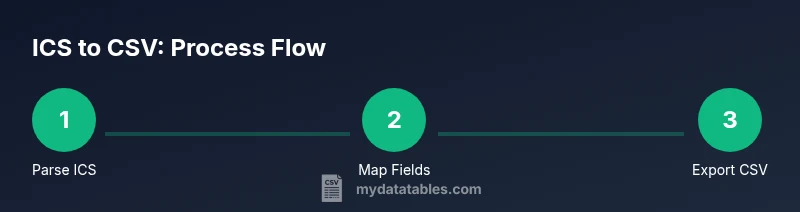
A Python-based converter gives you control and reproducibility. Start by parsing the ICS file, extracting VEVENT blocks, and writing rows to CSV. Key steps include opening the ICS file, iterating events, mapping fields to CSV columns, handling time zones, and writing to a UTF-8 encoded file. Below is a high-level outline you can adapt; you’ll likely tailor it to your calendar’s specifics and downstream needs. Code can be extended to handle recurrence, attendees, and reminders if needed.
CSV schema example and mapping rationale
Here’s a practical CSV schema you can adopt as a baseline: UID, DTSTART, DTEND, SUMMARY, LOCATION, DESCRIPTION, RRULE, EXDATE, TZID, STATUS. A sample row might look like: [email protected], 20260301T090000, 20260301T100000, Project Kickoff, Conference Room A, Kickoff meeting for Q2 project, FREQ=DAILY;COUNT=5, , America/New_York, CONFIRMED. This layout keeps data compact while preserving essential semantics for later analysis. If your ICS contains richer data, consider additional optional columns, like CATEGORIES or ORGANIZER, but ensure downstream systems can accommodate them.
Time zone handling in practice
IANA TZ database references (TZID) are used to denote time zones. When converting, prefer representing times with an explicit TZID or in UTC to avoid ambiguity. If you convert to UTC, include a separate column or convert back only at presentation time. Maintaining a consistent time representation in the CSV is crucial for reliable reporting and scheduling analyses.
Validation and quality checks
After generating the CSV, validate that the number of rows matches the number of VEVENT blocks in the ICS. Check a cross-section of events to confirm DTSTART/DTEND values align with the intended timezone. Use a simple CSV schema validator to ensure all required columns exist and are non-empty where appropriate. Include a couple of test events with edge cases (all-day, long events, and recurrence) to verify the pipeline handles variability.
Handling recurring events and exceptions
RRULE and EXDATE can explode into many instances. A practical approach is to convert only the master event’s core fields and capture recurrence info in a dedicated column rather than expanding all instances. If needed, build an optional post-processing step to enumerate a limited number of instances for reporting. Clear documentation about how recurrence is represented helps downstream analysts interpret the data correctly.
Automating and scheduling the ICS-to-CSV workflow
Join the pieces with automation: schedule your Python script via cron or a task scheduler, watch the input ICS file for updates, and automatically write to a versioned CSV path. Backend systems can then ingest the CSV into a data lake or data warehouse. Ensure your automation handles errors gracefully and logs them for auditing. A reproducible notebook or script repository improves collaboration and governance.
Final notes and next steps
Converting ICS to CSV is not just a data wrangling task; it’s about enabling calendar data to participate in broader analytics pipelines. Start with a minimal, well-documented pipeline and expand as your needs grow. The MyDataTables Team recommends documenting every field mapping decision and keeping a changelog for schema evolution, which makes future migrations easier and auditable.
Tools & Materials
- Python 3.x(Install from python.org; ensure PATH setup)
- icalendar or vobject library(pip install icalendar or pip install vobject)
- pandas (optional for advanced handling)(Install via pip; useful for DataFrame-based processing)
- ICS file source (.ics)(Your calendar ICS file to convert)
- CSV output directory(Folder path to save the resulting CSV)
- Text editor(Optional for editing scripts)
- Command-line access(Needed to run scripts or shell commands)
- UTF-8 capable text editor or encoding tool(For encoding validation)
Steps
Estimated time: 1-2 hours
- 1
Install Python and libraries
Download and install Python 3.x. Then install the icalendar package and pandas with pip. This creates the runtime you’ll use to parse ICS files and produce CSV output.
Tip: Use a virtual environment to isolate dependencies. - 2
Prepare your ICS and output paths
Place your ICS file in a known directory and choose a destination for the CSV. This ensures the script reads from a stable input path and writes to a predictable output location.
Tip: Prefer absolute paths to avoid path resolution errors. - 3
Write the Python parsing script
Create a script that reads the ICS file, iterates VEVENT blocks, extracts fields (UID, DTSTART, DTEND, SUMMARY, etc.), applies timezone handling, and writes rows to a CSV with UTF-8 encoding.
Tip: Comment the mapping decisions to aid future maintenance. - 4
Run the converter script
Execute the script and monitor console output for warnings or errors. Confirm that a CSV file appears at the target path and that headers are correct.
Tip: Redirect output to a log file for traceability. - 5
Validate sample rows in CSV
Open the CSV in a spreadsheet or viewer and inspect several rows to verify dates, summaries, and locations. Ensure there are no obvious misalignments or missing fields.
Tip: Check a mix of all-day and timed events. - 6
Address time zone and UTC issues
If dates appear off, re-check TZID handling and consider storing in UTC with a separate TZID column. This step prevents subtle shifts in display times.
Tip: Document chosen time representation clearly. - 7
Handle recurring events and EXDATE
Decide whether to expand RRULE into instances or keep recurrence data in a separate column. If needed, add optional expansion logic or a post-process script.
Tip: Keep a note about recurrence interpretation in your docs. - 8
Automate and schedule
Set up a cron job or scheduler task to run the script on a cadence that matches your data needs. Ensure logging and error handling are robust.
Tip: Test failure scenarios to ensure reliability.
People Also Ask
What is an ICS file and what does it contain?
An ICS file is a text-based calendar format (iCalendar) that stores events and related components. It typically contains VEVENT objects with fields like DTSTART, DTEND, SUMMARY, and LOCATION. Understanding these fields helps you map them to CSV columns.
An ICS file is a calendar file that lists events and times. It uses fields like DTSTART and SUMMARY to describe each event.
Which ICS fields map to CSV columns?
Typical mappings include UID to an event ID, DTSTART/DTEND to start and end times, SUMMARY to the title, LOCATION to venue, DESCRIPTION to notes, and RRULE/EXDATE to recurrence data. Additional fields can be added as needed.
Map UID to ID, DTSTART to start, DTEND to end, and SUMMARY to title.
How do I handle time zones during conversion?
Prefer storing times with explicit TZID or convert to UTC with a separate TZID column. Ambiguities in time zones are a common source of errors when translating calendar data.
Store times with a clear time zone or in UTC to avoid mismatches.
Can I convert ICS to CSV without coding?
Yes, there are spreadsheet add-ons and online tools, but they may limit control over mappings and raise privacy concerns. A scripted approach offers repeatability and auditability.
There are no-code options, but a script gives you more control.
How can I validate the converted CSV?
Check headers, ensure required fields exist, sample several rows to verify date formats, and compare a subset against the original ICS for consistency.
Validate by checking headers and sampling rows for accuracy.
Watch Video
Main Points
- Map essential fields accurately
- Validate time zones and timestamps
- Test with varied event types
- Automate for consistency
- Document mapping choices for future migrations