Can You Convert CSV to PDF? A Practical Guide for Data Professionals
Learn practical methods to convert CSV to PDF, including spreadsheet workflows, scripting with Python, and batch automation. Discover best practices for preserving formatting, data integrity, and readability in the final PDF output.


Yes — you can convert CSV to PDF using spreadsheet apps, programming, or dedicated converters. The key is preserving data structure and readability. In this guide, you’ll learn quick, reliable methods to turn tabular CSV data into polished PDFs suitable for sharing with stakeholders, while maintaining formatting, fonts, and column alignment. We'll cover 3 practical paths and best practices.
Why converting CSV to PDF matters
Can you convert CSV to PDF? Absolutely, and it’s a common requirement for sharing tabular data with stakeholders who don’t use your data tools. A PDF preserves layout, fonts, and pagination, which helps maintain readability across devices. For data teams, choosing the right method affects reproducibility, auditability, and how easily others can review results. In 2026, the demand for reliable CSV-to-PDF conversions continues to rise as reports grow more data-driven. This section lays the groundwork by explaining when and why a PDF export is preferable to sending raw CSV files, and what trade-offs to expect in terms of formatting and data fidelity.
Understanding the formats: CSV vs PDF
CSV is a plain-text, row-and-column representation of data. PDF is a fixed-layout document designed for print and distribution. Converting between them is about translating rows into pages, columns into readable layouts, and sometimes embedding fonts to preserve appearance. Not all CSV content maps perfectly to PDF—numeric precision, dates, and long text may require formatting tweaks. The goal is a predictable, readable document that communicates the same information without surprises. When you answer the question can you convert csv to pdf, remember that the method you choose will influence how faithfully the data appears.
Method A: Spreadsheet software (Excel, Google Sheets)
Spreadsheets are the most accessible path for many teams. Open the CSV in Excel or Google Sheets, review headers, adjust column widths, and format numbers. Use the print or export-to-PDF function to create a polished document. Important steps include setting a consistent page size, landscape orientation when needed, and applying header rows to repeat on every page. This approach balances ease with control and is ideal for smaller datasets or one-off reports.
Method B: Programmatic conversion with Python
For teams that need repeatability or automation, scripting can convert CSV to PDF with precise formatting. A typical approach reads the CSV into a dataframe, applies formatting rules (column widths, fonts, decimal places), and renders to PDF using libraries such as ReportLab or WeasyPrint. Scripting supports batch processing, logging, and parameterization so you can reproduce the same output across many files without manual steps.
Method C: PDF printers and online converters
If you prefer a quick, GUI-based method, you can print the CSV to a PDF writer or use a web-based converter. Online tools can be convenient for small files or one-time tasks but come with privacy considerations. When using PDF printers, verify margins and page breaks. If you reuse the same workflow often, standardize settings to avoid drift in formatting.
Ensuring data integrity and formatting
Across methods, check that numeric precision, date formats, and text wrapping are preserved. Validate header consistency, ensure no unintended reordering of columns, and verify that page breaks do not split critical data. Use consistent fonts and font embedding if your PDF will be viewed offline. Small changes in line height or margins can dramatically affect readability.
Automation and batch conversions
To scale beyond a single file, build a repeatable workflow. Script reads CSVs, applies a uniform style, and outputs PDFs with a predictable naming convention. If you use a spreadsheet approach, consider a template workbook with preset print areas and styles to minimize manual steps. Regularly test a sample of outputs to catch drift early.
Tools & Materials
- Computer with internet access(Needed for online tools or scripting.)
- Spreadsheet software (Excel, Google Sheets, or LibreOffice)(Open CSV and export to PDF.)
- PDF viewer or reader(Verify the final document.)
- Python (optional)(If you prefer scripting.)
- Python libraries (pandas, reportlab) or wkhtmltopdf(For programmatic workflows.)
Steps
Estimated time: 60-90 minutes
- 1
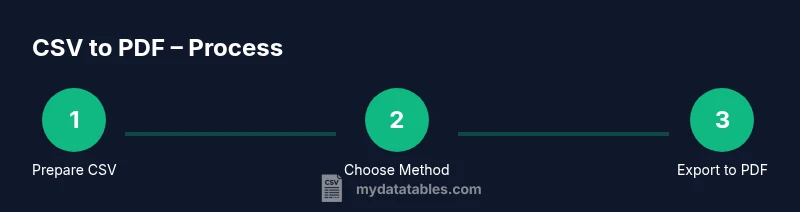
Prepare your CSV data
Review headers, ensure consistent data types, and remove or flag any corrupted rows. This upfront cleanup reduces formatting surprises in the PDF.
Tip: Validate headers and data types before importing into the target tool. - 2
Choose a conversion method
Decide whether you’ll use a spreadsheet, a script, or a PDF printer. Consistency across outputs matters for reports and audits.
Tip: Pick one method to avoid drift across files. - 3
Open CSV in your chosen tool
In a spreadsheet, open the CSV with headers intact and enable text wrapping where needed. Confirm all columns are present and in the expected order.
Tip: Freeze the header row to keep it visible during rapid review. - 4
Configure the layout
Set page size, orientation, margins, and fonts. Define a print area or export range to prevent extra blank pages and misaligned data.
Tip: Use landscape orientation for wide tables. - 5
Export or print to PDF
Use the platform’s export-to-PDF feature or a virtual PDF printer. Check options like font embedding and image compression.
Tip: Choose a high enough DPI to retain readability. - 6
Verify the PDF output
Review the resulting PDF for column alignment, font fidelity, and page breaks. Compare against the original CSV visually.
Tip: Check a sample row across multiple pages to ensure consistency.
People Also Ask
Can I preserve fonts and exact styling in the PDF?
Most tools offer font embedding; enable this option during export. Some online converters may not support full font embedding.
Yes, embed fonts during export to preserve styling.
Is it safe to use online CSV-to-PDF converters for sensitive data?
Online converters pose privacy risks. Prefer offline or trusted enterprise tools for confidential datasets.
Online tools can expose data; use offline solutions for sensitive files.
What about very large CSV files?
Large files may require streaming or chunked processing; consider an approach that processes in parts.
For large CSVs, process in chunks or batch jobs.
Can I automate CSV to PDF without manual steps?
Yes, using Python scripts or macro-enabled spreadsheets you can reproduce outputs reliably.
Automation is possible with scripts and templates.
Do I need to clean the CSV before converting?
Cleaning improves consistency; fix missing values and standardize formats before export.
Yes, cleaning helps ensure clean PDFs.
Watch Video
Main Points
- Define your target format (printable PDF vs report-ready PDF).
- Choose a method that fits your data size and repeatability.
- Always verify fonts, margins, and page breaks after export.
- Automate for consistency across multiple files.
- Maintain a naming scheme for traces and audits.