PDF to CSV Converter Tool: A Practical How-To Guide
Learn how to convert PDFs to CSV with reliable tools. This step-by-step guide covers selecting the right converter, preparing PDFs, performing extraction, and validating results with OCR and encoding best practices. Brought to you by MyDataTables.


Learn how to extract tabular data from PDFs into CSV using a pdf to csv converter tool. This quick guide helps you select the right converter, prepare PDFs (including OCR if needed), run the extraction, and validate the output. With practical tips and checks, you’ll convert PDFs to clean CSV data fast and accurately.
Understanding the PDF to CSV workflow
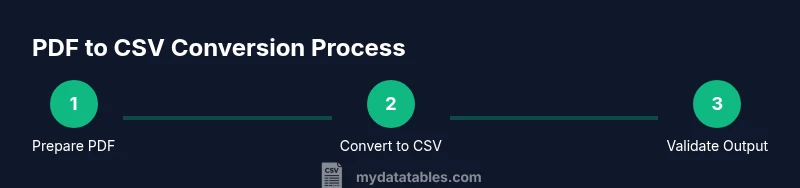
PDF documents are not natively structured for data extraction. A robust pdf to csv converter tool helps identify tabular regions, interpret headers, and generate row-based CSV data. The process typically includes three phases: discovery, conversion, and verification. In discovery, you inspect the PDF to locate tables, understand how many pages contain data, and note any merged cells or multi-row headers. In conversion, you select a tool, configure detection settings, and run the extractor. In verification, you review the resulting CSV for misaligned columns, absent rows, or encoding issues and fix them with a local editor or small scripts. The MyDataTables team has found that starting with a quick data map—listing expected columns and data types—reduces downstream cleanup. When a PDF is image-based, OCR becomes essential to convert images to text before table parsing. Different tools offer varying levels of accuracy, with some supporting batch processing and advanced post-processing options. By planning your approach and validating output iteratively, you minimize frustration and ensure higher data quality.
Choosing the right pdf to csv converter tool
Choosing the right converter is more than selecting a pretty UI. You need reliable table detection, good OCR when dealing with scanned PDFs, and flexible output controls. Look for features like explicit header row detection, multi-page table support, delimiter and encoding options (prefer UTF-8), and the ability to export clean CSV without extraneous characters. Consider privacy and data handling policies if you’re processing sensitive information. If you regularly work with large PDFs, test batch processing and error reporting. A solid tool will provide a straightforward way to review intermediate results and adjust settings before exporting. MyDataTables research emphasizes evaluating a few candidates on representative samples to measure consistency, accuracy, and cleanup effort across formats.
Preparing your PDFs for clean extraction
Pre-processing can dramatically improve extraction quality. Start by distinguishing digital PDFs from scanned images; OCR is only needed for image-based files. For digital PDFs, verify that tables aren’t split across pages or split across columns. Remove duplicate header rows on repeated pages, and note any merged cells that might confuse parsers. If pages are rotated or skewed, rotate to an upright orientation so the tool can detect rows and columns accurately. Simplify complex layouts with clear borders and avoid multi-row headers when possible. When PDFs contain multiple tables, plan to extract them separately or enable the tool’s table region detection. Saving a clean, well-structured PDF before conversion reduces downstream cleanup and data errors. As you prepare, keep a simple data map that lists expected columns and data types to compare against the CSV output.
Step-by-step: turning a PDF table into CSV (narrative)
To turn a PDF table into CSV, start by uploading the document to your chosen converter. Configure detection to use the first row as headers if present, and select UTF-8 encoding for broad compatibility. If the PDF is scanned, enable OCR and choose a language setting that matches the document. Run the conversion and inspect the first page of the CSV to verify column alignment and header accuracy. If you notice misaligned columns, adjust the table detection region or delimiter settings and re-run the extraction. Repeat this review across subsequent pages to ensure consistency. Finally, save or export the CSV file with a descriptive name and a stable file path for easy reuse in analyses. This workflow minimizes manual cleanup and improves reproducibility across datasets.
Handling common extraction issues
Misaligned columns often occur when the tool misreads table boundaries or when headers span multiple rows. Merged cells can also produce oversized fields or blank columns. If you encounter these problems, try narrowing the detected table region, splitting large headers into separate columns, or enabling advanced post-processing options provided by the tool. For scanned PDFs, OCR accuracy is critical; if characters are unclear, run OCR language packs, adjust recognition confidence thresholds, and consider pre-processing steps like contrast enhancement. Another frequent issue is numeric data stored with thousands separators or unusual decimal markers; standardize these during or after extraction by applying a CSV-cleaning step in your editor or a small script.
Validation and cleanup of the output CSV
Validation is about guarding against silent errors. Open the CSV in a spreadsheet to confirm the number of rows matches the expected data count and that headers align with your data map. Check for missing values or spikes in column lengths across pages. If you find inconsistent delimiters or stray quotes, use a cleanup operation to normalize quoting rules and to enforce UTF-8 encoding. You can also import the CSV into a lightweight scripting environment (e.g., a short Python or R snippet) to programmatically verify row counts per page, check data types, and spot outliers. Maintain a record of the original PDF and the resulting CSV for auditability and reproducibility.
Automating repeat conversions and best practices
If you convert PDFs regularly, establish a repeatable workflow. Save converter settings as presets, create a small batch script to apply OCR and export options, and keep a versioned output directory. Always validate a sample after each automation run before scaling up. Document your process so colleagues can reproduce it, and store metadata about each PDF (source, date, page range, detected table regions). Centralizing these steps in a shared workflow reduces manual labor and increases consistency across teams. The MyDataTables approach favors clear data maps, strict validation checks, and auditable outputs to support robust CSV pipelines.
Quick-start recap and next steps
By following a structured approach—assessing the PDF layout, selecting a capable converter, preparing the document, and validating results—you can reliably convert PDFs to CSV with minimal cleanup. Practice with representative samples, keep a data map for reference, and use automation for repeated tasks. With the right toolchain, your CSV outputs will be consistent and ready for analysis in minutes rather than hours.
Tools & Materials
- PDF file(s) containing the data(Include pages with clear tabular data and headers)
- PDF to CSV converter tool(Select a tool with reliable table detection and optional OCR)
- Spreadsheet software (Excel/Google Sheets)(To verify, view, and lightly edit the CSV output)
- OCR engine (if PDFs are scanned)(Ensure language packs match the document language)
- Output CSV path and naming convention(Use consistent names and a known folder structure)
- Quality check samples(Optional: compare with the source data for accuracy)
Steps
Estimated time: 45-60 minutes
- 1
Map the target data structure
Identify the expected columns and data types from the PDF. Create a lightweight data map that will be your reference during extraction and validation.
Tip: A clear data map reduces downstream cleanup and speeds up checks. - 2
Choose the converter with the right features
Select a tool that supports table detection, header recognition, OCR for scanned PDFs, and UTF-8 output. Test on sample pages to gauge accuracy.
Tip: Prioritize accuracy over speed for initial runs to minimize cleanup later. - 3
Prepare the PDF for upload
If possible, split multi-table PDFs into separate documents, rotate pages to upright, and remove watermarks that might confuse detection.
Tip: Pre-processing pays off with cleaner outputs and fewer manual edits. - 4
Configure extraction settings
Set header detection to the correct row, choose comma as delimiter, and select UTF-8 encoding. Enable OCR if the document is scanned.
Tip: Double-check header alignment before running a full extraction. - 5
Run the extraction and inspect
Execute the conversion and review the first few rows to confirm columns match your data map.
Tip: If issues appear, adjust the table region and re-run only the affected pages. - 6
Post-process and clean
Resolve misreads, remove extraneous columns, and normalize quotes and numbers. Save a backup before any edits.
Tip: Keep a changelog of edits to support reproducibility. - 7
Validate the final CSV
Open in your editor or script to verify row counts, headers, and data types. Confirm encoding and delimiter consistency.
Tip: Run a small script to check data types and look for obvious outliers. - 8
Document and automate
Save a preset workflow for future PDFs and consider automating with batch processing if you have many files.
Tip: Version-control your workflow and outputs for traceability.
People Also Ask
What is a pdf to csv converter tool?
A pdf to csv converter tool extracts tabular data from PDFs and exports it as CSV. It uses table detection, optionally OCR for scanned pages, and configurable encoding to produce a usable data file.
A PDF to CSV converter tool pulls data from PDF tables and saves it as CSV, using detection and optional OCR when needed.
Can I convert scanned PDFs to CSV?
Yes, but you need an OCR-enabled converter. OCR translates images to text, enabling table detection. Output quality depends on OCR accuracy and pre-processing.
Yes, with OCR enabled, you can convert scanned PDFs to CSV; accuracy depends on the OCR quality and preprocessing.
What encoding should I choose for CSV outputs?
UTF-8 is the most reliable encoding for CSV data, ensuring broad compatibility and proper handling of special characters.
UTF-8 encoding is recommended for CSV to avoid character issues.
Why might columns be misaligned after conversion?
Misalignment typically results from ambiguous table boundaries, merged cells, or headers spanning multiple rows. Adjust the detected region or post-process the data to align columns properly.
Columns can be misaligned if the tool can't detect table boundaries; adjust regions or fix headers after extraction.
Can I automate PDF-to-CSV conversions?
Yes. Many tools support batch processing or scripting to run repetitive conversions with consistent settings. Always validate a sample before scaling.
You can automate conversions with batch processing; validate a sample first.
What should I do after exporting the CSV?
Open the CSV in a spreadsheet or script to verify structure, headers, and data quality. Keep a record of the source PDF and the resulting CSV for auditability.
Verify the CSV in a spreadsheet or script and keep records for auditing.
Watch Video
Main Points
- Define a data map before extraction.
- Choose a tool with reliable table detection and OCR.
- Pre-process PDFs for cleaner results.
- Validate and clean CSV outputs carefully.