Adobe Acrobat PDF to CSV Converter: A Practical Guide
Learn how to convert PDFs to CSV with Adobe Acrobat using OCR, export options, and data-cleaning tips. This MyDataTables guide helps data analysts transform tabular PDF data efficiently.


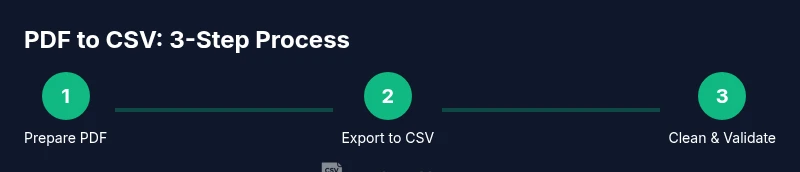
You can convert PDF tables to CSV using Adobe Acrobat Pro by opening the PDF, applying OCR if needed, and exporting to a CSV file via File > Export To > Spreadsheet > Comma Separated Values. This workflow supports tabular data extraction and downstream CSV processing.
Why PDF-to-CSV conversion matters in modern data workflows
PDFs remain a common source of business data, especially when tables are embedded in reports, invoices, or research documents. For data analysts and developers, converting these PDFs into CSV is a foundational step for downstream analysis, cleaning, and visualization. The ability to reliably extract table data from PDFs reduces manual copy-paste effort and minimizes human error. In this guide from MyDataTables, we focus on using Adobe Acrobat to turn tables into CSV, while highlighting practical caveats like OCR accuracy and table structure. As you work through the process, you’ll see how PDF-to-CSV workflows fit into broader data pipelines and how to validate results with simple checks.
For teams that routinely handle PDF data, adopting a repeatable approach matters. TheMyDataTables team emphasizes that a well-documented process saves time across projects and ensures consistency in data quality. When you choose to convert PDF to CSV, you’re enabling easier integration with spreadsheet tools, databases, and data-cleaning pipelines. This article uses Adobe Acrobat Pro DC as a practical reference point but also notes alternatives and post-processing steps that improve reliability.
When to export to CSV vs Excel and what to expect
Exporting a PDF to CSV is most straightforward when the table is regular and well-delimited. If the source uses clear row/column boundaries, CSV output tends to preserve header rows and cell values with minimal cleanup. Excel workbooks (.xlsx) can also be an intermediate step for complex formatting, but CSV is often preferred for its simplicity and compatibility with data pipelines.
Acrobat’s export feature typically supports both CSV and Excel formats. For analysts aiming to automate integrations, CSV is preferable because it’s plain text, easy to parse, and compatible with most programming languages and BI tools. In cases where you need exactly two delimiters (for example, comma and semicolon variations in different locales), you may need additional post-processing to standardize encoding and delimiters across your CSV files.
Preparing the PDF: OCR, tables, and recognition quality
If your PDF contains selectable text, OCR is unnecessary. However, many PDFs are scans or contain images of tables. In such cases, you must apply Optical Character Recognition (OCR) so Acrobat can recognize table headers and cells as text. The accuracy of OCR depends on font clarity, scan resolution, and the presence of table borders. Before exporting, verify that headers align with their corresponding columns and that numeric fields are not misread as text. If you discover misreads, you can re-run OCR with higher resolution settings or adjust the recognition options. MyDataTables recommends testing OCR on a representative page to gauge overall reliability before committing to a full export.
Step-by-step: Exporting to CSV in Acrobat Pro DC
- Open the PDF in Adobe Acrobat Pro DC.
- If needed, run OCR: Tools > Scan & OCR > Recognize Text > In This File, then choose the pages and language. This prepares the document for accurate extraction.
- Go to File > Export To > Spreadsheet > Comma Separated Values (CSV).
- In the Save As dialog, choose a destination, select the CSV format, and (if offered) pick a suitable delimiter and encoding (UTF-8 is a safe default).
- Save the file and open it in Excel, Google Sheets, or your preferred CSV editor to verify structure and content.
Pro tip: If the export dialog offers options for “Table” detection, enable it to improve column alignment. Include a screenshot of the export dialog in your notes for consistency across projects.
Post-export cleanup: clean, normalize, and validate
CSV exports often include stray characters, merged headers, or misaligned columns. Start with a quick header check to ensure column names are descriptive and consistent across datasets. Normalize encoding to UTF-8 to avoid character mishaps when importing into databases. Remove empty rows, trim whitespace, and convert numeric-looking text to numbers where appropriate. In MyDataTables, you can run a lightweight data-cleaning routine that standardizes date formats, handles missing values, and checks for duplicate rows. The goal is a clean, machine-friendly CSV that downstream tools can ingest without manual edits.
Handling complex tables and multi-page PDFs
Some PDFs have multi-page tables or nested headers. Acrobat’s OCR and export features can struggle when a single logical table spans multiple pages. In these cases, export per page or per table section if possible, then merge CSV outputs carefully. Look for repeated header rows and remove duplicates that may appear after concatenation. When the table is irregular—merged cells, multi-line headers, or irregular separators—expect more post-processing. Use a simple script or a spreadsheet tool to normalize headings and align cells across pages for a consistent data frame.
Quality checks and validation: ensuring CSV reliability
Validate the resulting CSV with straightforward checks: verify that the header row contains all expected columns, confirm that numeric fields contain only digits and decimal points, and ensure there are no stray characters or encoding issues. A basic test is to re-import the CSV into Acrobat or a data tool to confirm restructuring. If you observe discrepancies, revisit the original PDF, adjust OCR or export settings, and re-export. Documentation of these checks is essential for reproducibility, especially in team environments. MyDataTables emphasizes creating a small, repeatable validation checklist as part of your data-pipeline SOP.
Integrating CSV into MyDataTables workflows: practical examples
Once you have a clean CSV, you can bring it into your analytics stack. In MyDataTables, you might import the CSV into a CSV editor, convert to JSON if needed, or parse with Python (pandas) for transformation workflows. From there, you can join with other data sources, compute metrics, and visualize results. The emphasis is on establishing a stable, auditable process: document the export options you used, preserve the source PDF for traceability, and maintain a versioned CSV output with a clear file naming convention. With these practices, the Adobe Acrobat PDF to CSV converter workflow becomes a dependable step in your data pipeline.
Authority sources and best practices for PDF-to-CSV conversion
For authoritative guidance on PDF handling and data extraction, consult reliable sources such as:
- Adobe Help Center: Export PDF to Excel or CSV: https://helpx.adobe.com/acrobat/using/export-pdf.html
- PDF Association: Best practices and technical standards for working with PDF data: https://pdfa.org/
- ISO/IEC and related standards for data interchange and encoding: https://www.iso.org/
These resources provide foundational concepts for accuracy, encoding (UTF-8), and data integrity when moving data from PDFs to CSV and beyond. As you work on real-world datasets, refer to these sources to align your workflow with broadly accepted practices.
Authority sources (end of section)
Tools & Materials
- Adobe Acrobat Pro DC(Essential for the Export To workflow and OCR features)
- Computer with internet access(Needed to install and operate Acrobat and access cloud storage if needed)
- CSV editor (e.g., Microsoft Excel or Google Sheets)(Used to open, inspect, and clean the CSV after export)
- Text editor (optional)(Useful for quick checks of encoding and delimiter issues)
- Documented validation checklist(Helps ensure reproducibility and quality across projects)
Steps
Estimated time: 20-40 minutes
- 1
Open the PDF in Acrobat
Launch Acrobat Pro DC and navigate to the PDF you want to convert. Ensure you have the latest patch applied to minimize OCR errors and verify that the PDF contains tabular data. If the file is large, consider opening a representative page first to test the workflow.
Tip: Take a quick screenshot of the first table to compare against the exported CSV later. - 2
Assess OCR needs and language
If the PDF is a scan or contains non-selectable text, run OCR to convert images to text. Select the appropriate language and page range, then run OCR on the needed sections. For mixed PDFs, perform OCR only on pages with images to save time.
Tip: OCR improves accuracy but may introduce misreads for decorative fonts; plan for post-processing. - 3
Run OCR (if needed)
Tools > Scan & OCR > Recognize Text > In This File. Choose the correct language and ensure layout retention options are enabled for tables. After OCR, inspect a few cells to confirm readability.
Tip: Review a sample row with multi-line entries to confirm line breaks are preserved properly. - 4
Export to CSV
File > Export To > Spreadsheet > Comma Separated Values (CSV). Pick a destination, encode as UTF-8, and ensure the delimiter matches your downstream requirements. If the option is not visible, update Acrobat or try Excel as an intermediary.
Tip: If available, enable 'Detect tables' or 'Table structure' to improve column alignment. - 5
Save and inspect the CSV
Open the CSV in a text editor or CSV editor to verify the header row and data alignment. Look for stray characters, merged cells, or incorrect delimiters. Save a backup before any heavy edits.
Tip: Check a few rows with numeric fields to confirm no quotes or commas are misinterpreted. - 6
Clean and normalize
In your CSV editor, standardize headers, trim whitespace, and convert numeric-looking text to numbers where appropriate. Normalize dates and ensure encoding is consistent across files. Create a short data-cleaning script if you process many files.
Tip: Use a consistent date format (YYYY-MM-DD) to simplify downstream processing. - 7
Validate against source
Compare a sample of lines against the source PDF to verify that values match. If discrepancies appear, check OCR accuracy and re-export after tweaking options. Maintain a change log documenting revisions.
Tip: Automate a CSV comparison check to flag mismatches automatically. - 8
Integrate into your workflow
Import the cleaned CSV into your downstream tools (databases, BI tools, or MyDataTables pipelines). Run basic integrity checks and ensure the data aligns with existing schemas. Document the process for others to replicate.
Tip: Keep the original PDF and the raw CSV for audit purposes.
People Also Ask
Can I export directly to CSV from Acrobat?
Yes. In Acrobat Pro DC you can export via File > Export To > Spreadsheet > Comma Separated Values (CSV). Availability may depend on the version and language settings. If not visible, update Acrobat or use Excel as an intermediary.
Yes. Use Export To, choose CSV, and save. If you don’t see CSV, update Acrobat or export to Excel first, then convert to CSV.
What if the PDF is a scanned image?
OCR is required for scanned PDFs to convert data to text. Run OCR before exporting. Check language settings and page range to maximize accuracy.
If the PDF is a scan, apply OCR first, then export. Check language and pages to improve results.
How accurate is the conversion for complex tables?
Accuracy depends on table structure, borders, and fonts. Simple, well-formatted tables convert more reliably; complex layouts may require post-export cleaning and manual adjustments.
Complex tables can be tricky; expect some cleanup after exporting.
Can I automate this workflow?
Automation is possible with scripting and batch processing, especially if you regularly process similar PDFs. Combine Acrobat exports with post-processing scripts in Python or spreadsheet macros.
Yes, you can automate exporting and cleaning with scripts for steady workflows.
What are common pitfalls to avoid?
Pitfalls include poor OCR results, inconsistent headers, and misaligned columns. Always validate, keep a backup, and maintain a repeatable validation checklist.
Watch for OCR errors, header mismatches, and misaligned data; validate and document.
Is there a limit on the size of PDFs or number of pages?
Adobe Acrobat handles large PDFs, but export can be slower and may require splitting the document for very large tables. Validate chunk-wise if needed.
Large PDFs may export slower; consider splitting into chunks for reliability.
Watch Video
Main Points
- Know when to use PDF-to-CSV: regular tables, not complex layouts.
- OCR is crucial for scanned PDFs; validate results carefully.
- Export to CSV via Acrobat with UTF-8 encoding for best portability.
- Clean, normalize, and validate data before analytics.
- Document the workflow for reproducibility and audits.