Convert PDF to CSV File: A Practical Guide
Learn to convert PDF to CSV file with a robust, repeatable workflow. Extract table data, clean headers, choose OCR when needed, and validate results for accurate CSV output.


This guide shows you how to convert a PDF to CSV file by extracting table data, handling text vs scanned PDFs with OCR, and cleaning headers before exporting to CSV. You’ll need the source PDF, a suitable extraction tool, and a CSV editor. For best results, define your target schema first and verify encoding. According to MyDataTables, expect OCR for image-based PDFs.
Understanding PDF-to-CSV conversion: core concepts and goals
Converting a PDF to CSV involves translating fixed-layout or flow-based table data found in PDFs into a structured, comma-delimited format. The CSV format stores data in rows and columns with clear headers, which makes it ideal for spreadsheet calculations, data cleaning, and downstream analytics. The primary goal is to preserve the table's semantics (rows = records, columns = fields) while eliminating layout noise such as page headers, footers, and repeated captions. In this guide, we will align the workflow with best practices identified by MyDataTables Analysis, 2026 to help data analysts, developers, and business users achieve reliable extraction. The process starts with understanding whether the PDF contains native text or scanned images and ends with a clean CSV ready for merging with other datasets. We'll show how to choose tools, map fields, handle encoding, and validate results, so you can convert pdf to csv file with confidence.
PDF structure: text vs scanned images
PDF documents come in two broad flavors for data extraction: text-based PDFs, where the table data is embedded as characters, and image-based PDFs, where data appears as scanned images or flattened pages. Text-based PDFs enable straightforward copy-paste or parser-based extraction, often yielding higher fidelity and simpler encoding handling. Image-based PDFs necessitate OCR (optical character recognition) to convert images to machine-readable text before any tabular parsing. OCR quality depends on font clarity, page resolution, and layout complexity. When planning a conversion, expect that OCR will introduce occasional recognition errors, especially on digits and punctuation. This reality is acknowledged in the MyDataTables Analysis, 2026 findings, which emphasize validating OCR outputs against the original PDF and implementing post-processing rules for numbers and dates.
Define the target CSV schema early
Before you extract, decide the final structure of your CSV: headers, column order, data types, and rules for missing values. A schema-first approach reduces rework and helps you map extracted fields consistently across multiple PDFs. Write down each header and its expected data type (string, integer, decimal, date). Consider edge cases like multi-line addresses, merged cells, or footers that might accidentally appear as data rows. When you define the schema up front, you also set expectations for downstream processes (e.g., merging with other datasets or importing into a database), which improves overall data quality and reliability.
Extraction approaches: manual, OCR, or code-based
There are three common paths to extract table data from PDFs. Manual extraction is simplest for a single file and tiny datasets but becomes impractical at scale. OCR-enabled extraction handles image-based PDFs where text is not embedded; it’s faster than manual but requires post-processing to fix misreads in numbers and symbols. Code-based extraction uses libraries or custom scripts to parse PDFs and convert tables to CSV programmatically, which scales well and supports repeatable workflows. The best choice depends on PDF quality, table complexity, and volume. In practice, combine approaches: start with OCR for scans, verify results, and add scripting to batch-process large collections.
Preparing your workspace and samples
Start with a dedicated workspace: a folder for PDFs, a separate folder for intermediate outputs, and a versioned folder for final CSVs. Collect 2–3 representative PDFs that cover the range of table layouts you expect (single-line headers, multi-line headers, rotated text, or multiple tables per page). Create a small mapping template that lists each expected header and its data type. This sampling helps you tune extraction settings before committing to a full run. As you build out your workflow, keep notes on any anomalies (e.g., unusual currency formats or merged cells) so you can address them later.
Data extraction workflow: a high-level roadmap
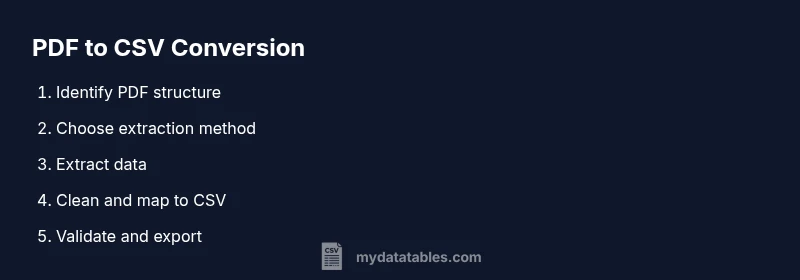
A practical workflow begins with identifying the table region in the PDF, selecting an extraction method, and performing an initial extraction pass. Next, you’ll clean the results, apply your column mappings, and export to CSV with the correct encoding. Finally, you validate the output by spot-checking rows and performing simple queries to ensure data integrity. If you encounter issues (e.g., misread digits or missing headers), iterate on the extraction parameters, re-run the pass, and refine your mapping. This approach aligns with best practices for reproducible data transformation and keeps your PDF-to-CSV process transparent.
Cleaning and normalization: preparing data for use
Raw extractions often contain extra spaces, broken lines, and inconsistent separators. Begin with trimming whitespace, removing stray line breaks, and standardizing numbers (e.g., periods as decimal separators). Normalize text encodings to UTF-8 to prevent character loss during CSV handling. It can help to apply a preprocessing step that normalizes special characters, normalizes dash characters, and standardizes date formats. After cleaning, re-check that each row has the same number of columns as defined in your CSV schema. Consistency here is crucial for reliable downstream processing.
Column mapping and data types: turning tables into structured data
Map each extracted column to a defined CSV header, converting data types as needed (e.g., strings to dates, decimals, or integers). This step reduces downstream errors in analytics and database loading. Record any assumptions or transformations you apply (e.g., treating empty strings as null). If you encounter data that doesn’t fit the schema, document a decision rule (e.g., drop the row, fill with a placeholder, or split into multiple fields). A well-documented mapping is essential for repeatability and audits.
Validation and quality checks: ensuring trustworthy CSV
Validation ensures your CSV is fit for analysis. Check that headers match the schema, verify column counts per row, and run basic data quality tests (e.g., numeric fields contain only digits, dates are valid). Look for anomalies introduced by OCR, such as misread decimals or misaligned separators. Create a small set of test queries that exercise common scenarios (filters, sorts, and joins) to confirm the CSV behaves as expected in your data pipeline. Document any remediation steps for repeatable improvements.
Automation and batch processing: scaling up
When you have many PDFs, automation is essential. Build a lightweight pipeline that takes a PDF, performs extraction (OCR if needed), applies the mapping, and writes one CSV per input. Include logging, error handling, and a retry mechanism for transient OCR failures. Store intermediate artifacts separately from final CSVs to avoid confusion. Automating the process not only saves time but also improves consistency across large datasets.
Real-world tips, templates, and a concise checklist
Use a schema-first design and maintain a template CSV that represents the target structure. Create a short checklist: verify the PDF type (text vs image), confirm the headers, run a spot-check on rows, ensure UTF-8 encoding, and validate a few sample queries. Keep templates and scripts in version control to track changes over time. By following these practices, you’ll reduce rework, improve data quality, and simplify audits. As you adopt the workflow, you’ll gain confidence in converting PDFs to CSV with reliability.
Tools & Materials
- Computer with internet access(Windows, macOS, or Linux)
- Source PDF files(Include sample PDFs for testing)
- CSV editor or spreadsheet software(Excel, Sheets, or CSV-specific tools)
- OCR-enabled tool or PDF parsing library(To extract text from scanned PDFs)
- Text editor or IDE(For scripting or formatting)
- Template mapping document(Define header names and data types)
Steps
Estimated time: 1-2 hours
- 1
Define target CSV schema
Decide which columns and data types you need in the final CSV. Write headers first and note any special handling for dates, numbers, or missing values.
Tip: Starting with a concrete schema reduces back-and-forth during extraction. - 2
Choose extraction method
Select a method based on PDF type: text-based extraction for native PDFs, OCR-based for scanned images, or code-based parsing for large batches.
Tip: For high-volume tasks, consider scripting to automate reuse. - 3
Extract table data from PDF
Run the chosen tool to capture the table rows. If the source has multiple tables, isolate the target region to avoid headers and footers.
Tip: Verify that the extracted rows align with the schema. - 4
Clean and normalize data
Trim whitespace, fix broken lines, and standardize numbers (decimal and thousand separators).
Tip: Keep a separate pass for unusual characters. - 5
Map to CSV schema
Align each extracted field to its corresponding CSV column. Handle missing values and type conversions.
Tip: Document any field transformations for reproducibility. - 6
Export CSV with correct encoding
Choose UTF-8 encoding and ensure consistent delimiters and quotes.
Tip: Avoid mixing delimiters across files. - 7
Validate and iterate
Open the CSV in a viewer to check integrity. Run tests against sample queries to confirm data shape.
Tip: If issues appear, trace back to the extraction step. - 8
Automate for batches (optional)
If you have many PDFs, script the entire pipeline to loop through files and save CSVs in a target folder.
Tip: Add logging to monitor failures.
People Also Ask
Can I convert a PDF to CSV without OCR?
Yes, if the PDF contains native text in table form. If the PDF is scanned or image-based, OCR is required to extract the data.
If the PDF is text-based, you can skip OCR. For scanned documents, OCR is necessary to extract the text before CSV conversion.
What encoding should I use for CSV?
Use UTF-8 encoding when possible to preserve characters and ensure compatibility with data pipelines.
UTF-8 is recommended for CSV files to avoid character loss.
Is there a 'one-click' tool to convert PDFs to CSV?
Many tools exist with varying accuracy. For reliable results, prefer processes that let you review and correct extracted data.
There are tools, but you’ll likely need to review results to ensure accuracy.
How can I automate conversions for many PDFs?
Use scripting or workflow tools to batch process PDFs and output CSVs, with logging for errors.
You can batch process PDFs with scripts and log any failures.
What if the PDF has multiple tables?
Isolate the target table region or run separate extractions for each table, then merge CSVs.
If there are multiple tables, extract and merge them carefully.
How do I validate the final CSV?
Check header alignment, number formats, and how missing values are represented. Run sample queries to confirm structure.
Verify headers and data types, and test with sample data.
Watch Video
Main Points
- Define the target CSV schema first.
- Choose extraction method based on PDF type.
- Validate CSV data after export.
- OCR quality directly affects results.
- Automate for multiple PDFs when possible.