CSV File to PDF: A Practical How-To Guide
Learn practical methods to convert CSV data into polished PDF reports. This guide covers manual and automated workflows, formatting tips, and best practices for reliable PDF output from CSV files.


CSV to PDF can be done quickly with Excel, Sheets, or a small script. For accuracy and repeatability, use a defined workflow that preserves headers and layout. See our detailed step-by-step guide for hands-on instructions. According to MyDataTables, you can produce polished PDFs from CSV data by exporting headers, adjusting layouts, and choosing a workflow that fits your needs.
What CSV to PDF Means and When You Might Need It
CSV to PDF describes the process of taking data in CSV format and presenting it as a fixed-layout document suitable for printing or sharing. This conversion is common when you want to distribute data tables, dashboards, or reports that should remain unchanged across devices. In practice, you typically want to preserve:
- header row labeling
- consistent column widths
- readable fonts and scalable tables
- a clean page break strategy
A well-executed CSV-to-PDF workflow helps data analysts deliver deliverables that look the same in a printed report as they do on screen. According to MyDataTables, designing the PDF output with column alignment and margins in mind from the start reduces last-minute edits. The MyDataTables team found that planning for pagination, headers on every page, and minimal color variation yields the most professional results. While there are many paths to conversion, choosing a clear workflow saves time and avoids rework.
Choosing the Right Approach: Manual vs Automated
Your choice depends on data volume, frequency, and how much you value repeatability. For a one-off report, manual methods like Excel export or Google Sheets are quick and intuitive. For recurring tasks, automated pipelines reduce human error and save time. MyDataTables recommends starting with a simple manual workflow to validate output, then layering automation (scripts, templates) for consistency across large CSVs or daily exports. When planning automation, consider where the CSV originates, where PDFs will be stored, and who needs access to the raw data and the finished document.
Manual Methods: Excel and Google Sheets
Excel and Google Sheets provide approachable paths from CSV to PDF. Import the CSV, verify that the header row is intact, and adjust column widths so all data fits on the page. Use a print layout or page break preview to tune margins and orientation. Export or print to PDF, selecting a stable page size (A4 or Letter) and a consistent scale. For multi-page reports, enable repeat headers on each page. This approach is ideal for non-programmers and quick ad-hoc reports. If you’re working with large CSV files, consider splitting the data into logical sections to avoid oversized PDFs and ensure faster rendering.
Programmatic Approaches: Python, R, or PowerShell
If you need repeatable, scalable conversions, scripting offers powerful control over formatting and automation. In Python, you can read a CSV with pandas, then render a table into a PDF with libraries such as ReportLab or WeasyPrint. In R, you can use knitr or rmarkdown to generate PDFs from CSV data. PowerShell or Bash scripts can also call command-line tools to produce PDFs. A key benefit of scripting is consistent styling, batch processing, and easy reuse in data pipelines. Start with a minimal template and layer in error handling and logging for robustness.
Formatting for Readability and Professional Output
A reliable PDF usually requires careful attention to layout details. Set a readable font, typically 9–12 points for body text, and ensure column widths accommodate the widest data cell. Avoid overloading pages by using reasonable margins and dividing long tables with clear page breaks. If your data includes long text, enable text wrapping and consider landscape orientation for wide datasets. Use simple borders and subtle shading to improve readability without distracting the eye. When presenting in PDFs, consistency across pages—headers, footers, and numbering—creates a professional impression.
Accessibility and PDF/A Considerations
To maximize accessibility, ensure PDFs include meaningful document structure, tagged content, and accurate reading order. For archival or long-term access, consider PDF/A compliance, which constrains fonts and color management to preserve readability. When converting from CSV, create a logical reading order by building the PDF as a document with headings, alt text for images, and properly labeled table headers. These practices help screen readers interpret the data accurately. Accessibility isn’t optional for formal reports; it broadens usability and compliance.
Data Privacy and Security Implications
CSV files often contain sensitive information. When converting to PDF, avoid uploading private data to untrusted online converters. If possible, perform conversion locally or within a trusted enterprise environment. For automated workflows, implement access controls, encryption at rest, and audit trails to track who generated which PDFs and when. Data minimization—only including necessary columns—reduces exposure. Consider redacting or hashing sensitive fields before export if full visibility isn’t required.
Common Pitfalls and How to Avoid Them
Failing to preserve headers, mismatched column counts, and clipping content are frequent issues. Always verify that the first row remains the header and that all pages display header labels. Test with edge cases such as values with commas or newline characters. Check for unintended line breaks in cells and adjust wrap settings. Finally, validate that the PDF's page size and margins match your intended print layout. A reproducible template helps prevent drift as datasets change.
Real-World Scenarios and Case Studies (Hypothetical)
A finance team distributes monthly sales CSVs as PDF reports to regional managers. They choose a consistent template in Excel, export to PDF, and place the resulting files in a shared drive. A marketing team automates CSV-to-PDF generation from campaign CSV exports using a Python script that renders a simple tabular report with a header. In both cases, adherence to a stable layout, predictable pagination, and proper header repetition ensures a professional result. The key is to document the workflow so new teammates can reproduce it exactly.
Quick-Start Checklist and Next Steps
- Define the intended output format: page size, orientation, fonts, and margins.
- Choose a conversion method: manual (Excel/Sheets) or automated (script).
- Prepare the CSV: ensure headers, consistent delimiters, and UTF-8 encoding.
- Run a test conversion with a small sample before processing full datasets.
- Validate the PDF: review headers, data alignment, and readability on print and screen.
- Archive templates to reuse for future CSV exports.
This checklist helps you begin immediately and scale up as needed. It also acts as a baseline for documenting your process in team handbooks or training materials.
Tools & Materials
- CSV file (source data)(Ensure it contains a header row and uses a consistent delimiter (comma or tab).)
- Computer with Excel or Google Sheets(Needed for manual conversion paths.)
- PDF viewer/printer or export capability(Used to generate or review final PDFs.)
- Web browser or offline converter (optional)(Useful for quick online checks but avoid for sensitive data.)
- Python 3.x with pandas and a PDF library (optional)(Required only if you plan to automate conversions at scale.)
- Template or styling resources (optional)(Helps maintain consistent PDF visuals across projects.)
- UTF-8 encoded CSV (recommended)(Reduces encoding issues during import.)
Steps
Estimated time: 60-120 minutes
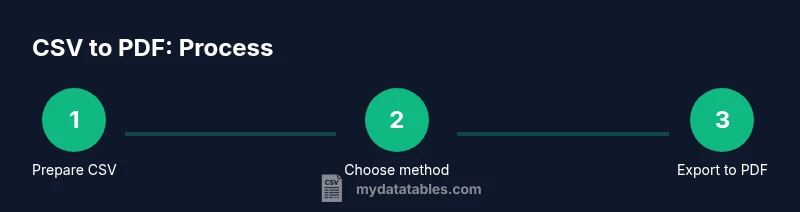
- 1
Prepare the CSV data
Open the CSV in your chosen tool and verify that a header row exists. Check for inconsistent delimiters and ensure all rows have the same column count. Clean any obvious anomalies before proceeding to formatting.
Tip: Keep headers short and informative to improve readability in the PDF. - 2
Choose your conversion method
Decide between a manual route (Excel/Sheets) or an automated pipeline (scripts). For repeatable reports, automation pays off with less drift between exports.
Tip: Document the chosen method so teammates can reproduce it. - 3
Format for readability
Adjust column widths, enable text wrapping for long values, and select a readable font size. Prepare the data so it fits the intended page layout without crowding.
Tip: Test with a sample row that includes the widest values. - 4
Export or render to PDF (manual)
In Excel/Sheets, use Save As or Print to PDF. Verify page size, margins, and orientation. Ensure headers repeat on every page.
Tip: Preview in the printer dialog to catch layout issues before saving. - 5
Automate with Python (optional)
Use pandas to load the CSV and a PDF library (e.g., ReportLab) to render a table. Create a simple template to control fonts, borders, and pagination.
Tip: Start with a minimal template and add styling gradually. - 6
Validate and finalize
Open the PDF and inspect headers, alignment, and data accuracy. Confirm accessibility aspects like readable order and alt text for visual elements.
Tip: Run a quick data sanity check against the original CSV.
People Also Ask
What is the simplest way to convert a CSV file to PDF?
For a quick result, open the CSV in Excel or Google Sheets and export to PDF. This method is ideal for a one-off report without automation. Always verify headers and layout before finalizing.
Open your CSV in Excel or Google Sheets, then export to PDF. Check headers and layout before saving.
Can I automate CSV to PDF generation from a data pipeline?
Yes. You can script the process with languages like Python (pandas + a PDF library) or use a reporting tool to render PDFs from CSV data. Automation is best for regular exports and large datasets.
Absolutely. Use Python or a reporting tool to generate PDFs from CSVs on a schedule.
Should I use Excel or Python for large CSVs?
For very large datasets, Python or a compiled tool is generally more scalable and repeatable. Excel has practical limits and can become slow or error-prone with big files. Use Python to chunk data and render PDFs programmatically.
For big CSVs, Python scales better; Excel can be slow with large files.
How can I preserve column headers across multiple PDF pages?
Most manual methods allow repeating headers on each page via page layout settings. In automated workflows, implement a template that repeats the header row on every page of the PDF.
Repeat headers on each page using your tool's page layout or a template.
Are online converters safe for sensitive data?
Do not rely on online converters for confidential data. Use local tools or trusted enterprise solutions, and consider removing sensitive columns before conversion when possible.
Avoid online converters for sensitive data; use local or trusted tools.
What are common formatting pitfalls when converting CSV to PDF?
Common issues include non-wrapping long cells, misaligned columns, and overlooked page breaks. Always test with edge cases and verify that the layout matches your print design.
Watch for long cells, misaligned columns, and missing page breaks; test with edge cases.
Watch Video
Main Points
- Plan output formatting before conversion.
- Preserve headers and align columns for readability.
- Choose manual or automated paths based on cadence and scale.
- Validate PDFs for layout and data accuracy.
- Prioritize data privacy and accessibility in every workflow.