CSV to PDF Conversion: A Practical Guide for 2026
Learn practical methods to convert CSV data to PDF, with desktop and coding options, formatting tips, and automation strategies for 2026.


This guide shows how to convert CSV to PDF efficiently, preserving data integrity and formatting across desktop tools and code-based workflows. You’ll learn when to use GUI exports versus scripting, how to choose the right font and page setup, and how to automate repeat tasks for reliable reports. By the end, you’ll be able to produce polished PDFs from CSV data with confidence.
Why CSV to PDF Conversion Matters
In data workflows, CSV to PDF conversion is a common requirement for sharing tabular data with stakeholders who expect stable formatting and readable reports. PDF files preserve layout, fonts, and colors across platforms, making them ideal for archiving and distribution. The MyDataTables team emphasizes that converting CSV data to PDF helps ensure that column widths, headers, and numeric formats stay intact when reports are viewed on different devices. When teams want to present insights without exposing raw editing capabilities, a PDF snapshot of a CSV dataset is often the most reliable choice. This compatibility, combined with clear typography and consistent spacing, supports auditability and reproducibility in data projects. Whether you handle customer lists, financial exports, or operational dashboards, a well-crafted CSV to PDF workflow reduces back-and-forth and minimizes misinterpretation. In 2026, many organizations rely on this conversion for formal reports, proposals, and client deliverables.
Common Workflows for CSV to PDF Conversion
There are several common pathways to achieve CSV to PDF conversion, depending on the complexity of your data and the desired level of automation. The simplest method uses desktop spreadsheet software (Excel or LibreOffice) to open the CSV and export or print to PDF. This is quick for small datasets and one-off reports, but it can be error-prone if the CSV contains inconsistent delimiters or non-standard encodings. A second approach uses scripting (Python, R, or similar) to programmatically read the CSV, format the data, and generate a PDF. This is ideal for repeated runs, large datasets, or batch reporting where consistency is critical. Finally, there are dedicated reporting tools that blend data loading with layout templates to produce PDFs automatically. Each method has trade-offs in control, complexity, and maintenance costs.
Tools and Methods: From Desktop Apps to Code
Choosing the right tool is guided by the complexity of your data and the need for repeatability. Desktop apps like Excel or LibreOffice provide quick, visual control over formatting, including column widths, cell alignment, and font choices. They let you preview the final PDF before saving. For automation, Python with pandas and a PDF library (or LaTeX templates) offers repeatable, programmable conversion that scales well with large CSV files. R, Ruby, or Node.js ecosystems also provide robust options for parsing CSVs and generating PDFs. If you prefer no-code solutions, many reporting tools support CSV imports and have built-in PDF export capabilities, often with templating features for consistent branding.
Step-by-Step Conceptual Workflow
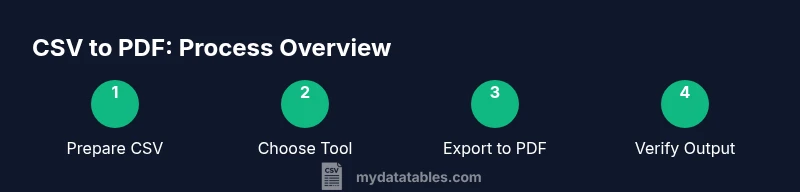
A well-structured CSV to PDF workflow follows a logical sequence to maintain data integrity and presentation quality. Start by inspecting the CSV for encoding, delimiters, and headers. Decide whether you need a simple table or a more elaborate layout with headers repeated on each page and optional footers. Choose your tool based on whether you prioritize speed (GUI export) or reproducibility (scripted generation). Define the page size, margins, and font choices that align with your brand. Run a test export, review the PDF for data clipping or font substitutions, and iterate the layout as needed. Finally, set up a process for repeatable conversions if this task will recur.
Formatting for Readability and Data Integrity
Formatting choices directly impact readability and data interpretation in PDFs. Ensure the CSV header row remains visible with repeated headers on long documents. Apply consistent numeric formats, date styles, and thousand separators to prevent misreading values. Pick fonts that render well in PDF viewers across platforms and avoid overly condensed layouts. Use logical column order and sensible column widths to prevent cramped cells. When dealing with large datasets, consider splitting tables across pages with clear page breaks and captions. Document any conventions you apply (e.g., date formats) so recipients understand the PDF without accessing the raw CSV.
Automating Recurrent CSV to PDF Tasks
Automation reduces manual effort and minimizes human error. A typical automation flow reads a CSV, applies a formatting template (e.g., a header row, font choices, and page layout), and exports to PDF automatically. You can schedule this task on a regular cadence, integrate it into data pipelines, or trigger it by file arrival. Scripting lets you parameterize inputs (like different CSV files or branding templates) and emit logs for auditing. If you must support multiple locales, factor in encoding and locale-aware formatting. Automation shines when CSV exports are part of ongoing reporting cycles.
Troubleshooting Common Issues
CSV to PDF conversion can fail or produce suboptimal results for several reasons. Encoding mismatches (UTF-8 vs. ANSI) can garble characters, especially with symbols and accented letters. Delimiter inconsistencies or stray delimiters may produce misaligned tables. Font substitutions in PDFs can alter typography and spacing, so specify a reliable font and embed it when possible. Large CSV files may strain memory and slow rendering; consider chunking data or using streaming techniques. Finally, ensure headers are present and consistent; missing headers often lead to confusing PDF outputs.
Security, Compliance, and Privacy Considerations
When exporting CSV data to PDF, sensitive information may be exposed inadvertently. Apply data minimization by excluding unnecessary columns when sharing PDFs externally. Use redaction or masking for personal data where appropriate, and verify that PDFs are stored and transmitted securely. Maintain an auditable trail of who exported a file and when, especially for regulated workflows. If your organization has data classification policies, tag PDFs accordingly and use access controls on repositories and email attachments.
Real-World Use Cases and Examples
In practice, CSV to PDF conversion supports many scenarios: quarterly sales reports produced from CSV exports, client deliverables with branded branding, and operational dashboards shared with non-technical stakeholders. By using templated layouts and consistent typography, teams deliver professional PDFs that mirror their brand without exposing raw data manipulation capabilities. Real-world teams often combine CSV imports with PDF exports to create end-to-end reporting pipelines, enabling fast iteration and standardized output across departments.
Tools & Materials
- CSV data file(UTF-8 encoding recommended; includes headers for clarity)
- PDF viewer or printer(Used to verify final output after export)
- Spreadsheet software (Excel or LibreOffice)(Helpful for quick previews and manual formatting)
- Python 3.x with pandas (optional)(Useful for scripted, repeatable conversions)
- Python 3.x with pandas + reportlab or WeasyPrint (optional)(For programmatic PDF generation from data)
- LaTeX or a template engine (optional)(Advanced templating for precise layouts)
- A PDF export feature or print-to-PDF capability(Often built into spreadsheet apps or document processors)
Steps
Estimated time: 60-120 minutes
- 1
Identify the CSV and final PDF requirements
Review the CSV structure, confirm headers, delimiters, and encoding. Define the target page size, margins, and whether headers repeat on every page. Clarify branding needs and any data privacy constraints.
Tip: Write down the required PDF page size (e.g., A4), font choice, and whether to include a header row on every page. - 2
Choose your conversion method
Decide between a GUI-based export and a scripted approach based on data volume, repeatability, and team skills. GUI methods are quick for one-off tasks; scripting scales for recurring reports.
Tip: If you anticipate repeating this task, plan for automation from the start. - 3
Prepare the data
Clean the CSV: normalize delimiters, fix missing values, and ensure consistent headers. Check for special characters and encoding issues that may affect PDF rendering.
Tip: Standardize date formats and numeric representations before export. - 4
Configure the PDF layout
Set page size, margins, font embedding, header/footer placements, and table formatting. Decide if you need landscape orientation for wide datasets.
Tip: Embed fonts to ensure consistent rendering across devices. - 5
Run the conversion
Execute the export or run your script. Verify that all columns align and that long text wraps correctly without truncation.
Tip: Do a quick spot-check on a few rows to catch formatting issues early. - 6
Validate the PDF
Open the PDF in multiple readers to confirm layout fidelity and data integrity. Check for unintended line breaks or font substitutions.
Tip: Compare row counts between CSV and PDF to ensure data is intact. - 7
Enhance and brand
Add a title, date, and branding elements. Consider adding a short data note explaining key metrics if useful for readers.
Tip: Keep branding consistent with your organization’s guidelines. - 8
Automate for future files
Wrap the process in a script or workflow and schedule it if this will be repeated. Maintain a changelog for template updates.
Tip: Version-control your templates and scripts.
People Also Ask
What is CSV to PDF conversion and when is it needed?
CSV to PDF conversion is the process of turning a comma-separated values file into a fixed-layout PDF document. It’s used when you need stable formatting for sharing, auditing, or presenting data to non-editors.
CSV to PDF conversion creates a fixed-layout document for easy sharing and viewing.
Will formatting be preserved in the PDF?
Formatting can be preserved, but it depends on the tool and settings. Embedding fonts, fixing column widths, and repeating headers help maintain layout in the PDF.
Yes, with the right settings, formatting stays intact in the PDF.
Can I automate CSV to PDF conversions?
Yes. Scripting with Python or other languages lets you load CSVs, apply a template, and export PDFs automatically. Scheduling tasks ensures consistency across runs.
Automation is practical for recurring reports.
What tools are best for CSV to PDF conversion?
Best tools range from GUI exporters in spreadsheet apps to code-based pipelines using Python, LaTeX, or report generators. Choose based on dataset size, need for repeatability, and technical comfort.
Tool choice depends on your data size and repeat needs.
How do I handle large CSV files?
For large CSVs, prefer scripted processing with streaming or chunking to avoid memory issues. Desktop exports may stall or fail on very big files.
Streaming or chunking helps with big files.
Is data loss possible during conversion?
Data loss can occur if encoding is mishandled or if numbers are reformatted unintentionally. Validate a sample of rows and ensure locale-aware formatting.
Be mindful of encoding and formatting changes.
Can I include charts or images in the PDF?
Yes, many workflows support embedding charts or images by generating them from the CSV data and including them in the PDF layout.
You can add charts or images to enhance the PDF.
Watch Video
Main Points
- Plan the CSV to PDF conversion with a clear layout template.
- Choose GUI export for quick tasks or scripting for repeatability.
- Validate encoding, fonts, and data integrity after export.
- Automate recurring conversions to save time and ensure consistency.
- Protect sensitive data when sharing PDFs.