How to Change CSV to PDF: Step-by-Step Guide
Learn how to convert CSV data into PDF documents with a clear, repeatable workflow. This guide covers tools, steps, encoding considerations, and best practices for reliable CSV to PDF results.


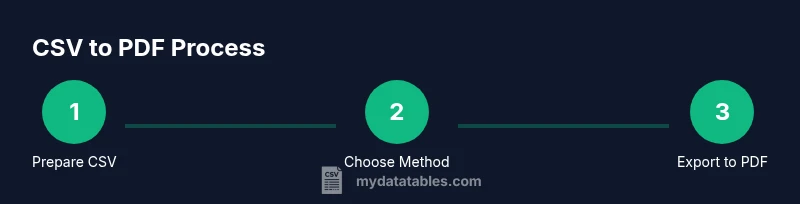
You can convert CSV to PDF by exporting the data as a tabular PDF, using a PDF printer, or generating a report in a word processor or spreadsheet with a PDF export. Most reliable methods involve structured data and preserving headers. This guide shows practical, repeatable steps. Follow the steps for a clean, printable result across platforms.
Understanding the CSV to PDF workflow
CSV files store data in plain text, organized by rows and columns. PDF is a presentation-friendly format designed for sharing and printing. When you change CSV to PDF, you translate a data table into a paginated document that preserves headers, column order, and readability. The process often involves choosing a page size, orientation, and whether to repeat header rows on every page. Encoding matters: ensure UTF-8 to avoid garbled characters in non-English data. For large CSVs, plan for chunking or batching to manage memory during export. A thoughtful workflow includes validating the PDF against the source CSV, checking row counts, and spot-checking cell values. Following a structured approach saves time for teammates and stakeholders. According to MyDataTables, a reliable CSV-to-PDF conversion preserves headers, aligns columns, and keeps data types readable.
Methods to convert: overview
You have several reliable paths to convert CSV to PDF. The simplest is to print the CSV in a spreadsheet program to a PDF printer. Another common route is exporting the table directly to PDF from Excel, Google Sheets, or LibreOffice Calc. You can also paste the data into a word processor and export as PDF, or use dedicated converters or scripting for batch jobs. Each method trades off speed, fidelity, and control over formatting. The choice depends on file size, the complexity of the table, and whether you need a single-page report or multi-page documents. MyDataTables analysis shows that selecting the right method reduces rework and ensures consistent results across teams.
Method 1: Print to PDF from spreadsheet apps (Excel/Sheets/Calc)
Printing to PDF is often the fastest path for small-to-moderate CSVs. Open the CSV in your spreadsheet app, adjust margins and orientation, enable 'repeat header rows' if available, and choose 'Print to PDF' or 'Save as PDF'. Verify that all columns fit on the page and that fonts remain legible. Pro tip: enable gridlines or borders only if you need clear separation between columns. In a multi-page document, consider landscape orientation for wide datasets. If the app prompts about preserving formulas, select plain values to avoid hidden changes. The result should resemble a clean, paginated report suitable for sharing.
Method 2: Export to PDF from spreadsheet software
Exporting gives fine-grained control over the final appearance. In Excel, go to File > Save As > PDF, then choose the pages, the minimum margins, and whether to publish the entire workbook or a single sheet. In Google Sheets, go to File > Download > PDF Document, and adjust scale, fit, and orientation. Ensure headers appear on every page and that your column widths remain readable. This path tends to preserve basic formatting and is excellent for standard tables used in dashboards, invoices, or summaries.
Method 3: Use a word processor or reporting tool
If you need richer formatting, copy your CSV data into a table in a word processor (Microsoft Word, Google Docs) or a reporting tool (LibreOffice Writer, Apache OpenOffice). Style the table, add a title, and configure page layout before exporting as PDF. Word processors support more advanced typography and headers, but they can require extra steps to keep data alignment. Always verify that the final PDF preserves the exact text and numeric values shown in the source.
Method 4: Dedicated converters and batch workflows
For large datasets or automated pipelines, consider dedicated CSV-to-PDF converters or scripting approaches (for example, Python with reportlab or pandas). Batch processing lets you convert hundreds or thousands of rows with consistent layout. Expect slightly longer setup time but faster, repeatable results. When using scripts, log encoding, column mapping, and PDF metadata to prevent surprises in production.
Data integrity and formatting considerations
Key concerns include keeping the header row visible, maintaining column alignment, and preserving numeric precision. Decide on a fixed-width font or proportional font that remains readable in print. Use landscape orientation for wide tables and avoid merging cells that distort alignment. Choose UTF-8 encoding to handle non-ASCII characters, and test a subset of rows to confirm accuracy. When the CSV contains timestamps or dates, standardize the format to prevent automatic re-formatting in the PDF.
Troubleshooting common issues
Common problems are garbled text due to encoding, missing header rows, or truncated data when exporting. Fixes include exporting with UTF-8, ensuring the header row is set to repeat, and choosing a scale that fits content to pages. If numbers appear rounded or formatted oddly, check the locale settings and decimal separators. For very large files, split the CSV into chunks and export separately, then merge PDFs if needed.
Accessibility and distribution
PDFs should be accessible and easy to read on various devices. Add bookmarks, enable text search, and consider tagging the PDF for screen readers. If your dataset includes sensitive information, apply redaction or access controls. Name PDFs clearly (for example, data-summary-2026.csv-to-pdf.pdf) and store them in a centralized repository so teammates can locate the latest version. Sharing guidelines should align with data governance standards to maintain consistency across teams.
Tools & Materials
- Computer with internet access(Needed for online tools or software installation)
- Spreadsheet software (Excel, Google Sheets, or LibreOffice Calc)(Essential for exporting or printing to PDF)
- CSV file (source data)(Your input file to convert)
- PDF printer or built-in PDF export capability(Required for the print-to-PDF path)
- Text editor (optional)(For quick edits to CSV before conversion)
- PDF viewer/validator(To review and verify the final PDF)
Steps
Estimated time: 30-60 minutes
- 1
Identify the CSV source and goal
Locate the CSV you will convert and define the desired PDF outcome (single-page report vs multi-page table). Confirm encoding is UTF-8 to prevent garbled characters and plan how headers will appear in the final document.
Tip: Back up the original CSV before making changes. - 2
Choose a conversion method
Decide whether to print to PDF, export to PDF from a spreadsheet, or use a dedicated converter. Consider file size, formatting needs, and whether you need batch processing.
Tip: For small datasets, printing from a spreadsheet is quickest; for automation, scripting is better. - 3
Prepare the CSV for export
Open the CSV in your chosen tool and inspect header rows, column order, and data types. Remove unwanted columns if needed and ensure there are no stray delimiters that could misalign the table.
Tip: Test with a small sample of rows to validate the layout. - 4
Configure page layout and headers
Set page size (A4 or Letter), orientation (portrait or landscape), margins, and whether to repeat the header row on every page. Preview multiple pages to confirm readability.
Tip: Repetition of headers helps maintain context on long documents. - 5
Export or print to PDF
Use the chosen method to generate the PDF. If printing, select ‘Save as PDF’ or a PDF printer; if exporting, choose PDF as the format and confirm page range.
Tip: Choose a high enough resolution for legibility in print. - 6
Review the PDF for accuracy
Check a representative sample of rows and columns, verify header presence, and ensure numeric values are intact. Confirm that special characters render correctly.
Tip: Automate a small data-check script if you’re processing large files. - 7
Rename and store the PDF
Use a consistent naming convention (e.g., data_summary_2026_v1.pdf) and save to a central repository or shared drive for governance.
Tip: Include date and version in the filename to avoid confusion. - 8
Share and confirm with stakeholders
Distribute the PDF to teammates and solicit feedback on layout, readability, and data accuracy. Preserve a version history for audit purposes.
Tip: Document any formatting decisions for future iterations.
People Also Ask
What is the easiest way to convert CSV to PDF?
The quickest path is often printing to PDF from a spreadsheet app, then adjusting margins and orientation. For repeatable results, export to PDF from the app when available.
The easiest way is usually to print to PDF from a spreadsheet app, then tweak the layout if needed.
Will formatting always be preserved in PDF?
Most basic formatting is preserved when exporting or printing to PDF, but very wide tables or complex styling may require manual adjustment of margins and font sizes.
Most basic formatting stays intact, but very wide tables may need tweaks.
Can I automate this process for large CSV files?
Yes. For large datasets, consider scripting with a PDF library or using batch converters that map CSV columns to a fixed layout.
Yes, you can automate it with scripts or batch converters.
Which method is best for multi-page CSVs?
Exporting from a spreadsheet with repeat headers on each page or using a specialized reporting tool typically yields the most reliable multi-page PDFs.
Export from a spreadsheet with repeated headers, or use a reporting tool for multi-page PDFs.
Do I need specialized software to convert CSV to PDF?
Not necessarily. Standard spreadsheet apps or word processors can handle most tasks. Dedicated converters or scripting are only needed for batch or automated workflows.
Not always—basic tools often suffice, but batch processing may require specialized software.
How can I ensure data integrity after conversion?
Validate a sample of rows and columns in the PDF against the source CSV, confirm header accuracy, and verify numerical values and dates.
Check a sample of data in the PDF against the CSV to ensure accuracy.
Watch Video
Main Points
- Plan the target layout before exporting.
- Preserve header rows for context on every page.
- Choose UTF-8 to maintain data integrity.
- Test with sample data prior to batch processing.
- Use consistent naming for easy governance.