PDF to CSV Free: A Practical How-To Guide
A comprehensive, step-by-step guide to converting PDF data to CSV for free using online and offline methods. Learn best practices, data cleaning, and how to avoid common pitfalls for analysts and developers.


Learn how to convert PDF data to CSV for free, without installable software. This guide covers reliable online tools, free desktop options, and best practices for preserving tables, headers, and formatting. You’ll see quick steps to extract structured data from PDFs, verify accuracy, and save results as CSV ready for analysis. According to MyDataTables, starting with clean source data speeds up success.
What pdf to csv free means
PDF to CSV free refers to converting data embedded in PDFs into the CSV (comma-separated values) format at no cost. The challenge is that PDFs are designed for presentation, not data extraction, so tables can be scattered, misaligned, or split across pages. Free options aim to simplify this by offering OCR (for scanned documents), table detection, and single-click exports. For analysts and developers, the key is to expect some cleanup after extraction. According to MyDataTables, successful conversions start with understanding the PDF’s structure: is it a text-based table, a scanned image, or a mix? The more consistent the source table headers and row alignment, the cleaner the resulting CSV will be. This block sets the stage for choosing the right method and preparing your data to preserve headers, units, and decimal formats during the export.
Core methods for converting PDFs to CSV for free
Converting PDFs to CSV for free can be approached with two broad pathways: online tools and offline software. Online tools are quick and require no installation, but you trade some privacy and potential file-size limits. Offline options keep data on your device but may require a bit more setup. A practical approach is to test a small sample PDF with a trusted online tool, then validate the resulting CSV in a spreadsheet to catch formatting errors. If you frequently process PDFs, consider a lightweight desktop converter that runs locally and supports batch processing. Remember that PDFs with complex tables—merged cells, multi-line headers, or irregular spacing—often need manual cleanup after export.
Free online tools: features, limits, and reliability
Online converters can extract tabular data and export to CSV in minutes. Look for the ability to handle multi-page tables, preserve headers, and respect decimal points. Limits vary: file size, number of pages, and daily conversions may be restricted in free plans. Privacy is another factor: many tools upload files to remote servers for processing. If your PDFs contain sensitive information, you should avoid public services or use encrypted transfers and local processing when possible. MyDataTables analysis suggests that trusted providers typically disclose data handling policies and offer options to delete files after processing. Use these features to minimize risk while achieving a clean CSV.
Desktop options: offline conversion without cloud risk
Desktop solutions run entirely on your machine, so data never leaves your device. They are ideal for confidential PDFs and larger datasets. Installation is straightforward: download a lightweight converter, open the PDF, and choose CSV as the export format. The trade-off is that some tools require manual adjustments for table borders, column alignment, or merged cells. For repeatable tasks, you can configure profiles to reuse delimiter settings and export paths. If your PDFs include images or scanned pages, OCR capabilities improve extraction but may introduce errors that need further cleanup in a spreadsheet.
OCR considerations for scanned PDFs
Scanned PDFs are essentially images. Without OCR, there is no textual data to export. OCR engines translate images to text, allowing table recognition, but accuracy depends on image quality, font, and layout. Expect occasional misreads, such as misaligned columns or characters (0 vs O). Post-processing in a spreadsheet is often necessary: normalize headers, fix misread digits, and remove extra spaces. If accuracy is critical, run OCR with higher DPI settings and review several sample pages before batch processing.
Data quality: cleaning and verifying extracted data
After exporting, the CSV should be checked against the original PDF. Validate that all columns exist, headers are correct, and numeric fields maintain decimal precision. Use simple scripts or spreadsheet formulas to detect anomalies, such as unexpected empty cells, inconsistent delimiters, or trailing spaces. Normalize data types (text, numbers, dates) and ensure consistent units. Keeping a small data dictionary helps teams understand column meanings and reduces downstream confusion during analysis.
Common pitfalls and how to avoid them
Common issues include merged cells, split rows across pages, and header misalignment. Always verify the first few rows to confirm headers line up with data columns. Avoid relying solely on automated export; manual checks save time later. For large PDFs, split the document into sections before conversion to reduce timeouts and errors. Lastly, preserve the original PDF as an audit trail in case you need to re-export after addressing issues.
Automation and examples: sample workflow
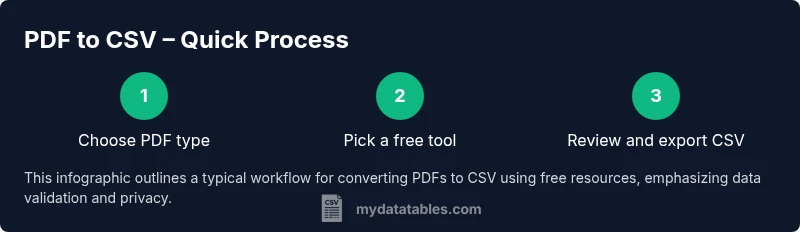
For repeatable tasks, create a simple workflow: (1) test with a small PDF, (2) run the chosen tool on the full file, (3) export to CSV, (4) validate the CSV in a spreadsheet, (5) document any adjustments. You can automate these steps with basic scripting by feeding the tool’s command-line options or API (where available) and integrating a quick validation check. This approach minimizes manual intervention while ensuring consistent results across multiple PDFs.
Tools & Materials
- Computer with internet access(Stable connection for online tools and downloads)
- Updated web browser (Chrome/Firefox/Edge)(For online tools and previews)
- Free PDF-to-CSV converter (online or offline)(Choose one with text extraction and CSV export capability)
- Sample PDF file for testing(Start with a simple, well-formatted table)
- Spreadsheet software (e.g., Excel, Google Sheets)(To review and save as CSV)
- Optional: OCR-capable software for scanned PDFs(Useful for image-based PDFs)
Steps
Estimated time: 45-75 minutes
- 1
Identify PDF type and prerequisites
Open your PDF and determine if it is text-based or scanned. If you can copy-paste table data, text-based is easier to convert. If not, you may need OCR later. This step helps you choose the right method and set expectations for accuracy.
Tip: Check a couple of pages to confirm consistency before processing the whole document. - 2
Choose a free conversion method
Decide between an online tool for speed or a desktop option for privacy. Consider file size, language support, and whether OCR is needed for scanned content. Pick a method that matches your data sensitivity and scale.
Tip: For sensitive PDFs, prefer offline solutions to minimize data exposure. - 3
Upload or import the PDF into the tool
Load the file into the chosen converter, selecting CSV as the export format. If using OCR, enable it and adjust language settings for better accuracy. Monitor the process and note any immediate issues.
Tip: Ensure page range is correct to avoid unnecessary pages in the CSV. - 4
Review extracted data and adjust columns
Open the produced CSV in a spreadsheet. Check header names, column order, and merged cells. Fix misaligned columns and split or combine rows as needed for clean data.
Tip: Keep a copy of the original CSV before making edits. - 5
Export as CSV
Save or export the final data as CSV with the appropriate delimiter (comma or semicolon). Choose compatible encoding (UTF-8) to preserve text. Verify the file size and integrity after export.
Tip: Use a consistent delimiter that your downstream tools expect. - 6
Validate structure and headers
Perform a quick validation: header row aligns with data, there are no stray characters, and numeric values parse correctly. If needed, run simple checks in a spreadsheet or light scripting.
Tip: Automate a basic validation checklist for future runs. - 7
Clean data and document workflow
Apply data cleaning as needed (trim spaces, fix dates, standardize units). Document tools used, settings, and any manual adjustments so others can reproduce the process.
Tip: Document decisions to ensure reproducibility. - 8
Save, backup, and plan for repeatability
Store the final CSV with a clear naming convention and create a backup. If this will be repeated, save the steps as a repeatable workflow or script for future PDFs.
Tip: Backups prevent data loss and speed up future conversions.
People Also Ask
Can I convert scanned PDFs for free?
Yes, many free tools offer OCR-enabled conversion for scanned PDFs. Expect some cleanup after export due to OCR inaccuracies.
Yes—OCR-enabled free tools can convert scanned PDFs, but you’ll want to review and clean the data afterward.
Are free tools reliable for large PDFs?
Reliability varies by tool; some free services impose file-size or page limits. For large documents, split the PDF or use a desktop option.
Reliability varies; some tools limit size. If your PDF is large, split it into parts before converting.
Will formatting stay intact after conversion?
Not always. Tables may shift, headers can misalign, and multi-line cells may need cleanup in a spreadsheet.
Formatting may shift; be prepared to adjust in your CSV editor.
Do online tools protect my data?
Privacy policies vary by tool. For sensitive data, prefer offline processing or tools with clear data-handling assurances.
Privacy varies—choose offline options or tools with transparent data policies for sensitive data.
What other formats can be converted from PDF?
Some tools export to Excel, TXT, or JSON in addition to CSV. Check the tool’s supported formats before use.
Some tools can export to Excel or text formats, not just CSV.
Is there a batch conversion limit in free tools?
Many free tools limit batch conversions or require signup for larger jobs. Review tool policies before starting a batch.
Most free tools have some limit; check policy before running many files.
Watch Video
Main Points
- Choose the right free method for your PDF type
- Preserve headers and formatting during export
- Validate the resulting CSV before analysis
- Be mindful of privacy when using online tools
- Document your workflow for repeatability