Convert PDF to CSV Free Online: A Practical Guide
Learn how to convert PDF to CSV for free online with trusted tools, privacy tips, and step-by-step workflows. This educational guide helps data analysts extract tabular data accurately, then clean and validate CSV outputs for analysis.


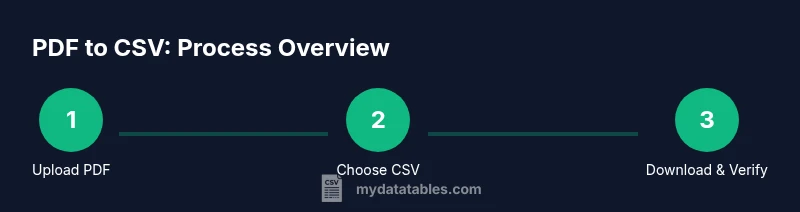
Goal: convert pdf to csv free online. You can do this by uploading your PDF to a reputable online converter, selecting CSV as the output, and downloading the resulting file. Ensure the tool preserves headers and multi-line cells, supports UTF-8 encoding, and does not require software installation. For sensitive data, avoid free services or use offline software. Privacy, accuracy, and post-processing matter.
What does convert pdf to csv free online actually mean?
When you see "convert pdf to csv free online", you're looking at a workflow that extracts tabular data from a PDF and saves it as CSV. This is convenient for analysts who want to reuse tables in spreadsheets or databases without manual transcription. In this guide, we’ll explore free online tools, how to assess their quality, and how to verify results. The keyword convert pdf to csv free online appears throughout to keep focus on the task. The MyDataTables team emphasizes choosing tools with clear privacy policies and reliable parsing for accurate outputs.
This approach is not magic—it hinges on how the source PDF encodes tables (text vs scanned images), how the converter interprets layout cues (lines, whitespace, and fonts), and how well it preserves headers and data types. You’ll learn practical criteria, debugging tips, and best practices so you can get clean CSV results without installing specialized software. The landscape evolves as services update their OCR and parsing engines, so staying current matters.
What to look for in a free online PDF-to-CSV tool
The first checkpoint is data integrity: do the extracted rows and columns line up with the visible table? Next, check whether headers are retained and whether multi-line cells stay intact. UTF-8 encoding is essential if your data includes accented characters or symbols. Privacy policies matter: read terms about data retention, whether you can delete uploads, and if the site claims to anonymize or store files. Finally, evaluate the output options—can you choose delimiter, decimal style, or quote rules? By keeping these criteria in mind, you’ll avoid surprises when importing CSV into your analysis workflow. MyDataTables analysis shows that accuracy varies across free online converters; testing with small samples improves reliability.
How online PDF-to-CSV tools fit into a data workflow
Online converters shine when you need a quick datapoint without installing software. They’re especially useful for one-off tasks or exploratory work. However, for mission-critical data or sensitive information, you should consider offline options, document provenance, and result validation. This guide helps you balance convenience with control, so you can decide when to use free online services and when to rely on desktop solutions or APIs. The MyDataTables team reminds readers to prioritize privacy and verify results, especially with large or complex PDFs.
Tools & Materials
- Web browser(Latest version of Chrome/Firefox/Edge for compatibility)
- Stable internet connection(Broadband or better recommended)
- PDF file to convert(Local copy of the document you want to transform)
- CSV sample for checking (optional)(Small CSV to compare structure after export)
- Privacy checklist (optional)(Review privacy terms of the service before uploading)
Steps
Estimated time: 25-40 minutes
- 1
Choose a trusted converter
Select a reputable online tool with clear privacy terms, HTTPS security, and recent activity. Look for user reviews and a transparent data retention policy to minimize risk.
Tip: Prioritize sites that explicitly state data is not kept longer than necessary. - 2
Prepare your PDF
Check if the PDF is text-based or a scanned image. If it's scanned, OCR may be applied during conversion, which can affect accuracy. Clean up obvious artifacts locally if possible.
Tip: If possible, pick a file with clearly defined tables and minimal multi-column headers. - 3
Upload your PDF
Use the tool’s upload button and ensure the file size is within the allowed limit. Avoid dropping sensitive documents on unknown sites.
Tip: If the site supports batch uploads, avoid processing multiple sensitive files at once. - 4
Choose CSV as output
Select CSV as the export format and set encoding to UTF-8 if available. Some sites offer delimiter options (comma, semicolon) and quoting rules.
Tip: Check whether decimal points appear as dots and not commas, depending on locale. - 5
Configure parsing options
Tune how the tool detects tables, headers, and multi-line cells. Enable header row recognition and consider column alignment hints.
Tip: If available, preview the parsed result before downloading. - 6
Run conversion
Initiate the conversion and wait for the tool to process. Larger PDFs may take longer; some sites show a progress bar or provide a download link upon completion.
Tip: If the tool times out, try a smaller page range or a different converter. - 7
Download CSV
Save the file to a known location. Verify file size and basic structure to ensure a successful export.
Tip: Open the CSV in a text editor first to inspect delimiter usage and header presence. - 8
Validate and clean
Load CSV into your preferred tool (Excel, pandas, etc.) and validate headers, data types, and row alignment. Apply simple cleaning if needed.
Tip: Use a small test subset to speed up validation before processing full data.
People Also Ask
Is it safe to convert PDFs online for free?
Free online converters can be convenient, but privacy and data retention policies vary. Avoid uploading sensitive documents to unknown sites. Prefer services with clear data handling and the option to delete uploads immediately.
Free converters are convenient but check privacy policies before uploading sensitive data.
Do all online tools OCR scanned PDFs accurately?
Not all tools handle OCR equally. For scanned PDFs, expect some errors in numeric fields or misaligned headers. Validate results by spot-checking rows and columns against the source.
OCR accuracy varies; validate results by spot-checking the output.
Can I customize CSV output (encoding, delimiter) online?
Some tools offer delimiter and encoding options, but others export a basic CSV. Look for UTF-8 encoding and a clear delimiter choice to ensure compatibility with downstream analysis.
Many tools let you set encoding and delimiter; look for UTF-8 support.
What should I do if the header row is missing?
If headers are missing, you can usually map the first row to headers manually in your destination tool or re-run the conversion with header-recognition enabled if available.
If headers aren’t detected, map the first row to headers in your tool or retry with header recognition.
Are there size limits for PDF uploads online?
Yes, many free online converters cap file size. For large PDFs, break the file into sections or use an offline tool for robust processing.
Most free tools have size limits; consider breaking large PDFs.
What is the best workflow to ensure accuracy?
Choose a trusted converter, verify with a sample, validate the resulting CSV in your analysis environment, and perform post-processing as needed.
Test with a sample, validate in your tool, and clean as needed.
Watch Video
Main Points
- Choose trusted online tools with clear privacy policies.
- Verify headers and encoding after export.
- OCR may affect accuracy for scanned PDFs.
- The MyDataTables team recommends validating results and prioritizing privacy.