Online Convert PDF to CSV: A Practical Guide
Learn how to online convert pdf to csv with privacy-safe tools. This step-by-step guide covers text extraction, data cleanup, and best practices from MyDataTables to ensure accurate, usable CSV files.


You can online convert pdf to csv by uploading the PDF to a reputable converter, selecting CSV as the output, and downloading the resulting file. Ensure the source is text-based (not just images) for better accuracy, and review the CSV for alignment with your data schema. For sensitive information, prefer local or enterprise-grade tools with transparent privacy policies. MyDataTables recommends starting with a small sample to validate results before processing larger datasets.
Why online convert pdf to csv matters
Converting PDFs to CSV unlocks the data inside reports, invoices, and forms for analysis, automation, and integration. For data analysts, developers, and business users, the ability to convert on the web dramatically reduces manual data entry and copy-paste errors. The phrase online convert pdf to csv captures this common workflow, where teams seek quick, repeatable access to structured data. According to MyDataTables, the shift toward web-based conversion tools reflects a broader preference for rapid data transformation without installing heavy software. A good online converter should preserve table structure, support accurate delimiter handling, and output clean, machine-readable CSV that can be loaded into spreadsheets, databases, or BI dashboards. Security and privacy matter: use trusted providers and avoid uploading highly sensitive documents unless you trust the service.
Understanding input types and how they affect results
PDFs come in two primary flavors for data extraction: text-based PDFs, where the data exists as selectable text, and image-based PDFs, where data is embedded in scanned images. Text-based PDFs yield higher accuracy with standard copy/paste, while image-based PDFs require OCR (optical character recognition) to identify characters. Tables in PDFs may be explicit, spanning multiple columns, or embedded as graphic blocks. The quality of the source file directly impacts the CSV output; in some cases, you may need to clean rows, merge cells, or reformat headers after extraction.
How online converters interpret PDFs and generate CSV
Most online converters perform three core steps: (1) detect the document structure and locate tabular regions, (2) transform the detected tables into a tabular data model, and (3) serialize that model into a CSV file with chosen delimiters and encoding. Advanced tools try to infer headers, handle multi-line cells, and manage nested tables. While no tool is perfect, a well-designed converter minimizes misaligned columns and preserves numeric formatting. MyDataTables notes that effective extraction hinges on clear table boundaries and consistent row lengths across the source pages.
Privacy, security, and choosing a tool you can trust
Security is a critical consideration when converting PDFs online. Before you upload, review the provider’s privacy policy, data retention terms, and whether the processed files are stored or deleted immediately. Some services process data in the browser (local processing) or offer enterprise-grade privacy guarantees. If data sensitivity is high, prefer offline desktop tools or trusted services with transparent data-handling practices. In practice, choosing a tool with strong privacy commitments reduces risk and helps you stay compliant with data governance policies. MyDataTables highlights privacy as a deciding factor when evaluating online converters.
A practical workflow: from PDF to CSV in minutes
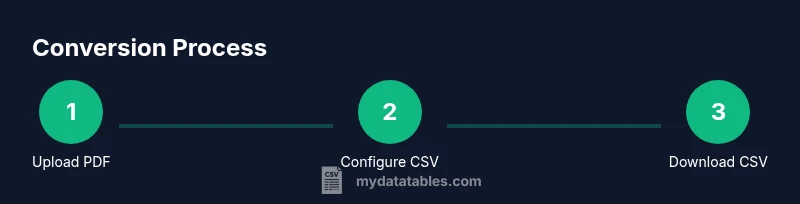
Start with a small, representative PDF to test the workflow. Upload the file, select CSV as the output format, and configure the delimiter and encoding options. After the tool generates the CSV, download it and open it in a spreadsheet program to inspect for misaligned columns or broken headers. If issues arise, experiment with OCR settings for scanned pages, adjust table areas, or try a different converter. Repeating the process on a sample allows you to fine-tune parameters before processing larger batches.
Authority sources and further reading
For context on data formats and document handling, consult reputable references such as U.S. government and standards sources. The Library of Congress (loc.gov) and the National Institute of Standards and Technology (nist.gov) provide foundational guidance on document integrity and data interchange. The U.S. Government Publishing Office (gpo.gov) offers practical information about accessible document formats. These sources help you understand why structured data extraction matters and how to approach conversion with discipline.
Cleaning and validating your resulting CSV
After conversion, the CSV often requires cleaning to ensure consistency. Check header names, remove empty columns, and verify that numeric fields remain correctly formatted (e.g., decimals, thousands separators). Use a data-cleaning mindset: standardize delimiters, unify date formats, and normalize text capitalization where needed. If you plan to automate imports, consider importing a small sample into a database or data warehouse to catch schema mismatches early. A well-cleaned CSV reduces downstream issues in analysis or reporting.
Tools & Materials
- Stable internet connection(Needed for uploading and downloading files without interruptions)
- Updated web browser(Chrome, Edge, Firefox, or Safari with recent security updates)
- Source PDF(s)(Prefer text-based PDFs; for scanned PDFs, OCR may be required)
- CSV-capable tool(Spreadsheet software or a database/ETL tool to verify results)
- OCR option (if needed)(CPU-intensive; use when PDFs are image-based)
Steps
Estimated time: Total time: 15-25 minutes for a typical PDF (including review and cleaning)
- 1
Prepare your PDFs
Organize a representative sample of PDFs you want to convert. Check whether they are text-based or image-based and note the presence of complex tables. If needed, run OCR on image-based pages to improve extraction accuracy.
Tip: Test with a small file first to calibrate expectations before processing large batches. - 2
Choose a trusted online converter
Select a service with clear privacy terms, no automatic data sharing, and verifiable uptime. Prefer services that allow privacy controls or local processing where possible.
Tip: Read user reviews and verify that the site uses HTTPS to protect data in transit. - 3
Upload the PDF
Drag-and-drop or browse to select the PDF on your device. Ensure you upload the exact file you intend to convert to avoid duplicate work.
Tip: Disable auto-fill or auto-save features on your device to prevent unintended data storage. - 4
Set CSV options
Choose delimiter (comma, semicolon, tab), encoding (UTF-8 recommended), and whether the first row is a header. Some tools also offer locale and decimal handling options.
Tip: If your data contains commas in fields, consider a different delimiter or enabling quotes around fields. - 5
Run the conversion
Execute the conversion and wait for the tool to generate the CSV. For large PDFs, this may take a moment.
Tip: Monitor progress and avoid closing the browser mid-conversion to prevent corrupted outputs. - 6
Download and inspect
Save the CSV locally and open it in a spreadsheet to verify structure, headers, and data types. Look for misaligned columns, truncated rows, or unusual spacing.
Tip: Filter a few rows to confirm numeric columns retain correct formatting. - 7
Clean and validate
Apply standard data-cleaning steps: trim whitespace, correct dates, and normalize inconsistent values. Validate against a reference schema if available.
Tip: Keep an audit trail of changes for reproducibility and compliance.
People Also Ask
Can I convert scanned PDFs or image-based PDFs to CSV?
Yes, but you will typically need OCR to extract text from images. OCR accuracy varies by tool and scanning quality, so expect some manual adjustments after conversion.
Yes. OCR is usually required for scanned PDFs, and results may need editing.
Is it safe to upload PDFs containing sensitive data to online converters?
Security depends on the provider. Choose services with transparent privacy policies, encryption in transit, and clear data retention terms. If data is highly sensitive, prefer offline tools.
Only upload sensitive PDFs to trusted services with strong privacy terms or use offline tools.
How accurate is the CSV extraction from PDFs?
Accuracy depends on the PDF structure, presence of clear table boundaries, and whether OCR was needed. Expect occasional misaligned columns or merged cells that require manual cleanup.
Extraction accuracy varies; you may need to adjust headers and delimiters afterward.
Can I convert multiple PDFs in batch?
Many online tools offer batch processing or batch upload for multiple PDFs. Check limits on file size and the number of files per session.
Yes, many tools support batch conversions with some limits.
What’s the difference between free and paid online converters?
Free tools often have usage limits, ads, or lower privacy guarantees. Paid options may provide higher accuracy, batch processing, and better data protection.
Paid tools usually offer better accuracy and privacy features.
How do I handle complex tables or merged cells in PDFs?
Complex layouts may require manual adjustments after export. Some tools offer table-area selection to improve extraction, or you may need to post-process in a spreadsheet.
Complex tables often need post-processing to fix structure.
Watch Video
Main Points
- Understand the PDF source before converting.
- Choose trusted tools with transparent privacy policies.
- Verify and clean the CSV for accuracy.
- Test with samples to minimize downstream issues.