Convert Images to CSV: A Practical Step-by-Step Guide
Learn a complete workflow to convert images to CSV, from OCR and pixel extraction to data quality checks. This MyDataTables guide covers tools, steps, and best practices for reliable results.


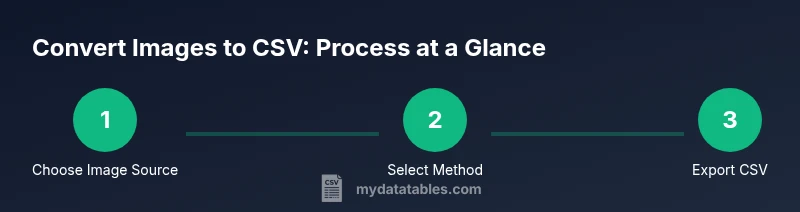
By the end of this guide, you will convert images to CSV using OCR or pixel-based extraction, map results to a CSV schema, and validate the output for accuracy. You’ll learn practical workflows, essential tools, and common pitfalls to avoid. This quick start highlights the core steps and prerequisites to get reliable comma-delimited data from images.
Pixel data extraction vs OCR: two core approaches
When you convert images to CSV, you must choose between two core approaches: pixel data extraction and optical character recognition (OCR). Pixel data extraction reads raw color or intensity values, suitable for numeric charts and sensor grids. OCR interprets visible text and tables, turning them into structured text. MyDataTables research suggests that starting with the right approach reduces cleanup time and errors later in the pipeline.
Understanding input formats and expected outputs
Images come in many formats (JPEG, PNG, TIFF) and vary in resolution, color depth, and noise. Your CSV can capture pixel values, coordinates, and timing metadata, or it can store extracted text with associated bounding boxes. The expected output is a clean, UTF-8 encoded CSV with clearly named columns that match your chosen schema. Planning the schema upfront helps align extraction results with downstream analytics.
Preprocessing: preparing images for conversion
Preprocessing improves accuracy. Steps include cropping to the region of interest, deskewing rotated pages, converting to grayscale, and applying noise reduction. For OCR, preprocessing reduces misreads; for pixel extraction, it simplifies consistent feature detection. Create a preprocessing plan and reuse it across your image set to ensure steady results across batches.
Extraction methods in practice
If you use OCR, configure the engine for the expected language and table structure; train or tune page segmentation modes as needed. If you opt for pixel-based extraction, decide on the data you need (values, coordinates, colors) and implement a mapping from each image region to a CSV field. Document the chosen method for reproducibility so teammates can audit the process.
Mapping, cleaning, and validating the CSV
Design a schema that captures the data you require. After extraction, map raw outputs to your schema, handle missing values, and normalize units. Validate numeric columns with reasonable ranges, check for inconsistent delimiters, and confirm UTF-8 encoding. This step is critical to ensure the final CSV is machine-friendly and ready for analysis. A well-documented mapping aids future re-runs and audits.
Automation, scale, and governance
For recurring image data, automate the workflow with scripts or pipelines, schedule runs, and store versioned CSVs. Implement logging, error handling, and simple retries. Establish governance: define ownership, retention, and quality checks, and align with team standards. MyDataTables emphasizes repeatability and traceability in every CSV-generation project. Consistency here saves time in data wrangling later.
Tools & Materials
- Original image files (JPEG, PNG, TIFF)(Collect a representative set for testing (10–20 images is a good start).)
- OCR software or service(Choose language packs appropriate for your content.)
- CSV editor or spreadsheet software(For manual inspection and small edits.)
- Python 3.x with pandas(Useful for batch processing, mapping, and automation.)
- Image preprocessing tools(Needed if preprocessing is required (cropping, denoising, etc.).)
Steps
Estimated time: 1.5-2 hours
- 1
Collect and organize your image sources
Gather all images into a single folder, ensure consistent file naming, and create a small representative subset for testing. This setup reduces confusion later and helps you calibrate the pipeline before full runs.
Tip: Use a naming convention like projectName_losslessIndex_date for traceability. - 2
Choose your extraction approach
Decide whether OCR or pixel data extraction best suits your data. Text-heavy images and tables favor OCR; charts or sensor grids may benefit from pixel extraction. Make this decision up front to design the mapping.
Tip: Document why you chose OCR vs. pixel extraction to aid future audits. - 3
Preprocess images for accuracy
Apply consistent preprocessing: crop to the area of interest, rotate/deskew as needed, convert to grayscale, and reduce noise. Preprocessing dramatically improves downstream data quality.
Tip: Maintain a separate copy of preprocessed images for reproducibility. - 4
Run OCR or pixel extraction
Execute the chosen extraction method to produce raw data. If OCR, configure language and table detection; if pixel-based, capture the exact features you need (values, coordinates, colors).
Tip: Save intermediate outputs so you can backtrack if needed. - 5
Define and apply a CSV schema
Create a schema with clearly named columns that reflect the data you extracted. Map raw outputs to these columns to ensure consistency across images.
Tip: Keep the schema stable across runs to simplify automation. - 6
Clean, validate, and normalize data
Handle missing values, normalize units, and enforce UTF-8 encoding. Validate numeric ranges and check for alignment with headers to prevent downstream errors.
Tip: Use unit tests or sample checks to catch drift early. - 7
Export and verify encoding
Export the final dataset as UTF-8 CSV, verify delimiters, and inspect a few sample rows manually to confirm structure and readability.
Tip: Keep a small sample verification sheet for quick checks. - 8
Automate and monitor the workflow
Wrap the process into scripts or a lightweight pipeline, schedule runs, and implement logging. Version control outputs and document changes for transparency.
Tip: Set up alerts for failed runs to reduce downtime.
People Also Ask
What is the difference between OCR-based and pixel-based image-to-CSV conversion?
OCR-based conversion turns visible text and tables into structured data, while pixel-based extraction reads raw image values. The choice depends on whether you need textual data or numeric measurements embedded in images.
OCR builds text data from images; pixel methods capture numeric values from pixels.
Can I convert images with tables into CSV without manual edits?
Yes, OCR can capture table structures, but you may need post-processing to align columns and fix misreads. Expect some manual review for complex layouts.
OCR can pull tables, but you may still need some manual cleanup.
What are common errors in image-to-CSV workflows?
Misreads from OCR due to fonts or noise, misalignment of table columns, and encoding issues are common. Preprocessing and schema discipline significantly reduce them.
OCR errors from fonts or noise are common; fix with preprocessing and strict schemas.
Which languages or tools are best for automating this workflow?
Python with pandas is a popular choice for automation and data shaping, but any scripting language can work. Choose tools that fit your stack and team skills.
Python with pandas is a common choice for automation.
How do I ensure CSV encoding supports non-ASCII characters?
Export as UTF-8 and validate with a text editor or viewer. If images include non-Latin text, ensure language packs are installed for OCR.
Export UTF-8 and verify, especially for non-ASCII text.
Is it possible to preserve metadata or color information in CSV?
CSV does not natively store rich metadata or color. You can add extra columns (e.g., color codes or coordinates) if you need to capture this context.
CSV isn't built for color metadata; add extra columns if needed.
Watch Video
Main Points
- Define a clear CSV schema before processing.
- Choose OCR or pixel extraction based on data type.
- Preprocess images to improve accuracy.
- Automate with versioned outputs and robust validation.