CSV Chart Guide: How to Create Clear Visuals from CSV
Learn how to turn CSV data into effective charts with practical steps, best practices, and tool guidance for Excel, Google Sheets, and Python. Practical tips.


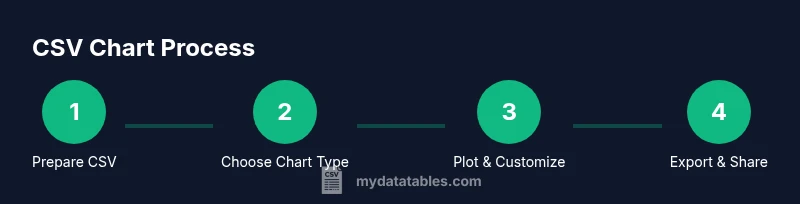
This guide shows you how to turn CSV data into clear, effective charts using common tools, with step-by-step instructions for data prep, chart type selection, and visualization in Excel, Google Sheets, Python, or JavaScript libraries. The guide covers best practices, common pitfalls, and reproducible workflows so your csv chart communicates insights at a glance to teammates and stakeholders.
What is a csv chart and why it matters
A csv chart is a visualization created from comma-separated values (CSV) data. It translates rows and columns into bars, lines, points, or areas that reveal trends, distributions, and relationships at a glance. For data analysts, developers, and business users, a well-crafted csv chart communicates key insights faster than raw tables. According to MyDataTables, turning CSV data into charts improves comprehension and speeds decision-making across teams. When data is organized with consistent headers and clean rows, a csv chart becomes a practical instrument for storytelling and decision support. This section establishes the why—charts help stakeholders see the forest before the trees and decide on actions based on visible patterns rather than opaque numbers.
Choosing the right chart type for CSV data
CSV data often spans multiple columns with a clear dependent axis (values) and a category axis (labels). The first rule is to match the story to the chart type. For trends over time, line or area charts reveal trajectories clearly. For comparisons across groups, bar or column charts offer intuitive visual weight. For distributions and relationships, scatter plots and histograms help uncover correlations or outliers. A csv chart can be a stacked bar to show composition, a heatmap to highlight intensity, or a box plot to summarize quartiles. In practice, keep the chart simple: limit to 1–2 data series and avoid clutter that distracts from the message. MyDataTables analysis shows that clarity often trumps complexity when communicating CSV-derived insights.
Preparing CSV data for charting
Before you chart, ensure the CSV file is clean and consistent. Verify headers exist and are unique; purge stray commas inside fields by using quotes where needed. Confirm encoding is UTF-8 to avoid garbled labels, and pick a delimiter that matches your tool (commas are standard, but semicolons are common in some locales). Handle missing values with clear placeholders or imputed estimates, and keep numeric columns truly numeric. If dates are involved, convert them to a recognizable format (ISO 8601) so the charting tool can interpret time correctly. With clean data, the chart you generate will reflect true patterns rather than artifacts of formatting.
Tools and workflows to generate CSV charts
There are several paths to produce CSV-based visuals, depending on your environment and preferences. Spreadsheets like Excel or Google Sheets are great for quick exploration and shareable charts. Python with pandas and matplotlib or seaborn offers reproducible, scriptable workflows ideal for automation and large datasets. JavaScript libraries such as D3.js power highly customized, interactive charts for web apps. For teams, a lightweight workflow might start in Sheets for rapid prototyping, then move to Python for reproducibility and integration with data pipelines. Across tools, the key is to separate data preparation, chart type selection, and presentation styling to keep changes modular. The MyDataTables team recommends establishing a reproducible process, so charts stay consistent as data evolves.
Step-by-step example: charting a simple CSV in Google Sheets
This practical example demonstrates a common scenario: a CSV with monthly sales by region. Start by importing the CSV, ensure headers are in place (Month, Region, Sales), and verify numeric columns are recognized as numbers. Create a chart by selecting the data range, choosing a column chart or line chart, and adjusting axis labels. Finally, add a title, axis labels, and a legend, then resize for readability. This approach translates CSV data into an immediately understandable visual. In practice, you’ll adapt steps for your dataset and tool.
Common pitfalls and how to avoid them
A frequent mistake is charting raw, unclean CSV data without preprocessing—this leads to mislabeled axes, inconsistent scales, and misleading visuals. Always confirm data types (numbers vs text) and ensure consistent date formats. Overloading charts with too many series or categories reduces clarity and harms decision-making. Avoid relying on too many color hues, which can confuse viewers; instead, use a restriction of 2–4 colors and provide clear legends. Finally, validate charts against raw CSV values to ensure the visual matches the underlying data. MyDataTables emphasizes building charts from clean, well-structured CSVs to deliver trustworthy visuals.
Practical examples: real-world CSV chart use cases
CSV charts support a wide array of business scenarios. A product team might chart monthly revenue by region to prioritize markets with the strongest growth. A data analyst could compare test scores across cohorts to spot performance gaps. An operations manager might monitor daily throughput to identify bottlenecks. The versatility of CSV charts means you can adapt the same CSV dataset to multiple chart types to answer different questions. Always start with the question, then select the chart that best reveals the answer, and finally confirm the chart’s accuracy against the CSV data.
Tools & Materials
- Spreadsheet software (Excel or Google Sheets)(For quick charting and sharing.)
- CSV data file(Ensure a header row and consistent delimiters.)
- Text editor(For quick data checks and minor cleaning.)
- Python with pandas (optional)(Useful for large CSVs and automation.)
- Visualization libraries (Matplotlib/Seaborn)(For reproducible custom visuals.)
- Code editor or IDE (optional)(Helpful for scripting pipelines.)
Steps
Estimated time: 20-60 minutes
- 1
Prepare your CSV data
Open the CSV and verify headers, delimiters, and UTF-8 encoding. Fix any inconsistent data types and remove stray characters that could break charting. Ensure date and numeric columns are cleanly formatted.
Tip: Use a text editor to spot any non-UTF-8 characters before importing. - 2
Pick a chart type that fits your question
Decide whether you need to compare categories, show a trend, or display distribution. Choose a chart type that communicates the question clearly and avoids clutter.
Tip: Ask: What question will the chart answer? If unsure, start with a bar or line chart. - 3
Import data into the tool
Load the CSV into your chosen tool and verify that headers map to fields correctly. Check that numeric columns are recognized as numbers, not text.
Tip: In Sheets, use File > Import to bring in CSV; in Python, read_csv with proper dtype settings. - 4
Create the initial chart
Select the appropriate data range and insert the chart. Start with default settings to get a baseline visualization.
Tip: Avoid over-optimizing at first; you can tweak later for clarity. - 5
Customize axes and labels
Label axes clearly, set a readable font size, and adjust scales to fit the data range. Include a concise chart title.
Tip: Keep y-axis units clearly stated to avoid misinterpretation. - 6
Add legend and annotations
Include a legend for category groups and add annotations for key data points or thresholds.
Tip: Place annotations near the relevant data points to reduce visual search. - 7
Validate with raw CSV data
Cross-check the charted values against the source CSV to verify accuracy. Resolve any mismatches by re-checking data types and filters.
Tip: If numbers differ, re-import with explicit dtype and re-check the data range. - 8
Export or share the chart
Export the chart as an image or share a live link. Consider embedding into reports or dashboards for collaboration.
Tip: If sharing, ensure the recipient has access to the underlying CSV for auditability.
People Also Ask
What is a csv chart and why should I use one?
A csv chart is a visualization built from data stored in CSV files. It helps reveal patterns, trends, and comparisons that are often hard to discern in raw tables.
A csv chart is a visualization from CSV data that helps you see trends and comparisons quickly.
Which tool should I start with for CSV charts?
Start with the tool you use most: Excel or Google Sheets for quick, shareable charts; Python for large datasets and automation; and JavaScript libraries for interactive web charts.
If you’re in a hurry, start with Excel or Sheets; for automation, try Python.
How do I handle missing values in CSV charts?
Decide on a strategy before charting: ignore, impute, or treat missing as a separate category. Consistency is key to avoid misleading visuals.
Handle missing values by deciding how you’ll treat them before you chart, so your visuals stay accurate.
Can I automate CSV chart generation?
Yes. Use scripts in Python or R to read CSVs, create charts, and export outputs, enabling reproducible workflows across datasets.
Yes, you can automate charts with scripts to keep things consistent over time.
What makes a CSV chart effective in reports?
An effective CSV chart is simple, correctly scaled, properly labeled, and directly tied to the data story you want to tell.
A good CSV chart is clear, properly labeled, and tells the data story without clutter.
How do I share a CSV chart with non-technical stakeholders?
Export charts as high-quality images or implement interactive dashboards. Provide a short narrative explaining the insights and the CSV data source.
Share charts as images or dashboards, with a short explanation of the insights and data source.
Watch Video
Main Points
- Create a CSV chart by starting with clean data.
- Choose chart types that align with the data question.
- Label axes and titles clearly for quick understanding.
- Validate visuals against the source CSV before sharing.
- Adopt reproducible workflows to scale charting across datasets.