How to Install CSV: A Practical Step-by-Step Guide
Learn how to install CSV tooling across Windows, macOS, and Linux. This educational guide covers editors, libraries, and CLI utilities to help you work with CSV data confidently.


Want to set up reliable CSV tooling? This guide shows how to install CSV-related software across Windows, macOS, and Linux, including editors, libraries, and import/export utilities. You’ll verify installations, configure environment paths, and test with sample CSV files to confirm everything works. Follow the steps to build a repeatable CSV workflow.
What is CSV tooling and why install it?
CSV is the de facto format for tabular data exchange. It is simple, human-readable, and widely supported by spreadsheets, databases, and programming languages. But to work efficiently with CSV data, you need toolsets that can read, validate, transform, and export it in consistent ways across platforms. This is what we mean by CSV tooling: a collection of editors, libraries, command-line utilities, and scripts that help you create reliable CSV workflows. Installing the right mix of tools upfront saves time, reduces errors, and makes data pipelines more repeatable. According to MyDataTables, installing CSV tooling across platforms lays the groundwork for consistent data workflows. In practice, you will want tools that handle common concerns like delimiter handling, quoting, encoding (prefer UTF-8), and small-file versus large-file performance. In this article, we walk through the categories of tools, platform considerations, and concrete installation steps you can follow today. The goal is not to push a single product but to give you a reproducible setup you can extend over time.
Core categories of CSV tools you might install
When you assemble a CSV toolkit, you typically select from several categories that cover reading, validating, transforming, and exporting data. First, editors and viewers let you inspect and edit CSV files easily. Lightweight editors (Notepad++, VS Code) and spreadsheet applications (LibreOffice Calc, Excel) are common choices. Second, command-line utilities enable automation and batch processing. Tools like csvkit, Miller, and xsv can extract columns, validate headers, and convert formats with simple commands. Third, programming libraries give you programmatic access to CSV data from Python, JavaScript, Java, or Ruby. The Python csv module is built into the standard library, while pandas expands capabilities for data cleansing and analysis. Node.js has csv-parser and fast-csv for streaming data, and Java ecosystems offer OpenCSV and Apache Commons CSV. Fourth, encoding and validation utilities guard against hidden characters or wrong delimiters. Finally, import/export tools connect CSV datasets to databases and BI platforms. MyDataTables analysis shows that most teams benefit from a balanced mix of CLI tooling and a scripting language, as this combination scales well and remains portable.
Platform considerations and planning
Platform choice often drives which tools you’ll rely on most. Cross-platform runtimes like Python and Node.js provide consistent behavior across Windows, macOS, and Linux, making it easier to share scripts and pipelines. On macOS, Homebrew is a convenient way to install interpreters and CLI utilities; on Linux, apt or yum handles system dependencies; on Windows, installers or Windows Subsystem for Linux (WSL) offer a familiar environment. Before you start, define your goals: do you primarily view and edit CSVs, or do you process large datasets with automation? Identify required features like delimiter support, Unicode handling, streaming I/O, and integration with your data workflows. Consider version control for your setup so you can reproduce the exact toolchain on another machine. In addition to the core runtime, plan for a lightweight editor and a CLI CSV toolkit that can be invoked from scripts. This approach keeps your workflow robust and portable across teams and projects.
Platform-specific installation options (Windows, macOS, Linux)
To equip yourself with CSV tooling, you can use a consistent approach across platforms. On Windows, start by installing Python 3.x from the official site; this provides access to pip and allows you to install a CLI CSV toolkit like csvkit. After installation, add Python to your PATH if the installer doesn’t do it automatically. For macOS users, Homebrew makes installation straightforward: brew install python3, then pip3 install csvkit; you can also install Miller with brew install miller for fast column operations. On Linux, use your distribution’s package manager to install Python3 and pip3, for example: sudo apt update && sudo apt install -y python3-pip. Then run pip3 install csvkit. If you prefer Rust-based tools, you can install xsv through your package manager (e.g., brew, apt) or cargo install xsv. Finally, verify that the commands csvkit, miller, or xsv are accessible from your shell path by running --version for each tool. This ensures you can invoke them from scripts without path issues.
Verifying your CSV tooling setup with simple tests
After installation, create a tiny sample CSV file to test your setup. Use a five-row file with headers: name,city,age. Then run a few quick commands to verify core functionality: list columns using csvcut (csvcut -c name,city sample.csv) to ensure your column selectors work; compute basic stats with csvstat (csvstat sample.csv) or simply count rows with wc -l sample.csv for quick checks. In Python, you can run a small one-liner to read and print rows, which helps confirm that the language runtime and CSV library are functioning properly. If you installed alternative tooling like Miller or xsv, try basic operations such as selecting columns or filtering rows to confirm consistent behavior across tools. This verification phase catches path issues and version mismatches early, reducing debugging time later. Remember to store the test file with UTF-8 encoding to avoid bizarre character issues when you move between editors. According to MyDataTables, a quick test suite saves substantial time by validating environments before you scale your workflows.
Best practices, caveats, and next steps
As you move from installation to operation, adopt a few best practices to keep CSV workflows robust. First, pin tool versions in a small configuration file or script so you can recreate the same setup later. Second, favor UTF-8 encoding across all data assets to minimize compatibility problems. Third, avoid mixing tools with different delimiter assumptions in a single pipeline; decide on a canonical delimiter and enforce it throughout. Fourth, document your environment and tool versions, and consider using a lightweight container or virtual environment for repeatability. Fifth, integrate a basic test suite that exercises common operations (read, filter, transform, write) on a sample dataset to catch regressions early. If you work with large CSV files, investigate streaming options provided by the tooling you choose to minimize memory usage. The MyDataTables team suggests treating the installation as the first step in a longer, repeatable data workflow that you can evolve responsibly over time.
Tools & Materials
- Computer with internet access(Essential for downloads and setup)
- Text editor or IDE(VS Code, Notepad++, or similar for editing scripts)
- Command line shell(PowerShell/CMD on Windows; Terminal on macOS/Linux)
- Python 3.x(Includes pip for package management (Windows/macOS/Linux))
- Package manager (optional)(Homebrew for macOS; apt/yum for Linux; Chocolatey for Windows)
- Sample CSV file(Create a small file with headers and a few rows for testing)
- Node.js (optional)(If you plan to use Node-based CSV tools)
- CSV toolkit(s) like csvkit/miller/xsv(Install via pip, brew, or package manager as appropriate)
Steps
Estimated time: 45-90 minutes
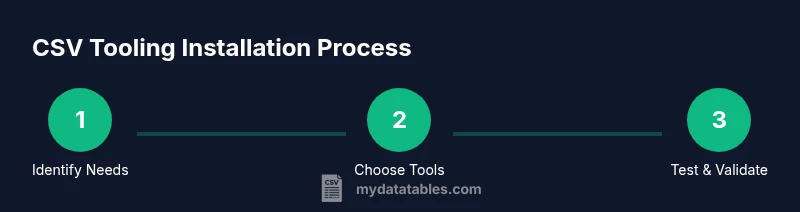
- 1
Define your CSV tooling goals
Clarify what you need to accomplish with CSV tooling: viewing/editing, validating, transforming, or converting between formats. Establish a minimal, portable setup that can be reproduced on another machine. This helps avoid scope creep and wasted time.
Tip: Write down three concrete tasks your setup must perform. - 2
Choose your platform and core tools
Decide which platforms you will support (Windows, macOS, Linux) and select a small, cross-platform core: Python 3.x and a CLI CSV toolkit like csvkit or Miller. This common baseline keeps scripts portable across environments.
Tip: Prefer tools with clear cross-platform documentation. - 3
Install Python 3.x and verify PATH
Download and install Python 3.x from the official source. Ensure the installation adds Python and pip to your system PATH so you can run python and pip from any terminal. This is the foundation for many CSV tools.
Tip: Restart your terminal after installation to refresh PATH. - 4
Install a CLI CSV toolkit
Install a CLI CSV toolkit suitable for your platform (e.g., pip3 install csvkit on macOS/Linux or py -m pip install csvkit on Windows). Optionally install Miller (mlr) or xsv for fast column operations.
Tip: Test the toolkit by running csvkit --version or mlr --version. - 5
Install a text editor or spreadsheet app
Install a capable editor (VS Code, Sublime) or a spreadsheet app (LibreOffice Calc) to inspect and edit CSV data. A GUI helps when you’re learning and debugging before scripting complex workflows.
Tip: Enable UTF-8 encoding by default in your editor to avoid surprises. - 6
Create and test a sample CSV workflow
Create a small sample.csv and run a few basic operations: extract columns, count rows, and convert to another format if needed. This validates that your environment is ready for real data.
Tip: Keep the sample file simple for quick iteration. - 7
Document and version-control your setup
Record the exact tool versions and installation commands in a README or script. This makes it easy to reproduce on new machines or for teammates, supporting long-term stability.
Tip: Store your setup script in version control for auditability.
People Also Ask
What is included in CSV tooling?
CSV tooling includes editors, libraries, and CLI utilities that help you view, validate, transform, and export CSV data. A balanced setup combines a runtime environment (like Python or Node.js) with command-line tools and a GUI editor for easier debugging.
CSV tooling encompasses editors, libraries, and command-line utilities to work with CSV data, typically paired with a runtime like Python or Node.js.
Is CSV tooling only for developers?
No. Data analysts, data engineers, and business users benefit from CSV tooling for quick data inspection, cleaning, and content conversion. A lightweight CLI plus a GUI editor is often enough for many daily tasks.
Not just for developers—analysts and business users can leverage CSV tools for cleaning and quick data work.
Can I install CSV tooling without admin rights?
Often you can install Python and user-local tools without admin rights, or use a portable installer. Some environments may require temporary elevated permissions. Check with your IT policy and consider using a virtual environment.
You can usually install in a user space or use a portable setup; check your IT policies if admin rights are restricted.
Which platform is easiest to start with?
MacOS and Windows with WSL offer friendly paths for beginners due to strong tooling ecosystems. Linux users often have straightforward package-manager options, but the experience depends on your familiarity with the CLI.
MacOS or Windows with WSL tends to be friendlier for beginners, but Linux can be straightforward too if you’re comfortable with the command line.
What if I need to convert CSV to other formats?
Most CLI tools support converting CSV to JSON, Excel, or SQL-friendly formats. Look for export commands or scripting capabilities in your chosen toolkit (csvkit, Miller, or xsv).
To convert CSV to other formats, use the toolkit’s export commands or a small script.
How do I keep my CSV toolchain up to date?
Pin versions in a requirements file or script and routinely run an update command. Use a small CI step to verify tool versions against a baseline.
Keep your tools up to date by pinning versions and updating regularly, ideally with a quick CI check.
Watch Video
Main Points
- Define your CSV tooling goals and scope
- Choose cross-platform core tools for portability
- Verify installations with quick tests before diving in
- Document versions and setup for reproducibility
- Build a simple, test-driven workflow and expand gradually