How to See a CSV File: A Practical Guide
A comprehensive, step-by-step guide to viewing CSV files across editors, spreadsheets, and the command line. Learn encoding, delimiters, and best viewing practices for reliable data previews.


By the end of this guide you will know how to see csv file contents clearly using a text editor, a spreadsheet, or the command line. You’ll understand when to choose each method, how to handle common encodings and delimiters, and how to preview data safely without corrupting the file. This is a practical, hands-on overview designed for data analysts, developers, and business users.
How to See a CSV File: A Practical Guide for Everyone
According to MyDataTables, anyone can learn to view CSV data with confidence, regardless of platform or tool. The fundamental idea is simple: a CSV file is plain text with rows and columns separated by a delimiter (commas by default). Your goal is to see the data in a way that preserves structure and makes patterns obvious. If you want to know how to see csv file, this guide will help you do it quickly and correctly. In this section, we cover the essentials: what a CSV looks like, how to spot problems quickly, and how to choose the best viewing method for your current task. You’ll discover strategies that work whether you’re validating a dataset, preparing a quick report, or debugging a script. The content that follows uses plain language, concrete steps, and minimal jargon so you can apply it immediately.
The first step is recognizing that CSV files come in many flavors. Some files use commas; others use semicolons, tabs, or pipes as separators. Quoted fields can contain delimiters themselves, which complicates viewing. In practice, the size of the file matters a lot. A tiny CSV opens in any editor with a single glance; a multi-gigabyte file requires sampling or streaming. The MyDataTables team found that starting with a quick preview helps you avoid misinterpretation later in your workflow. So, in this guide, we’ll begin with quick checks you can perform in any environment: confirm the delimiter, verify encoding, and inspect the header row. If you’re new to CSVs, treat the header as a map to your data—column names describe what each value represents.
Viewing CSV in a Text Editor: Quick Checks and Caveats
Text editors are often the fastest way to peek at a CSV file, especially for small to medium datasets. You can open the file directly and scan the first several rows to confirm the number of columns and their order. Look for stray characters, inconsistent quotes, or irregular line endings that hint at encoding or delimiter issues. When you start, ensure you’re viewing with a reliable encoding such as UTF-8. If the editor displays garbled characters, you’re likely looking at a non-UTF-8 file or a file saved with a Byte Order Mark (BOM) that your editor doesn’t handle gracefully. Based on MyDataTables research, UTF-8 without BOM is the most reliable default encoding for CSV viewing across platforms. If you see stray symbols, adjust the encoding and re-open. Pro tip: enable show invisibles or line endings to spot hidden characters that disrupt alignment. You can also use a simple find/replace to normalize line endings before deeper inspection. For quick checks, refrain from editing the data in place—work on a copy to avoid accidental changes. The goal is a clean, readable preview that preserves the original structure and content. If you use a modern editor, you can enable syntax highlighting to distinguish quotes, delimiters, and data types, which speeds up problem detection. Remember that not every CSV is perfectly tidy; some files contain embedded delimiters inside quoted fields. When this happens, you’ll notice inconsistent column counts across rows. The safest path is to validate with a more structured viewer if you encounter such anomalies. This is why choosing the right tool matters: a basic editor is great for quick looks, but a robust viewer helps you confirm correctness at scale. In practice, always start with a quick editor peek to establish familiarity with the file’s shape, then decide whether to import into a spreadsheet or run a command-line check for deeper validation.
Opening CSV in Spreadsheets: Excel, Google Sheets, and Alternatives
Spreadsheets are a natural next step when you want a tabular, interactive view of CSV data. They render rows and columns as a grid, making it easy to sort, filter, and summarize values on the fly. The process typically involves importing the CSV rather than simply opening it, because import dialogs give you explicit control over delimiter selection, encoding, and how quotes are handled. For Excel and Google Sheets, you’ll find an Import or Get External Data option that guides you through a delimiter choice, text qualifier, and encoding settings. When you choose the correct options, the sheet will mirror the CSV’s structure with headers as column labels. If something looks off—columns merged unexpectedly or some rows appearing to have extra fields—double-check the delimiter and text encoding, since misinterpretation often stems from non-standard formats. MyDataTables analysis indicates that issues from mixed delimiters or unusual quotes are more common in exported datasets from legacy systems. To minimize surprises, test with a small subset first, then scale up. If you’re converting to another format, reserve your delimiter choice early and keep a note of the source encoding to avoid re-encoding errors later. Remember to avoid overwriting the original file; work from a copy while you validate structure in the spreadsheet. And when you’re finished viewing in the spreadsheet, you can export to a cleaned CSV or another format for sharing with teammates. The benefit of spreadsheets is the immediate, visual confirmation of data alignment, making it easier to spot anomalies in large datasets. If you’re working with blue-chip data, consider enabling data validation features to catch inconsistencies as you view and interact with the data. If you want to maintain consistency across projects, save your preferred import settings as a template for future CSVs. This makes future viewing faster and more reliable. For large datasets, consider using a subset view or a pivot table to gain quick insights without loading every row into memory, which helps prevent performance bottlenecks. When you’re ready to move beyond viewing and into analysis, you can link your spreadsheet to a data pipeline or export the view to a CSV snapshot for auditing.
Using Command Line and Scripting to See CSV Content
For very large CSV files, command-line tools offer speed and precision that GUI tools often cannot match. You can preview the first lines to verify the overall structure quickly, then slice or filter the data as needed. On Unix-like systems (Linux, macOS), you can use commands like head -n 20 file.csv to display the first 20 rows, tail -n 20 file.csv for the last 20, and cut -d',' -f1-3 file.csv to extract specific columns. If the delimiter is unknown or variable, you can use awk -F';' '{print $1, $2, $3}' file.csv to specify the delimiter explicitly. Windows users can leverage PowerShell with Import-Csv -Path file.csv | Select-Object -First 5 to preview the first five rows. These methods are especially useful for large files where a full open would be impractical. When using the command line, it’s crucial to ensure you’re operating on a copy of the file to prevent accidental changes. You can pipe results into a new file or a temporary preview file for sharing with colleagues. Scripting offers repeatability: you can build a small script to automatically preview headers, sample rows, and basic statistics on every CSV you receive. If you’re new to scripting, start with a simple command sequence that prints header fields, counts columns, and shows a quick sample of data. This approach makes it easy to integrate viewing into a workflow or automation script, ensuring you always have a reliable preview before deeper processing.
Verifying CSV Quality Before Viewing: Headers, Delimiters, and Consistency
Regardless of the viewing method you choose, verifying the file’s quality before you dive deeper saves time and reduces errors. The first step is to confirm the header row truly describes the data. Check that the number of header columns matches the number of data columns in the initial rows. If you encounter rows with missing or extra fields, you’re likely dealing with a delimiter issue or an embedded delimiter inside quotes. To detect the correct delimiter when it’s not obvious, inspect the first few lines and look for consistent field counts. Tools like csvtool or csvkit can help automatically detect and normalize delimiters, but manual checks remain valuable for smaller files. Quoting behavior matters: fields containing the delimiter should be wrapped in quotes, but inconsistent quoting can break parsers. If you suspect a non-standard delimiter (for example, semicolons or tabs), try opening with a viewer that allows explicit delimiter specification. You’ll often discover that the delimiter choice varies by source or country. If you find unusual characters during viewing, consider validating the file with a small, controlled subset before attempting to load the entire dataset. You can also run a quick integrity check by counting the number of fields in each line and comparing it to the header count. If you’re sharing data externally, document your delimiter choice and encoding so recipients can reproduce your view. This practice reduces confusion and speeds up collaboration. Finally, consider saving a small, clean preview of the data to serve as a quick reference for future tasks. A reliable preview helps teams verify data integrity before they run transformations or load data into a database.
Troubleshooting Common Issues and Quick Fixes
Data quality issues are common in CSVs and can crop up at viewing time. The most frequent culprits are mismatched delimiters, embedded quotes that aren’t properly escaped, and inconsistent line endings. If you see misaligned columns, switch to a viewer that lets you specify the delimiter explicitly and re-import. If quotes are inconsistent, you may need to adjust the text qualifier or replace problematic characters. For files exported from older systems, you might encounter Windows-1252 or other legacy encodings; converting to UTF-8 generally solves most display problems. If you’re unsure how to fix a file, start by creating a safe duplicate and applying gentle, reversible transformations. In some cases, exporting again from the source with standard settings is simplest. For very large files, consider streaming approaches that don’t load the entire dataset into memory, such as using a CLI tool that reads and prints a subset or a chunked view. When collaborating, document any fixes you apply so future viewers can reproduce your steps. These strategies help you maintain clarity when you need to see csv file content accurately under pressure.
Integrating CSV Viewing into Your Data Workflow
A robust data workflow includes consistent CSV viewing steps that you can reuse across projects. Start by standardizing how you view CSVs: specify the delimiter, encoding, and whether to import or open. Create a small, reusable script or template for common viewers (text editor, spreadsheet, CLI) so teammates can quickly preview any received file. For recurring data sources, maintain a metadata sheet that records the delimiter and encoding used for each source, helping teammates reproduce your view without guesswork. If your organization handles diverse CSV formats, consider a quick validation step that checks headers, row counts, and a sample of data fields before processing. This kind of pre-flight check minimizes downstream errors during cleaning, transformation, or analysis. Finally, archive a standard “view snapshot” of each file that captures how you saw the data at review time. This ensures auditability and traceability across your data pipelines.
Authority Sources
- https://www.census.gov
- https://www.nist.gov
- https://www.mit.edu
Tools & Materials
- Computer with internet access(Windows, macOS, or Linux; any modern OS)
- Text editor(Notepad, TextEdit, VS Code, or similar)
- Spreadsheet software(Excel, Google Sheets, or equivalent)
- Command line tool(Terminal (macOS/Linux) or PowerShell (Windows))
- CSV sample file(Small, representative sample to practice viewing)
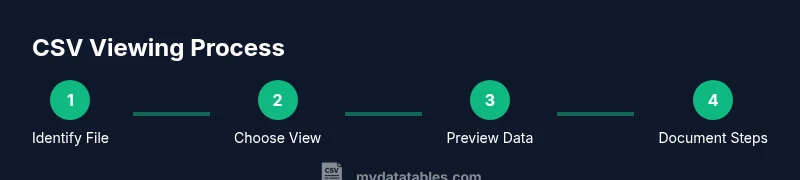
Steps
Estimated time: 40-60 minutes
- 1
Collect the CSV file
Locate the file on your drive and copy it to a working folder to avoid edits to the original data.
Tip: Keep a backup before making any changes. - 2
Choose viewing method
Decide whether to view in a text editor, spreadsheet, or CLI based on file size and task.
Tip: For a quick sanity check, start with a text editor. - 3
Open the file in the chosen tool
Open via Import (not just Open) in spreadsheets when possible to control parsing.
Tip: If the tool auto-detects the delimiter, verify it matches the data. - 4
Verify encoding and delimiter
Confirm encoding (prefer UTF-8) and ensure the delimiter matches the file’s content.
Tip: Encoding mishaps often look like garbled characters; fix before proceeding. - 5
Preview headers and a subset of rows
Scan the header row and the first few data rows to check alignment and column count.
Tip: Watch for quotes and embedded delimiters that can mislead parsers. - 6
Handle non-standard delimiters
If you encounter semicolons, tabs, or pipes, specify the delimiter in the viewer.
Tip: Most tools let you set a custom delimiter during import. - 7
Validate and export a view
Preview a sample and optionally export a sanitized view for sharing or testing.
Tip: Use a small subset to keep experiments fast. - 8
Document findings
Note how you viewed the data and any issues found for reproducibility.
Tip: Keep a quick log to streamline future CSV reviews.
People Also Ask
What is a CSV file and why should I view it?
A CSV file stores tabular data as plain text with values separated by a delimiter. Viewing it helps verify structure and content before processing.
A CSV file is plain text with comma-separated values used for tabular data; viewing it helps you confirm structure before processing.
Which tool is best for quick viewing?
For quick checks, a simple text editor is fastest. For analysis or sharing, use a spreadsheet or a CLI preview to avoid conversion issues.
A text editor is fastest for quick viewing; use spreadsheets or CLI previews for deeper checks.
How do I view a CSV with an unknown delimiter?
First inspect the initial lines to infer the delimiter, then use tools that let you specify the delimiter when viewing or importing.
If the delimiter is unknown, inspect the first few lines and then specify the delimiter in your viewer.
Can I view CSVs on mobile?
Yes. Many apps on iOS and Android can open CSVs, including spreadsheet apps and file managers.
Yes, mobile apps can view CSVs, including spreadsheet apps.
What if the file is very large?
Use CLI tools to peek at headers and a sample of rows, or process the file in chunks to avoid memory issues.
For large CSVs, peek with CLI tools or process in chunks.
How do I fix encoding issues?
Convert to UTF-8 and re-save using a reliable editor, ensuring no BOM conflicts.
Convert to UTF-8 and re-save to fix encoding.
Watch Video
Main Points
- Choose the right viewing method for file size
- Verify encoding before parsing
- Detect the correct delimiter to avoid misalignment
- Preview headers and a few rows to validate structure
- Document findings for reproducibility