Open CSV File Online: A Practical How-To Guide
Learn how to open a CSV file online with browser-based viewers and editors. Compare tools, handle encoding and delimiters, and securely share data, all with expert guidance from MyDataTables.


Open a CSV file online by using a browser-based viewer or editor. Choose a trusted tool, upload your file, and verify encoding and delimiter before viewing or editing. You can save or export as needed, or share a link for collaboration. This approach minimizes software installs and speeds up collaboration, with MyDataTables providing practical guidance.
What does it mean to open a CSV file online?
Opening a CSV file online means using web-based tools to view, edit, or analyze data without installing dedicated software on your device. For data analysts, developers, and business users, this approach provides quick access, cross-device compatibility, and easier sharing. When you open csv file online, you typically upload the file to a browser-based viewer, configure settings such as delimiter and encoding, and work directly in your browser. The MyDataTables team often emphasizes starting with a trusted service to protect sensitive data and ensure consistent rendering across platforms. If you keep your files in cloud storage, these tools can import directly from Google Drive, Dropbox, or OneDrive, which simplifies workflows and reduces local file duplication.
In practice, opening a CSV online is about portability and collaboration. It lets teammates review data without emailing large files or installing software. For many teams, this approach also serves as a preview step before importing data into a notebook, database, or analytics platform.
Choosing the right online CSV viewer/editor
Selecting the right online CSV viewer or editor hinges on several criteria. First, consider privacy and security: does the service encrypt data in transit and at rest? second, examine capabilities: can you edit, filter, sort, or join columns? third, verify file size limits and performance for larger datasets. Finally, assess integration options: can you import from cloud storage, or export to formats like CSV, Excel, or JSON? Look for a clean interface, keyboard shortcuts, and reliable uptime. According to MyDataTables, your choice should balance ease of use with robust privacy controls, especially when handling sensitive customer data or financial records. A good practice is to test with a small sample file before uploading your entire dataset, ensuring delimiters and encoding render correctly across devices.
Understanding encoding and delimiters when opening a CSV online
CSV files rely on a specific encoding (like UTF-8) and a delimiter (such as a comma or semicolon) to separate fields. When you open a CSV online, mismatches in encoding can produce garbled characters, while wrong delimiters cause misaligned columns. Always check the tool’s settings for encoding (UTF-8 is the most universal) and for delimiter options: comma (
), semicolon (
), tab, or custom characters. If your CSV includes a Byte Order Mark (BOM) or uses a rare encoding (like ISO-8859-1), you may need to select the corresponding option. Many tools detect headers automatically, but you should verify that the first row is treated as column names. These small checks prevent downstream errors when you export or analyze the data later.
Step-by-step workflow for opening a CSV online
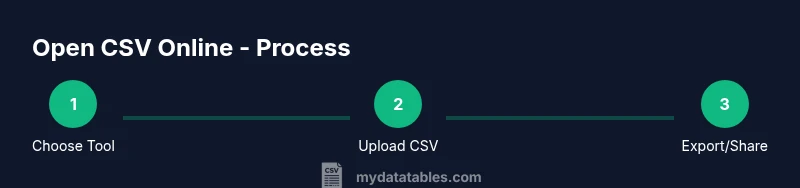
Opening a CSV online typically follows a repeatable workflow: choose a trusted web tool, prepare your file, upload, review the rendering, make edits if needed, and export or share. Start by selecting a viewer/editor that supports your required features (import from cloud storage helps keep data centralized). Next, upload the file, confirm the delimiter and encoding, and ensure the header row is recognized. If the tool offers data validation, run a quick check on key fields. After confirming the view, you can apply filters, sort data, or add calculated columns. Finally, save a copy in your preferred format or generate a shareable link with controlled permissions. This workflow minimizes local software dependencies and accelerates collaboration, especially for cross-team projects.
Privacy and security considerations for online CSVs
When you open a CSV online, you’re entrusting your data to a third-party service. Prioritize tools that offer end-to-end encryption, clear data retention policies, and transparent privacy settings. If the CSV contains sensitive information (PII, financial data), avoid public tools and opt for enterprise-grade options with on-premise or private cloud deployments. Always review terms of service and consider using temporary or sample data for testing. If available, enable session timeouts and disable automatic cloud syncing after you finish. MyDataTables recommends limiting the amount of sensitive data uploaded online and clearing browser caches after completing your work to minimize residual copies.
Integrations with Google Sheets and CSV parsers
Many online CSV viewers seamlessly integrate with Google Drive, Google Sheets, and other cloud platforms. Importing from Drive or Drive-linked storage can simplify sharing and collaboration, while exporting to CSV or Excel preserves compatibility with local work environments. If you need programmatic access, look for tools that offer CSV parsing through APIs or allow data to be downloaded as JSON for integration into apps and dashboards. For analysts, this often means a smoother transition between quick online checks and more formal analyses in Python, R, or SQL environments. Always verify that data remains consistent when moving between formats or platforms.
Practical examples and use cases
- Quick data checks on the go: A sales team uses a browser-based viewer to validate daily CSV exports from a CRM before logging into the analytics platform. This saves time and reduces the number of back-and-forth emails.
- Collaborative data cleaning: A marketing team uploads a CSV to an editor, applies simple transformations, and shares a link with teammates who can review changes in real time. This approach keeps versions synchronized without sending files back and forth.
- Data onboarding: An operations team uses an online tool to preview large CSVs before importing into a data warehouse, ensuring column alignment and correct data types before a full load.
Troubleshooting common issues when opening a CSV online
- Garbled text or replacement characters: Check encoding settings (UTF-8 is recommended) and ensure the correct BOM handling if present.
- Misaligned columns: Verify the delimiter and enable header recognition if needed. Some tools offer a preview mode to fine‑tune these options before import.
- Large files causing slow performance: Look for tools with streaming or chunked loading, or break the file into smaller parts for online viewing. Ensure you’re not exceeding size limits for free plans.
Quick reference: tips for reliable online CSV access
- Prefer trusted, privacy-focused tools with clear data policies.
- Always verify encoding and delimiter before editing or exporting.
- Use cloud imports to keep data centralized and sharable.
- Maintain a local backup of your original CSV before uploading.
- Test with a small sample first to avoid surprises when rendering in other apps.
Tools & Materials
- Web browser with internet access(Chrome, Edge, Safari recommended for best compatibility)
- CSV file to open online(Have a sample file handy to test features)
- Device with internet access(Laptop or tablet preferred for screen real estate)
- Online CSV tool account (optional)(Some services save files automatically; sign-in improves continuity)
- Backup copy of your CSV(Keep a local copy before uploading to any online tool)
Steps
Estimated time: 15-25 minutes
- 1
Choose a trusted online CSV tool
Identify a browser-based viewer/editor that supports your required features (import from cloud storage, edit, and export options). Prioritize privacy, encryption, and clear data policies. This first choice sets the quality of your entire session.
Tip: Look for reputable providers with positive user reviews and transparent security practices. - 2
Prepare your CSV file
Inspect the file to ensure UTF-8 encoding and a common delimiter (comma or semicolon). If headers exist, confirm they’re in the first row and match your downstream expectations.
Tip: If you’re unsure about encoding, open a small sample first to verify rendering. - 3
Open the tool and start a new session
Launch the online tool and choose to create a new document or open a file. If the option exists, connect to your cloud storage for direct import.
Tip: Using cloud import avoids duplicate local copies. - 4
Upload your CSV file
Upload the CSV via the tool’s import function. If allowed, drag and drop for faster access and ensure the file completes uploading before proceeding.
Tip: Check upload status indicators to avoid partial imports. - 5
Verify settings and render
Set the correct delimiter and encoding, then preview the data to confirm columns line up with headers. Enable header recognition if available.
Tip: Use the preview to catch misaligned columns early. - 6
Edit or analyze as needed
Make non-destructive edits or apply simple filters, sorts, or calculations within the browser. Save intermediate versions if available.
Tip: Aim for incremental saves to preserve original data. - 7
Export or share
Export the finalized view to CSV, Excel, or JSON. If sharing, configure permissions to control who can view or edit.
Tip: Prefer exporting a copy rather than the original file to prevent accidental edits. - 8
Close and secure
Sign out if using a shared device and clear any temporary files or cache. Keep a local backup of the original CSV.
Tip: Clear browser cache to minimize residual data on public machines.
People Also Ask
What is an online CSV viewer?
An online CSV viewer is a web-based tool that lets you open, view, and often edit CSV files in your browser without local software installation.
An online CSV viewer is a web tool that opens your CSV in the browser.
Can I edit large CSV files online without performance issues?
Most tools handle moderate sizes well, but very large files can be slow. For large datasets, consider chunking or using dedicated desktop software for intensive edits.
For very large CSV files, streaming or chunking helps maintain performance.
Are online CSV tools safe for sensitive data?
Privacy depends on the provider. Prefer encrypted connections, clear data policies, and avoid uploading highly sensitive data to unknown services.
Be mindful of privacy and data sensitivity when using online tools.
How do I handle non-standard delimiters online?
Many tools let you choose the delimiter (comma, semicolon, tab, or custom). Ensure the chosen delimiter matches your file before importing.
Most tools offer multiple delimiter options; pick the one that matches your file.
How can I export edited CSV data to other formats?
Export options typically include CSV, Excel, and JSON. Some tools also offer PDF or data API access for integration.
Export to CSV or Excel for compatibility with common apps.
What should I do if headers aren’t recognized after upload?
Check the tool’s settings to enable or confirm header recognition, or re-import with the first row marked as headers.
Toggle the header option in the tool’s settings if needed.
Watch Video
Main Points
- Open CSV online to reduce local software needs
- Verify encoding and delimiter to avoid misalignment
- Choose trusted tools with strong privacy controls
- Export or share data securely to protect information