Split CSV Online: A Practical Guide to CSV Partitioning
Split CSV online confidently with step-by-step methods, trusted tools, and best practices for safe, accurate partitioning of large CSV files. Ideal for analysts and developers seeking practical CSV guidance.


You can split CSV online by uploading your file to a trusted web tool and selecting a split mode (by rows, by size, or by a key column). This keeps local hardware requirements low and works with large files. Always review privacy policies and test on a small sample before processing your full dataset.
Why split CSV online matters
In data work, splitting large CSV files is a common task. Using online tools can be convenient when you don’t want to install software or when you’re working across devices. With a simple upload, you can partition a dataset into smaller, more manageable chunks for analysis, sharing, or import into other systems. This approach is especially helpful for teams that handle intermittent projects or need quick splits on the go. According to MyDataTables, many analysts rely on lightweight online workflows to accelerate data prep without sacrificing accuracy or control. When used properly, online splitting preserves headers, maintains encoding, and provides auditable outputs. However, it also introduces considerations for privacy, data size limits, and tool trust. In this guide, you’ll learn how to split CSV online safely and efficiently, with practical examples and guardrails to avoid common mistakes.
When to split CSV: common use cases
There are several practical reasons to split CSV files online:
- Sharing subsets with teammates when the original file is too large or sensitive.
- Importing data into applications that enforce maximum upload sizes or count limits.
- Running parallel analyses by distributing rows evenly across several files and preserving the header row.
- Creating test datasets that mirror the structure of the full file without exposing all records.
- Exporting chunks for batch processing pipelines that operate on smaller inputs.
Each scenario benefits from keeping column headers, preserving encoding, and naming outputs consistently. By planning your split strategy around these use cases, you minimize rework and ensure downstream systems can read each part correctly. The MyDataTables team notes that defining clear naming conventions and a simple method for validating each chunk reduces confusion during handoffs.
How online split tools work
Most online CSV splitters operate by streaming the file through the server, rather than loading the entire file into memory on your device. You specify the criterion—split by a number of rows, by a target file size, or by a key column value—and the tool writes out multiple parts accordingly. A good tool retains the header row in every part and preserves the original encoding (for example, UTF-8). Because processing happens on the provider’s side, you should choose services with transparent privacy policies and the ability to export all results in standard formats. If a tool only supports limited file types or imposes aggressive limits, that’s usually a red flag. MyDataTables Analysis, 2026 suggests verifying that outputs are complete and headers are intact by spot-checking a few rows in each file.
Step-by-step approach overview
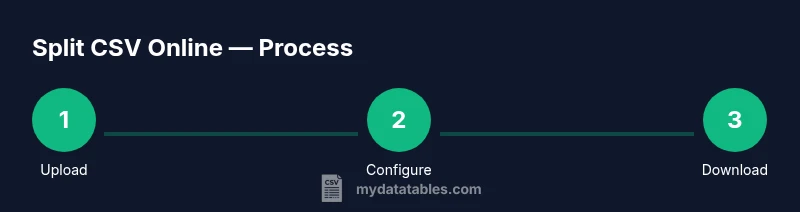
Below is a practical, end-to-end approach you can follow in the dedicated steps block. It balances ease of use with careful validation to ensure outputs are reliable and consistent. You’ll learn how to prepare, configure, execute, and verify CSV partitions while keeping headers intact and encoding stable.
Handling large CSV files online
When working with very large CSV files, online splitters can struggle with memory and time limits. In practice, streaming-based splitters that process data in chunks tend to perform more reliably than tools that attempt to load entire files at once. Look for services that offer resumable uploads, progress indicators, and clear output naming. If limits are reached, consider splitting by rows locally first or using a tool that supports larger payloads. Paying attention to encoding (UTF-8 is a safe default) minimizes downstream issues during import into BI tools or databases.
Data privacy and best practices
Treat online CSV splitting like any cloud-based data operation. Read the privacy policy, understand data retention terms, and prefer tools with end-to-end encryption and clear data deletion promises. If the CSV contains sensitive information, anonymize or mask data before uploading where feasible. MyDataTables Analysis, 2026 recommends validating outputs on a secure device and maintaining a record of the split parameters used for traceability.
Troubleshooting common issues
If the tool reports a delimiter mismatch, double-check that your CSV uses the declared delimiter (comma, tab, semicolon) and that text qualifiers are consistent. If headers disappear in parts, ensure the tool has a "keep header" option enabled. For very large outputs, verify download integrity and use a download manager if the browser struggles with large transfers. Inconsistent encoding (e.g., UTF-8 vs. UTF-16) is a frequent source of errors; convert to UTF-8 before uploading.
Tools & Materials
- Web browser(Modern Chrome, Firefox, or Safari with JavaScript enabled)
- Source CSV file(Ensure the file is valid CSV and uses a consistent delimiter)
- Online CSV splitter tool(Choose a reputable service with a clear privacy policy)
- Stable internet connection(Prefer wired or reliable Wi-Fi to prevent upload interruptions)
- CSV-compatible editor (optional)(Useful to verify results after split (Excel/Sheets))
- Backup copy of the original CSV(Keep a local copy before splitting)
Steps
Estimated time: 25-60 minutes
- 1
Prepare your CSV
Verify the header row exists and that the encoding is consistent (UTF-8 is a safe default). Check that the delimiter is as expected (comma, semicolon, or tab) and remove any unnecessary columns to minimize noise before splitting.
Tip: Back up the original file before splitting. - 2
Choose split criteria
Decide whether you will split by a fixed number of rows, by target file size, or by a key column value. This choice determines output counts and file naming conventions.
Tip: If you need evenly sized parts, estimate target rows per file in advance. - 3
Open a trusted online splitter
Open a reputable online CSV splitter and review the privacy policy, terms of service, and whether headers are retained in each part.
Tip: Prefer sites with HTTPS and explicit data handling statements. - 4
Upload the CSV
Upload or drag-and-drop the file into the tool. Confirm the full file is recognized and that the header row is visible.
Tip: Ensure your upload completes before proceeding. - 5
Configure split options
Set the split rule, specify the number of parts or part size, and enable header retention. Choose a consistent naming scheme for outputs.
Tip: Use a prefix like data_part_ and an incremental index. - 6
Run the split and download
Execute the split, then download all output files. Open a sample to ensure headers and encoding are preserved.
Tip: Keep a log of the chosen settings for reproducibility. - 7
Validate outputs and tidy up
Open multiple parts to verify row counts, headers, and data integrity. Remove or archive the original file if no longer needed.
Tip: If issues appear, revert to step 3 and reconfigure.
People Also Ask
What is split CSV online and when should I use it?
Split CSV online is the process of dividing a CSV file into multiple parts using a web-based tool. Use it when you need to share large datasets, meet import size limits, or prepare test subsets.
Split CSV online means dividing a CSV file into smaller files using a web tool. Use it for large files and when sharing or importing into restricted systems.
How do I ensure headers stay in every split?
Most online splitters offer a keep-headers option. Enable it so every output file includes the column names to keep data aligned during analysis.
Enable the header retention option so each new file has the column names.
Are online CSV split tools safe for sensitive data?
Check the tool’s privacy policy, encryption, and data retention terms. For highly sensitive data, consider offline splitting or anonymizing data before uploading.
Check the privacy policy and encryption; for sensitive data, prefer offline methods if possible.
What should I do if the tool refuses due to file size?
Split the file into smaller chunks locally or choose a service that supports larger uploads. Alternatively, split by rows before uploading.
If size blocks you, split locally or pick a tool with higher limits.
Can I automate CSV splitting for recurring tasks?
Yes. You can use scripts or APIs to automate splitting, or integrate a cloud workflow that runs on a schedule.
Automation is possible with scripts or APIs; plan for scheduling.
Watch Video
Main Points
- Plan your split criteria before uploading
- Choose a trusted online tool with clear privacy policy
- Verify headers and encoding in each output file
- Store a backup of the original CSV