Troubleshooting: What Is Wrong With My CSV File
Urgent, step-by-step guide to diagnose and fix common CSV problems—delimiter, encoding, headers, line endings, and validation—with MyDataTables recommendations.


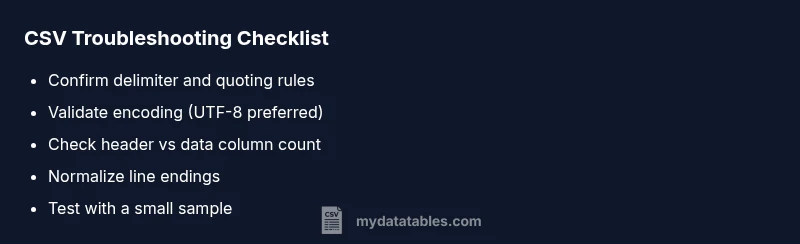
Most CSV problems come from a mismatched delimiter, encoding, or a malformed header. If you’re asking what is wrong with my csv file, start with a quick check: confirm the delimiter, verify UTF-8 or ANSI encoding, and ensure the header row matches the data columns. This quick sequence often reveals the culprit and avoids guesswork.
Quick Reality Check: What Is Wrong With My CSV File?
When your CSV file isn’t loading correctly, the root causes are usually straightforward: the delimiter doesn’t line up with what your application expects, the encoding isn’t compatible with the consuming tool, or the header row doesn’t align with the data rows. According to MyDataTables, CSV issues often stem from encoding and delimiter mismatches, which can cascade into missing columns, broken imports, or unexpected blank lines. Start by visual inspection in a plain text editor, then proceed to targeted checks. By focusing on the most common culprits first, you can save hours of trial-and-error. This guide helps data analysts, developers, and business users quickly identify the failure mode and apply a reliable fix.
Delimiter, Quoting, and Field Boundaries
Delimiters set how fields are separated. A common error is assuming a comma will always separate fields, while your source uses a semicolon or tab. Quoted fields that contain delimiters, newlines, or quotes must be properly escaped and closed. If your import reports extra columns or collapsed data, inspect a sample row in a text editor to confirm the delimiter and quoting rules. Normalize the delimiting approach across the file and any exported variants. This consistency is the fastest path to a clean parse, especially when moving data between tools like spreadsheets, databases, and programming languages.
Encoding, BOM, and Special Characters
Encoding determines how bytes map to characters. UTF-8 without BOM is the most compatible default, but some tools expect ANSI or UTF-16. A BOM (byte order mark) can appear at the start of the file, confusing parsers that don’t expect it. If you see strange characters or a duplicate first column, check the file encoding in your editor and convert to a widely supported encoding. Remove any BOM if your pipeline doesn’t handle it, then re-save. This change often resolves garbled text, misread headers, and import errors.
Headers, Rows, and Column Count
Header accuracy is critical. If the header row length differs from the data rows, many parsers will either drop fields or crash. Look for trailing delimiters, extra quotes, or hidden characters that inflate the header. If you are merging files, verify column order and names align across sources. A mismatched header will skew analysis, cause downstream joins to misbehave, and degrade data quality. Fix by reconstructing a canonical header and re-aligning the subsequent rows to that schema.
Multiline Fields, Line Endings, and File Corruption
Fields containing newlines require proper quoting; otherwise, a single record may break across lines. Line endings (CRLF vs LF) can vary by OS and break parsers that assume a specific convention. If you see abrupt termination of rows or misalignment, examine a few record boundaries in a text editor. Replace inconsistent line endings with a uniform standard, and ensure multiline fields are enclosed in quotes. Large files can also become corrupted during transfer; validate integrity after copying or zipping.
Validation Tools and Quick Tests You Can Run
Use quick validators to spot structural issues: check for consistent column counts per row, verify that every quote is closed, and confirm there are no stray delimiter characters in data fields. Simple tests include importing a small, representative subset into a trusted tool and comparing results against the original. If mismatches persist, try re-exporting from the source system with explicit delimiter and encoding settings. This iterative validation helps isolate whether the issue is systemic or data-specific. MyDataTables recommends keeping a clean, validated sample CSV to benchmark parsing behavior across tools.
Reproducing the Issue in a Staging CSV
Create a controlled staging CSV that mirrors the problematic file’s structure but with a smaller size. Try importing with different encoding and delimiter options to reproduce the failure. Document each attempt and the observed outcome. This systematic approach makes it easier to pin down the exact configuration your parser requires and to craft a robust repair plan without touching the production data.
Cleaning, Repairing, and Safe Saving Practices
After identifying the root cause, perform targeted repairs: fix the delimiter, normalize encoding, and correct the header. Save as UTF-8 without BOM when possible, and choose a consistent newline style. Always backup originals before overwriting. When sharing CSVs across teams, provide a canonical version with metadata that describes delimiter, encoding, and line endings. This reduces repeat issues and makes future imports predictable. MyDataTables emphasizes documenting format decisions for maintainability.
Safeguards and Next Steps
Implement a lightweight validation step in your data pipeline that checks file format before processing. Establish versioned CSV templates and a small test suite to run on new exports. If you reach persistent problems after these checks, consider a deeper review of the data generation workflow or consulting a CSV-focused data specialist. The MyDataTables team stands ready to assist with guidance and best-practice templates.
Steps
Estimated time: 30-45 minutes
- 1
Identify the real delimiter
Open the file in a text editor and count delimiters in multiple rows. If the counts vary, you’re likely using the wrong delimiter. Document the observed delimiter and prepare to re-save with the correct one.
Tip: Use a sample row to confirm all fields are consistently separated. - 2
Check encoding and BOM
Save a copy with an explicit encoding choice (UTF-8 without BOM is usually safest). Re-open the file to confirm characters render correctly. If you see garbled text, adjust encoding before retrying import.
Tip: Avoid mixing encodings in the same file. - 3
Validate header and column alignment
Ensure the header has the same number of columns as every data row. Look for hidden characters at line ends that inflate the header. Fix any mismatch before re-import.
Tip: If headers are generated by another system, export a header-only CSV to compare. - 4
Test with a small subset
Create a small sample CSV with 5–10 rows that mirrors the problematic file. Import into your target tool to see if the issue reproduces. This isolates whether it’s the file or the import process.
Tip: Use the sample to iterate quickly. - 5
Standardize line endings
Convert all lines to a single newline convention (LF or CRLF) to avoid parsing issues in cross-platform environments. Re-run the import to verify improvement.
Tip: Most editors offer an option to normalize line endings. - 6
Document the fix and save a canonical version
After confirming the fix, save a canonical, well-documented CSV version with metadata (delimiter, encoding, line endings). Distribute this version to prevent future drift.
Tip: Keep a changelog for data format decisions.
Diagnosis: CSV loaded with parsing errors, missing columns, or unexpected rows
Possible Causes
- highDelimiter mismatch
- highEncoding mismatch (e.g., UTF-8 vs ANSI)
- mediumHeader row misalignment or BOM issue
Fixes
- easyOpen the file in a plain text editor and confirm the actual delimiter (comma, semicolon, tab, or other).
- easyNormalize encoding to UTF-8 (without BOM) and re-save; ensure the consuming tool supports the chosen encoding.
- easyInspect the header row for extra delimiters, stray quotes, or trailing fields; align headers to the data columns and re-import.
People Also Ask
Why does my CSV show extra blank rows after import?
Blank rows usually occur when there are embedded newlines inside quoted fields or inconsistent line endings. Ensure proper quoting for fields containing newlines and normalize line endings across the file.
CSV imports can create blank rows if a line break sneaks into a field. Normalize line endings and fix quoting to resolve it.
Why is the header not matching the data columns after import?
Header mismatches happen when the header row has a different column count or order than the data rows, often due to extra delimiters or BOM artifacts. Align the header with the data, and re-import.
A header that doesn’t align with data rows usually means the number of columns or their order is off. Fix the header, then re-import.
How can I fix a wrong delimiter in a CSV file?
Identify the actual delimiter by inspecting multiple rows in a text editor. Re-save the file using the correct delimiter (comma, semicolon, tab) and re-import with the same setting.
If the delimiter is wrong, re-save the file with the correct separator and try importing again.
What encoding issues should I watch for when exporting to CSV?
Encoding problems often arise when exporting to a system that uses a different charset. Use UTF-8 (without BOM) as a default and verify characters render correctly in your target tool.
Encoding issues show up as garbled text. Save as UTF-8 and test in the target tool.
Is there a quick way to validate CSV structure before importing?
Yes. Use a validator to check for consistent column counts, closed quotes, and valid escaping. Run a small sample file to confirm structure before full import.
Validation tools can catch layout issues before loading giant files.
When should I seek professional help with CSV issues?
If problems persist after validating formatting, or if data integrity is critical, consult a data quality specialist. The MyDataTables team can provide guidance and templates.
If issues keep happening, consider professional review to protect data integrity.
Watch Video
Main Points
- Start with delimiter and encoding checks
- Validate header-row alignment with data columns
- Standardize line endings and encoding
- Test changes on a small sample before full reload
- Document format decisions to prevent future CSV problems