Why Import CSV Isn’t Working: Practical Troubleshooting
An urgent, practical troubleshooting guide for CSV import failures. Learn to fix encoding, delimiter, and header issues with MyDataTables guidance to restore reliable CSV imports.


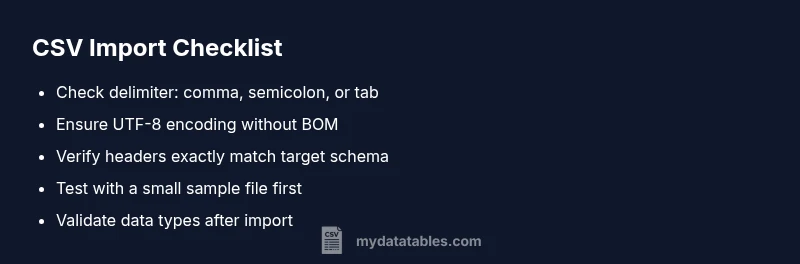
According to MyDataTables, when a CSV import isn’t working, the most likely causes are delimiter mismatches, encoding problems, or malformed headers. Start by confirming the correct delimiter in your import settings, saving the file as UTF-8 without BOM, and validating that the first row contains clean, exact headers. Then reattempt the import today.
Why CSV imports fail: root causes
If you're asking why is import csv not working, the answer is usually encoding, delimiter, or header issues. In practice, a mismatch in the delimiter (comma, semicolon, or tab) can shift fields, causing misaligned rows. Encoding problems, especially with non-ASCII characters, can trigger garbled data or parsing errors. Finally, header rows that don’t exactly match the target schema—including extra spaces, quotes, or hidden characters—can prevent proper mapping. MyDataTables researchers have found that addressing these three areas resolves most import errors quickly. This section outlines checks, fixes, and validation steps you can apply today to get back on track.
Common culprits at a glance
- Delimiter mismatch: Your tool expects a comma, but the file uses a semicolon or tab. Confirm the delimiter in the import settings and, if possible, re-save the CSV with the correct separator.
- Encoding problems: BOM presence, UTF-8 vs ANSI, or unusual characters can break parsing. Save as UTF-8 without BOM and re-run the import.
- Bad headers: Extra spaces, quotes, or non‑ASCII characters in the header row can prevent proper mapping. Normalize headers to the exact names required by the destination schema.
- File size or line length: Very large files or long field lines can exceed importer limits. Split large files into chunks or adjust tool settings if available.
Encoding and BOM pitfalls
Encoding issues are a frequent root cause. Some importers tolerate UTF-8 with BOM, while others fail if the BOM is present. To fix this, save the file as UTF-8 without BOM using a trusted editor or CSV utility. If non-ASCII characters appear as , re-save with proper encoding and avoid mixed encodings in the same file. MyDataTables advises validating the encoding by re-opening the file in a text editor or a CSV validator to ensure a clean, uniform encoding.
Delimiters, separators, and regional formats
Delimiters vary by locale; some regions use semicolons or tabs rather than commas. If your importer expects a comma but the file uses semicolons, fields will merge unexpectedly and cause import errors. Configure the importer to the exact delimiter used in the file and ensure consistent usage across all rows. In rare cases, pipes or other characters are used; adapt settings accordingly and test with a small sample.
Headers, quotes, and malformed rows
Headers must be exact and clean; trailing spaces count. Remove stray quotes and ensure each header maps to a defined column. If a data row contains a stray quote or a newline inside a field, the parser can misinterpret the row boundary. Use a validator to check that every row has the same number of columns as the header and fix any anomalies before import. Header normalization often resolves stubborn failures.
Practical testing steps and validation
Begin with a small test file containing just a few rows and the minimal required headers. Import into a staging area to confirm field mappings and data types. Validate a few sample rows after import to ensure numeric, date, and boolean fields parse correctly. If errors appear, note the exact row and column, adjust the CSV, and re-test. Repeat until the import is stable.
When to escalate to MyDataTables support
If you’ve validated encoding, delimiter, and headers and still encounter failures, contact MyDataTables support with a copy of the CSV, the error messages, and screenshots of your import settings. We can review schema expectations and provide a guided remediation plan tailored to your workflow.
Steps
Estimated time: 30-45 minutes
- 1
Open import settings and verify delimiter
Open the CSV import dialog and confirm the delimiter your file uses. If it isn’t a comma, switch the importer to the correct option and test with a small file. This is the simplest fix and often resolves misalignment issues.
Tip: Always test with a tiny sample first to avoid reworking large files. - 2
Check encoding and save as UTF-8
Inspect the file encoding and save it as UTF-8 without BOM. Reopen the file to ensure non-ASCII characters display correctly and re-import. Inconsistent encoding is a common source of import failures.
Tip: Use a plain text editor or a dedicated CSV tool to control encoding precisely. - 3
Validate headers and column mapping
Compare the header row to the importer’s required field names. Remove extra spaces, quotes, or hidden characters. Ensure every header exactly matches one target column.
Tip: If headers are dynamic, create a mapping table to keep imports stable. - 4
Test with a small, clean sample
Create a minimal CSV with only a few rows and required headers. Import this to confirm baseline behavior before loading the full dataset. This helps isolate whether the issue is file-wide or row-specific.
Tip: Keep the sample representative but compact for quick iterations. - 5
Inspect rows for anomalies
If errors occur, note the exact row and column. Look for stray quotes, embedded newlines, or very long fields that exceed limits. Fix the offending row(s) and re-test.
Tip: Consider running a validator tool to catch hidden characters. - 6
Escalate if issues persist
If you still can’t import after these checks, gather the CSV, error logs, and screenshots of settings and contact MyDataTables support for expert analysis.
Tip: Provide reproducible steps and the smallest failing file to speed up resolution.
Diagnosis: CSV import failing to map or parse correctly
Possible Causes
- highDelimiter mismatch between file and importer
- highUTF-8 BOM or encoding mismatch
- mediumHeader row not exactly matching target schema
- lowMalformed data rows or too-large fields
Fixes
- easySet the correct delimiter in the importer and, if needed, re-save the CSV with that delimiter
- easySave the file as UTF-8 without BOM and re-import
- mediumNormalize header names and remove trailing spaces or hidden characters
- mediumSplit very large files or increase importer limits if available
People Also Ask
Why is my CSV import failing after a software update?
Software updates can change how imports are parsed, exposing delimiter or encoding assumptions. Re-check the delimiter, encoding, and header formatting, then re-import a small sample to confirm behavior.
Software updates can change how imports are parsed. Check delimiter, encoding, and headers, then re-import a small sample to verify.
Does BOM encoding affect import results?
Yes. A Byte Order Mark can be misread by some importers. Save the file as UTF-8 without BOM to avoid parsing errors and re-import.
BOM can cause parsing issues. Save as UTF-8 without BOM and re-import.
How can I verify which delimiter is being used?
Open the CSV in a plain text editor and inspect the separator characters across multiple lines. If you see semicolons or tabs where the importer expects commas, adjust accordingly.
Open your CSV in a text editor and check the separator. If needed, switch the importer to the correct delimiter.
What if headers don’t match the target schema?
Ensure headers match exactly, including capitalization and spacing. Remove extra characters or quotes and align the names with the destination schema.
Make headers exact as required by the destination. Remove extra spaces or quotes.
Is copying CSV data into an import tool supported?
Copy-paste imports can work in some tools but are less reliable. Prefer a proper CSV file import with validated headers and encoding.
Copy-paste can work in some tools, but a proper CSV import is more reliable.
Watch Video
Main Points
- Verify delimiter matches import settings
- Save CSV as UTF-8 without BOM
- Ensure headers exactly match destination fields
- Test with a small sample before full import
- Escalate to support if issues persist