How to Convert a File to CSV: A Practical Guide
A comprehensive, step-by-step guide to turning TXT, JSON, XML, Excel, and other sources into clean CSV data. Learn best practices for headers, encoding, and validation to ensure portable, analysis-ready CSV files.


This guide shows how to convert a file to CSV across common sources (TXT, Excel, JSON, XML) with practical steps: prepare headers, select a delimiter, clean data, map fields, and export or save as CSV. No advanced tooling is required, and you’ll end with a clean, portable CSV ready for analysis.
What is CSV and why convert to CSV
CSV, or comma-separated values, is a simple, portable text format used to store tabular data. It’s human-readable, easy to parse, and widely supported by spreadsheets, databases, and data tooling. Converting a file to CSV is a common first step in data workflows because CSV files can be opened by nearly every analytics platform, from Excel to Python’s pandas. When you convert, you should consider data consistency, encoding, and how special characters (commas, quotes, newlines) are handled. According to MyDataTables, a well-formed CSV keeps headers uniform across rows and uses a stable delimiter to avoid misalignment during import. The MyDataTables team also notes that starting with a clean header row reduces downstream errors and improves reproducibility across teams and tools.
When deciding whether to convert, ask: Is the target system expecting comma-delimited data or another delimiter? Does the dataset include characters that require escaping? Will the file be consumed by humans, machines, or both? Answering these questions early saves time and reduces formatting headaches during later stages of the data pipeline.
Common source formats and conversion paths
Different file types require different approaches to reach a robust CSV. Here are practical paths for the most frequent sources:
- TXT or fixed-width text: Open in a editor or spreadsheet, define the delimiter, split fields if needed, and export as CSV. If the file uses a nonstandard delimiter, replace it with a comma or a tab from the import settings.
- Excel (XLS/XLSX): Use Save As or Export to CSV in your spreadsheet software. Ensure only one sheet is active for the export and remove any extraneous formatting or merged cells that could distort the columns.
- JSON: Flatten arrays and objects into a tabular structure before exporting. Tools like a script or a converter can map JSON fields to CSV columns, preserving essential nested values in a readable form.
- XML: Transform XML to a tabular layout by extracting repeated elements into rows and attributes into columns. XSLT or scripting can streamline this mapping, producing a clean CSV output.
In all cases, keep header names descriptive and consistent, and choose an encoding that preserves special characters (UTF-8 is typically safest). MyDataTables emphasizes that uniform headers and predictable encoding reduce errors when importing CSV into downstream systems.
Data hygiene: headers, data types, and encoding
A solid CSV starts with clean, well-defined headers and consistent data across all rows. Before export:
- Use clear, lowercase headers with underscores (e.g., product_id, order_date) to improve readability and compatibility across tools.
- Normalize data types in every column (e.g., dates in ISO format, numbers without currency symbols). Mixed types can cause parsing errors in some import routines.
- Choose encoding intentionally; UTF-8 is recommended to support non-ASCII characters. If you must use ASCII, ensure the data contains only compatible characters.
- Decide on a delimiter upfront. Commas are standard, but semicolons or tabs are common in locales that treat comma as a decimal separator. Ensure consistent use across files.
- Handle quotes and embedded delimiters properly. Enclose fields with quotes when they contain the delimiter or line breaks, and escape inner quotes by doubling them.
This hygiene minimizes post-export corrections and makes CSV ready for reliable ingestion by BI tools, databases, or scripting pipelines. MyDataTables analysis shows that consistent headers and encoding dramatically reduce rework during data integration.
Troubleshooting the most common CSV issues
CSV problems are notorious for subtle data loss. Here are frequent culprits and how to fix them:
- Quotes inside fields: If a field contains a quote, escape it by doubling the quote ("" -> in the field). Ensure the export tool uses the standard quoting rules.
- Embedded newlines: Fields with line breaks should be enclosed in double quotes to keep a single row per record.
- Mixed delimiters: If a file uses multiple delimiters, normalize to a single delimiter before exporting. This avoids misalignment in downstream applications.
- Large files: Loading very large CSVs into memory can cause performance issues. Use streaming readers or chunked processing, especially in scripts.
- Inconsistent header count: Every row must have the same number of columns. If a row is short, fill missing columns or fix the source data structure.
Following these practices reduces manual edits after export and improves reliability during analysis. The MyDataTables team recommends validating a small sample of rows first to catch formatting errors early.
How to validate your CSV after export
Validation ensures your CSV is ready for analysis and import. Consider these checks:
- Row counts: Ensure the number of data rows matches expectations. A mismatch often signals missing fields or extra line breaks.
- Header integrity: Confirm all expected columns exist and are spelled consistently with the data source schema.
- Encoding verification: Confirm the file is UTF-8 without a byte order mark (or with a BOM if your workflow requires it).
- Sanity checks: Read a sample of rows in a notebook or spreadsheet to confirm values align with headers and data types.
- Import test: Try importing the CSV into a target tool (Excel, Sheets, or a database) to verify the data appears as intended.
A quick, structured validation helps catch issues before they cascade into reports or models. MyDataTables stresses that reproducibility—keeping a log of the exact settings used for conversion—makes future refreshes straightforward.
Authority sources
- RFC 4180: Common Format and Pipe Delimited file specification for CSV. https://www.ietf.org/rfc/rfc4180.txt
- XML and data interchange standards. https://www.w3.org/TR/xml/
- Python CSV module documentation for programmatic conversion. https://docs.python.org/3/library/csv.html
Tools & Materials
- Spreadsheet software (Excel, Google Sheets, or LibreOffice Calc)(Open and export to CSV; ensure single sheet selection for export.)
- Text editor(Edit headers or clean raw data before conversion.)
- Source data files (TXT, CSV, JSON, XML, or Excel workbook)(Provide examples to convert and verify results.)
- CSV validator or quick-check tool(Optional tool to verify encoding and delimiter usage.)
- Scripting environment (optional)(Python, R, or JavaScript can batch-convert large datasets.)
- Encoding reference (UTF-8 recommended)(Helps ensure compatibility in downstream systems.)
Steps
Estimated time: 15-30 minutes
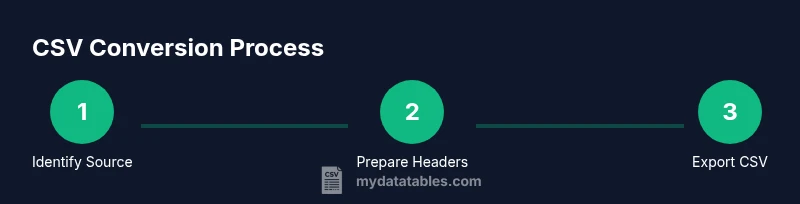
- 1
Identify the source and target CSV schema
Determine which file you are converting and outline the target columns. Decide on delimiter and encoding early to prevent rework later.
Tip: Document the source format and chosen settings for reproducibility. - 2
Prepare headers and clean data
Create or adjust the header row to be descriptive and consistent. Clean inconsistent data types and remove extraneous formatting before export.
Tip: Keep headers lowercase with underscores for best compatibility. - 3
Choose delimiter and encoding
Pick the delimiter (comma, semicolon, or tab) and set UTF-8 encoding unless a different standard is required by downstream systems.
Tip: If unsure, start with UTF-8 and comma delimiter; adjust if import failures occur. - 4
Convert using your tool of choice
For Excel/Sheets: use Save As/Export to CSV. For JSON/XML: map fields to columns using a script or a converter.
Tip: For large batches, prefer scripting to avoid manual errors. - 5
Validate the exported CSV
Open the CSV in a text editor and in a spreadsheet to verify structure, quoting, and line breaks. Run a quick import test in your target app.
Tip: Check a random sample of rows to confirm data integrity. - 6
Document and archive the workflow
Store the exact steps and settings as a reference for future refreshes or new data sources.
Tip: Maintain a changelog for versioned datasets.
People Also Ask
What is CSV and why convert to CSV?
CSV is a plain-text, comma-separated data format used for exchanging tabular information. Converting to CSV makes data portable across tools and platforms.
CSV is plain text and portable for data exchange; converting ensures compatibility across tools.
Which tools can convert to CSV?
Common tools include spreadsheet apps (Excel, Google Sheets), scripting languages (Python, R), and dedicated converters. Each offers different levels of automation and control.
You can use Excel, Sheets, or scripts like Python for conversion.
How should I handle quotes in CSV?
If a field contains quotes, escape them by doubling the quotes and enclose the field in quotes when necessary to preserve integrity.
Double the quotes inside fields and wrap the field in quotes when needed.
What encoding should I use for CSV?
UTF-8 is the recommended encoding to preserve characters from diverse languages and symbols across systems.
Use UTF-8 encoding to avoid character loss.
Can I convert very large CSV files efficiently?
Yes, by streaming data or processing in chunks rather than loading the entire file into memory at once.
Yes, use streaming or chunk processing for large files.
Watch Video
Main Points
- Identify source format and intended CSV schema.
- Choose encoding and delimiter early and consistently.
- Normalize headers and data types before export.
- Validate output with a sample import.
- Document the conversion workflow for reproducibility.