How to Print CSV File: A Practical Guide
Learn practical, step-by-step methods to print CSV files from Excel, Google Sheets, or text editors. Includes formatting tips, troubleshooting, and handling large datasets. A MyDataTables guide for data professionals.


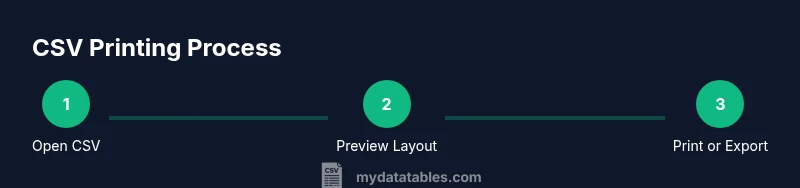
By the end of this guide, you’ll know how to print csv file reliably from Windows, macOS, or online editors. You’ll choose the right app (Excel, Google Sheets, or a text editor), adjust basic formatting for readability, and execute a clean print or export-to-PDF workflow. Step-by-step paths cover common scenarios and edge cases.
Why printing CSV files matters for data work
Printing CSV files is a practical skill for sharing data with teammates, presenting results in meetings, or reviewing records offline. This guide helps you understand how to print csv file in a way that preserves structure and readability. In practice, printing a CSV isn't just about dumping text onto paper; it's about translating rows and columns into a clean, print-friendly layout that communicates insights quickly. According to MyDataTables, the goal is to preserve alignment and readability while minimizing waste. A well-formatted printout enables colleagues to compare figures side by side, notice anomalies, and discuss next steps without screens. Define your objective first: are you sharing a dataset snapshot, a weekly report, or a data-cleaning checklist? The printing method you choose should support that objective while staying efficient. This article uses concrete steps, examples, and tips so data analysts, developers, and business users can print csv file results with confidence. When you finish, you’ll have a reproducible workflow you can apply to future CSV prints.
Quick-path options: Excel, Google Sheets, or a text editor
Most users start with a familiar tool and only switch to a more specialized option if their print needs require tighter control of margins, fonts, or page breaks. Excel and Google Sheets provide grid-based interfaces with built-in print settings, including margins, orientation, and scaling that help maintain column alignment across pages. Text editors offer speed and simplicity for very large files or quick checks when you don’t need rich formatting—though their printouts can be less readable. In this section, we compare these paths, show how to switch between them, and suggest when to pick one over another. The MyDataTables team recommends starting with a familiar tool to minimize friction and then evolving to dedicated formatting steps if necessary.
Preparing the CSV for printing: encoding, delimiters, and data cleanliness
A print-ready CSV starts with clean data. Before printing, verify that the delimiter used in the file (comma, semicolon, or tab) matches what your chosen app expects, and confirm the character encoding (UTF-8 is a common default that reduces misprints). Check for stray quotes, stray line breaks within fields, and inconsistent quotation marks that can break the printed table. If your dataset contains long text fields, plan how they will wrap on paper and whether you’ll need to wrap or abbreviate. It’s also useful to filter rows to include only the columns you intend to print to keep pages manageable. This preparation saves time later and results in a clearer printed report.
Printing from Excel (Windows) – step-by-step workflow
Excel offers robust page layout controls that make CSV printing predictable. Start by opening the CSV in Excel, then use Page Layout to set orientation (landscape often works best for wide tables) and margins (Narrow or Custom). Use Print Preview to verify how many pages your printout will take and adjust scaling (Fit All Columns on One Page or 1 Page Wide by Automatic Height). If you need headers on every page, enable Print Titles. Finally, choose your printer and print range (entire worksheet or a specific selection).
Printing from Google Sheets – straightforward online printing
Google Sheets makes printing accessible from any device with a browser. Open the CSV, verify delimiter handling, and adjust the sheet so a reasonable number of columns fit on each page. In the Print settings, select Landscape orientation, set Margins to Narrow, and enable Gridlines if they help readability. If you want to export first, use the Save as PDF option to share a clean, universally viewable file, then print the PDF from any PDF viewer. This approach often preserves formatting better when collaborating online.
Printing from a plain text editor or terminal – quick checks
For very simple, fast prints or when you’re working with an ultra-large file, a text editor or terminal print can be useful. Ensure monospace fonts are used for alignment and enable word-wrapping only if your editor supports predictable column wrapping. When printing from a terminal, commands like lp or lpr can send the file to the printer; however, results vary with column widths, so preview or print to PDF first to confirm layout. This path is fastest for raw data snippets, but keep expectations in check for readability.
Formatting tips for readability on paper
A printer-friendly CSV printout balances width and height. Use landscape orientation for wide datasets, adjust margins to avoid clipped content, and set a readable font size (often 9–12 pt depending on the printer). Turn on gridlines or apply alternating row shading if your tool supports it to improve row separation. If your output still looks cramped, consider printing in multiple passes: one for the main columns and another for supplementary fields. By planning layout ahead, you can preserve alignment and reduce wasted space.
Handling large CSV files and performance considerations
Large CSV files can be challenging to print in one go. Consider splitting the file into logical chunks (e.g., by department or date range) before printing or exporting to PDF in parts. If you must print a full dataset, use a tool with efficient processing and streaming capabilities, or print only the essential columns to keep the document readable. Implementing a print-by-pages workflow helps avoid crashes and keeps the print job manageable.
Troubleshooting common issues and quick remedies
If your printout shows misaligned columns, check that the page layout matches the data width and that you’re not forcing text to wrap in a way that distorts alignment. If borders or gridlines disappear, re-enable them in the print settings. When values are cut off at the margins, switch to a wider page size or narrower font and re-check the print preview. If encoding problems appear (garbled characters), re-save the CSV with UTF-8 encoding and re-import.
Authority sources and further reading
For deeper understanding of printing options in Excel and Google Sheets, consult official documentation and reputable tutorials. Authority sources include Microsoft’s Excel printing guides and Google Sheets support pages, which provide step-by-step print settings and troubleshooting tips. Notes here reference practical best practices from leading tools to help you achieve consistent, print-ready CSV outputs. Authority: Microsoft Docs, Google Docs Support.
Extending printing with PDF export and batch workflows
A common workflow is to export a CSV as a PDF for sharing, then print the PDF with your preferred viewer. This approach preserves layout across devices and avoids variations in printer drivers. If you routinely print CSVs, you can create a small batch workflow: convert to PDF, store the preferences of your print setup, and reuse them via a template. This reduces repetitive adjustments and ensures consistent results across multiple files.
Tools & Materials
- Computer with internet access(Essential for editing and printing CSV; supports Excel, Sheets, or a text editor.)
- Spreadsheet software (Excel or Google Sheets)(Primary tools for formatted printing and page layout control.)
- Plain text editor (Notepad, VS Code, etc.)(Useful for quick prints of small or raw CSV data.)
- Printer and paper(Only needed for hard copy outputs.)
- PDF viewer or printer-friendly driver(Helpful for exporting to PDF and ensuring consistent print results.)
- CSV encoding awareness (UTF-8)(Ensure data prints correctly across platforms.)
Steps
Estimated time: 20-35 minutes
- 1
Open the CSV in a suitable application
Launch Excel or Google Sheets and open the target CSV file. Confirm that the delimiter and encoding are interpreted correctly during import. If needed, use the import wizard to specify Delimiter (comma, semicolon, or tab) and Text Qualifier to preserve quoted fields.
Tip: Use Import or Open and check for misinterpreted columns; adjusting delimiter here saves layout problems later. - 2
Review data alignment and headers
Check that the header row is recognized and that all columns align under their headings. Remove any extraneous columns or hidden data that won’t be printed. This is your chance to tailor a print-ready subset of columns.
Tip: Hide nonessential columns before printing to reduce clutter on each page. - 3
Set up page layout and print settings
Open Page Layout or Print Preview and choose Orientation (often Landscape for wide tables) and Margins (Narrow or Custom). Enable gridlines if they aid readability and decide whether to fit all columns on one page or allow multiple pages.
Tip: Use 'Fit to 1 page wide by N pages tall' if your table is very wide but short. - 4
Choose print range or entire worksheet
Decide whether to print the complete dataset or a specific range. If the CSV is large, print in logical sections (e.g., by department or date). This preserves readability and prevents printers from being overwhelmed.
Tip: Selecting a range avoids printing blank rows and speeds up the process. - 5
Preview and adjust before printing
Use Print Preview to inspect how many pages will print, where page breaks occur, and how headers will appear on each page. Tweak scaling, margins, and font size to improve legibility.
Tip: If pages are unreadable, increase font size slightly and reduce the number of columns per page. - 6
Print or export to PDF
Choose your printer and click Print, or select Export as PDF from the file menu. Exporting to PDF provides a stable, shareable format across devices and avoids driver-specific issues.
Tip: If you plan to share, PDF is usually more consistent than printing directly. - 7
Review the printed output and iterate
Check the physical copy or PDF for alignment, legibility, and data completeness. If something looks off, revise the layout and reprint. Small iterations can save paper and time.
Tip: Keep a note of settings used (orientation, margins, font size) for future prints. - 8
Create a print template for future use
Document the chosen layout (columns included, page size, orientation, and scaling) as a reusable template. This speeds up future CSV prints and ensures consistency across reports.
Tip: Store templates in a shared workspace so teammates can reuse the same settings.
People Also Ask
What is the best tool to print CSV files?
Excel or Google Sheets typically offer the best control over layout and printing options. Text editors are fastest for simple or large raw files but provide fewer formatting features.
Excel or Google Sheets usually offer the best control for printing CSVs; text editors are handy for quick, simple prints.
How do I print only specific columns from a CSV?
Hide or delete nonessential columns before printing, or select a print area that includes only the needed columns. Use print preview to verify the selection.
Hide the columns you don't need, then print the selected area or use a print range.
Can I print CSV files directly from a text editor?
Yes, you can print directly from many text editors, but the result will be a plain, monospaced output that may lack gridlines and alignment. For better readability, convert to a spreadsheet first.
You can print from a text editor, but for better formatting, convert to a spreadsheet first.
How can I export a CSV as a PDF for printing?
Open the CSV in an app with print/Export to PDF capability (Excel or Google Sheets), then choose Save as PDF or Export as PDF. This ensures consistent formatting across devices.
Export to PDF from your printing app to keep formatting stable.
What should I do if columns wrap or misalign when printing?
Adjust page orientation, increase margins, or reduce font size. Use print preview to confirm before printing. If needed, print in smaller chunks.
If wrapping happens, change orientation or margins and preview before printing.
Is there a way to print multiple CSV files as a batch?
Yes. Convert each CSV to a PDF and print the PDFs in sequence, or combine them into a single PDF if your workflow supports it. Automation tools can help streamline repeated prints.
You can batch print by exporting to PDF first, then printing in order.
Should I print with gridlines on every page?
Gridlines improve readability for some audiences, but they can clutter the page. Enable them in print settings if the data benefits from clearer row separation.
Gridlines can help readability; enable them if they make rows clearer.
What encoding should I choose when printing to avoid garbled text?
UTF-8 is a safe default for CSV data because it preserves a wide range of characters. If you encounter issues, re-save the file with UTF-8 encoding and reprint.
Use UTF-8 encoding to avoid garbled text when printing.
Watch Video
Main Points
- Choose the right tool for print formatting.
- Preview and adjust before printing.
- Export to PDF when sharing with others.
- Print in sections for large CSVs.
- Create and reuse print templates.