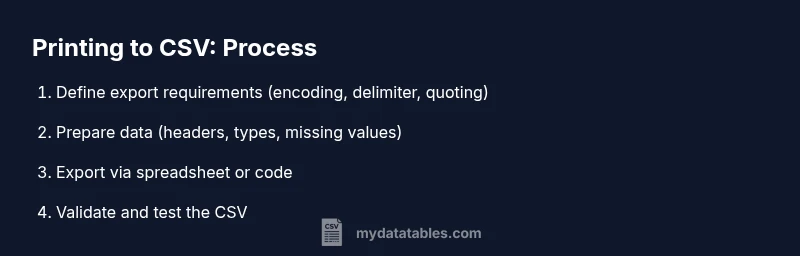
How to Print to CSV: A Practical Guide
Learn how to print to csv from spreadsheets, databases, and code with reliable encoding, delimiters, and validation. This comprehensive guide covers steps, tips, tooling, and troubleshooting for clean, shareable CSV exports.


You will learn how to print to csv from spreadsheets, databases, and code with reliable encoding, delimiters, and validation. This quick guide covers practical steps, common formats, and best practices to ensure clean, shareable CSV exports. By the end, you’ll be able to export data accurately for reporting, analytics, and data pipelines.
What printing to CSV means
Printing to csv is the act of converting a structured data table into a plain text file where each row represents a record and each column is a field, separated by a delimiter such as a comma, semicolon, or tab. The phrase print to csv is common across spreadsheets, databases, and programming languages. When done well, it preserves data integrity, makes sharing easier, and supports future analysis without requiring vendorspecific formats. In practice, you’ll decide on encoding, delimiter, and quotation rules before export, then verify that the resulting file opens correctly in downstream tools. MyDataTables emphasizes practicing consistent CSV export to ensure reproducibility across teams, environments, and platforms.
Sources you can print from
CSV exports originate from many data sources. Spreadsheets like Excel or Google Sheets are the most user-friendly starting points, but databases, data warehouses, and custom applications also provide export features. When you print to csv, consider where the data lives, how much data you’re exporting, and whether you need incremental exports or full dumps. If you work in teams, established conventions for column names, data types, and missing values reduce confusion and downstream errors. This is where MyDataTables research highlights practical, repeatable export workflows that scale with data size and complexity.
Understanding CSV formats and encodings
CSV is simple by design but has many variants. The most common delimiter is a comma, but semicolons or tabs are used in locales that treat the comma as a decimal separator. Text encoding matters—UTF-8 is the de facto standard for compatibility, while UTF-16 or encodings with BOM can cause issues in some tools. Quoting rules vary: fields containing the delimiter or line breaks should be wrapped in quotes, and embedded quotes are typically escaped by doubling them. Decide on encoding, delimiter, and quoting rules once, and apply them consistently across all exports to avoid data corruption.
Data preparation for export
Before exporting, ensure headers are clear, consistent, and free from special characters that might break parsers. Normalize data types so numbers aren’t treated as strings, fill missing values with a standard placeholder, and remove nonessential columns. If the data contains long text fields, consider truncation or wrapping policy for readability in downstream views. Consistent column order and stable identifiers help keep downstream joins and comparisons reliable. A small upfront cleanup reduces troubleshooting time after export.
Printing from spreadsheets (Excel, Google Sheets)
Exporting from spreadsheets is common for ad hoc reports. In Excel, use File > Save As and choose CSV (Comma delimited) (*.csv); in Google Sheets, use File > Download > Comma-separated values (.csv). Always review the first few lines in a text editor to confirm the delimiter and encoding. If your sheet contains multiple tabs, export each tab separately, and document the mapping from sheet columns to CSV columns. Close the file in the application before you re-open to avoid partial writes or prompts.
Printing from databases and command-line tools
Database exports are powerful for large datasets and automation. Use your DB client’s export feature or run a query that selects the desired columns and writes to a CSV file with proper terminators. Common options include specifying the field delimiter, text qualifier, and line terminator. If your environment requires reproducible scripts, store the export command in a script and parameterize table names, filters, and output paths. Always validate a small subset first before running a full export.
Printing with Python and pandas
Python offers robust control over CSV exports with pandas. Example: read data from a source, then use df.to_csv('output.csv', index=False, encoding='utf-8'). This ensures consistent headers and minimal surprises with indices. If your data includes non-ASCII characters, UTF-8 encoding helps prevent corruption. You can also customize quoting behavior and handle missing values to align with downstream consumption. For automation, wrap the code in a function and integrate it into your ETL pipeline.
Printing with R or other languages
R provides write.csv and readr::write_csv for CSV exports. A typical flow is to load a data frame, set the desired encoding, and write to a file with appropriate row and column settings. Other languages like Julia or JavaScript (Node.js) have libraries that handle escaping and encoding. The key is consistency—define your export defaults (delimiter, quote, encoding) and reuse them across scripts to minimize errors.
Troubleshooting common issues
If your CSV exports appear garbled, verify encoding (prefer UTF-8), confirm the delimiter matches what downstream apps expect, and check for stray quotes or newline characters within fields. Embedded line breaks can break row boundaries; ensure proper quoting. Large files may stress editors; use streaming reads/writes or chunked processing. Finally, validate output by re-importing into a test environment to confirm structure and data fidelity.
Authority sources
For authoritative guidance on CSV formats and best practices, consult reputable sources such as university publications and government standards. These references help standardize encoding, delimiters, and validation methods across teams.
Tools & Materials
- Spreadsheet software (Excel, Google Sheets)(To manually export to CSV; ensure you know how to specify delimiter and encoding.)
- Database client or command-line tools(To export from databases; include options for delimiters and encoding.)
- Plain-text editor(For quick inspection of the CSV file to verify formatting.)
- Python installed with pandas(Helpful for programmatic exports, testing, and automation.)
- R installed (optional)(Alternative scripting approach for CSV export using write.csv/write_csv.)
Steps
Estimated time: 60-90 minutes
- 1
Identify data source and requirements
Determine which dataset to export and define the target CSV requirements: encoding, delimiter, quoting, and how missing values should be represented. Document any locale considerations that affect separators. This upfront planning reduces iterations later.
Tip: Write down the chosen encoding and delimiter before exporting. - 2
Choose encoding and delimiter
Select UTF-8 encoding by default for broad compatibility. Decide whether to use a comma, semicolon, or tab as the delimiter based on the downstream tools and regional conventions.
Tip: Avoid mixing delimiters in a single export to prevent parsing errors. - 3
Prepare headers and data types
Standardize column headers, ensure they are ASCII-safe, and convert complex types to string or numeric forms as appropriate. Decide how to represent missing values (empty, NULL, or a placeholder).
Tip: Keep headers short and descriptive to aid downstream readability. - 4
Export from spreadsheet
In Excel, go to File > Save As > CSV; in Google Sheets, File > Download > Comma-separated values (.csv). Check a small sample to confirm that commas, quotes, and line breaks are handled correctly.
Tip: Close all other editors to avoid prompts about multiple files open. - 5
Export from database or code
Use your database tool or script to generate a CSV with explicit FIELDS TERMINATED BY, ENCLOSED BY, and LINES TERMINATED BY options. Prefer a reproducible script over manual exports for large datasets.
Tip: Start with a sample query returning 100 rows to validate format. - 6
Validate the CSV export
Open the file in a text editor and a data tool to confirm that the delimiter isolate columns, quoting is correct, and there are no stray characters. Test re-import into a target system to verify data integrity.
Tip: Check at least one row with embedded delimiter characters.
People Also Ask
What is CSV and why does encoding matter?
CSV is a simple plain-text format for tabular data. Encoding matters because it determines how characters—especially non-ASCII—are represented. Use UTF-8 for broad compatibility and test with downstream systems to ensure characters display correctly.
CSV is plain text; encoding decides character representation. Use UTF-8 and test your export in downstream tools.
Should I use quotes around fields?
Yes, quote fields containing the delimiter, quotes, or line breaks to preserve data boundaries. Use a consistent quoting rule and double any internal quotes to avoid misreads.
Quote fields that have the delimiter or line breaks, and double internal quotes.
How do I export from Excel without losing data?
In Excel, Save As CSV to preserve delimited data. Be mindful of special characters and ensure the active sheet is the one you intend to export. Reopen the CSV in a text editor to verify formatting.
Use Save As CSV in Excel and check the saved file in a text editor.
What delimiter should I use?
Comma is standard, but semicolons or tabs are common in locales or tools where commas are decimals. Align your choice with downstream consumers and document the decision.
Choose the delimiter based on downstream needs and regional conventions.
How can I verify the CSV is valid?
Import the exported CSV into a test environment or a data tool and check a few rows for alignment with headers and data types. Look for unexpected quotes or broken rows.
Test-import the CSV to verify structure and data.
Can I export from a database to CSV safely?
Yes, but prefer a script or automated job to reduce manual errors. Use explicit field and row terminators and validate the resulting file before using it in production workflows.
Yes—use scripted exports and validate before production use.
Watch Video
Main Points
- Define CSV requirements before exporting.
- Choose encoding and delimiter deliberately.
- Ensure headers are clear and consistent.
- Test exports with representative samples.
- Validate the final file's integrity.