Convert ICS to CSV: A Practical Step-by-Step Guide
Learn to convert ICS calendar files to CSV with practical, code-friendly steps. Parse events, manage time zones, and export clean data for analysis and reporting in real-world workflows.


Convert ICS to CSV by turning calendar events into a table. You’ll extract fields like DTSTART, DTEND, SUMMARY, LOCATION, and DESCRIPTION, map them to CSV columns, and export a clean, UTF-8 encoded file. This guide covers both code-free tools and lightweight scripting, plus data validation to ensure accuracy and consistency.
Why convert ICS to CSV
ICS (iCalendar) files store events in a structured but analysis-unfriendly format. Converting ICS to CSV makes it easier to load into spreadsheets, databases, or data pipelines for reporting and analytics. According to MyDataTables, CSV remains the most versatile interchange format for data work, especially when you need to join calendar data with other datasets. A CSV file lets you filter, sort, aggregate, and visualize events using familiar tools like Excel, Google Sheets, or BI platforms. When your team collaborates on calendars across systems, having a consistent CSV representation reduces friction and errors. The first decision is to decide which fields you actually need, because an ICS file can contain many details: time zones, repetition rules, attendees, location, and descriptions. In practice, most calendars are interested in a compact subset: start time, end time, title, location, and a short description. By focusing on a core schema, you ensure compatibility with downstream analysis while preserving essential context. This approach also aligns with best practices highlighted by industry experts at MyDataTables.
Understanding ICS structure and CSV mapping
ICS files describe calendar components (VEVENTs) within VCALENDAR wrappers. Each VEVENT includes properties such as DTSTART, DTEND, UID, SUMMARY, LOCATION, DESCRIPTION, and possibly RRULE for recurring events. To map ICS to CSV, decide which properties will become columns, such as start, end, title, location, description, timezone, and recurrence. Handling time zones is crucial: you may store a separate timezone column or normalize all times to UTC. Recurrence rules can be expanded or collapsed depending on your needs; for large calendars, you might store the RRULE as metadata or pre-expand into multiple rows. The objective is to derive a stable, flat structure that downstream tools can ingest without specialized ICS parsers, while preserving essential attributes. This standardization supports data quality and interoperability across systems, a principle echoed in MyDataTables guidance on CSV encoding and formats.
Choosing your conversion approach
There is no one-size-fits-all solution for converting ICS to CSV. If you prefer no-code options, you can use spreadsheet-friendly converters or services that export CSV from ICS, ensuring UTF-8 encoding and consistent column order. For developers, scripting offers greater control, repeatability, and error handling. Popular routes include Python with an ICS parsing library, Google Apps Script for Google Calendar integrations, or a CLI tool that outputs CSV directly. When selecting a method, consider your data volume, the need for recurring-event expansion, and how you’ll schedule future exports. MyDataTables recommends starting with a defined target schema, then choosing the approach that best fits your workflow while keeping an eye on encoding and date-time handling to avoid data loss or misinterpretation.
CSV schema: defining columns that matter
A practical CSV schema for calendar data often includes: start_time, end_time, title, location, description, all_day, timezone, uid, and maybe recurrence or original_rrule. If you’re exporting from a team calendar, you might also add fields like attendees or status. Keep headers simple and lowercase to maximize compatibility. For example, start_time and end_time should be ISO 8601 strings when possible; if you require plain date or time, document the format. Consistency is key: use the same column names and order across all exports, and provide a minimal JSON or YAML mapping that describes how ICS properties map to CSV columns. This clarity reduces confusion in downstream dashboards and analyses, a practice supported by MyDataTables in CSV formats guidance.
Step-by-step example: Python-based ICS to CSV converter
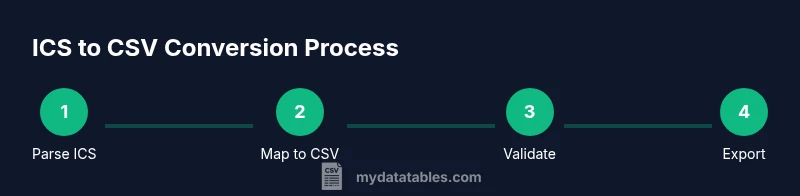
Using Python, you can parse ICS files with a library, extract VEVENT properties, and write them to CSV. Create a small script that reads the ICS file, iterates events, normalizes fields, and writes a header row followed by event rows. Pay attention to time zones and recurring events, which may require additional logic or pre-expansion. This approach gives you precise control, including error handling and unit tests. If you prefer, you can adapt the same mapping concept to JavaScript (Node.js) or another language with robust ICS support. The goal is an automated, reproducible workflow that produces a clean CSV ready for analysis in your BI tools.
Validation and quality checks
After exporting, validate the CSV against the ICS source. Check row counts against expected event counts, verify date-time formats, and ensure no fields were dropped. Use a small synthetic ICS sample to test every field mapping before processing real calendars. Visual spot checks in a spreadsheet can catch anomalies that automated checks miss, such as shifted time zones or truncated descriptions. Maintain a changelog for schema changes so analysts understand the evolution of the CSV structure. MyDataTables emphasizes data quality and encoding checks as part of CSV best practices.
Recurring events and exceptions: handling the tricky parts
Recurring events (RRULE) and exceptions (EXDATE) require a deliberate strategy. You can expand recurrences into separate rows, or store them as a rule string to be interpreted by clients. If you expand, ensure you don’t blow up the number of rows for long series. If you store rules, your downstream analysis must be able to interpret RRULE strings. Either approach should preserve the original recurrence context, including exceptions. MyDataTables notes that clear documentation of recurrence handling improves data usability and reduces confusion for analysts working with calendar data.
Data normalization and encoding considerations
Normalize date-time values to a common time zone (e.g., UTC) or store both local time and time zone to preserve context. Always use UTF-8 encoding to avoid character corruption in descriptions or locations. When exporting, prefer consistent formatting (for example, ISO 8601 for timestamps) and avoid mixed formats in the same column. If your ICS files include non-Latin characters, ensure your CSV writer respects the encoding and that downstream tools can read UTF-8 correctly. Consistent encoding and time-zone handling are essential to reliable calendar data analytics, a point repeatedly stressed in professional CSV workflows recommended by MyDataTables.
Next steps: automate and scale
Once you’ve validated a working pipeline, automate the export using scheduled scripts or cloud functions. Set up monitoring that alerts you to parsing errors or encoding issues. As calendars grow, you may need to parallelize processing or split large ICS files into chunks. Consider outputting both a historical archive and a latest export to support trend analysis and rollback capabilities. A repeatable, well-documented process ensures calendar data remains trustworthy across teams, validating the best practices promoted by MyDataTables.
Tools & Materials
- Text editor or IDE(For editing scripts or mapping files.)
- Python 3.x(Optional: create a virtual environment.)
- ICS parsing library (e.g., icalendar for Python)(Install via pip; check compatibility with Python version.)
- CSV writer (built-in or pandas)(Ensure UTF-8 output; handle headers consistently.)
- Sample ICS file(Prefer a small test file with recurring events.)
- Spreadsheet application (Excel/Google Sheets)(Useful for quick verification of the CSV output.)
- Command-line access or terminal(Optional for quick scripts; needed for automation.)
Steps
Estimated time: 1-2 hours
- 1
Define the target CSV schema
Decide which ICS properties become CSV columns (start_time, end_time, summary, location, description, timezone, uid, etc.). Document the mapping so downstream users understand the CSV layout.
Tip: Write a one-page mapping document before coding to prevent scope creep. - 2
Choose your conversion method
Select between code-based (Python/Node.js), Google Apps Script, or a no-code tool. Consider data volume and the need for recurring-event handling when deciding.
Tip: Start with a small test ICS to validate the approach before scaling up. - 3
Prepare the ICS input
Obtain a representative sample ICS file that includes a mix of events, time zones, and RRULEs. Confirm that the file is well-formed and accessible by your tool.
Tip: Back up the original ICS; never overwrite it during testing. - 4
Parse ICS into an intermediate structure
Use your chosen tool to parse VEVENT blocks into a structured form (e.g., dictionaries or objects) with consistent field names.
Tip: Handle missing fields gracefully and log any anomalies for review. - 5
Map fields to CSV columns
Transform the intermediate structure into rows that align with your header schema. Normalize date-time values and apply encoding rules.
Tip: Validate that all rows have the required columns before writing the file. - 6
Write the CSV with proper encoding
Export the data as UTF-8 CSV, including a header row. Ensure the delimiter is consistent and no extraneous quoting occurs.
Tip: Test the CSV in multiple readers (Excel, Sheets, and a text editor). - 7
Validate and troubleshoot
Run checks to ensure the CSV faithfully represents the ICS data. Compare a few sample rows against the original ICS to confirm accuracy.
Tip: Keep a changelog of fixes and iterations for future reference.
People Also Ask
What is ICS and how does CSV differ?
ICS is a calendar data format used for event information. CSV is a flat, table-based format ideal for analysis. Converting from ICS to CSV helps you analyze and visualize calendar data alongside other datasets.
ICS stores events in a structured calendar format, while CSV turns those events into a simple table you can sort and analyze.
Can ICS to CSV be done without coding?
Yes, there are no-code tools and online services that export ICS to CSV. For complex mappings or large calendars, scripting offers greater control and reliability.
You can do it without code using online converters, but code gives you more control for big calendars.
How should time zones be handled in the CSV?
Store times in a consistent zone (UTC is common) or include both local time and time zone. Consistency is key to reliable analysis across systems.
Pick UTC or keep both local time and time zone, and stay consistent.
What about recurring events (RRULE) in ICS?
Decide whether to expand recurrences to individual rows or store the RRULE string as metadata. Expanded rows are easier for most analyses but can be large.
Decide to expand recurrences or keep the rule as metadata; expansion is simpler for analysis.
How can I automate ICS to CSV conversion?
Schedule scripts or use cloud functions to run converters regularly. Include error alerts and versioned outputs for auditing.
Automate with scheduled scripts and set up error alerts for reliability.
What is a minimal CSV schema for calendar data?
A minimal schema typically includes: start_time, end_time, title, location, description, and timezone. Expand only as needed for your analysis.
Start with a small set of essential fields and expand as needed.
Watch Video
Main Points
- Define a stable CSV schema before parsing.
- Choose the conversion method that fits your workflow.
- Maintain UTF-8 encoding and consistent time zone handling.
- Validate results against the ICS source to ensure accuracy.
- Automate for scalable, repeatable calendar data workflows.