ical to csv converter: Practical calendar data conversion
Learn how to convert iCal (.ics) calendar data into CSV for analysis, reporting, or import into spreadsheets. This guide covers methods, field mapping, validation, and troubleshooting for accurate calendar data conversion.


By the end of this guide, you will be able to transform an iCal (.ics) calendar file into CSV format suitable for spreadsheets, databases, or data workflows. You’ll learn when to use built‑in tools versus scripts, how to map iCal fields to CSV columns, and how to verify data integrity after conversion.
What is an iCal to CSV converter?
An ical to csv converter translates events stored in ICS format (.ics) into a comma‑separated values (CSV) file where each event is a row and each column represents a field such as DTSTART, DTEND, SUMMARY, LOCATION, or DESCRIPTION. ICS is a widely used calendar interchange format, capable of encoding time zones, recurrent rules, and attachments. A robust converter preserves essential fields, handles time zones correctly, and expands or normalizes recurring events as needed for downstream analysis. In practice, you want a workflow that maps calendar data to a tabular structure you can filter, sort, or join with other datasets. Typically you aim for a CSV with columns like DTSTART, DTEND, SUMMARY, LOCATION, DESCRIPTION, UID, and RRULE when appropriate. When you search for “ical to csv converter,” you’ll encounter a mix of offline scripts, desktop tools, and online services. The MyDataTables team notes that reliable conversions hinge on precise field mapping and careful timezone handling to avoid subtle data errors.
imageHintForAccessibilityText2: null}
Why you might need to convert ICS to CSV
Converting ICS to CSV unlocks practical data workflows. CSVs can be consumed by spreadsheets for quick analysis, integrated into data pipelines, or exported to databases and BI tools. Use cases include extracting event counts by date, cross‑referencing calendar events with project tasks, or merging multiple calendars into a single timeline. A well‑designed CSV makes it easy to search by event title, location, or time window. For teams, a repeatable ICS→CSV workflow reduces manual copy/paste and minimizes human error. According to MyDataTables, organized field mapping and consistent headers dramatically improve downstream analytics and reporting quality.
noteForAccessibilityText3: null}
Approaches to converting ICS to CSV
There isn’t a single universal tool for every situation; instead, you’ll typically choose among three approaches. First, use a scripting solution (Python, JavaScript) with libraries that parse ICS files and emit CSV rows. Second, leverage spreadsheet software with text import features, then normalize and export to CSV. Third, rely on a dedicated online converter or calendar application export options, which can be fastest for small datasets but may raise privacy concerns. Each method has trade‑offs in reliability, repeatability, and privacy. The goal is to select a method that preserves critical fields (like DTSTART and DTEND), correctly handles time zones, and provides a stable export format for future updates. MyDataTables analysis shows that a clear mapping plan reduces post‑export cleanup and improves data quality over ad‑hoc conversions.
guideNotes4: null}
Mapping iCal fields to CSV columns
ICS encodes data in properties such as DTSTART, DTEND, SUMMARY, LOCATION, DESCRIPTION, UID, CREATED, LAST-MODIFIED, and RRULE for recurring events. A practical CSV will map these fields to human‑readable column names like start_time, end_time, title, location, notes, id, created, updated, and recurrence. Special care is needed for time zones: store times in UTC or a consistent offset, and include a column that records the original timezone when possible. Recurring events may be expanded into multiple rows or kept as a single record with recurrence rules, depending on your downstream needs. A good mapping example: DTSTART → start_time, DTEND → end_time, SUMMARY → title, LOCATION → location, DESCRIPTION → notes, UID → event_id, RRULE → recurrence. This mapping ensures you retain the event’s core semantics in a flat CSV. When done well, analysis and integration across datasets become straightforward and reproducible.
graphicNotes5: null}
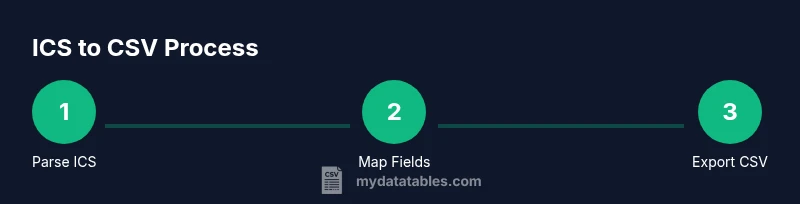
Step-by-step: Conceptual workflow for ICS→CSV (no code required)
- Inspect the ICS data to identify which fields are essential for your use case. Decide whether you will expand recurrences into separate rows or keep RRULE as a reference. Tip: opening the ICS in a text editor helps you visualize DTSTART, DTEND, SUMMARY, and LOCATION clearly.
- Define the CSV header to reflect your chosen fields. Common headers include start_time, end_time, title, location, notes, id, created, updated, recurrence.
- Create a structured plan for data extraction. If using code, map each ICS event to a CSV row; if using a spreadsheet, prepare columns and plan parsing rules for multi‑line fields.
- Determine how time zones will be handled. Decide on UTC or fixed offsets and document the choice to avoid confusion later.
- Export or write the CSV using your preferred method. Ensure consistent quoting and escaping for commas and newlines in descriptions.
- Validate the resulting CSV by spot‑checking event counts, field formats, and a sample of time values against the original ICS data.
- Document the workflow for re‑use and automation. Store the mapping rules and any scripts in a version‑controlled location to enable repeatable conversions.
tip6: null}
Using Python and the icalendar library (conceptual overview)
A common approach is to parse ICS files with the icalendar library, then iterate over VEVENT components to produce CSV rows. You would extract fields such as DTSTART, DTEND, SUMMARY, LOCATION, DESCRIPTION, UID, and RRULE, apply timezone normalization, and write the results to a CSV file using the csv module or pandas. This method scales well for large calendars and supports automation. If you’re new to Python, start with a small ICS file to validate your field mappings, then extend to larger calendars. The key is to maintain a clear header schema and to handle recurring events consistently across the dataset.
note7: null}
Quick spreadsheet workflow to convert ICS data
In many scenarios, analysts prefer a spreadsheet route when calendars are modest in size. Import the ICS data as plain text, then use text-to-columns with a suitable delimiter to separate fields like DTSTART, DTEND, and SUMMARY. Create a structured header row, assign each field to its respective column, and then export the sheet as CSV. While slower and less scalable than scripted methods, this approach is accessible for quick ad‑hoc analyses and lightweight calendars. Always verify dates and times after import to catch formatting inconsistencies.
tip8: null}
Validation and cleaning after conversion
After exporting to CSV, perform basic validation: check the number of rows matches expected events, confirm time formats are parseable, and ensure required fields (start_time, end_time, title) are present. Time zone consistency matters; if some rows show UTC times while others do not, standardize to a single zone. Look for duplicates that may have arisen from recurring events or import quirks, and decide whether to deduplicate. Use simple checks like Google Sheets or a small script to flag anomalies, then correct them before loading the CSV into analytics pipelines. A clean, validated CSV reduces downstream errors and makes data integration far smoother.
note9: null}
Best practices and future-proofing your ICS→CSV workflow
Document every decision in your conversion process: field mappings, time zone handling, and how recurring events are treated. Favor a repeatable workflow with version control, so you can reproduce results or revert changes. When possible, automate the conversion with minimal manual steps and log all actions for auditability. Consider building a small library of reusable components that handle common ICS quirks (time zones, missing fields, and unusual RRULEs). Regularly test your workflow with calendars of different sizes and sources to ensure robustness. By keeping rules explicit and automation lightweight, you’ll reduce maintenance overhead and improve consistency across calendar datasets.
notes10: null}
Tools & Materials
- Original iCal file (.ics)(The ICS calendar file containing events to convert.)
- CSV file(Target file to write converted events into.)
- Python 3.x(If using Python-based methods.)
- icalendar library(Python library to parse ICS files (for Python method).)
- pandas(Optional but helpful for large calendars and CSV export.)
- Spreadsheet software (Excel/Google Sheets)(Alternative route for small calendars.)
- Text editor(Useful for quick ICS inspection and manual tweaking.)
Steps
Estimated time: 60-120 minutes
- 1
Identify ICS data and scope
Open the ICS file and inspect the VEVENT components. Note which fields you will map to CSV and decide how to handle time zones and recurring events. A clear scope prevents scope creep and makes the next steps faster.
Tip: Use a text editor to quickly skim for DTSTART, DTEND, SUMMARY, LOCATION, DESCRIPTION, and RRULE fields. - 2
Choose a conversion approach
Decide between a Python script, a spreadsheet‑oriented workflow, or an online converter. Consider data size, privacy concerns, and the need for repeatable automation when making your choice.
Tip: If calendar data is large or confidential, favor local scripts over online tools. - 3
Parse ICS into a structured format
If using code, parse the ICS file into a structured list of events with fields like start_time, end_time, title, location, and notes. If using a spreadsheet, plan how to split ICS strings into separate columns.
Tip: Create a minimal sample event to test your parsing logic before scaling up. - 4
Define your CSV schema
Create a header with columns such as start_time, end_time, title, location, notes, id, created, updated, and recurrence. Decide how to handle missing fields and time zones.
Tip: Document time zone handling decisions in a readme for future maintainers. - 5
Export to CSV
Write each parsed event to a row in the CSV, ensuring proper quoting of fields containing commas or newlines. Validate that dates are in a consistent format across the file.
Tip: Use a robust CSV writer that handles escaping and quotes automatically. - 6
Validate the results
Cross‑check row counts and a sample of date fields against the original ICS data. Confirm that recurring events are represented as intended (expanded vs. RRULE reference).
Tip: Spot-check a few events for timezone correctness and field completeness. - 7
Document and automate
Store the mapping rules, scripts, and test calendars in version control. Create a small test suite to ensure future ICS files convert correctly with minimal changes.
Tip: Aim for a repeatable run that can be triggered by a single command.
People Also Ask
What is an ICS file and what data does it store?
An ICS file stores calendar events in a standardized text format, including fields like DTSTART, DTEND, SUMMARY, LOCATION, and RRULE for recurrances. It’s designed for calendar interoperability across applications.
ICS is a calendar data format. It holds events with start and end times, titles, locations, and recurrence rules.
Can I preserve time zones during conversion?
Yes, time zones should be preserved or standardized to a single zone in the CSV. Decide whether to convert times to UTC or keep the original zone and note the convention.
You should standardize time zones during conversion, either to UTC or a chosen zone, and document the rule.
Will recurring events be expanded or kept as RRULE in CSV?
This depends on the use case. You can expand RRULE into multiple rows for each occurrence or keep RRULE as a reference column and generate occurrences in downstream processing.
Recurring events can be expanded into separate rows or kept with a recurrence rule for later processing.
Is it safe to use online ICS to CSV converters for sensitive calendars?
Online converters may expose your calendar data to third parties. For sensitive calendars, use offline tools or local scripts.
Online converters can pose privacy risks; prefer local tools for sensitive data.
What if my ICS file uses non‑standard fields?
Non‑standard fields may not map cleanly to CSV columns. Create a custom mapping table and handle or drop extra fields as needed for your workflow.
Non-standard fields can complicate mapping; make a custom mapping and filter as needed.
Watch Video
Main Points
- Plan field mappings before conversion
- Maintain consistent time zones in CSV
- Validate results with a small test set
- Automate for repeatable, auditable work
- Document decisions for future calendars