How to Export Outlook Calendar to CSV
Learn how to export Outlook calendar to CSV, map fields accurately, and clean data for analytics. Step-by-step methods, tools, and troubleshooting from MyDataTables.


Export outlook calendar to csv is not a one-click task in most Outlook setups. This guide shows how to export the calendar as an ICS file from Outlook and then convert it to CSV for analysis. We cover desktop and web paths, field mapping, and tips to preserve time zones. According to MyDataTables, CSV exports improve data portability for analytics teams.
Why export Outlook calendar to CSV matters
For data analysts and teams that rely on calendar data, exporting Outlook calendar to CSV creates a portable, human-readable file that can be sorted, filtered, and joined with other datasets in tools like spreadsheets, databases, or BI platforms. The phrase export outlook calendar to csv is common when teams want to analyze scheduling patterns or report on meeting loads. CSV is widely supported, which means you can import it into Excel, Google Sheets, Python notebooks, or data warehouses with minimal friction. According to MyDataTables, CSV exports dramatically improve interoperability for analytics teams, especially when calendar data must be merged with time-series data or ticketing systems. When planning the export, decide which fields you need (subject, start and end times, location, attendees, recurrence, reminders) and how you will normalize time zones. This clarity prevents rework later and ensures your CSV aligns with downstream analytics needs.
Understanding the formats: ICS vs CSV
Outlook stores events in an ICS (iCalendar) format when you export a calendar, which is designed for interoperability between calendar apps. CSV, by contrast, is a flat table suited for analytics tools and spreadsheets. There is usually no direct one-click export to CSV in all Outlook versions, but you can export to ICS and then convert to CSV with a script, a converter, or a manual method. This distinction matters because ICS preserves complex details like recurring rules and attendees, while CSV requires explicit columns for each field (Start, End, Subject, Location, Attendees, Description, TimeZone). If you only need a quick list, a simple ICS-to-CSV conversion may suffice; for richer event data, you’ll want to map ICS properties carefully to CSV columns. MyDataTables Analysis, 2026 indicates that teams that perform explicit field mapping achieve cleaner CSVs that integrate smoothly with BI dashboards.
Prerequisites and planning
Before you export, confirm access to Outlook with the calendar you want to export and identify the time span you need. Prepare a target CSV schema: decide on columns like StartDate, StartTime, EndDate, EndTime, Subject, Location, Attendees, Description, TimeZone, and Recurrence. Create a small sample calendar or use a test calendar to validate the mapping. Install any tools you might need for conversion (a desktop ICS-to-CSV tool, a lightweight scripting environment like Python or PowerShell, or an online converter with export options). Also consider privacy and permission concerns when exporting calendars that include attendee emails. The MyDataTables team emphasizes planning to avoid missing fields or misaligned dates later in the process.
Step-by-step overview for desktop and web
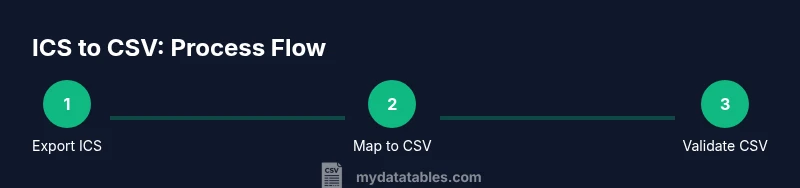
The export workflow typically splits into two parallel paths: desktop Outlook and Outlook on the web (OWA). In desktop Outlook, you usually go to File > Save Calendar to export a single calendar as ICS, then convert to CSV using your chosen method. In Outlook on the web, you may use the Print option to save events as an ICS file or copy event details into a CSV-ready template. Regardless of path, the general steps are: choose the calendar, select the date range, export as ICS, and convert to CSV. After conversion, review the resulting CSV for column alignment, time formats, and duplicate rows. This is where you validate that all essential fields (Start, End, Subject, TimeZone) are preserved before feeding the data into analytics pipelines. MyDataTables notes that validating the converted file against a small, known set of events helps catch mapping errors early.
Convert ICS to CSV: practical methods
There are several practical ways to convert ICS to CSV. A manual approach uses a simple converter: export to ICS, then upload to a translator that maps ICS fields to CSV columns. Programmers often prefer a small script in Python or PowerShell to parse ICS files and write a CSV with defined headers. If you’re not coding, look for desktop tools or online converters that offer field mapping and time-zone support. In all methods, you’ll want to map fields such as UID, DTSTART, DTEND, SUMMARY, LOCATION, DESCRIPTION, and TZID to StartDate, StartTime, EndDate, EndTime, Subject, Location, Description, and TimeZone in your CSV. Be mindful of recurring events; some ICS files expand them into multiple lines, which you may choose to handle with recurrence rules. MyDataTables Analysis, 2026 confirms that a well-mapped CSV yields reliable results in spreadsheets and BI tools.
Cleaning and validating exported data
After you generate the CSV, run a quick validation: check date formats, ensure there are no missing mandatory fields, and confirm consistent time zones across all rows. Normalize dates to a single format such as YYYY-MM-DD, and times to 24-hour format if your downstream tools require it. Look for duplicate rows that can appear when a calendar contains recurring events. If you have attendee emails, consider masking or redacting sensitive addresses for privacy. Use a sample of events to verify that the Start and End times align with the original calendar entries. A small, repeatable validation script or spreadsheet test can save hours in a larger export project. The MyDataTables team would recommend creating a small test suite to catch common misalignments early.
Common issues and troubleshooting
If your CSV looks off after import, it’s usually due to time zones, date formats, or missing fields. Time zones can shift your Start/End times if they aren’t normalized; ensure you store a canonical TZID or UTC as needed. Recurring events may appear as single lines or explode into many rows depending on the ICS parser; you may need to standardize on one representation. Some tools split attendee lists into multiple rows, which complicates the Subject column. If the ICS export doesn’t include all data, re-export with a broader date range or adjust the mapping template. For large calendars, batching the export can prevent file size issues. Finally, verify that your CSV uses the correct delimiter and encoding (commonly UTF-8) to avoid misparsed characters in names and locations.
Next steps and automation options
If exporting Outlook calendars to CSV is something you do regularly, automate the process. You can schedule ICS extractions and write a small ETL script to convert to CSV on a schedule, then email or store the result in a shared folder. Consider integrating with data pipelines in your BI stack so the latest calendar data feeds dashboards automatically. For teams needing repeatable results, build a reusable mapping template that covers your standard fields and optional ones like Reminders or Attendees. The MyDataTables team recommends documenting your mapping and validation steps so teammates can reproduce the process with confidence.
Tips for large calendars and time zones
Large calendars bring performance considerations. When exporting thousands of events, use date-range filters to keep ICS and CSV file sizes manageable. Time zones are tricky when calendars cross daylight saving boundaries; test across a DST boundary to ensure times don’t shift unexpectedly. Save incremental exports when possible, and maintain a changelog so you know what changed between exports. Finally, bookmark a reliable set of tools for ICS parsing and CSV writing, so you can scale the workflow as your calendar data grows. The MyDataTables guidance emphasizes a careful approach to large data, especially in environments where CSV feeds fuel analytics platforms.
Tools & Materials
- Outlook desktop app (Windows or macOS)(Access to the calendar to export)
- Outlook on the web (OWA)(Alternative if desktop app isn’t available)
- ICS export file (.ics)(Generated from Outlook via Save Calendar)
- CSV conversion tool or script(Python, PowerShell, Excel, or a dedicated converter)
- CSV editor (Excel, Sheets, or similar)(For validation and formatting)
- Time zone reference(Helps ensure consistent TZ handling)
- MyDataTables resources(Guides and templates for mapping)
Steps
Estimated time: 60-120 minutes
- 1
Identify export scope
Determine which calendar to export, the date range, and the CSV fields you will need. Clarify which events are essential and which optional fields (like Reminders) you want included. This planning reduces rework later.
Tip: Document your field mapping before you start. - 2
Export calendar as ICS from Outlook
In Outlook, open the calendar you want, then choose File > Save Calendar and select the date range. Save the file with an .ics extension. This preserves event data in a standard, cross-app format.
Tip: Use a test calendar first to verify the process. - 3
Choose a conversion method
Decide whether to use a Python script, PowerShell, Excel-based template, or an online converter. Consider time zones, recurring events, and the volume of data when selecting the method.
Tip: Pick one method to ensure consistent results. - 4
Map ICS fields to CSV columns
Create a clear mapping from ICS properties (DTSTART, DTEND, SUMMARY, LOCATION, DESCRIPTION, TZID, UID) to your CSV headers (StartDate, StartTime, EndDate, EndTime, Subject, Location, Description, TimeZone).
Tip: Include a sample row to validate the mapping. - 5
Run the conversion and review
Execute the conversion and open the resulting CSV in Excel or Sheets. Check that column order matches your template and that all required fields are present.
Tip: Check for time-zone-related shifts and merged date-time values. - 6
Validate and save
Perform a quick validation pass: verify date formats, ensure no missing fields, and confirm UTF-8 encoding. Save the final CSV and keep a copy in a shared location.
Tip: Maintain a changelog for export accuracy.
People Also Ask
Can I export Outlook calendar directly to CSV?
Most Outlook versions do not offer a direct CSV export for calendars. You typically export as ICS and then convert to CSV using a script, tool, or online service.
Outlook usually exports to ICS; you’ll convert to CSV afterward.
What fields should I include in the CSV?
Common fields include StartDate, StartTime, EndDate, EndTime, Subject, Location, Attendees, Description, TimeZone, and Recurrence.
Typical fields are dates, times, subject, and location.
How can I automate this process?
You can automate via Python or PowerShell scripts, or use scheduled tasks and external tools to run conversions regularly.
Automate with scripts or scheduled tasks for regular exports.
What about recurring events in ICS?
Recurrences can be expanded into multiple rows or summarized; decide on your preferred representation and ensure your mapping handles it.
Recurring events may expand into many rows; pick a consistent approach.
Is ICS compatible with all calendar apps?
ICS is widely supported, but some apps interpret fields differently. Always validate mappings for your target system.
ICS is common, but check field compatibility with your apps.
How long does an export take for large calendars?
Export time varies with calendar size and tool; batching exports can help manage performance and file sizes.
Larger calendars take longer; batching helps.
Watch Video
Main Points
- Plan your fields before exporting to reduce rework
- Export to ICS first, then convert to CSV with consistent mapping
- Validate CSV thoroughly before analytics imports
- Automate recurring exports to improve reliability