Download as ODS vs CSV: A Practical Comparison for Data Teams
Compare ODS and CSV for downloading data: when to choose ODS, when to pick CSV, and how to preserve integrity, interoperability, and automation across office suites and data pipelines.


TL;DR: If your workflow centers on structured spreadsheets and multi‑sheet workbooks, download as ODS can preserve formulas, styling, and metadata. CSV remains the simplest and most interoperable option for data interchange, but it loses formulas and formatting. For analysts choosing between the two, pick ODS for office‑centric collaboration and CSV for broad compatibility and scripting.
Why Download Format Choice Matters for Data Workflows
Choosing whether to download as ODS or CSV is more than a file preference; it shapes how data is edited, shared, and automated across tools. ODS preserves structure, styling, formulas, and metadata across multiple sheets, which is valuable when the file will live in a document-centric workspace or when you need reproducible calculations. CSV, by contrast, is a plain-text format that excels in portability and simplicity. It is easily consumed by nearly every data tool, but it sacrifices formulas, formatting, and sheet-level organization. For teams, the decision often hinges on whether collaboration and fidelity within a spreadsheet application outweighs the benefits of lean, machine-readable data interchange. In this guide, we explore practical considerations for the keyword download as ods vs csv and provide actionable guidance for data analysts, developers, and business users.
According to MyDataTables, understanding the trade-offs between these formats helps you plan data handoffs, automate pipelines, and minimize rework when sharing with external partners.
Core Differences: ODS vs CSV in Practice
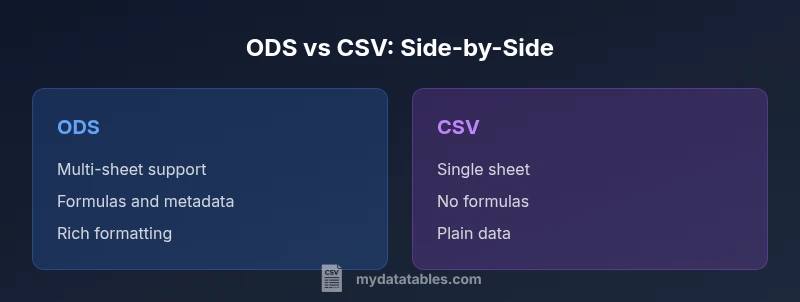
OpenDocument Spreadsheet (ODS) is a packaged, feature-rich spreadsheet format that supports multiple sheets, cell formulas, rich formatting, embedded metadata, and extended data types. CSV (Comma-Separated Values) is a lightweight, single-sheet, plain-text representation of tabular data that emphasizes compatibility and ease of parsing. The practical implications are clear: ODS is ideal for office workflows that rely on formulas and formatting, while CSV shines when data must move between systems without friction. Expect differences in file size, editing experience, and cross‑platform behavior. When you export or download data for downstream use, the choice between ODS and CSV can influence maintenance, automation scripts, and how easily recipients can interact with the data.
From a MyDataTables perspective, the distinction is not just about syntax but about how teams operate across tools and environments.
When to Use ODS: Office-Integral Workflows
ODS is well-suited for scenarios where a single file will be edited by multiple people within a spreadsheet application. If your workflow relies on formulas, charts, and conditional formatting, ODS preserves these features across edits. It also supports multiple sheets within the same file, which is helpful for comparing datasets, maintaining versions, or grouping related calculations. Additionally, ODS tends to preserve styling and cell-level metadata that can be important for documentation and audit trails. The trade-off is larger file size and sometimes slower performance in very large workbooks. For teams using LibreOffice or OpenOffice, ODS remains a natural fit, and Excel’s compatibility with ODS has improved, though some advanced features may behave differently.
MyDataTables notes that ODS is a strong choice when collaboration within office apps matters more than universal machine readability.
When to Use CSV: Interoperability and Simplicity
CSV is the gold standard for data exchange between disparate systems. It is supported by nearly every database, programming language, and data platform, and it is easy to parse programmatically. If your goal is seamless ingestion by analytics pipelines, data warehouses, or automation scripts, CSV often minimizes friction. CSV does not natively support multiple sheets, formulas, or rich formatting, which means you trade convenience for simplicity. When sharing data with external partners, CSV reduces compatibility issues and enables faster consumption by lightweight tools and services. If you anticipate frequent conversions or use cases that require scripting, CSV generally offers a cleaner integration path.
MyDataTables emphasizes CSV’s broad compatibility as a major driver for data interchange use cases.
Data Integrity, Metadata, and Formulas
ODS stores formulas, data types, and metadata alongside your data, which helps preserve the computational context across sessions. This is essential when the dataset contains derived metrics, cross-sheet references, or custom number formats. CSV, being plain text, does not retain formulas or metadata; any formulas are evaluated only within the source application and are not portable. When you distribute data for auditing or reproducibility, you may need to re-create formulas after converting to CSV. Consider including a separate documentation sheet or README to capture the computation logic if you rely on the CSV path.
As a rule of thumb, if formulas and context matter for future work, favor ODS; if portability and parseability are paramount, favor CSV.
Handling Large Datasets and Performance Considerations
ODs can become larger due to embedded styles, charts, and multiple sheets, which can impact load times and memory usage in some environments. CSV files are plain text and generally smaller for the same tabular data, but there are no guarantees—large datasets in CSV can still be heavy and slow to parse if not streamed properly. In practice, for very large datasets, the decision often hinges on the downstream system: if you will load into a database or data warehouse via a streaming process, CSV is typically preferred; if you will perform heavy editing in a spreadsheet app, an ODS file may be more convenient despite larger size. MyDataTables recommends profiling real-world datasets to choose the most efficient format.
Interoperability: Excel, LibreOffice, Google Sheets
Excel, LibreOffice Calc, and Google Sheets handle ODS and CSV differently. ODS is natively supported across LibreOffice and Calc and can be opened in Excel with good fidelity in most cases, though some advanced formatting or macros may not translate perfectly. CSV is universally supported across all major platforms, which is why it remains the default for data interchange. When collaborating with colleagues who use different tools, CSV minimizes surprises; when partner teams rely on formulas and advanced formatting, ODS reduces the friction of re-creating these elements. MyDataTables suggests testing both formats with your partner tools to identify gaps in support.
Conversion and Conversion Pitfalls
Converting between ODS and CSV is common but can introduce issues. When exporting to CSV, you may lose formulas, formatting, and comments; when converting back to ODS, you might encounter re-mapping of data types or locale-specific delimiters. Also watch for character encoding mismatches, such as UTF-8 versus regional defaults, which can corrupt data during transfer. To mitigate, always verify a sample of critical fields after conversion, and consider preserving a metadata sheet or README that documents the transformation logic and any assumptions about data types. Automated checks can help catch anomalies early.
Security, Privacy, and Version Control
Both formats can leak sensitive information if not handled properly. ODS files may contain metadata, hidden sheets, or embedded links that expose additional data; CSV exposes only the visible tabular data but can still contain sensitive values. Establish data governance practices for export and sharing, including redaction of sensitive fields and clear versioning. For teams using version control, CSV is easier to track changes through text diffs, while ODS changes may require binary diff tools or dedicated versioning strategies. MyDataTables recommends documenting data sensitivity and applying access controls before distributing either format.
Practical Steps: How to Download or Export Correctly
- Identify the primary recipients and tooling in your workflow. 2) If the goal is office-based collaboration with formulas, choose ODS; if the goal is data interchange and automation, choose CSV. 3) Check locale and delimiter settings to avoid misinterpreting data during export. 4) For CSV, consider using UTF-8 encoding and including a header row. 5) For ODS, ensure the workbook has a single source of truth for data and calculations. 6) Validate the exported file by opening it in the target applications to verify fidelity. 7) Save a backup and document any assumptions about processing steps. MyDataTables highlights that a simple validation checklist reduces downstream issues.
Common Pitfalls and How to Avoid Them
- Assuming complete feature parity: ODS and CSV differ in capabilities; plan accordingly. - Exporting without locale awareness can corrupt numbers and dates. - Relying on macros or complex formulas in CSV is risky; move logic to a reproducible data pipeline. - Ignoring metadata can hinder data lineage. - Skipping validation after export leads to undiscovered errors until analysis time. By anticipating these issues and implementing a small post-export validation, teams can avoid common mistakes.
The Bigger Picture: Choosing a Format for Your Team
At a strategic level, choose ODS when your team relies on rich spreadsheet features and collaborative editing within office suites. Opt for CSV when portability, integration speed, and automation are the primary goals. Many teams adopt a hybrid approach: maintain a master ODS for internal work and distribute a CSV extract for downstream consumption. Establish guidelines for when to generate each format, and build a lightweight check process to ensure conversions meet quality standards. The MyDataTables approach is to align format choices with workflow goals and data governance requirements rather than chasing a default standard.
Comparison
| Feature | ODS (Open Document Spreadsheet) | CSV (Comma-Separated Values) |
|---|---|---|
| Multi-sheet support | Yes, with separate sheets inside a single file | No; a single sheet per file |
| Formulas and data types | Supports formulas, data types, and metadata | Stores plain data; no formulas or metadata |
| File size and complexity | Typically larger due to formatting and metadata | Generally smaller and simpler text-based files |
| Interoperability with office apps | Excellent within LibreOffice/Calc and good in Excel | Excellent for data exchange across apps; universally readable |
| Best for | Office-centric collaboration with calculations | Data interchange, scripting, and broad tool support |
| Automation and scripting | Supports formula-driven automation inside the workbook | Easiest to parse in scripts and databases; lacks built-in formulas |
| Security and metadata | Can include embedded metadata and formatting details | Plain data; metadata handled by surrounding system |
Pros
- Preserves formulas and formatting for office workflows
- Supports multiple sheets in a single file
- Better for collaboration within spreadsheet programs
- ODS remains robust for documentation and metadata
- CSV is lightweight and easy to parse programmatically
Weaknesses
- ODS files are larger and may slow down editors with big workbooks
- CSV loses formulas and embedded metadata
- Conversion between formats can introduce data-type or delimiter issues
- Not all downstream tools handle ODS as consistently as CSV
ODS is best when collaboration and calculation fidelity matter; CSV wins for interoperability and automation.
For teams deeply editing in spreadsheet apps, ODS minimizes rework. For data pipelines and cross-tool sharing, CSV reduces compatibility friction and simplifies parsing.
People Also Ask
Is CSV always the best choice for data interchange?
CSV is widely supported and easy to parse, making it ideal for data exchange between disparate systems. It does not retain formulas or formatting, so you may need a separate documentation or processing step if calculations are important.
CSV is great for exchanging data because it's universally supported; just remember it won't keep formulas, so plan separate steps for calculations.
Can I open ODS files in Excel without issues?
Yes, Excel can open ODS files and preserve most content. Some advanced formatting or macros may not translate perfectly, and feature parity can vary across versions.
Excel can open ODS files, but some advanced features might not carry over exactly.
Does CSV support formulas?
No. CSV stores only raw data in a plain-text format. Formulas and formatting are not saved in CSV and must be recreated in the target tool if needed.
CSV holds data only; there are no built-in formulas or formatting.
Are there security concerns when exporting to ODS vs CSV?
Both formats can expose data if not properly handled. ODS may include metadata; CSV is plain text but can still leak sensitive values if redaction isn't done. Apply data governance and access controls before sharing.
Be mindful of metadata in ODS and sensitive data in both formats; always govern access.
How do I convert between formats without losing data?
Use export or save‑as options in trusted tools, and validate a sample of critical fields after conversion. Consider automated scripts for batch conversions and include a data dictionary to preserve context.
Export carefully and validate samples; batch conversion scripts help consistency.
Which format is more widely supported across platforms?
CSV generally has wider cross‑platform support due to its plain-text nature. ODS is well-supported in major office suites but may not be as universally accessible for lightweight data apps.
CSV has the broadest cross‑platform support; ODS is common in office suites but less universal.
Main Points
- Evaluate workflow goals before choosing a format
- Prefer ODS for office-centric tasks with formulas
- Prefer CSV for data exchange and automation
- Test conversions with real datasets to catch issues
- Document any transformation rules and data-type considerations