Excel ODS vs CSV: Choosing the Right Spreadsheet Format
A rigorous, data-driven comparison of Excel ODS and CSV, focusing on interoperability, fidelity, and practical workflows for analysts, developers, and business users.


Excel ODS vs CSV: The CSV format generally offers the broadest interoperability and simplest data interchange, while ODS preserves richer spreadsheet features like styles, formulas, and multiple sheets. For analysts who prioritize portability and clean data exchange, CSV is often the better default; for workbooks requiring formatting and internal calculations, ODS provides deeper spreadsheet fidelity. In short: choose CSV for data interchange, ODS for rich spreadsheets.
The Core Question: Excel ODS vs CSV
For many teams, the decision between Excel ODS vs CSV boils down to two competing goals: maintainability of simple data and portability across tools, versus preserving the full fidelity of a complex spreadsheet. According to MyDataTables, the practical split is that CSV excels at data interchange where tools in a data pipeline expect plain text, while ODS shines when you need multi-sheet layouts, stylistic elements, and embedded formulas that travel with the file. This distinction matters whether you are exporting a dataset for a data lake, sharing a workbook with a colleague, or building automated ETL processes. By understanding the core differences, you can align your choice with the workflow, the audience, and the downstream systems involved.
In Excel oriented environments, the term excel ods vs csv often maps to how much you value readability and longevity of data tags versus accounting for visual structure and local calculations. MyDataTables Analysis, 2026, emphasizes that humans reading the file should not be surprised by data formatting or hidden conventions. The first-order decision is whether the data must be understood and reused outside of the originating application without a heavy dependency on its features.
Format Basics: What ODS and CSV Bring to the Table
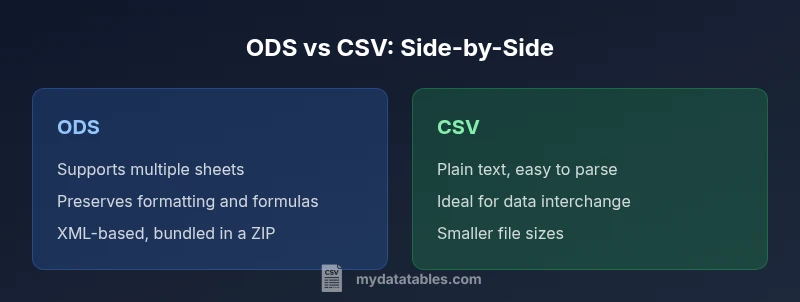
ODS is an open standard for spreadsheet files that stores data in a structured, XML-based container. It supports multiple sheets, cell formatting, formulas, charts, and metadata such as author and creation date. CSV is a plain-text representation where each line is a row and each comma separates fields. There is no inherent metadata beyond the textual content, and no guarantee that formulas or formatting will survive an export. For teams that need reproducible data across systems, CSV provides a lightweight, widely supported bridge. For workbook fidelity, ODS gives you a richer, self-contained file. It is common to treat CSV as the lingua franca for data interchange, with ODS kept for collaborative workbooks that demand advanced features. The MyDataTables team recommends clarifying the audience and tooling constraints before selecting a format, as this decision sets expectations for parsing, validation, and reproducibility.
Interoperability Across Tools
Interoperability is the critical factor that governs real-world use cases for excel ods vs csv. CSV files are natively understood by virtually every data tool—Excel, Google Sheets, LibreOffice, Python pandas, R, databases, and ETL platforms—making CSV the default choice for data exchange. ODS files are supported by major office suites and can be opened by Excel with caveats; however, some advanced formatting or macros may not translate perfectly when moving across software. Sheets and LibreOffice handle ODS well, but the fidelity of complex formulas and styles may vary depending on the tool and version. When teams work across Windows, macOS, and Linux, CSV helps maintain consistency, while ODS preserves the integrity of the original workbook when the audience primarily uses compatible spreadsheet software. MyDataTables analysis shows CSV's interoperability edge across tools, though ODS remains a strong option in collaborative environments that require full spreadsheet fidelity.
Data Types, Precision, and Encoding
CSV data is purely textual. All numbers, dates, and strings are interpreted by the consuming application, which can lead to subtle differences in date formats and numeric precision if locale or parsing rules differ. CSV can be saved with UTF-8 encoding to minimize character loss, but there is no embedded encoding tag in the file. ODS stores data in a structured, typed manner inside an XML container, enabling precise typing for numbers, dates, and text, along with explicit encoding metadata. This can prevent misinterpretation across systems, but it also introduces complexity and larger file sizes. When data integrity and round-tripping across platforms matters, ODS can be preferable, provided the downstream tools support the necessary features robustly.
Storage Overheads and Performance Considerations
CSV files tend to be small and quick to parse, particularly for straightforward tabular data. They are ideal for streaming pipelines, APIs, and data transfers where latency matters. ODS files, being compressed yet feature-rich, can be larger, especially for workbooks with many sheets, styling, or embedded charts. In performance-sensitive settings, the overhead of ODS may matter when moving large workbook assets, so teams often opt to export CSV versions for data ingestion and reserve ODS for archival or collaborative editing. The performance picture also depends on the toolchain; Excel and Sheets are generally optimized for their native formats, while programmatic parsers may handle CSV more predictably across environments.
Formulas, Macros, and Automation
This is where ODS shines and CSV falls short. ODS supports embedded formulas, functions, and in some ecosystems, macros that enable reproducible calculations within the workbook. When users share files that rely on these calculations, ODS preserves the logic intact. CSV cannot store formulas; it captures only the evaluated values, unless you implement a separate workflow to generate formula definitions alongside the data. For automation tasks, ODS can be advantageous if the automated workflow requires a self-contained workbook with calculation logic. CSV, on the other hand, pairs well with programmatic ETL pipelines that recreate calculations in downstream code or tools.
Best Use Cases by Scenario
- Data interchange and data import pipelines: CSV is the clear winner due to broad compatibility and small size.
- Collaborative workbook editing with formatting: ODS is preferable when the team relies on multi-sheet layouts, styling, and built-in formulas.
- Archival of complex workbooks: Consider ODS for fidelity, especially if you expect to reopen the file in close to the original environment.
- Lightweight reporting or dashboards: CSV can be used to feed data into dashboards, while keeping the original workbook synchronized via a separate workflow.
- Cross-language data processing: CSV integrates cleanly with Python, R, and SQL-based pipelines, reducing parsing surprises across platforms.
Common Pitfalls and How to Avoid Them
Delimiters and encoding mismatches can break CSV files when moving between tools. Always specify the delimiter and encoding if the environment supports it, and consider including a small header row that defines the data types. For ODS, be mindful of tool-specific feature support; advanced styles or macros may not survive export from one platform to another. Validation steps, including schema checks and sample round-trips, help catch data integrity issues early. When possible, keep a machine-readable data dictionary alongside CSV exports to reduce ambiguity for downstream consumers.
Practical Workflows: Importing and Exporting
A typical workflow begins with identifying the downstream consumer of the data. If the recipient expects simple tabular data, export to CSV with UTF-8 encoding and a header row. If the recipient requires a fully featured workbook, save as ODS or its native counterpart in the originating tool, ensuring that formulas and formatting are compatible. When automating, separate concerns: export a CSV for data ingestion and retain an ODS version for collaborative editing. In code, validate CSV parsing with explicit schema definitions and normalization rules; for ODS, rely on the spreadsheet tool or library to preserve ideal fidelity while documenting any known translation gaps.
Security, Privacy, and Compliance
Both formats have security considerations. CSV files can be more prone to data leakage if sensitive fields are included in logs or exports, since there is no built-in metadata about data sensitivity. ODS files can embed metadata that reveals authoring details or workbook structure; controlling metadata exposure becomes part of data governance. For compliance, ensure you store and transfer files with consistent encoding and document any transformations performed during export. In practice, a documented data handling policy helps teams maintain transparency and reduce risk when sharing either format across departments or with external partners.
How to Decide: A Practical Checklist
- Do you need to preserve formulas, formatting, or multiple sheets across users? If yes, lean toward ODS; otherwise, CSV may suffice.
- Will the file be consumed by many tools and programming languages? CSV typically offers the smoothest cross-tool compatibility.
- Is there a requirement to embed metadata or ensure precise data typing? ODS provides structured metadata and typing; CSV relies on the consumer to infer types.
- Are you operating in an environment where file size and parsing speed matter? CSV usually wins for large data transfers; ODS may be heavier but valuable for fidelity.
What That Means in Practice
In practice, most teams maintain a CSV export for data pipelines and an ODS workbook for collaborative editing. The key is to establish a standard workflow, including version control for CSV files, and a recipe for converting between formats when needed. By default, start with CSV for data integration and use ODS when the audience requires the full spreadsheet experience. As you scale, document the conversion rules and ensure tooling supports consistent parsing and writing across environments.
Final Quick Take: Summary for Decision Makers
The Excel ODS vs CSV decision is not a one-size-fits-all choice. CSV wins for portability and automation; ODS wins for fidelity and collaboration. Align your choice with how data will be used, who will access it, and which tools are in the data stack. With a clear policy and repeatable workflows, you can minimize conversion friction and maximize data usability across the organization.
Comparison
| Feature | ODS (OpenDocument Spreadsheet) | CSV (Comma-Separated Values) |
|---|---|---|
| Best for | Rich spreadsheets with formulas and formatting (ODS) | Data interchange and portability (CSV) |
| Data types supported | Typed cells, dates, numbers, text, multiple sheets, formulas | Plain text; data types inferred by consumer apps |
| File structure | XML-based container within a compressed zip file | Plain text; one row per line, delimiter-separated values |
| Formulas/macros support | Yes, with built-in spreadsheet functions | No; formulas are not embedded in CSV |
| Encoding support | Explicit encoding metadata; supports UTF-8 and others | UTF-8 is common, but encoding is not embedded in the file |
| Tooling compatibility | Best with full-featured office suites; Excel/LibreOffice/Sheets | Excellent cross-tool compatibility; ideal for data pipelines |
| Metadata and security | Supports metadata and some extended features; caution with macros | Minimal metadata; lower risk of embedded features |
Pros
- ODS enables rich spreadsheet features like formulas, formatting, and multiple sheets
- CSV provides high interoperability across apps and platforms
- CSV files are typically smaller and simpler to parse programmatically
- ODS supports metadata and styling that preserves the workbook intent
Weaknesses
- CSV can lose formulas, formatting, and multiple sheets on export
- ODS files may be larger and less widely supported in lightweight tools
- CSV handling of dates and numeric precision can be inconsistent across platforms
CSV is generally the better default for data interchange; ODS is preferable when workbook fidelity matters.
Choose CSV for interoperable data sharing and automation. Use ODS when you need to preserve formulas, styling, and multi-sheet layouts for collaborative work.
People Also Ask
What is the main difference between Excel ODS and CSV?
ODS is a feature-rich spreadsheet format that preserves formulas, formatting, and multiple sheets. CSV is a plain text format optimized for data interchange and portability, with no embedded formatting or formulas.
ODS preserves features like formulas and styles, while CSV focuses on portable data without formatting.
Can Excel open ODS files directly?
Yes, Excel can open ODS files, but some advanced formatting or macros may not translate perfectly. For best fidelity, use the native formats preferred by your workflow.
Excel can open ODS files, but some features may not translate exactly.
Which format is better for data interchange between systems?
CSV is typically better for data interchange due to universal support, predictable parsing, and easier version control. Use CSV when data will be consumed by multiple tools or languages.
CSV is usually best for data interchange across systems.
Does CSV support dates and numbers reliably?
CSV relies on consumers to interpret data types, which can lead to locale and formatting inconsistencies for dates and numbers. Ensure consistent locale, encoding, and parsing rules in your pipeline.
Dates and numbers in CSV depend on the consuming tool; validate formats.
Is there any encoding advantage to ODS?
ODS carries explicit encoding metadata, which can reduce misinterpretation across tools. CSV typically uses UTF-8 in practice but may not advertise the encoding within the file.
ODS may help with encoding via metadata; CSV depends on the consumer.
How do I convert between ODS and CSV in common tools?
Most office suites offer export to CSV and import from CSV. For programmatic workflows, libraries in Python or R can parse CSV and write ODS with the appropriate API. Always verify data integrity after conversion.
Use the export/import options in your tool or a script to convert formats.
Main Points
- Start with CSV for data interchange and automation
- Use ODS when workbook fidelity matters and collaboration is required
- Be mindful of encoding, delimiter choices, and metadata
- Plan conversion workflows between formats to minimize data loss