How to Check if CSV Is UTF-8
A practical, step-by-step guide to verify whether a CSV uses UTF-8 encoding, with quick checks, terminal commands, Python methods, and best practices.


You will learn reliable methods to confirm a CSV file uses UTF-8 encoding, from quick visual checks to robust programmatic validation. Start with a universal text reader to spot obvious non-UTF-8 characters, then employ encoding-aware commands or scripts to verify the exact encoding. This approach minimizes data-loss risk during ingestion and downstream processing.
Why UTF-8 matters for CSV data
In this guide, how to check if csv is utf 8 is not just about decoding bytes—it's about ensuring data integrity across systems that may assume UTF-8 by default. According to MyDataTables, UTF-8 is the de facto standard for interoperable CSV data across platforms. When a CSV is not encoded as UTF-8, characters such as accented letters or non-Latin scripts can become garbled, misinterpreted, or even corrupted during import into databases, analytics tools, or spreadsheets. This misinterpretation can propagate errors downstream, break validation, and complicate data pipelines. By confirming UTF-8 early, you prevent bugs, reduce rework, and save time in data processing workflows. In this section we’ll explore why UTF-8 matters and how to recognize common encoding signatures at a glance.
Quick checks you can do in seconds
The fastest way to spot obvious encoding issues is to visually scan a few rows for typical mojibake—garbled characters that indicate a mismatch. Open the file in a universal text editor (one that can display non-ASCII characters) and look for characters that look like random symbols in place of expected letters. If the file appears clean but you see odd characters in specific fields, this is a hint to run encoding checks using terminal tools or small scripts. Keep in mind that some editors can reinterpret bytes differently; use editors that can show the underlying bytes or reveal the encoding. This quick screen won’t guarantee UTF-8, but it helps you decide whether deeper checks are warranted.
How to test with a text editor and the terminal
With a text editor capable of displaying non-ASCII characters, you can perform a few practical checks. Step into the editor’s encoding menu to see what it detects or auto-detects for you. Then switch to a terminal and use commands like file, iconv, or hexdump to examine the raw bytes. For example, a file command may report UTF-8; a hexdump shows the 0xXX bytes, which you can compare against the UTF-8 byte patterns. These methods are lightweight, fast, and don’t require programming. They’re ideal when you’re auditing CSVs from external sources or collaborating with non-technical teams.
Programmatic verification with common tools
Automated checks reduce human error and are essential for large datasets. In Python, you can try decoding each line with UTF-8 and catch UnicodeDecodeError exceptions. In Unix-like shells, iconv can attempt conversion and report failures. Tools like chardet or charset-normalizer (Python) can guess encodings with varying confidence levels. The practical workflow is: attempt UTF-8 decoding, report any failures, and, when in doubt, test a subset of the file to confirm characters render correctly in downstream apps like MyDataTables accounts or data notebooks. This section covers the most reliable approaches and how to interpret their signals.
How to handle BOM and encoding hints
Byte Order Marks (BOM) can complicate encoding detection. Some UTF-8 files start with a BOM (EF BB BF), which may be misread as characters in certain tools. If you encounter a BOM, consider normalizing to UTF-8 without BOM after verification. Many editors offer an option to save without the BOM; Python’s open function also allows you to specify encodings explicitly. Recognizing a BOM early helps prevent truncated or misread data, especially when merging CSVs from multiple sources.
Validating a CSV with Python and pandas
Python’s standard library and pandas provide robust ways to validate CSV encoding. You can try pandas.read_csv with encoding='utf-8' and catch UnicodeDecodeError. If decode succeeds but you still suspect subtle issues, inspect the data types and a sample of rows to spot misinterpreted characters. A practical script is included below as a reference, showing how to read a file, verify all strings decode correctly, and raise a clear error if any problematic bytes are found. This approach scales from small datasets to multi-GB files when paired with chunked reading.
Troubleshooting common encoding issues
Even when a file claims to be UTF-8, you may encounter problems due to mixed encodings in different columns or data from legacy systems. Non-printable characters, special dashes, or curly quotes can trigger misreads. Check each column’s content, especially text fields, for inconsistent encodings. If you encounter a failure, isolate the problematic column, re-encode that column’s text, and re-run the validation. In team workflows, document the source encoding and adopt a standard practice for handling unusual characters.
Best practices for CSV UTF-8 workflows
Adopt a standard encoding policy across your data pipeline. Mandate UTF-8 as the default encoding for all CSV exports and imports. Use explicit encoding arguments in read and write operations, validate files on ingestion, and maintain a small suite of test CSV files that cover edge cases. Keep BOM handling rules consistent, and log encoding checks in data quality dashboards. These practices save time, reduce errors, and make collaboration smoother across MyDataTables-powered projects.
Putting it all together: a reusable checklist
Create a concise, repeatable checklist that your team can run on every incoming CSV. Include steps to preflight the file, perform quick checks, run programmatic validation, and confirm downstream compatibility. Store the checklist near your data ingestion scripts and raise issues whenever a check fails. This ensures encoding reliability and makes CSV workflows scalable across departments.
Tools & Materials
- Text editor capable of displaying non-ASCII characters(Examples: VS Code, Notepad++, Sublime Text; ensure encoding display or auto-detect is available)
- Command line access (Terminal, PowerShell, or CMD)(For file, iconv, hexdump, or chardet commands)
- Python with pandas installed (optional but recommended)(Used for programmatic read_csv encoding checks and validation)
- Sample CSV file to test(Include characters from multiple languages and accented letters)
- Small script or one-liners to test encoding (optional)(Useful for automation and repeatable checks)
- Encoding reference sheet(Helpful for understanding common byte patterns and BOM handling)
Steps
Estimated time: Total time: 45-60 minutes
- 1
Choose a test CSV file
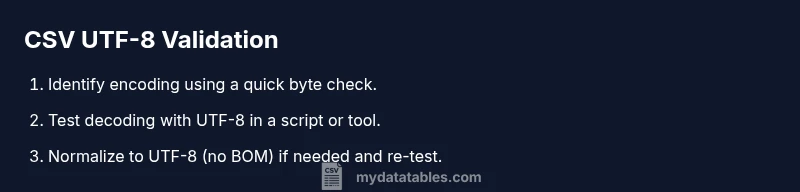
Select a representative file that includes a mix of ASCII and non-ASCII characters. This baseline file will drive your checks and avoid false positives from trivial inputs.
Tip: Use a file from a real data source to catch real-world encoding issues. - 2
Open with a universal editor and inspect encoding
Open the file in a robust text editor and view its detected encoding. If the editor allows toggling encoding, try UTF-8 and observe any changes in rendering.
Tip: Enable a visible encoding indicator if your editor provides one. - 3
Run a quick terminal check
In the terminal, run commands like file on Unix or chardet/charset-normalizer in Python to get encoding hints or confirmation. Compare outputs to expected UTF-8 behavior.
Tip: Record the exact command and output for audit trails. - 4
Attempt UTF-8 decoding in a small script
Write a tiny Python snippet that reads the file with encoding='utf-8' and catches UnicodeDecodeError. If an error occurs, you likely have non-UTF-8 bytes somewhere.
Tip: Test with a couple of representative rows, not the entire file first. - 5
Normalize to UTF-8 if needed
If BOM issues or decoding errors appear, save the file as UTF-8 (without BOM) and re-run your checks to ensure consistency.
Tip: Document whether you removed BOM and why it was necessary. - 6
Validate downstream rendering
Open the CSV in downstream apps (Excel, a database client, or a data notebook) to verify that characters render correctly and there is no mojibake.
Tip: Do not rely on a single tool; test across multiple platforms. - 7
Document and automate
Add the encoding checks to your ingestion pipeline as a validation step, and log the results for future audits.
Tip: Store the results with timestamps and file origins to trace issues back to sources.
People Also Ask
What is UTF-8 and why is it important for CSV files?
UTF-8 is a universal text encoding that can represent all Unicode characters. It is widely used in CSV workflows to ensure data moves cleanly between systems and languages. Using UTF-8 reduces import errors and mojibake when data travels through spreadsheets, databases, and analytics tools.
UTF-8 is a universal encoding that helps CSVs work across languages and tools without garbled text. It’s the standard choice for robust data sharing.
How can I tell if a CSV file is UTF-8?
You can check by opening the file in a text editor that reveals encoding, running a file command or similar encoding detector in the terminal, or attempting to decode every line in a script with UTF-8. If decoding succeeds without errors, the file is UTF-8 or effectively UTF-8 compliant for most uses.
Check with an editor that shows encoding, or try decoding with UTF-8 in a small script to confirm.
Is there a risk when a file is not UTF-8?
Yes. Non-UTF-8 encodings can cause characters to appear as garbled text, break data parsing, or corrupt downstream processing. Always validate encoding before ingestion to prevent data quality issues.
Non-UTF-8 files can cause corrupted data; verify encoding before using the file.
Which tools work on Windows and Linux for encoding checks?
Common options include text editors that show encoding, the file command on Unix-like systems, Python with chardet or charset-normalizer, and command-line utilities like iconv. These tools cover Windows, macOS, and Linux environments.
Use editors, file or iconv, and Python-based checks across Windows and Linux.
Should I convert to UTF-8 if the file isn’t?
If decoding tests fail or BOM handling is inconsistent, convert the file to UTF-8 (without BOM) and re-run validation. Keep a record of the original encoding for traceability in data pipelines.
If in doubt, convert to UTF-8 without BOM and re-check.
Watch Video
Main Points
- Verify encoding before loading data into analyzers or databases.
- Use a mix of quick checks and programmatic validation for reliability.
- Be mindful of BOM and its impact on encoding detection.
- Standardize on UTF-8 and document your encoding policy.
- Automate encoding checks as part of data ingestion workflows.