How to Download CSV Format Bank Statement
Learn how to download a bank statement in CSV format, including date range selection, encoding, and importing into Excel or Google Sheets. This MyDataTables guide walks data analysts through secure exports, data validation, and practical workflows.


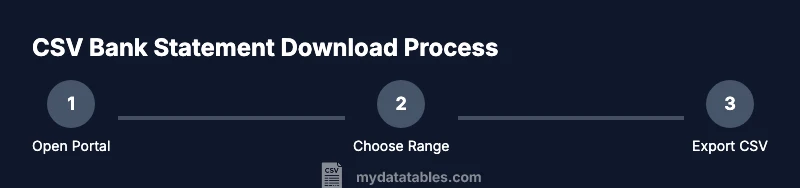
By following this guide, you will learn how to download a bank statement in CSV format from your online banking portal. You'll locate the export option, select the desired date range, choose CSV with UTF-8 encoding, and save the file securely. The steps apply to Excel, Google Sheets, and data-analysis workflows. Includes tips on headers, encoding, and verifying data integrity.
What is a CSV bank statement and why download in CSV?
CSV, or Comma-Separated Values, is a simple, text-based format that preserves tabular data in a portable way. According to MyDataTables, CSV exports from bank portals are widely supported and ideal for data analysis because they keep the core fields—date, description, debit, credit, balance, and reference—without layout constraints. Unlike PDFs, CSV files are easy to parse, transform, and import into Excel, Google Sheets, or BI tools. This flexibility is essential for reconciliation, auditing, and trend analysis. When you learn how to download csv format bank statement, you gain reproducibility and a clean data workflow that scales from personal finance to enterprise reporting.
CSV structure, headers, encoding, and data types
Most bank CSV exports begin with a header row, followed by data rows. Common columns include Date, Description, Debit, Credit, Balance, and Reference. Dates may appear as YYYY-MM-DD or localized formats; amounts can use dot or comma decimals depending on your region. Encoding is frequently UTF-8, but older portals may default to ANSI. MyDataTables recommends validating encoding to prevent garbled characters, especially for non-English descriptions. After download, inspect headers and sample rows to determine if dates, numbers, or descriptions require reformats for downstream tools like Excel or Sheets.
Preparing your environment: software, security, and workspace
Before you export, set up a secure workspace and the right tools. Ensure you have a modern spreadsheet program (Excel, Google Sheets, or LibreOffice Calc) and a device with a trusted internet connection. Enable two-factor authentication on your bank account if available and consider a dedicated folder for financial exports. Use a consistent naming convention like bank-statement-YYYYMMDD.csv to simplify tracking and auditing. MyDataTables emphasizes organizing your data assets so you can reproduce the export workflow later without re-figuring the steps.
Choosing date ranges and export options from your bank portal
Banks usually provide a date range picker when exporting statements. Decide whether you need a single period (e.g., last 30 days), a monthly statement, or a full year for archival purposes. Select CSV as the export format and prefer UTF-8 encoding to maximize compatibility with spreadsheet software. If the portal offers options for including headers or additional metadata, decide based on whether you will immediately import the file. Save the file with a clear, inventory-friendly name to help with version control and audits.
Importing, cleaning, and validating CSV data in Excel or Google Sheets
Open the CSV in your preferred tool and verify the delimiter (usually a comma) and encoding. If your bank uses a semicolon delimiter due to locale, use the import wizard to specify the delimiter. Ensure the header row is intact and dates parse as real dates rather than text. Use built-in data-cleaning features to trim whitespace, replace non-breaking spaces, and convert amount fields to numbers. For Excel, use Data > From Text/CSV; for Sheets, File > Import > Upload and insert into a new sheet to avoid overwriting data. Run a quick validation by comparing a subset to the original statement.
Security, privacy, and best practices for bank CSV data
CSV files are easy to copy and share, so treat them as sensitive financial data. Encrypt or password-protect archives containing CSVs and avoid storing copies on public devices. If you must share data, use secure channels and consider masking sensitive fields. Delete temporary exports when finished and maintain a simple, auditable trail of access. MyDataTables highlights aligning with your organization's data governance policies during export and handling.
Common issues and troubleshooting tips
If data doesn’t display correctly, check encoding (UTF-8 vs ANSI) and delimiter assumptions. If dates appear as text, adjust locale settings or apply date-parsing functions in your spreadsheet. For very large exports, export in smaller chunks and concatenate later. Watch for unusual characters, non-breaking spaces, or special symbols and clean them in a dedicated step. Always re-validate totals after import to ensure accuracy.
Practical workflow example and validation checklist
Suppose you export a 2025-12-01 to 2026-01-31 CSV. Save as bank-statement-202601.csv, import into Excel, and confirm Date parses to real dates, Amounts are numeric, and Balance reflects the latest figure. Build a short checklist: header alignment, no missing dates, correct encoding, matching totals, and secure storage. This practical approach keeps your CSV exports reliable and auditable, aligning with MyDataTables' recommendations for structured CSV workflows.
Automating CSV exports with bank portals and data tooling
If your bank offers APIs or scheduled exports, you can automate CSV retrieval with a script or a workflow tool. Maintain a stable file naming convention, version control, and an execution log. Official API exports improve reliability and security over manual downloads. Integrate the CSV export into a broader data-pipeline, including validation steps and ingestion into dashboards or a data warehouse for scalable reporting.
Tools & Materials
- Secure internet-connected computer or device(Desktop or laptop with up-to-date OS and a modern browser)
- Active bank portal credentials(User ID, password; enable 2FA if available)
- Spreadsheet software (Excel, Google Sheets, or LibreOffice Calc)(UTF-8 import/encoding awareness recommended)
- Secure storage location for CSV files(Encrypted folder or password-protected archive)
- Notes tool(Optional for quick export-journey reminders)
- Backup strategy for large exports(Plan for chunked exports if file size is large)
Steps
Estimated time: 20-40 minutes
- 1
Prepare workspace and credentials
Verify you have access to the bank portal and two-factor authentication enabled. Open a secure browser session and prepare a dedicated folder for exports. This ensures you can safely and reproducibly follow the CSV download process.
Tip: Have a verification email or phone ready in case of a login prompt. - 2
Navigate to Statements or Reports
Log in and find the section labeled Statements, Reports, or Transactions. This is usually under Accounts or Tools, depending on the bank's UI. If you can't find it, use the portal's search feature with keywords like 'export' or 'statements'.
Tip: If a compact UI hides the option, switch to a full desktop view. - 3
Set the date range for export
Choose the exact period you need (e.g., last 30 days, a specific month, or a custom range). Some portals allow multiple ranges in one file; if not, plan separate exports. Confirm the total number of rows to anticipate the file size.
Tip: Note the start and end dates exactly as you will reference in your dataset. - 4
Choose CSV export and encoding
Select CSV as the format. If offered, select UTF-8 encoding to ensure compatibility with Excel/Sheets and to avoid misinterpreted characters. Some portals offer a delimiter option; use comma if available.
Tip: Avoid regional defaults that use semicolons by choosing CSV/UTF-8 explicitly. - 5
Review headers and metadata options
Decide whether to include headers and additional metadata. Headers typically include Date, Description, Debit, Credit, Balance. Confirm the data schema aligns with your downstream tooling.
Tip: If unsure, export with headers first; you can always remove or rename columns later. - 6
Export and save with a clear name
Run the export and save the file using a consistent naming pattern, such as bank-statement-YYYYMMDD.csv. Store it in a secure, backed-up location. Create a backup copy if needed.
Tip: Use a versioned filename for multiple exports (e.g., bank-statement-20260101.csv). - 7
Open and verify in a spreadsheet
Open the CSV in Excel or Sheets and verify that dates parse correctly and numbers align with expected values. Check for stray characters or encoding issues and adjust the import settings if needed.
Tip: If data looks off, re-import using the Text/CSV import wizard to control delimiter and encoding. - 8
Clean, validate, and document
Apply basic cleaning: trim spaces, normalize decimal separators, and validate totals against the on-screen statement. Document any portal-specific quirks for future exports and maintain an auditable trail.
Tip: Keep a short log: export date, portal version, and any deviations. - 9
Archive and secure the data
Move the final CSV to a secure archive and ensure backups exist. Implement access controls and keep only the necessary data for ongoing analysis.
Tip: Encrypt archived CSVs if they contain sensitive account details.
People Also Ask
Do all banks offer CSV export for statements?
Most banks provide CSV exports, but the availability and exact steps vary by institution. If you cannot find CSV as an option, check for a separate download or contact support. MyDataTables notes that APIs or downloadable archives are common alternatives.
Most banks offer CSV exports, but steps differ. If you can’t find CSV, look for export options or contact support.
Can I export multiple statements at once?
Some banks allow batch exports by month or year, while others require multiple downloads for a longer period. If available, use batch export to save time. Always confirm the cumulative data matches the total you expect.
Some banks let you batch export by month or year; others require separate downloads.
What if the CSV has unusual characters or encoding issues?
Switch the import encoding to UTF-8 or adjust the delimiter in your spreadsheet tool. If problems persist, re-export with explicit UTF-8 encoding from the portal or contact support. MyDataTables recommends validating encoding during the export.
If you see odd characters, ensure UTF-8 encoding and the right delimiter.
Is it safe to store bank CSV files on my computer?
Store CSV files in encrypted folders or password-protected archives. Avoid storing them on shared drives or public cloud folders without proper access controls. Delete temporary copies after use and maintain restricted access.
Yes, but keep them encrypted and access-controlled.
Can I automate CSV exports from banks?
Many banks offer API-based exports or scheduled reports. Automation increases reliability but may require IT approval and secure credential management. Start with manual exports to design a repeatable workflow before automating.
Automation is possible with APIs or scheduled exports; start with a manual workflow.
Which tools work best for importing CSV bank statements?
Excel and Google Sheets handle CSV imports well; many data analysts also use Python or R for more complex transformations. Choose the tool based on your teams’ skill set and the desired downstream analysis.
Excel or Sheets work great for basic imports; Python or R for advanced analysis.
Watch Video
Main Points
- Identify the CSV export option in your bank portal.
- Verify date range, headers, and encoding before import.
- Clean and validate data in a spreadsheet to ensure accuracy.
- Securely store and document your CSV bank statements.