Import Data from CSV to SQL Server Using a Query: A Step-by-Step Guide
Learn how to import data from CSV to SQL Server using a query-based workflow with BULK INSERT or OPENROWSET. This guide covers prerequisites, mapping, validation, error handling, and best practices for reliable, scalable CSV imports.


By the end of this quick guide, you will be able to import data from CSV to SQL Server using a query-based workflow. The method centers on BULK INSERT or OPENROWSET, mapping each CSV column to a target table column and handling common data-type quirks. You’ll validate results, manage errors, and optimize performance for large files.
What you will accomplish and when to use a query-based import
Importing data from CSV to SQL Server using a query is a practical approach when you need repeatable control, automation, and integration with existing SQL workflows. In this guide, you will learn to choose between BULK INSERT and OPENROWSET, map CSV columns to your destination schema, and handle encoding and data-type issues without relying solely on a GUI tool. According to MyDataTables, a query-based approach reduces manual steps and improves traceability across environments. The plan works well for both ad-hoc loads and scheduled ETL jobs. A well-designed import also supports error handling and rollback through transactions. This block introduces the core goals and prerequisites so you can proceed with confidence.
Understanding the two main query-based import options
When importing CSV data with SQL Server, two primary options exist: BULK INSERT and OPENROWSET. BULK INSERT is a server-side operation that reads a file directly into a table, offering straightforward path for large datasets. OPENROWSET provides a more flexible, ad-hoc approach that can pull CSV data into a queryable rowset, enabling validation and transformation on the fly. Each method has trade-offs in terms of permissions, performance, and environment compatibility. MyDataTables analysis shows that the right choice depends on your data quality needs, hosting setup, and whether you want automated scheduling or interactive debugging. This section helps you compare the two paths so you can decide before you write code.
Prerequisites and planning for a successful import
Before you start, map the CSV structure to the SQL destination. Ensure the CSV headers match the target columns in count and order, and decide on data types in advance. Verify that encoding (UTF-8 is typically preferred) is consistent with SQL Server expectations. You should have a stable environment: a SQL Server instance, credentials with INSERT rights, and a destination table that aligns with your CSV. Planning also means deciding whether you want to enforce referential integrity during the load or as a post-load step. This groundwork reduces surprises during execution and makes auditing easier.
Step-by-step overview: choosing your path and composing the query
A successful import starts with clear decisions about method, mapping, and error handling. Start by documenting the column map, selecting either BULK INSERT or OPENROWSET, and creating a transactional wrapper to protect against partial loads. You will then craft a query that reads CSV data, applies any needed transformations, and inserts into the target table. Finally, validate the results, log errors, and set up automation if this load will run repeatedly. The goal is to create a repeatable, auditable process that minimizes manual intervention.
Step-by-step: BULK INSERT workflow (core steps)
BULK INSERT provides a fast, server-side path for bulk loads. Begin by confirming the server can access the file system path and that the database user has the BULK INSERT permission. Write a BULK INSERT statement that points to your CSV file, specifies field and row terminators, and sets FIRSTROW to skip headers. Wrap the operation in a transaction for safety, then verify the row count and spot-check data integrity after the import. This approach is ideal for large files where GUI tools would be slow. Tip: use TABLOCK to improve performance and reduce log space during the operation.
Step-by-step: OPENROWSET workflow (core steps)
OPENROWSET offers an ad-hoc, query-driven approach to reading a CSV into a result set. Enable Ad Hoc Distributed Queries if needed, then use OPENROWSET with BULK and FORMAT options to read the file. Join or insert the resulting rowset into your destination table, applying any necessary transformations. As with BULK INSERT, perform the operation inside a transaction and validate results. This path is great for smaller, iterative loads or when you want to embed the import into a larger query.
Data mapping and transformation considerations
CSV data rarely aligns perfectly with SQL Server schemas. Consider explicit column lists in your INSERT, and cast or convert data types as needed. For example, dates may appear in different formats and numeric fields may contain thousand separators. Use CONVERT or CAST where appropriate, or pre-process the CSV to normalize data. Maintaining a clear mapping document helps prevent mismatches and makes audits easier. Encoding and locale settings should be standardized across environments to avoid subtle data corruption.
Validation, error handling, and logging practices
Implement robust validation after the import: row counts, spot checks on key fields, and checks for NULLs in non-nullable columns. Use TRY...CATCH blocks where possible and log errors to a dedicated table or file. If a failure occurs inside a transaction, roll back to maintain data integrity. Establish a retry policy for transient errors and normalize error messages to aid debugging. MyDataTables recommends maintaining an auditable log trail for any automated CSV imports.
Performance optimization and best practices
To maximize throughput, batch imports and disable nonessential indexes during the load, then re-enable them afterward. Use appropriate batch sizes to balance memory usage and locking. Ensure the file path is accessible with minimal network latency if loading from a remote location. Validate the final dataset with a small, representative sample before committing the entire file. Finally, plan for ongoing maintenance: version the import script, monitor job durations, and schedule regular checks for data quality.
Authority sources, verification, and next steps
When implementing a CSV import in SQL Server, consult official documentation for BULK INSERT and OPENROWSET usage. Also review best practices from enterprise guidance and community standards. These external resources provide deeper syntax details and recommendations for production-grade loads. MyDataTables emphasizes testing in a non-production environment and documenting every step for future audits.
Tools & Materials
- SQL Server instance with access(Running SQL Server (on-premises or cloud) and a user with DDL/DML rights)
- SQL Server Management Studio (SSMS) or Azure Data Studio(For interactive editing and executing queries)
- CSV file with header row(Headers must align to destination table columns; ensure proper encoding (UTF-8 recommended))
- Destination table in SQL Server(Table schema must exist and match CSV columns in count/order)
- Database credentials or integrated security(Use a login with INSERT rights; avoid embedding passwords in scripts)
- Optional: sqlcmd or PowerShell for CLI imports(Useful for automation or batch processing)
Steps
Estimated time: 60-90 minutes
- 1
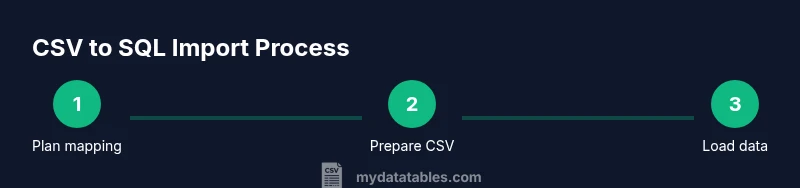
Plan column mapping and target schema
Document the CSV header order and map each column to the corresponding SQL Server column. Decide on data types, constraints, and whether you will transform values during import. This planning saves time later and reduces errors during the write phase.
Tip: Create a simple mapping table or spreadsheet to reference during the import. - 2
Prepare the CSV file
Ensure the CSV uses a consistent encoding (UTF-8 preferred) and that the header row is clean. Remove stray characters, normalize line endings, and verify that there are no stray delimiters within fields. A well-prepared file minimizes runtime errors.
Tip: If your CSV contains quotes or embedded delimiters, test a small sample first. - 3
Choose your import method
Decide between BULK INSERT for speed or OPENROWSET for ad-hoc flexibility. Your choice affects permissions, error handling, and how you can compose the query within a larger script.
Tip: Check environment permissions before committing to a path-based load. - 4
Write the BULK INSERT query
Create a BULK INSERT statement that points to the CSV, specifies FIELDTERMINATOR and ROWTERMINATOR, and uses FIRSTROW = 2 to skip headers. Include a transaction wrapper to enable rollback on errors.
Tip: Use TABLOCK to improve performance on large files. - 5
Execute inside a transaction
Wrap the import in a BEGIN TRAN/COMMIT/ROLLBACK block to ensure atomicity. If any row fails validation, you can roll back the entire load or isolate the bad rows for later retry.
Tip: Test with a small batch before the full run. - 6
Verify import results
Run counts to compare source vs destination, perform spot checks on key fields, and ensure no NULLs where not allowed. Use a SELECT with TOP to inspect representative rows.
Tip: Automate a quick data-quality check as part of the post-load step. - 7
Configure OPENROWSET (if chosen)
If you opted for OPENROWSET, enable Ad Hoc Distributed Queries if needed and test a simple SELECT from the CSV. Integrate the result into an INSERT into the destination table.
Tip: Validate server permissions and security policies before enabling Ad Hoc queries. - 8
Error handling and logging
Capture errors in a dedicated log table with timestamps, error codes, and a reference to the source file. Consider retries for transient issues and clear messages for debugging.
Tip: Maintain a standardized log schema for all imports. - 9
Automate and schedule
Package the steps into a script or stored procedure and schedule via SQL Agent or a similar scheduler. Monitor job runs and alert on failures to maintain reliability.
Tip: Include versioning and change control for the import logic.
People Also Ask
What is the difference between BULK INSERT and OPENROWSET?
BULK INSERT reads a file directly into a table using server-side processing and is typically faster for large datasets. OPENROWSET reads a file into a queryable rowset, which is more flexible for ad-hoc imports and transformations within a larger query. Choose BULK INSERT for bulk loads and OPENROWSET for experimentation or when you need on-the-fly querying.
BULK INSERT is fast for big loads, while OPENROWSET gives you more flexibility for ad-hoc imports and in-query transformations.
Can I import CSV files with different encodings?
Encoding handling is important. UTF-8 is generally reliable for SQL Server imports. If your file uses a different encoding, specify the appropriate CODEPAGE if your SQL Server version supports it, and test with a small sample to ensure no data corruption occurs.
UTF-8 is usually best for imports; if you must use another encoding, test carefully and specify the right code page where supported.
What permissions are required to run BULK INSERT?
To use BULK INSERT, you typically need the BULK_ADMIN server role or sufficient permissions on the target database, such as INSERT rights. If you’re using OPENROWSET, ensure the server allows Ad Hoc Distributed Queries. Always follow your organization’s security policies.
You usually need BULK_ADMIN or insert rights on the target, and enable ad hoc queries if using OPENROWSET.
Is SSIS better for large ETL than ad-hoc SQL imports?
SSIS is often preferred for large-scale ETL because it provides robust error handling, scheduling, and data-flow transformations. For simple or one-off imports, query-based methods can be faster to implement. The choice depends on project scale and maintainability needs.
For big ETL projects, SSIS is common; for quick imports, a query-based approach may be enough.
How should I handle errors during import?
Use TRY...CATCH blocks when possible and log errors with details such as row numbers or identifiers. Roll back in case of failures, and implement retries for transient issues. Maintain an audit trail to support debugging and compliance.
Catch errors, log what failed, and rollback when needed. Keep an audit trail.
What if the import fails due to a data type mismatch?
Investigate the data causing the mismatch, adjust the target schema or apply CAST/CONVERT to align types, and re-run the load. Consider staging the import into a staging table to apply data cleansing before final insert.
Check the data type mismatch, align the types, and re-run with cleansing if needed.
Watch Video
Main Points
- Plan mapping before coding
- Choose BULK INSERT or OPENROWSET based on permissions and needs
- Validate data and use transactions
- Batch loads for better performance
- Automate and document the import process