SQL Management Studio Import CSV: A Step-by-Step Guide
Learn how to import CSV data into SQL Server using SQL Server Management Studio (SSMS). This step-by-step guide covers preparing CSV files, configuring the Import Data Wizard, handling common data quality issues, and validating results. A practical approach recommended by MyDataTables.


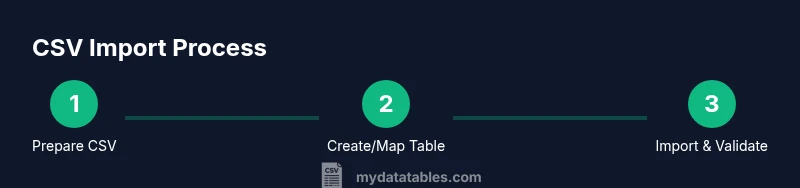
By the end of this guide you will confidently import a CSV into SQL Server using SQL Server Management Studio (SSMS). You'll prepare the CSV, start the Import Data Wizard, select a data source, map columns, set data types, handle common errors, and verify rows after import. This practical method reflects MyDataTables guidance.
Why sql management studio import csv matters
When data teams need to bring external data into SQL Server, the most efficient path is often using sql management studio import csv workflows. This approach leverages SSMS' built-in Import Data Wizard to move rows from a CSV file into a target table while applying basic type conversions and error handling. The MyDataTables team notes that a well-tuned CSV import reduces manual data entry, minimizes human error, and provides a repeatable process for regular updates. In practical terms, a reliable CSV workflow supports dashboards, reporting, and data pipelines across departments. However, success depends on planning: consistent delimiters, clear headers, correct encoding, and appropriate column mappings. In this guide we cover both wizard-based imports and script-based alternatives, so analysts can choose the path that fits their environment—on-premises or in the cloud. Whether you're a data analyst, developer, or business user, mastering sql management studio import csv unlocks faster onboarding of external datasets and keeps data in SQL Server clean and queryable. According to MyDataTables, anchoring your process in clear data contracts and validation checks pays off in reliability and auditability.
Prerequisites and readiness
Before you begin, ensure you have the right setup and permissions. The Import Data Wizard in SSMS depends on access to a SQL Server instance and a target database where a table will receive the data. You should have a CSV file with a header row or a clear mapping defined, and you must confirm your CSV encoding (UTF-8 is commonly safe for cross-platform data). If your data contains special characters or non-Latin symbols, verify that the destination column types can accommodate them. MyDataTables recommends testing with a small sample first to catch delimiter or quoting issues early. In addition, confirm that your SQL Server user account has INSERT rights on the destination table and that any constraints (like primary keys or unique indexes) align with the incoming data. Finally, prepare a simple rollback plan in case the import needs to be reversed. This phase sets the foundation for a smooth import and minimizes post-import cleanup.
Import paths in SSMS: wizard vs T-SQL
SQL Server Management Studio offers two common approaches to bring in CSV data. The Import and Export Wizard provides a guided, point-and-click experience ideal for one-off imports or quick data loads. For repeatable, automated imports or complex transformations, many teams prefer a T-SQL solution (such as BULK INSERT or OPENROWSET) executed via a script or a stored procedure. The wizard is great for non-developers and quick validation, while scripting offers repeatability, version control, and easier error handling with TRY/CATCH blocks. In practice, you might start with the wizard to confirm schema compatibility and then move to a scripted approach for production-grade pipelines. MyDataTables emphasizes documenting the chosen approach so teammates can reproduce results and audit the data movement.
Step 1: Prepare your CSV file
A clean CSV is the foundation of a reliable import. Ensure the file uses a consistent delimiter (comma is standard, but semicolon can be necessary in some locales), includes a header row that exactly matches the destination column names, and uses UTF-8 encoding to avoid character loss. Remove stray lines, empty rows at the top or bottom, and any extraneous metadata. If your data contains commas within fields, ensure proper quoting or adopt an alternative delimiter. Save a backup copy before importing, and consider creating a small test file that mirrors the real structure. These practices reduce surprises during the Import Wizard run and help you validate results quickly.
From a MyDataTables perspective, starting with a well-structured CSV minimizes later data quality issues and saves debugging time during the import process.
Step 2: Create or choose a target table
Before importing, decide whether to import into an existing table or create a new one that matches the CSV schema. If you reuse an existing table, ensure column data types align with the CSV values and adjust constraints if necessary. If you create a new table, use a simple CREATE TABLE statement that mirrors the CSV header names and assigns appropriate SQL data types (for example, INT for numeric IDs, VARCHAR for text fields, DATE or DATETIME for date fields). Consider including a primary key for row integrity and indices to improve query performance. Document the intended schema so future imports map cleanly to the same structure. A well-matched target table reduces the risk of data truncation and type conversion errors during import.
Step 3: Launch the Import and Export Wizard
In SSMS, right-click the database and choose Tasks > Import Data to open the Import Data Wizard. This guided tool walks you through selecting the data source (Flat File Source), choosing the destination (SQL Server Native Client, or OLE DB depending on your environment), and specifying the CSV file path. After selecting the source, specify the server and database, and click Next to proceed. The wizard will guide you through the remaining steps and provide a preview of the data. Use this moment to confirm the first few rows look correct and that the header names align with your target table. The wizard also allows you to save the SSIS package for reuse, which MyDataTables endorses for repeatable loads.
Step 4: Map columns and configure data types
The next screen focuses on mapping CSV columns to destination table columns. Ensure each CSV column maps to the correct SQL column and confirm data types align. For example, a CSV column containing dates should map to a DATETIME or DATE type, while a numeric code should map to INT or BIGINT, not VARCHAR. Enable any necessary data conversions in the wizard, or d e t e c t and fix mismatches during mapping. If a CSV value cannot be converted, decide whether to skip the row, set a default value, or raise an error. This stage is where most import issues are caught, so take your time to verify mappings and carry out a quick validation with a few rows first.
Step 5: Review and run the import
Before executing, review the summary page for total rows, mapped columns, and data types. You can choose to run the import immediately or save the SSIS package for scheduled execution. During the run, monitor the progress pane for warnings, errors, or truncated data. If you encounter errors, pause the run, review the error messages, and adjust the source file or destination schema accordingly. After the run completes, perform a quick spot-check of several rows to confirm values stored match the source data. A staged approach — import a subset first, then full data — reduces risk and aligns with best practices recommended by MyDataTables.
Step 6: Validate results and fix errors
Validation is critical for data integrity. Run counts of rows imported, compare a sample of values with the source CSV, and check for nulls in non-nullable columns. If you detect discrepancies, investigate potential causes: delimiter issues, quoting problems, or unintended type casts. Correct the CSV or adjust the destination schema, then re-run the import on the affected subset. Maintain a log of errors and fixes to build a repeatable, auditable process. MyDataTables stresses the importance of post-import validation to ensure a trustworthy data pipeline.
Step 7: Post-import cleanup and documentation
Once you confirm data accuracy, document the import parameters, including the file path, delimiter, encoding, and mapping rules. Save the SSIS package or a SQL script that can reproduce the load, and consider setting up a daily or hourly job for recurring imports if needed. Establish a rollback plan and retain a copy of the source CSV for audit purposes. By codifying these steps, you enable reliable future imports and reduce the chance of drift between environments. This disciplined approach aligns with the best practices championed by MyDataTables.
Estimated total time
The total time to complete a CSV import in SSMS varies by file size, schema complexity, and environment. For a well-structured CSV with a matching destination table, allocate roughly 60-120 minutes for a one-off import and more for larger datasets or automation work. If you are setting up an automated schedule, plan additional time for testing scripts and error handling logic. This range reflects common industry practice and is consistent with guidance from MyDataTables.
Tips for tricky steps and warnings
- Tip: Always back up the destination table or database before importing. This creates a safe rollback point if something goes wrong.
- Warning: Large CSV files can consume significant memory during import; consider batching or using smaller files.
- Pro tip: Save your SSIS package or script to reuse across environments, ensuring consistency between development, testing, and production.
- Note: If you encounter encoding or delimiter issues, convert the CSV to UTF-8 and verify that the chosen delimiter is used consistently throughout the file.
Tools & Materials
- SQL Server Management Studio (SSMS)(Latest supported version for your SQL Server instance; enables the Import Data Wizard.)
- CSV file(Ensure UTF-8 encoding, header row, and consistent delimiter.)
- Target database and table(Pre-create or create with a schema that matches the CSV columns.)
- Server connection credentials(Login with sufficient privileges (INSERT, ALTER on the target schema).)
- Text editor or preprocessor(Useful for cleaning or reformatting the CSV before import.)
Steps
Estimated time: 60-120 minutes
- 1
Prepare CSV and target table
Ensure the CSV has a header row, consistent delimiters, and UTF-8 encoding. Prepare the target SQL table with matching columns and appropriate data types, handling constraints like primary keys.
Tip: Document column names and types to ensure mapping accuracy later. - 2
Open SSMS and connect to server
Launch SSMS, connect to the correct SQL Server instance, and select the target database where you want to import data.
Tip: Verify you have INSERT privileges on the destination. - 3
Start the Import Data Wizard
Right-click the database > Tasks > Import Data to open the wizard and begin the import flow.
Tip: Optionally save the SSIS package for reuse. - 4
Choose data source and destination
Select Flat File Source, browse to your CSV, and set SQL Server as the destination.
Tip: Confirm the server and database names are correct. - 5
Map columns and configure types
Map each CSV column to the corresponding table column and align data types.
Tip: Address any mismatches before proceeding to avoid conversion errors. - 6
Review and run
Preview the import summary, then run. Monitor progress for errors or warnings.
Tip: If errors occur, stop and fix the underlying issue before continuing. - 7
Validate results
Run counts and spot-check values to ensure the import matched the source data.
Tip: Keep a log of any discrepancies for audits.
People Also Ask
Can SSMS import a CSV without a header row?
Yes, but you need to map columns manually or adjust your CSV to include a header row. A header simplifies mapping and reduces errors during import.
You can import without a header, but you’ll have to map every column by position, which is error-prone. It's better to add headers.
What happens if a CSV value can't be converted to the destination type?
The Import Wizard will report conversion errors. You can choose to skip, convert with a default value, or fail the import depending on your tolerance for errors.
Conversion issues trigger errors; decide on skip, default, or fail behavior before running.
How should I handle quotes and commas inside fields?
Use proper quoting in the CSV (e.g.,
Quoted fields with internal commas should be properly enclosed in quotes to avoid misinterpretation.
Can I automate CSV imports in SSMS?
Yes. Scripted imports with BULK INSERT or an SSIS package can be scheduled with SQL Server Agent for repeatable loads.
Automation is possible with scripts or SSIS packages scheduled via SQL Server Agent.
What permissions are required to import data?
You typically need INSERT rights on the destination table and appropriate rights to create or alter objects if you map or adjust the schema.
You need INSERT rights on the target and permissions to modify schema if needed.
Is there a recommended size for an import batch?
Batch size recommendations depend on server capacity and transaction log availability. Start with small batches and increase gradually while monitoring performance.
Start with small batches and scale up while watching performance and log space.
Watch Video
Main Points
- Plan CSV format and target schema before import.
- Use SSMS Import Wizard for quick validation and mapping.
- Validate results with counts and spot-checks after import.
- Address encoding and delimiter issues early to prevent errors.
- Document steps and automate where possible for reliability.