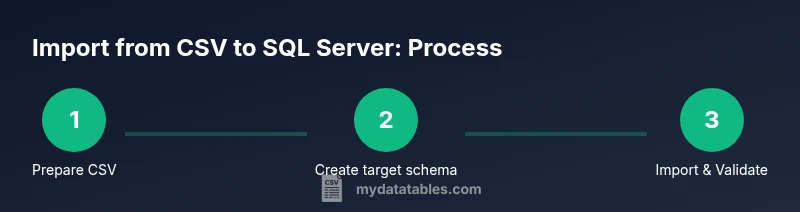
Import CSV to SQL Server: Step-by-Step Guide
Learn how to import data from CSV into SQL Server with practical steps, mapping, and validation. This MyDataTables guide covers setup, methods (BULK INSERT, Wizard, T-SQL), and automation for repeatable imports.


By the end of this guide you will know how to import from csv to sql server, including preparing the CSV, mapping data types, and choosing an import method. You’ll validate results, handle common errors, and automate repeated loads. According to MyDataTables, careful planning and testing save time and prevent data quality issues.
Why importing from CSV to SQL Server matters
For data teams, CSV is a familiar, portable format, but it’s only useful once loaded into a database. Importing from csv to sql server converts flat files into structured, queryable data, enabling analytics, dashboards, and reliable reporting. A robust import pipeline reduces manual copy-paste, speeds onboarding of new data sources, and minimizes the risk of data quality issues that propagate downstream. In practice, you’ll want to:
- preserve data fidelity by matching CSV values to appropriate SQL data types
- handle delimiters, text qualifiers, and encoding consistently
- verify row counts, constraints, and indexes after import
According to MyDataTables, treating the CSV as a source of truth rather than a one-off dump helps teams design repeatable processes and automation. By planning upfront, validating with a small sample, and using repeatable scripts, you can scale ingest without sacrificing accuracy or performance. This guide focuses on practical steps you can apply in real-world projects, whether you’re loading customer data, product catalogs, or event logs into SQL Server.
Understanding CSV formats and SQL Server data types
CSV files come in many flavors: different encodings, delimiters, quote rules, and header presence. When importing from csv to sql server, you must map each CSV column to a compatible SQL Server data type, such as INT, BIGINT, DECIMAL, VARCHAR, NVARCHAR, DATETIME, or BIT. Pay attention to string lengths, precision for numeric data, and timezone considerations for date/time values. The goal is to design a target table schema that preserves data fidelity while supporting efficient querying.
During import from csv to sql server, expect potential quirks like missing values, embedded delimiters, or mismatched column counts. Planning type conversions ahead of time reduces surprises at load time. This is why you should draft a table schema that mirrors the CSV’s structure as closely as possible, then adjust as needed based on sample data.
Prepare your CSV: encoding, delimiters, headers
Before you import from csv to sql server, ensure the CSV is in a stable, predictable format. UTF-8 encoding is a safe default, with a consistent delimiter such as comma or semicolon. If your file uses quotes around text fields, verify whether quotes are escaped or doubled. Always confirm the first row contains headers and that those headers will map cleanly to your target table column names. If there are stray characters or BOM markers, normalize them in a quick preprocessing step.
A well-prepared CSV reduces import errors and makes mapping straightforward. If you run into issues, start by exporting a small sample to inspect the exact content and edge cases in your data.
Map CSV columns to SQL Server table schema
With a prepared CSV, you’ll map each column to a SQL Server data type and define constraints. Start by creating a target table that resembles the logical structure of the CSV: column names, data types, nullability, and any necessary defaults. Consider adding primary keys, unique constraints, and foreign key references if you’re loading relational data. During import from csv to sql server, it’s common to adjust lengths for VARCHAR/NVARCHAR fields and to decide whether certain columns should be nullable. Precision and scale matter for DECIMAL values, and ISO date formats help prevent parsing errors.
Document the mapping so future imports stay consistent. If a column needs transformation (for example, trimming whitespace or combining fields), plan that as part of the load or pre-processing step.
Import Methods overview: import from csv to sql server
There are several reliable ways to import from csv to sql server, each with its own trade-offs. The BULK INSERT method is fast for large files and works well when you know the exact column order. The SQL Server Import and Export Wizard provides a guided GUI experience suitable for quick loads or ad-hoc migrations. T-SQL scripts give you full control and are ideal for automation and repeatable processes. When choosing an approach, consider file size, data quality, and how often you’ll repeat the import. As you plan, remember that consistent delimiters, encoding, and column mappings improve reliability during import from csv to sql server.
MyDataTables Analysis, 2026 indicates that teams that standardize their preprocessing and choose a repeatable method see smoother data ingestion across environments. This is why many projects start with a scripted bulk load, then layer on validation and scheduling for ongoing data flows.
Step-by-step: using BULK INSERT to import from csv to sql server
BULK INSERT is a fast path to load large CSVs directly into a SQL Server table. The process generally involves creating the target table (if it doesn’t exist), then running a BULK INSERT command with precise field and row terminators. You’ll specify the data file path, the destination table, the column list (if the file order doesn’t match the table), and the terminators. It’s important to test with a small subset of rows first to verify data types and formatting.
This method shines for bulk loads and is widely supported in on-premises and cloud SQL Server instances. If you encounter issues with text qualifiers or encoding, review the file and terminators; BULK INSERT is powerful but unforgiving if the input format isn’t exact.
Step-by-step: using SQL Server Import and Export Wizard to import from csv to sql server
The Import and Export Wizard provides a guided experience for importing CSV data into SQL Server. Start by selecting the data source (Flat File Source) and the destination (your SQL Server instance). You’ll map input columns to destination columns, choose delimiter and encoding options, and specify how to handle errors. The wizard also offers an option to save the operation as a SSIS package for automation. This makes import from csv to sql server approachable for users who prefer a GUI.
After completing the wizard, review the summary, run the package, and then validate the loaded data. The wizard is convenient for one-off imports and for validating a mapping before building a repeatable workflow.
Error handling, validation, and diagnosing issues during import from csv to sql server
Even well-prepared CSV content can trigger import errors. Common culprits include mismatched data types, missing values, and encoding mismatches. To diagnose, review error messages carefully, check constraint violations, and compare row counts between source and destination. Use transactions or a staging table to stage data before final insert to preserve a clean rollback in case of failures. After a load, run simple validation queries: check nulls, confirm a few sample values, and verify key constraints. For ongoing robustness, implement validation steps that run automatically as part of your import pipeline.
Encodings like UTF-8 with BOM can cause misreads if not specified correctly. If you see strange characters, adjust the encoding settings in your load command or pre-process the file to normalize characters before import from csv to sql server.
Automation, tests, and maintenance for repeatable imports
Repeatable imports are more reliable when automated. Consider creating a script that defines the target schema, handles pre-processing, executes the load, and then runs post-load validation. Scheduling loads with SQL Server Agent or a CI/CD pipeline keeps data fresh and reduces manual intervention. Maintain versioned scripts and document any schema changes to avoid drift across environments. Regularly review logs and performance metrics to detect bottlenecks and adjust batch sizes or parallelism as needed for import from csv to sql server.
Tools & Materials
- SQL Server instance (on-premises or cloud)(Ensure you have privileges to create/alter tables and run data loads)
- CSV file(s) to import(Prefer UTF-8 encoding; know delimiter and header presence)
- SQL Server Management Studio (SSMS) or Azure Data Studio(Used for interactive steps and scripting)
- Target database/schema setup(Design table definitions before import)
- Optional: SSIS or scripting environment for automation(Useful for repeatable, scheduled imports)
Steps
Estimated time: 60-120 minutes
- 1
Define target schema
Draft the SQL Server table that will receive the data. Decide data types, lengths, nullability, and constraints that reflect the CSV’s structure. Document this schema so future imports stay consistent and error-free.
Tip: Include a primary key or surrogate key if needed for downstream joins. - 2
Prepare and clean the CSV
Validate encoding (UTF-8 preferred), confirm delimiter, and ensure headers match the target schema. Remove extraneous columns or special characters that could cause import failures.
Tip: Create a small sample file for testing before full loads. - 3
Choose an import approach
Decide between BULK INSERT, the Import Wizard, or a scripted T-SQL approach based on file size, repeatability needs, and team familiarity.
Tip: For repeatable loads, prefer scripted or SSIS-based solutions. - 4
Create the target table
Execute the DDL to create the target table using your defined schema. Verify that all columns exist with the correct data types and constraints.
Tip: Use a staging table during initial imports to validate data before merging. - 5
Run BULK INSERT (if chosen)
Run the BULK INSERT command, specifying the file path, table, column list (if needed), and correct FIELDTERMINATOR and ROWTERMINATOR. Start with a small batch for testing.
Tip: If the file is large, import in chunks to avoid locking and memory pressure. - 6
Validate loaded data
Run counts and spot-check values to ensure the import matches the CSV. Check for NULLs where not allowed, and verify key constraints.
Tip: Compare a sample of rows from CSV to the loaded table for spot-check accuracy. - 7
Import with the Wizard (optional)
If you choose the Import Wizard, connect to the source, map columns, and run the data load. Save the operation as an SSIS package if you want repeatability.
Tip: Review the generated SSIS package for configurations before reuse. - 8
Automate repeatable imports
Create a script or SSIS/SQL Agent job to repeat the import with new CSV files. Include pre-load checks and post-load validation.
Tip: Version-control your import scripts and document any schema changes. - 9
Monitor and maintain
Set up logging, error alerts, and performance monitoring. Periodically review data quality and adjust mappings as data sources evolve.
Tip: Schedule quarterly reviews to keep the import aligned with business needs.
People Also Ask
What is the best method to import from CSV to SQL Server for large files?
For large files, BULK INSERT or SSIS are typically preferred due to performance advantages. Use a staging table if you need validation before final insert.
For large CSV files, BULK INSERT or SSIS usually performs best; consider a staging table to validate data before final load.
How do I map CSV data types to SQL Server?
Identify each CSV column’s data you expect, then choose compatible SQL Server data types. Align lengths, precision, and nullability to prevent conversion errors during import from csv to sql server.
Map each CSV column to a matching SQL Server type, matching lengths and nullability to avoid errors.
What if CSV headers do not match my table columns?
Use an explicit column list in your load statement or adjust the mapping in the Import Wizard to align CSV headers with table columns.
If headers don’t match, specify the column list or remap in the wizard.
How should I handle different delimiters or encoding?
Specify the correct delimiter and encoding in your load options. UTF-8 with or without BOM is common; inconsistent settings cause misreads.
Set the right delimiter and encoding to avoid misinterpreting fields.
Can I automate the CSV to SQL Server import?
Yes. Use SSIS packages, T-SQL scripts, or SQL Server Agent jobs to automate the import, including pre/post-load validation.
Absolutely—automation is supported with SSIS, T-SQL, or SQL Server Agent.
How do I validate results after import from csv to sql server?
Run row counts, spot-check values, and verify key constraints. Compare a sample of source CSV rows to loaded data.
Check row counts and sample data to confirm the import succeeded.
Watch Video
Main Points
- Plan the schema before importing from csv to sql server
- Validate CSV encoding, delimiters, and headers upfront
- Choose a repeatable import method for reliability
- Automate testing and validation to maintain data quality