Import CSV Contacts to iPhone: A Practical Step-by-Step Guide
Learn how to import contacts from CSV to an iPhone by converting to a vCard and syncing via iCloud. This practical guide covers prep, conversion, and troubleshooting for reliable iPhone contacts import csv workflows in 2026.


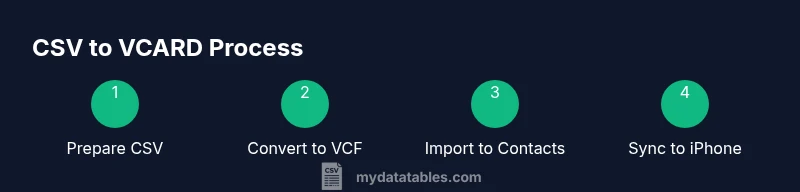
With the iphone contacts import csv workflow, you can move your CSV-based contacts into the iPhone Contacts app by first converting your CSV into a VCF (vCard) file and then syncing via iCloud or Finder/iTunes. Start with a clean CSV (columns: First Name, Last Name, Phone, Email); map each field to iPhone contact fields, then use a converter to generate a VCF before importing.
Why this topic matters for iPhone users
If you manage a growing contact list, moving from CSV to iPhone Contacts becomes essential for consistent communication across devices. The iphone contacts import csv workflow reduces manual entry, avoids duplicates, and keeps fields in sync with Messages, Mail, and apps. According to MyDataTables, misaligned headers, nonstandard phone numbers, and unsupported characters often cause partial imports or missing fields. By understanding the path from CSV to vCard and then to iPhone, you can ensure reliable syncing across iCloud and iPhone. This guide focuses on practical steps you can follow in 2026, using standard CSV formats and widely available conversion tools. We'll cover headers, encoding, and testing with a small sample before committing a full export. The aim is to give you a repeatable, auditable process so teams can move contacts between platforms without errors.
Throughout this guide, you’ll learn how to structure data, validate headers, and convert CSV data to a portable format that iPhone can read reliably.
Understanding the CSV-to-VCF workflow
The core challenge in iphone contacts import csv is that iOS devices read vCard files more reliably than raw CSV files. A vCard (.vcf) captures name parts, multiple phone numbers, emails, addresses, and notes in a structured, widely supported way. The workflow typically involves validating your CSV, converting it to VCF, and then importing the VCF into Contacts on macOS or pushing it through iCloud to sync with your iPhone. This approach minimizes data loss and keeps fields aligned with iPhone’s contact model. It also allows you to test a small batch before committing the entire list. In 2026, many teams adopt a CSV→VCF pipeline to maintain consistency across devices and platforms, particularly when consolidating lists from disparate sources.
Preparing your CSV for an import
A clean CSV is the foundation of a successful iphone contacts import csv process. Start by ensuring UTF-8 encoding, consistent header naming, and removal of duplicates. Key headers should include First Name, Last Name, Phone, Email, and optional fields like Company, Job Title, and Notes. Remove empty rows and normalize phone formats (including country codes). Save a backup before making changes, test with a 5–10 row sample, and confirm that the resulting data aligns with iPhone’s expectations. If you’re dealing with international numbers, consider using the E.164 format to avoid parsing errors during conversion.
Mapping headers to iPhone fields
iPhone Contacts can import settings where fields map to First Name, Last Name, Phone, Email, Company, Job Title, and Notes. When preparing the mapping, keep it simple: First Name → givenName, Last Name → familyName, Phone → tel, Email → email, Company → organization, Job Title → title, Notes → note. If your converter requires different internal names, adjust within the tool’s field mapping step and verify a small sample output. Consistency here helps prevent data loss and facilitates easier deduplication after import.
Tools to convert CSV to vCard (VCF)
Several reliable tools exist to convert CSV to VCF. Choose a converter that emphasizes privacy, local processing, and clear field mappings. Depending on your workflow, you may use desktop software or secure online services that allow you to review the resulting VCF before export. Always test with a small subset first, and review the generated VCF to confirm that phone numbers, emails, and names are correctly encoded. If you work in a team, consider centralizing conversions to maintain a single source of truth for contacts.
Step-by-step: convert CSV to VCF
- Open your CSV in a spreadsheet app and double-check headers and data formats. 2) Save a clean copy as a backup and prepare a test subset. 3) Choose a CSV-to-VCF converter with a trusted privacy policy. 4) Configure field mappings to align with iPhone’s contact fields. 5) Run the conversion and review the resulting .vcf file for structure and encoding. 6) Save the VCF in a known location for the import step. 7) Validate that the VCF contains all required fields and sample records before proceeding. Tip: keep a test VCF under 10 contacts for quick validation.
Import options: iCloud, Mac, and Windows sync
For iPhone synchronization, you can import the VCF on macOS using the Contacts app, then enable iCloud Contacts to sync with your iPhone. Alternatively, upload the VCF to iCloud Contacts via a web browser, which propagates changes to all linked devices. Windows users can import the VCF into the Contacts app or Outlook and then sync via a connected iPhone. After importing, ensure that iCloud is enabled on your iPhone and that you’re signed in to the same Apple ID.
Troubleshooting common issues
Common issues include header mismatches, partially imported records, and encoding problems. If numbers aren’t recognized, reformat as E.164 and re-run the conversion. If some contacts appear without names, verify that givenName and familyName fields are populated. Duplicates can occur when your CSV contains multiple entries for the same person; enable deduplication in iCloud or use the Contacts app’s merge functionality after the sync. Finally, ensure your CSV uses UTF-8 encoding to prevent accented characters from becoming garbled in the VCF.
Best practices and security considerations
Always back up your existing contacts before any import. Use a trusted converter that processes data locally or on secure servers, and avoid uploading sensitive information to untrusted online tools. Validate changes with a small test batch before performing a full import. Document mapping rules so teammates can reproduce the process, and consider maintaining a versioned CSV source control for traceability. The emphasis on privacy and data hygiene is essential when dealing with personal contact data.
Final tips for large contact lists
For large imports, split the CSV into smaller batches to minimize the risk of failures during conversion, and verify each batch before importing. Keep a changelog of which contacts were added or updated, and periodically prune duplicates after syncing. If you anticipate frequent updates, establish a regular cadence to export CSV from your source system, convert to VCF, and re-sync via iCloud with a planned maintenance window. This approach reduces disruption and maintains data integrity across devices.
Tools & Materials
- Computer with internet access(For downloading converters and performing cloud sync)
- CSV file containing contacts(Include at minimum: First Name, Last Name, Phone, Email)
- CSV header mapping reference(Clear mapping from CSV headers to iPhone fields)
- CSV-to-VCF converter tool(Prefer locally processing tools for privacy)
- vCard (.vcf) import target(Imported via macOS Contacts or iCloud)
- Backup copy of existing iPhone contacts(Critical for rollback in case of errors)
Steps
Estimated time: 45-90 minutes
- 1
Validate headers
Open the CSV in a spreadsheet app and confirm headers include First Name, Last Name, Phone, and Email at minimum. If headers are missing or renamed, add or correct them to ensure consistent mapping later. Validate data types (text for names, numeric for phone) and remove obviously invalid records.
Tip: Keep a sample subset (5–10 rows) for quick validation before handling the full file. - 2
Clean and normalize data
Standardize name formats, trim extra spaces, and unify phone numbers to an international format (E.164 when possible). Remove duplicates or merge near-duplicates in a separate step to avoid importing conflicting data.
Tip: If you have international numbers, preserve country codes to prevent misdialing. - 3
Choose a converter
Select a CSV-to-VCF converter that supports UTF-8 and clear field mappings. Review the privacy policy and ensure the tool processes data locally or securely. Prepare a destination folder for the resulting VCF.
Tip: Prefer tools that show a live preview of mapped fields before exporting. - 4
Convert CSV to VCF
Run the conversion with the header-to-field mappings aligned to iPhone fields. Inspect the produced .vcf for structure issues or encoding anomalies. Save the final VCF with a consistent name and in a known location.
Tip: If the converter offers validation, use it to catch encoding or missing-field errors. - 5
Import into macOS Contacts or iCloud
Open macOS Contacts and import the VCF, or upload the VCF to iCloud Contacts via a browser. Confirm that each contact’s name, phone, and email appear correctly in the list.
Tip: After import, review a sample of records to verify field integrity. - 6
Sync to iPhone
Enable iCloud Contacts on the iPhone and wait for the sync to complete. If using a Mac, ensure Contacts is set to sync with iCloud. Maintain good network conditions during the initial sync.
Tip: Check the Contacts app on the iPhone after a short wait to confirm all entries appeared. - 7
Verify and deduplicate
Review the iPhone Contacts for duplicates and use iCloud or Contacts app merge tools to consolidate. Keep a log of changes and rerun the import only for new or updated records.
Tip: Stagger large imports to minimize risk and allow incremental verification.
People Also Ask
What formats are supported for importing contacts to iPhone?
iPhone primarily reads vCard (.vcf) files for contacts. CSV must be converted to VCF to import reliably. Direct CSV import isn’t supported by the Contacts app.
iPhone imports contacts as vCard files, not CSV, so you’ll convert first.
Can I import directly from CSV without conversion?
Direct CSV import isn’t supported by iPhone Contacts. Convert CSV to VCF first, then import or sync via iCloud.
No, CSV import isn’t supported; convert to VCF first.
What headers should the CSV include?
At minimum, include First Name, Last Name, Phone, and Email. Optional fields include Company, Job Title, and Notes for richer records.
Include name, phone, and email as a minimum.
What’s the best way to sync after converting to VCF?
Import the VCF into macOS Contacts or upload to iCloud Contacts, then enable iCloud Contacts on the iPhone to sync.
Import into Contacts or iCloud and enable sync on the iPhone.
How do I handle duplicates during import?
Use built-in deduplication in iCloud or the Contacts app after syncing, and consider splitting large imports into batches to identify duplicates early.
Deduplicate after syncing using iCloud or Contacts.
How long does a large import take?
Import duration varies with the list size and network speed. Plan for longer windows on large batches and verify results after each batch.
Timing depends on batch size and network; plan accordingly.
Watch Video
Main Points
- Validate and standardize CSV data before conversion
- Convert to VCF to ensure iPhone compatibility
- Use iCloud or macOS Contacts for reliable syncing
- Back up and test with small batches before large imports