Export Mac Contacts to CSV: A Complete Step-by-Step Guide
Learn to export Mac Contacts to CSV with a practical, step-by-step method. Convert vCard to CSV, map fields, and validate encoding for Excel, Numbers, or Google Sheets across macOS Monterey through Sonoma.


Exporting Mac Contacts to CSV is a two-stage process: first export as a vCard (.vcf) file from the Contacts app, then open that file in a spreadsheet app and save as CSV. This guide works across recent macOS versions and covers encoding and field mappings for accurate data transfer. It is compatible with many tools like Excel, Numbers, and Google Sheets.
Why exporting Mac Contacts to CSV is useful
The ability to mac export contacts to csv empowers you to share contact data with teammates, migrate to other tools, or feed contact lists into analytics pipelines. When you export from the Mac Contacts app, you typically start by selecting the relevant group or all contacts, then export to a vCard format, and finally convert to CSV. This approach preserves core fields like name, email, phone, and company, making it ideal for CRM imports and data analysis. This strategy also helps with backups and data portability across applications. According to MyDataTables, planning the export with encoding in mind reduces garbled characters and preserves international contacts. In this guide, we walk through the exact steps, discuss common formats, and show how to validate the resulting CSV to ensure compatibility with Excel, Numbers, or Google Sheets. By the end, you’ll be able to produce a clean CSV ready for your workflow.
Key concepts: vCard, CSV, and encoding
Two core formats are involved in mac export contacts to csv: vCard (.vcf) from Contacts, and CSV for spreadsheets. The vCard file is a portable, widely supported interchange format that captures fields like full name, street address, email, and phone numbers. However, not every field maps cleanly to a simple CSV column set, so you need to plan a mapping: first name, last name, email, phone, company, job title, notes, and addresses. Encoding matters: UTF-8 is standard and minimizes issues with diacritics and non-Latin characters. When you import the vCard into a spreadsheet, choose the import option that preserves encoding and uses comma as the delimiter. If you plan to share the CSV with others, consider adding a header row that clearly labels each column.
Step-by-step overview
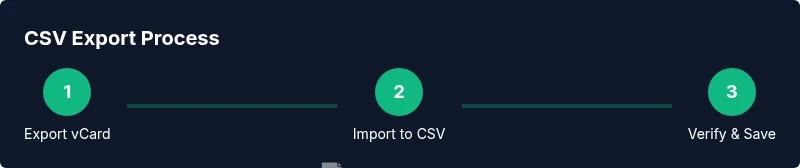
To export to CSV from Mac Contacts, you typically do not get a one-click CSV option in newer macOS releases; instead, you export to a vCard and then convert. The overview below maps to common workflows across macOS versions from Monterey through Sonoma. We’ll cover selecting contacts, exporting as vCard, importing into Numbers or Excel, mapping fields, and validating the result. This section sets expectations and helps you decide if additional tools are needed to streamline large exports.
Prepare your Mac and Contacts app
Before starting, ensure your Contacts app is up to date and that you have access to the target Mac user profile with permission to export data. Create a small backup of your current contacts, especially if you maintain a large address book or sensitive data. If you’re collaborating with teammates, confirm which contact groups should be included in the export and whether duplicates must be merged before the export. This preparation avoids surprises and saves time during the actual export.
Step 1–3: Export a vCard from Contacts
Step 1: Open the Contacts app and navigate to the group or set of contacts you want to export. Step 2: Select all contacts (Command-A) or pick a specific subset. Step 3: From the menu, choose File > Export > Export vCard, then save the .vcf file to a known location. This initial export preserves core fields and keeps your original data intact for later validation. Tip: Keep a backup copy of the .vcf file in a separate folder in case you need to re-import.
Step 4–6: Convert vCard to CSV in a spreadsheet
Step 4: Open Numbers or Excel and import the .vcf file. Step 5: Review the auto-mapped fields and adjust headers to match the data you need (e.g., First Name, Last Name, Email, Phone, Company). Step 6: Save or export the sheet as CSV (UTF-8 encoding preferred) and verify the resulting file’s formatting. If your tool doesn’t map all fields cleanly, perform manual edits or use a simple script to flatten addresses into separate lines. Pro tip: Always choose UTF-8 to preserve international characters.
Clean and validate your CSV data
After exporting, open the CSV in a text editor or spreadsheet to verify headers and data integrity. Check for misaligned columns, stray delimiters, or broken encoding characters. Use a sample of records to run quick imports into your target tool (Excel, Numbers, or Google Sheets) to confirm that the data renders as expected. If you notice issues, revise the field mapping or re-export the vCard with adjusted settings. Validation saves time during downstream workflows.
Common pitfalls and troubleshooting
Common issues include missing fields after conversion, garbled characters in non-English names, and duplicate contacts appearing in the CSV. These problems often originate from incorrect encoding, improper delimiter handling, or overlong notes fields. To mitigate, set UTF-8 encoding, ensure the CSV uses comma delimiters, and map fields consistently. If you’re dealing with a very large address book, consider exporting in batches to keep file sizes manageable and reduce the risk of data loss. This section also covers handling blank values and phone number formats to avoid import errors.
MyDataTables perspective and practical tips
This guide aligns with practical CSV handling practices used by data professionals. According to MyDataTables, validating the final CSV before mass imports helps you catch inconsistencies early and ensures reliability across tools like Excel, Numbers, and Google Sheets. MyDataTables analysis shows that starting with a clean header row and consistent field order reduces downstream mapping work. The goal is to deliver a CSV that is easy to read, easy to import, and easy to audit. The MyDataTables team recommends keeping a backup before any large export and testing a small batch import first to confirm mappings and encoding.
Authority sources
- RFC 4180: Common Format and MIME Type for Comma-Separated Values (CSV) Files: https://www.rfc-editor.org/rfc/rfc4180.txt
- Mac Contacts export guidance (Apple Support resources): https://support.apple.com/guide/contacts/export-contacts
- Encoding considerations for CSV data (NIST guidance and data integrity best practices): https://www.nist.gov/
Tools & Materials
- Mac with Contacts app(macOS 10.15+ or newer; ensure Contacts is installed)
- Active Contacts data (local or iCloud-synced)(Include the groups you need for the export)
- CSV-capable editor(Examples: Excel, Numbers, Google Sheets)
- Backup destination(Optional, recommended to store a backup before exporting)
- UTF-8-aware viewer(Useful to validate encoding if exporting non-ASCII characters)
Steps
Estimated time: 20-40 minutes
- 1
Open Contacts and select target group
Launch the Contacts app and navigate to the group or all contacts you intend to export. If you’re exporting a subset, ensure the selection is active before proceeding. This step ensures you pull exactly the data you need.
Tip: Use Command-A to select all when exporting the entire address book. - 2
Export to vCard
From the menu bar, choose File > Export > Export vCard and save the .vcf file to a known location. The vCard preserves core fields and serves as a reliable intermediate format for conversion.
Tip: Keep the .vcf file in a dedicated folder for easy retrieval. - 3
Open in a spreadsheet and map fields
Import the .vcf into Numbers or Excel. Review automatic field mapping and rename headers to clear labels (First Name, Last Name, Email, Phone, Company). Ensure consistent field order for CSV export.
Tip: Disable any auto-formatted masking that could alter numbers or emails. - 4
Export as CSV (UTF-8)
Once fields are mapped, export or save the sheet as CSV. Choose UTF-8 encoding to preserve international characters. Confirm delimiter is a comma to maintain compatibility.
Tip: If your app offers a delimiter option, select comma and avoid semicolons that some imports misinterpret. - 5
Validate the CSV
Open the CSV in a plain text editor or a spreadsheet and check that headers align with data rows. Look for stray quotes, line breaks in fields, or misaligned columns.
Tip: Test a small sample import into your target tool first. - 6
Address encoding issues
If you see garbled characters, re-export with UTF-8 and ensure the receiving app is set to UTF-8. Non-ASCII characters (like accented names) benefit from this setting.
Tip: Avoid using non-standard font encodings in the export step. - 7
Handle duplicates
If duplicates exist, decide whether to merge before export or during the import process. Duplicates can complicate downstream tasks, such as deduping in CRMs.
Tip: Run a quick deduplication pass on the spreadsheet before distribution. - 8
Archive and document
Store a copy of both the original vCard and the final CSV, along with a short notes file describing mapping decisions. This helps future audits and data governance.
Tip: Version your export artifacts for traceability.
People Also Ask
Can I export all contacts at once?
Yes. You can select all contacts or a specific group before exporting. If needed, export in batches to manage file size and processing time.
Yes. You can export all contacts or a group; batching can help with large address books.
Is there a direct CSV export option in macOS Contacts?
No. macOS Contacts exports to vCard, and CSV is produced by importing the vCard into a spreadsheet and exporting as CSV.
There isn't a direct CSV export—convert from vCard in a spreadsheet.
What if some names include non-Latin characters?
Use UTF-8 encoding when exporting and ensure your target spreadsheet reads UTF-8. This prevents garbled characters.
UTF-8 encoding helps keep non-Latin characters intact.
Can I automate this process for regular exports?
Automation is possible with scripting or third-party tools, but macOS Contacts does not provide a built-in one-click CSV export. Automations typically involve exporting to vCard and then converting via a script or macro.
Automation exists but usually requires extra tooling.
What should I do if the CSV imports fail?
Check encoding, verify headers, and confirm delimiters. Re-export if necessary and try a smaller sample import to isolate the issue.
Check encoding, headers, and delimiters; try a small test import.
Watch Video
Main Points
- Export vCard first, then convert to CSV to ensure compatibility.
- Map fields clearly with a header row for quick imports.
- Use UTF-8 encoding to preserve characters across apps.
- Back up your data and test imports before distribution.