QuickBooks CSV Import Template: Build a Reliable Import Flow
Learn how to build a reusable QuickBooks CSV import template to streamline customer, vendor, and transaction imports. This guide covers field mapping, data validation, testing, and best practices for reliable QuickBooks data ingestion.


Why a precise QuickBooks CSV import template matters
According to MyDataTables, a well-structured CSV import template saves time and reduces data-entry errors by aligning fields across customers, vendors, and transactions. A consistent template also creates an auditable trail, which is essential for your bookkeeping. When teams share a single, sanctioned template, you cut down on ad-hoc tweaks that cause misalignment between source data and QuickBooks fields. This consistency pays off during quarterly closes and audits, where accuracy and repeatability are crucial. By adopting a template-driven approach, organizations can accelerate onboarding for new analysts and scale their finance operations with confidence. The MyDataTables team also notes that templates facilitate easier rollback and version control as data requirements evolve.
\n## Core data types and field mapping for QuickBooks imports
A successful import begins with a clear understanding of which data types QuickBooks expects for each domain (customers, vendors, and transactions). In practice, you should map your CSV columns to corresponding QuickBooks fields using a data dictionary. Typical fields include names, addresses, emails, dates, and monetary amounts, each with strict formatting rules. Establish a one-to-one mapping so future imports can reuse the same schema with only minor adjustments. Keep your field mappings in a lightweight reference document—this becomes your template’s backbone and makes it easy to onboard teammates or switch data sources quickly. MyDataTables analysis shows that maintaining a formal mapping reduces duplicate columns and misaligned data during imports.
Designing a reusable template: columns, headers, and validation
Your template should define a stable header row that mirrors QuickBooks fields while allowing room for optional fields. Use consistent data types and avoid free-form text in critical fields; whenever possible, enforce enumerations (for example, payment terms or tax codes) to minimize errors. Build in validation rules at the CSV level: required fields, date formats (e.g., YYYY-MM-DD), and numeric fields without currency symbols. A well-documented template minimizes guessing and speeds up the review step before import. As you refine the template, include comments or a separate data dictionary that explains each column’s purpose and acceptable values. This paid off in practice by reducing troubleshooting time during on-boarding and quarterly closes.
Sample CSV layouts for customers, vendors, and transactions
Below are high-level example layouts you can adapt. Use placeholder data in your test files and replace with real values when you’re ready to import. Customers: Name,Company,Email,Phone,BillAddress,City,State,PostalCode,Terms,TaxCode. Vendors: Name,Company,Email,Phone,Fax,Website,Terms. Transactions: TxnDate,Description,Amount,Account,CustomerName,Memo. Keep in mind that your QuickBooks edition may require slight adjustments to field names; the goal is to keep a stable header set and documented mappings so you can reuse the same template across data types. For a real implementation, tailor these fields to your organization’s chart of accounts and entity definitions.
Handling common data quality issues before import
Data quality issues are the leading cause of failed imports. Normalize dates and numbers, trim whitespace, and ensure consistent capitalization. Convert all text to UTF-8 to avoid misinterpreted characters, especially in international data. Remove duplicate rows and merge correlated fields where appropriate. Validate email formats with a simple regex and verify phone numbers follow your regional conventions. Prepare a small, representative test file to catch issues early before touching live data.
Step-by-step: preparing your data in a spreadsheet
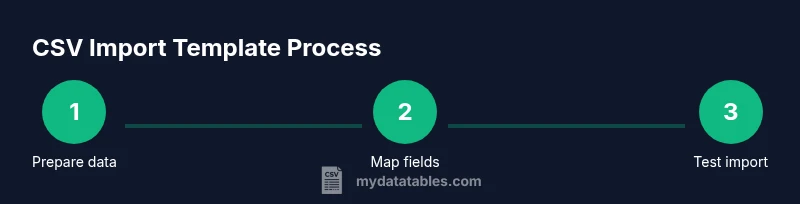
- Identify the data you will import (customers, vendors, and transactions) and select a source file. 2) Create a clean copy of the dataset for experimentation, leaving the original immutable for reference. 3) Normalize date formats to a single standard (e.g., YYYY-MM-DD) and convert monetary values to plain numbers. 4) Remove extraneous columns that QuickBooks does not expect. 5) Create the header row that maps directly to a QuickBooks field list. 6) Save the sheet as UTF-8 encoded CSV. 7) Validate header names, required fields, and data types in a quick pre-check. 8) Keep a versioned log of changes to the template for traceability.
Step-by-step: mapping and exporting CSV for QuickBooks Online vs Desktop
QuickBooks Online requires using its built-in import path or supported templates, while Desktop variants might require IIF or alternative CSV flows. Define a mapping document that aligns your CSV headers with QuickBooks field names, then export a test CSV using the same encoding and line endings as your target environment. If your data types include dates, amounts, or custom fields, ensure those are formatted exactly as QuickBooks expects. Maintain a separate sheet or section that documents any export-specific nuances so future imports stay consistent across environments.
Testing imports and rollback strategies
Always test in a sandbox or with a copy of your live data. Start with a small batch—perhaps one customer, one vendor, and a few transactions—to observe how QuickBooks ingests the data. Review results for duplicates, missing fields, or misapplied accounts. If problems arise, revert to the previous version, adjust the template or mapping, and re-run the test. When you’re confident, incrementally increase the data scope while continuing to monitor outcomes. This guarded approach minimizes disruption and maintains data integrity.
Automation and version control for the template
Treat the template as a living document. Use version control (Git, for example) to track changes to the header definitions, mappings, and validation rules. Establish a change log that records who changed what and why. Schedule periodic reviews of the template’s effectiveness, especially after QuickBooks updates or changes in your data sources. Automating these checks—such as a simple script that validates header presence or data type consistency—can further reduce manual effort and errors.
Troubleshooting common import errors
Common issues include header mismatches, missing required fields, and unexpected data formats. If an import fails, start by examining the first error line in the QuickBooks error report, then verify that the corresponding CSV header exists and is correctly spelled. Check date formats and ensure numbers aren’t formatted with currency symbols or thousands separators. When in doubt, run a minimal import with a single record to isolate the root cause. Keep a quick-reference cheat sheet for frequent error codes and their resolutions.
Authority sources
- https://quickbooks.intuit.com/learn-support/
- https://developer.intuit.com/
- https://www.sba.gov/
This section anchors practical guidance in reputable sources and industry standards. For continued learning, consult the QuickBooks official documentation and reputable data-handling resources to stay aligned with best practices.
mainTopicQuery :