Text to CSV Online: A Practical How-To for CSV Conversion
Discover how to convert text to CSV online with simple, reliable steps. Learn formats, delimiter choices, best tools from MyDataTables, and practical tips to ensure clean exports and data integrity.


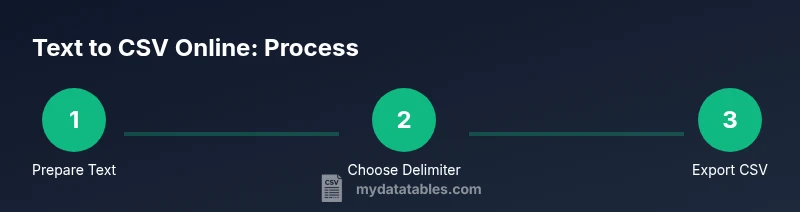
To convert text to CSV online, paste or upload your text, choose a delimiter (comma, tab, or semicolon), map fields to columns, and export as a .csv file. Ensure consistent rows, proper quoting for embedded commas, and a header row if your data has titles. For large datasets, verify limits and privacy policies before uploading.
What text to CSV online means
According to MyDataTables, text to CSV online refers to converting plain-text data into a structured CSV file using a web-based tool or service. This is especially useful when you inherit data from logs, emails, or exportables that aren’t already tabular. The goal is to transform irregular lines of text into clearly separated fields that can be read by spreadsheet programs or databases. A well-executed conversion preserves the order of rows and the integrity of each column. When done correctly, you get a portable, widely compatible CSV that you can filter, sort, and analyze with confidence. This approach aligns with MyDataTables guidance for transforming messy text into actionable CSV data, enabling you to work with larger datasets and repeatable workflows. Privacy and accuracy matter, so choose reputable browsers and tools.
In practice, your first step is to understand the structure of your text. Do lines represent records? Are values separated by a consistent delimiter, or are they freeform text with occasional separators? An initial scan helps determine which delimiter to use and whether you need to perform lightweight cleaning (such as trimming whitespace or removing stray characters) before conversion. The objective is to end up with well-formed rows and consistent columns that map cleanly to a CSV schema. Throughout this process, consider how the resulting file will be used — importing into spreadsheet software, a database, or a data pipeline — and tailor your approach accordingly.
Common formats and delimiter choices
CSV stands for Comma-Separated Values, but text data often isn’t neatly comma-delimited. Online converters typically support multiple delimiters: comma (,), tab (\t), semicolon (;), and pipe (|). If your source text uses a nonstandard delimiter, you should select the exact character to avoid misaligning fields. For documents with commas inside fields, make sure the converter can wrap those fields in quotes and escape internal quotes when needed. Some tools also allow you to specify a header row, which helps downstream apps recognize column names. When in doubt, start with a small sample to verify that lines break at the expected points and that fields don’t spill into neighboring columns. This is a common pitfall many analysts encounter when moving data from text to CSV.
If you’re converting from tab-delimited text, ensure tabs are preserved in the resulting CSV as single, clean separators. For data coming from logs or code output, pipes can be a robust alternative to prevent accidental clashes with commas inside data fields. Always validate the first few rows in a spreadsheet after conversion to confirm that the mapping aligns with your intended schema.
Tools & Materials
- Computer or device with internet access(Stable connection, any modern browser (Chrome, Firefox, Edge))
- Web browser(Prefer secure, up-to-date browsers with JavaScript enabled)
- Text data to convert(Copy-paste text or upload a .txt/.log/.md file)
- Delimiter knowledge(Know whether your data uses comma, tab, semicolon, or another delimiter)
- CSV viewer/editor(Optional to validate the final output (Excel, Google Sheets, etc.))
- Privacy considerations(Check tool’s policy if handling sensitive data; consider offline tools for privacy)
Steps
Estimated time: 15-30 minutes
- 1
Prepare your text data
Review the text to confirm it represents rows and fields. Remove extraneous lines, trailing spaces, and non-data notes. Decide if you need a header row or if you will add one during the conversion.
Tip: Create a small sample (2-3 rows) to test your workflow before processing the entire dataset. - 2
Choose a conversion tool
Select a reputable online converter or an offline workflow. Read privacy policies and confirm that the tool can handle your desired delimiter and headers.
Tip: Prefer tools with clear data retention policies and the option to download CSV without leaving traces in the browser. - 3
Set the delimiter
Choose the correct delimiter that matches your source text (comma, tab, semicolon, or pipe). Ensure the tool treats consecutive delimiters correctly and doesn’t join fields unintentionally.
Tip: If in doubt, test with a known small sample using two different delimiters. - 4
Map headers to columns
If the tool supports mapping, assign your header titles to the corresponding CSV columns. If not, create a header row manually before exporting.
Tip: Header alignment is crucial for downstream imports and automation. - 5
Review quoting and line breaks
Check that fields containing the delimiter are properly quoted and that newline characters are preserved within fields if needed.
Tip: Quote fields with embedded delimiters to prevent misinterpretation. - 6
Export and validate
Export the CSV file and open it in a spreadsheet or data tool to verify row counts, column alignment, and data integrity.
Tip: Scan several rows for anomalies such as empty cells or merged columns.
People Also Ask
What is text to CSV online and when should I use it?
Text to CSV online transforms plain text into a structured CSV file using a web tool. It’s useful when you have non-tabular text that you want to import into spreadsheets or databases.
Text to CSV online turns text into a table format for easy use in spreadsheets, ideal for quick data imports.
Is online conversion secure for sensitive data?
Security varies by tool. Use reputable services with clear privacy policies and avoid pasting confidential data into unknown sites; offline or local options offer greater control.
Be cautious with sensitive data; choose trusted tools or offline options when possible.
What delimiter options should I expect?
Common options include comma, tab, semicolon, and pipe. Pick the one that matches your source data and downstream requirements.
Delimiters include comma, tab, semicolon, or pipe; match your data.
How do I handle quotes within fields?
If a field has the delimiter inside it, wrap the field in quotes and escape internal quotes by doubling them. Some tools automate this.
Quote fields with internal delimiters and escape internal quotes; test the result.
Can large files be converted without uploading?
Many online tools limit file size. For large datasets, use desktop tools or local scripts to avoid upload limits and privacy concerns.
For large files, offline solutions help avoid size limits and privacy risks.
Do I need to install software to convert text to CSV?
No, many online converters work in-browser. Desktop tools offer more control and privacy if you prefer not to upload data.
You can convert in-browser, but offline options exist for more control.
Watch Video
Main Points
- Choose the right delimiter early to avoid misaligned columns
- Verify headers before exporting for reliable imports
- Open and inspect the CSV in a spreadsheet to catch issues
- Prefer tools with transparent privacy policies and minimal data retention
- Keep a backup of the original text data for reference