zamzar pdf to csv: A Practical Step-by-Step Guide for Beginners
Learn how to convert PDF data to CSV using Zamzar. This comprehensive guide covers prerequisites, best practices, and post-conversion checks to ensure clean, analysis-ready CSV files.


By using Zamzar, you can convert a PDF containing tables into CSV for data analysis. This guide shows how to prepare, upload, convert, and verify the CSV output, plus tips to improve accuracy. You’ll need a PDF with readable tables and a Zamzar account (free tier works). Expect potential formatting issues when tables are complex or multi-line.
Understanding zamzar pdf to csv: What it does for you
zamzar pdf to csv refers to the process of converting a PDF document that contains tabular data into a CSV file using the Zamzar online converter. For data analysts and developers, this capability can dramatically speed up data ingestion into Excel, Google Sheets, or a database without manual copy-paste. According to MyDataTables, the success of a PDF-to-CSV conversion largely depends on the PDF's underlying text layer: if the table is encoded as real text with consistent columns, Zamzar is likely to produce a clean CSV; if the content is a scanned image or uses irregular spacing, the result may require post-processing.
In practice, Zamzar works best on PDFs where the tables are clearly delineated with visible headers, consistent row counts, and minimal merged cells. The platform performs OCR only when needed, and its effectiveness varies by document. This article walks through how to prepare your PDF, run the conversion, and then clean and validate the resulting CSV. We'll also contrast Zamzar with alternative approaches so you can choose the right tool for your workflow.
Preparation: assessing your PDF content before conversion
Before you ever press Convert, inspect the PDF to understand how its data is laid out. If the document contains text-based tables with repeating column headers, Zamzar is more likely to produce a faithful CSV. If the PDF is scanned or contains multi-level headers, you may encounter misaligned columns that require manual adjustment later. MyDataTables recommends validating the PDF text layer first by selecting some table cells in a viewer; if you can copy-paste them cleanly, you’re in a good sign. If not, consider running OCR on the PDF with a dedicated tool before retrying Zamzar, or plan to post-process the CSV with a script or spreadsheet operations.
Plan for pages with multiple tables: decide whether to convert all pages at once or per-page, since mixed layouts can complicate automated extraction.
What makes CSV output reliable for data analysis
A reliable CSV output supports repeatable analysis and layering into downstream workflows. Key factors include:
- Clear headers: ensure the first row of each table is a header and that header names are unique and descriptive.
- Consistent columns: rows should have the same number of columns; misaligned or merged cells often require manual corrections later.
- Encoding: UTF-8 is preferred to avoid characters getting garbled in non-English data.
- Delimiter discipline: Zamzar uses commas by default; if your data contains commas, plan to handle escaping or consider a different delimiter in post-processing.
- Data types: numeric fields should be parseable as numbers; dates should be in a consistent format.
Understanding these factors helps you judge where Zamzar will perform well and where post-processing is unavoidable. The MyDataTables team emphasizes validating a sample of rows after conversion to verify accuracy before scaling the workflow.
Zamzar vs alternatives: when to choose Zamzar
Zamzar offers a convenient, cloud-based conversion workflow that requires no local software installation and supports quick handoffs for small to medium PDFs. If you frequently convert compact PDFs with simple tables, Zamzar can save time. However, for complex tables, large PDFs, or when you need programmable control, alternatives may outperform Zamzar. Desktop tools like Tabula or Camelot (Python) give you more fine-grained control over table area selection and post-processing scripts. OCR-focused tools can improve results on scanned PDFs, but they add steps to your workflow. Your choice should balance accuracy needs, data sensitivity, and the frequency of conversions in your process.
Step-by-step overview of the Zamzar workflow (high-level)
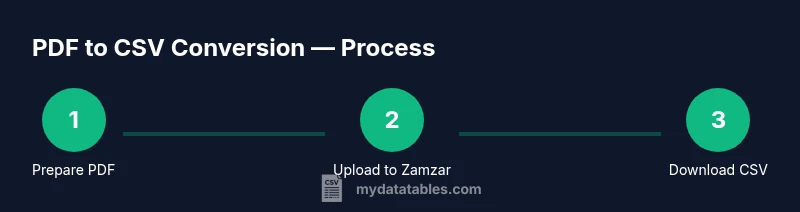
A quick mental model of the Zamzar path helps you anticipate required actions: first, prepare and verify the PDF content; second, upload the file to Zamzar; third, select CSV as the output format; fourth, run the conversion and download the CSV; finally, open the CSV in your editor to inspect and clean as needed. In practice, expectations should be tempered by the PDF’s structure and the quality of the source text. MyDataTables observes that a well-structured PDF often yields a near-perfect CSV on first try, reducing post-processing effort.
The rest of this article details concrete steps, common pitfalls, and best practices to optimize your results.
Common issues with PDF to CSV conversions and how to mitigate
Even when a PDF looks tabular, you may encounter common issues such as merged cells, split lines, or headers that repeat across pages. To mitigate:
- Check page ranges: convert smaller sections first to isolate problematic areas.
- Use a text-based PDF if possible; if not, OCR-first can improve extraction, but may require cleanup afterward.
- After conversion, scan for missing rows or columns and run a quick validation against a known data source when available.
- Normalize date formats and numeric separators during post-processing to ensure consistency across the dataset.
If you still see problematic formatting, consider an alternative tool for the initial extraction or perform post-processing with a scripting language like Python or a spreadsheet program.
Post-processing: cleaning, validating, and exporting
CSV cleaning is a critical step after any automated extraction. Typical steps include:
- Remove duplicate rows and fix broken lines caused by line breaks in the source document.
- Normalize headers and ensure consistent data types across columns.
- Reconcile multi-page tables by concatenating per-page outputs or by reconfiguring the extraction scope.
- Validate with a sample of rows against the original PDF to confirm fidelity.
These steps help convert a raw CSV into a robust dataset suitable for analysis in Excel, Python, or BI tools.
Privacy, security, and best practices
Data privacy should guide cloud-based conversions. If the PDF contains sensitive information (PII, financial records, or proprietary data), reduce risk by:
- Using Zamzar only with non-sensitive data or data anonymization prior to upload.
- Checking the provider’s privacy policy and data retention terms.
- Considering offline or self-hosted alternatives for highly sensitive datasets.
- Keeping a local copy of the original PDF for audit purposes.
MyDataTables recommends combining secure handling with thorough validation to protect data integrity during the conversion process.
Real-world use case and example workflow
Imagine you have a 12-page PDF containing quarterly sales tables. You review the document and confirm that the tables are text-based with consistent columns. You create a Zamzar conversion, targeting CSV output, and download the file. Opening the CSV in a spreadsheet reveals most tables parsed cleanly, with headers preserved. A few rows require minor realignment, which you fix with a quick post-processing pass. The result is a ready-to-analyze data set that plugs into your dashboard workflow, saving manual transcription time and enabling faster insights.
Authority sources and further reading
For readers who want deeper technical nuances about data extraction and CSV standards, see the following resources:
- Adobe (official perspectives on PDF handling and extraction): https://www.adobe.com
- World Wide Web Consortium (W3C) on CSV basics and web standards: https://www.w3.org
- NIST (guidance on data formats and encoding considerations): https://www.nist.gov
Authority sources (continued)
Further reading can be found at credible institutions and industry standards organizations including government and education sectors for data handling best practices: https://www.census.gov, https://www.adobe.com, https://www.w3.org
Tools & Materials
- A Zamzar account(Create a free account if you don’t have one; you’ll need it to manage uploads and downloads.)
- PDF file(s) containing tables(Prefer text-based PDFs; scans may require OCR before conversion.)
- A computer or mobile device with internet access(Stable connection helps prevent upload interruptions.)
- A CSV viewer or editor(Excel, Google Sheets, or a code editor with CSV support.)
- Optional: OCR preprocessing tool(Use if your PDF is image-based; improves extractability.)
Steps
Estimated time: 15-30 minutes
- 1
Prepare the PDF
Inspect the PDF to confirm whether the tables are text-based and clearly delimited. If the content is an image, consider OCR preprocessing before uploading so that the converter has actual text to parse.
Tip: If possible, crop or isolate the table area to reduce noise. - 2
Sign in to Zamzar
Log into your Zamzar account or create a new one so you can manage the conversion and access the resulting CSV.
Tip: Use a dedicated folder or project label to organize conversions by dataset. - 3
Upload PDF
Upload the target PDF to Zamzar. You can drag-and-drop or browse to the file. For large PDFs, consider splitting into smaller parts.
Tip: Uploading in smaller chunks can help identify pages that don’t convert cleanly. - 4
Choose CSV as output format
Select CSV as the desired output to ensure the converter delivers a data-ready, comma-delimited file.
Tip: If Zamzar offers options for delimiter handling, pick comma and enable escaping if available. - 5
Start conversion
Initiate the conversion and monitor progress. If the PDF is large or complex, expect a longer wait time.
Tip: Keep your browser tab active to receive the download link when ready. - 6
Download CSV
Save the CSV file to a known location. Check that the filename is descriptive and includes dataset context.
Tip: If the download is interrupted, retry from Zamzar—files aren’t permanently altered on the server. - 7
Open and inspect
Open the CSV in Excel or your editor and verify headers, column counts, and representative rows for accuracy.
Tip: Look for misaligned columns or merged cells; these indicate post-processing is needed. - 8
Post-process if needed
Clean any anomalies by realigning columns, splitting multi-value fields, and standardizing formats (dates, numbers).
Tip: Create a small test script or worksheet to automate common cleanup steps for future files. - 9
Finalize and reuse
Save the cleaned CSV and store metadata about the source PDF, such as page ranges used and table descriptions.
Tip: Document any exceptions encountered to guide future conversions.
People Also Ask
Can Zamzar convert a PDF with scanned images to CSV?
If the PDF is image-based, Zamzar may not extract text reliably unless OCR is used beforehand. For best results, use a PDF with embedded text or apply OCR prior to conversion.
Scanned PDFs require OCR; text-based PDFs convert more accurately.
Will the CSV preserve the original table headers?
In many cases yes, but complex multi-row headers or merged cells can cause headers to shift. You may need to adjust headers in post-processing.
Headers may shift with complex tables; you may need to fix them afterward.
Is there a free option to convert PDFs to CSV?
Zamzar offers a free tier with limitations on conversions. For larger or frequent tasks, review current pricing or consider a trial of premium features.
There is a free tier with limits; check Zamzar pricing for details.
How can I improve accuracy for messy PDFs?
Preprocess the PDF (or OCR it) to simplify tables, then post-process the CSV to normalize headers and data types. Iterative checks help refine results.
Preprocess and post-process to improve results.
Can I automate Zamzar conversions in a workflow?
Automation is possible through Zamzar's API documentation. Review API limits and authentication requirements to integrate with your pipelines.
There is an API for automation; consult Zamzar docs.
What if the PDF has multiple tables on different pages?
You may need to convert pages or sections separately or configure per-page extraction to avoid cross-table contamination.
Convert per page or per section to keep tables distinct.
Watch Video
Main Points
- Verify PDFs for text-based tables before conversion.
- Expect post-processing for complex or scanned tables.
- Validate CSV headers and data types after conversion.
- Use privacy best practices when uploading sensitive documents.