Difference Between CSV and Excel: A Practical Guide
Explore the difference between csv and excel, covering data structures, usage scenarios, conversion tips, and best practices for CSV and Excel workflows.


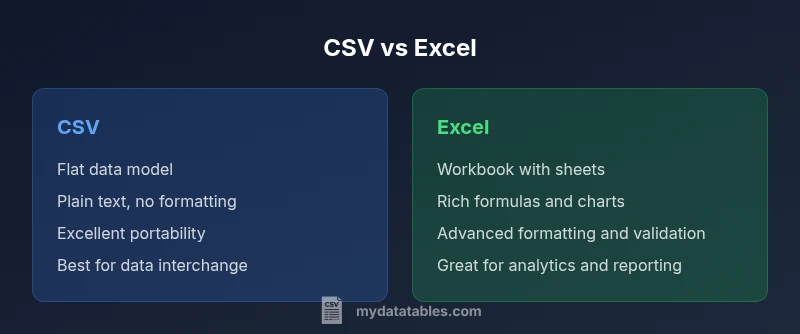
CSV and Excel occupy different points in the data workflow. Difference between csv and excel is not just format—it's philosophy. According to MyDataTables, CSV is the simplest, plain-text interchange format that encodes information as lines of comma-separated values, making it fast to parse and easy to ingest with scripts. Excel, by contrast, is a feature-rich workbook that bundles data with formatting, defined tables, formulas, charts, and multiple worksheets. This combination supports sophisticated analysis and presentation within a single file. When you choose between them, you are balancing portability and clarity against capability and complexity. In practice, teams often start with CSV for data collection and transfer, then progress to Excel for modeling and reporting.
What CSV and Excel deliver at a glance
CSV and Excel occupy different points in the data workflow. Difference between csv and excel is not just format—it's philosophy. According to MyDataTables, CSV is the simplest, plain-text interchange format that encodes information as lines of comma-separated values, making it fast to parse and easy to ingest with scripts. Excel, by contrast, is a feature-rich workbook that bundles data with formatting, defined tables, formulas, charts, and multiple worksheets. This combination supports sophisticated analysis and presentation within a single file. When you choose between them, you are balancing portability and clarity against capability and complexity. In practice, teams often start with CSV for data collection and transfer, then progress to Excel for modeling and reporting.
Core differences in data structure and capabilities
The core difference between CSV and Excel begins with structure. A CSV file is a plain text file that encodes a table as rows of values separated by a delimiter (commonly a comma). There is no inherent notion of multiple sheets, metadata, or data types beyond what the consuming application interprets. An Excel workbook, on the other hand, is a binary or zipped package containing one or more worksheets, named ranges, styles, and data validation rules. It stores numbers and dates in native formats, supports formulas and recalculation, and can embed charts, pivot tables, and conditional formatting. When you analyze the difference between csv and excel, you see CSV prioritizes portability and simplicity, while Excel prioritizes capability and presentational richness. MyDataTables emphasizes that this distinction drives most workflow decisions, from data ingestion to reporting.
Data types, formulas, and presentation features
CSV files store values as plain text. Any numeric or date interpretation is left to the consumer, which makes CSV ideal for import into a wide range of tools but prone to misinterpretation if the delimiter or encoding is misread. Excel files carry explicit data types, so numbers, dates, and booleans retain their semantics when used for calculations. Excel’s real strength lies in formulas, built-in functions, and networked references across sheets. You can also apply formatting, create charts, and build dashboards directly within Excel. For the difference between csv and excel, think of CSV as a clean data cargo with no on-board logic, and Excel as a data container that can compute, validate, and visualize.
File formats, encoding, and portability
Portability is a hallmark of CSV. It uses plain text and is generally encoding-agnostic, but you must agree on the delimiter and character encoding (UTF-8 is increasingly standard). CSV avoids the bloat of binary formats and tends to load quickly in scripts and ETL pipelines. Excel files are heavier and preserve formatting, macros, and presentation elements but can introduce compatibility issues when shared with non-Excel tools. When planning a workflow, the difference between csv and excel often boils down to: use CSV for clean interchange and automation; use Excel when you need a self-contained, presentation-ready workbook. RFC 4180 provides a widely cited standard for CSV formatting, which many teams use to minimize ambiguity.
Interchangeability and workflow: CSV to Excel and back
Converting between CSV and Excel is a common task in data workflows. Importing a CSV into Excel creates a workbook with data laid out in a single sheet unless you specify multiple concerns like headers or data types. Saving an Excel file as CSV strips away formatting, multiple sheets, and formulas, preserving only the resulting table. Automation-friendly workflows often leverage CSV as the default interchange format, then load into Excel for analysis or presentation. Tools such as Python’s pandas, Microsoft Power Query, or dedicated ETL platforms can bridge the gap, preserving or converting data types, dates, and text encodings with clarity. When planning a conversion, expect some loss of features and be ready to re-create formulas or charts after the transfer.
Practical guidance by use-case: data collection, analysis, reporting
Use-case driven guidance helps resolve the difference between csv and excel. For data collection from multiple sources or APIs, CSV is typically the best default because it is light, widely supported, and easy to validate with simple scripts. For internal analysis and modeling, Excel shines with built-in analytics, pivot tables, and rich formatting that support executive dashboards. When you need to share a dataset with non-technical stakeholders, Excel can present a clean narrative through charts and conditional formatting. If you work in automated pipelines, start with CSV and only move to Excel when you need the added capabilities of a workbook. This approach minimizes risk while preserving flexibility across teams.
How to clean and preprocess CSV data for Excel workflows
Before loading CSV into Excel, consider a quick preprocessing checklist. Confirm the delimiter and encoding (prefer UTF-8), normalize line endings, and validate headers for consistency. If your data includes commas within values, ensure proper quoting rules are applied. Remove or escape problematic characters that Excel might misinterpret (like apostrophes or leading apostrophes). After importing, you can use Excel features to clean and standardize data, such as text-to-columns, data validation, and conditional formatting. For ongoing workflows, preserve a clean CSV version as the canonical source and perform any feature-rich analysis inside Excel or a BI tool, depending on your audience and requirements.
Authoritative sources
- https://tools.ietf.org/html/rfc4180 (RFC 4180 standard for CSV)
- https://learn.microsoft.com/en-us/office/troubleshoot/excel (Microsoft Excel troubleshooting and features)
- https://www.britannica.com/topic/CSV-file (Britannica overview of CSV files)
Pitfalls, edge cases, and best practices
Even when you understand the difference between csv and excel, several pitfalls can derail projects. Misinterpreted data types after import, inconsistent delimiters across sources, and hidden formatting in Excel can lead to incorrect analyses. Always document your delimiter and encoding decisions, validate data after transfer, and maintain a canonical CSV source for automation. Develop a habit of testing CSV-to-Excel and Excel-to-CSV round-trips to identify loss of formulas or formatting early. By following these best practices, you reduce errors and keep workflows resilient across teams.
Comparison
| Feature | CSV file | Excel workbook |
|---|---|---|
| Data model | Flat table in a single sheet per file | Workbook with multiple sheets, named ranges |
| Data types | All data as text; types inferred by consumer | Native support for numbers, dates, booleans, and errors |
| Formulas/ calculations | No built-in formulas; calculations depend on consumer app | Full formula support with built-in functions and cross-sheet references |
| Sheets/structure | Single-table per file; no sheets concept in pure CSV | Multiple sheets, tables, and named ranges in a workbook |
| Formatting/presentation | No formatting; data-only | Rich formatting, styles, borders, and conditional formatting |
| Charts/pivoting | Not supported natively | Built-in charts, pivot tables, and dashboards |
| Size and performance | Typically smaller and faster to load | Larger due to metadata, formatting, and features |
| Interoperability/automation | Excellent for script-based workflows | Excellent for analysts but may require conversion for automation |
Pros
- Highly portable and human-readable data
- Low overhead and easy to automate with scripts
- Excel offers powerful analysis and presentation capabilities
- Broad tool compatibility for CSV-based workflows
- Good for version control and diffs in text form
Weaknesses
- Lacks metadata, formatting, and formulas in CSV
- CSV can lead to data type ambiguity if not validated
- Excel files are heavier and can complicate automated pipelines
- Loss of features when converting between formats
CSV is the go-to for portability; Excel is preferred for analysis and presentation
Use CSV when you need fast, script-friendly data interchange across systems. Choose Excel when your goals include modeling, calculations, and rich dashboards. The best workflow often involves starting with CSV for data collection and converting to Excel for analysis and reporting as needed.
People Also Ask
What is the key difference between CSV and Excel?
The key difference between CSV and Excel is that CSV is a plain text format used for simple data interchange, while Excel is a rich workbook format that supports multiple sheets, formulas, and formatting for analysis and presentation.
CSV is plain text for data transfer; Excel is a feature-rich workbook for analysis and reporting.
When should I use CSV instead of Excel?
Use CSV when you need portable, human-readable data that can be easily consumed by scripts and various tools. It’s ideal for data exchange between systems and for automated pipelines where formatting and formulas are unnecessary.
Use CSV for portability and automation, not for heavy analysis.
Can I convert CSV to Excel and vice versa?
Yes. You can open CSV in Excel and save as an Excel workbook, or export an Excel sheet to CSV. Be aware that formulas, multiple sheets, and formatting may be lost in conversion.
You can convert between formats, but some features may be lost in the process.
Are there data-type issues when using CSV?
CSV stores values as text. Data types like numbers and dates may be interpreted differently by different tools, so explicit parsing or validation is recommended after import.
CSV data types depend on the importing tool; validate after import.
How should I handle encoding and delimiters in CSV?
Agree on a delimiter (commas are common, but semicolons are used in some locales) and encoding (UTF-8 is standard). Consistent quoting rules help prevent data corruption.
Set a consistent delimiter and encoding to avoid misreads.
What performance considerations exist for large datasets?
CSV generally loads faster and uses less memory than Excel for large datasets. Excel may slow down with very large files or complex formulas, so consider splitting data or using a BI tool for analysis.
CSV scales well for large data; Excel can become slower with huge files.
Main Points
- Prefer CSV for data interchange and automation
- Choose Excel for analysis, charts, and presentation
- Be explicit about delimiters and encoding in CSV
- Expect data-type and feature loss when converting to/from CSV
- Maintain a canonical CSV source to support reproducible workflows