How to Use an Online CSV to PDF Converter: A Step-by-Step Guide
Learn how to convert CSV data to PDF online with a reliable converter. This guide covers selection, preparation, step-by-step workflow, safety tips, and verification to ensure clean, paginated PDFs from CSV data.


Goal: convert a CSV to PDF online with a reliable, privacy-conscious converter. You’ll choose a tool, prepare your CSV (headers, encoding), perform the conversion, and verify the output for formatting and data integrity. This guide offers best practices, common pitfalls, and practical steps to succeed. Expect guidance on privacy, file size, and automation options to fit team pipelines.
What is an online csv to pdf converter?
An online csv to pdf converter is a web-based tool that takes CSV data and renders it into a paginated PDF document. These services typically accept a CSV file (or pasted data), apply layout options, and output a portable document file suitable for sharing, printing, or archiving. When used correctly, they preserve headers, column data, and basic formatting, while offering options for page size, orientation, and fonts. When used in a professional setting, an online converter can save time compared with manual conversion in word processors, especially for recurring reports. According to MyDataTables, choosing a reputable tool reduces the risk of data leakage and formatting issues. If you work with sensitive data, prioritize privacy features and local processing options.
Why data teams rely on this tool for reporting
Data teams frequently need a stable, portable representation of CSV data for stakeholders who prefer PDF documents. An online converter speeds up the transition from raw data to a presentable report, enabling quick sharing, audit trails, and consistent branding. It also supports automation-friendly workflows when batch processing is needed or when CSV files come from automated data pipelines. MyDataTables Analysis, 2026 highlights that teams lean on digital PDFs to preserve formatting across devices and to meet archival standards. This emphasis on reliable output makes privacy controls and predictable rendering crucial when evaluating tools. In addition to layout controls, look for tools that let you map columns to table cells accurately, handle large spreadsheets, and offer secure file deletion after processing.
Key features to look for
When selecting an online csv to pdf converter, prioritize features that protect data integrity and presentation. Core capabilities include: accurate rendering of headers and rows; support for UTF-8 and other encodings; configurable page size (A4, Letter), margins, and orientation; font embedding to prevent shifting; options to add headers/footers, page numbers, and company branding; batch processing for multiple CSVs; and strong privacy policies with automatic file deletion after processing. An ideal tool also provides a live preview or sample rendering so you can verify layout before converting. Reliability, accessibility, and clear error messages matter as well, especially for teams building repeatable reporting pipelines.
Preparing your CSV for conversion
Before uploading, clean up the CSV to reduce surprises in the PDF. Ensure the first row contains headers that clearly describe each column, and confirm consistent data types within columns (dates as ISO, numbers without stray characters). Use UTF-8 encoding to avoid glyph issues and verify that delimiters (commas, semicolons) match the file's actual format. If your data contains long text fields, consider wrapping or truncating for readability in the PDF. Remove extraneous columns that do not contribute to the report, and save a clean copy for conversion. These preparatory steps save time and avoid post-conversion edits.
A practical conversion workflow (high level)
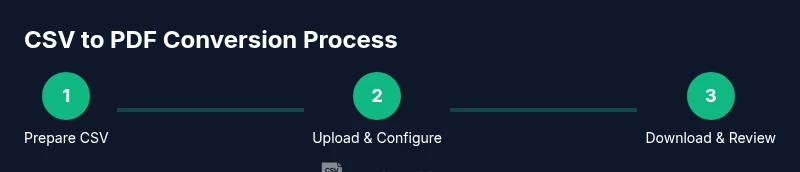
A typical workflow starts with selecting a privacy-friendly converter, then uploading the CSV, configuring PDF settings, and running the conversion. If the tool supports, apply data-driven formatting rules (such as conditional styling for large numbers or negative values) and choose a landscape or portrait orientation that fits your table width. After rendering, review the first and last few rows to ensure no data was truncated and that all columns align with the intended layout. Finally, download the PDF and perform a quick spot-check on a computer screen and in print preview to catch any layout quirks.
Common pitfalls and how to avoid them
Pitfalls include misaligned columns when wrapping occurs, unreadable fonts, and oversized PDFs that exceed page limits. To avoid these issues, specify a fixed page size, embed fonts, and enable word-wrapping for long cells. Large CSVs can cause timeouts; if needed, convert in batches or use a tool that supports streaming. Be mindful of hidden characters, quotes, and escape sequences that can shift cells in the PDF. Always test with a small sample before committing a full run.
Security, privacy, and compliance considerations
Online converters process files in the cloud, so assess whether the provider supports encryption in transit (HTTPS) and data deletion after processing. For sensitive data (financial details, PII), prefer tools with on-device processing or strong data retention policies and transparent terms. Never upload confidential datasets to unknown services; if required, use offline software or a trusted vendor with clear data handling procedures. As a best practice, keep a record of the tools used and implement access controls in your team to minimize exposure.
Real-world scenario: monthly financial report
Imagine you generate a monthly financial report by compiling CSV data from sales, expenses, and budgets. You want a polished PDF suitable for distribution to executives. You select a privacy-focused converter, set A4, portrait orientation, and 0.75-inch margins, embed fonts, and add a header with the report title and date. The generated PDF preserves the table structure, includes page numbers, and exports a visually consistent document across devices. This approach saves hours of manual formatting and ensures stakeholders receive a reproducible report each month.
Authority sources
- ISO 32000 standard overview: https://www.iso.org/iso-32000-1-pdf.html
- NIST publications on document formats: https://www.nist.gov/publications
- PDF reference and standards by Adobe: https://www.adobe.com/content/dam/acom/en/devnet/pdf/pdf_open_parameters.pdf
Verdict and recommendations
For most users, choose an online csv to pdf converter that emphasizes privacy, predictable rendering, and batch support. Prefer tools that delete files automatically after processing and provide a clear privacy policy. Validate the output with a quick quality check against the original CSV and store the PDF securely with versioning. The MyDataTables team recommends testing a dry run with sample data to establish a repeatable workflow that your team can rely on.
Tools & Materials
- Web browser (latest version)(Chrome/Edge/Firefox with TLS 1.2+)
- CSV file(UTF-8 encoding preferred; include header row)
- Online CSV to PDF converter(Choose reputable provider with automatic file deletion)
- Optional: local editor for CSV cleanup(Spreadsheet app or text editor)
- PDF viewer(To review the output before sharing)
- Privacy/compliance checklist(Keep in mind the data sensitivity)
Steps
Estimated time: 8-12 minutes
- 1
Prepare your CSV
Open the CSV in a text editor or spreadsheet app to inspect the header row. Confirm that headers clearly describe each column and that the data types are consistent within columns. Set the file encoding to UTF-8 to avoid character issues during rendering, and save a clean copy.
Tip: Keep the header row intact; do not rename headers during conversion. - 2
Choose a privacy-aware converter
Review the tool's privacy policy, data retention, and whether it processes files client-side or in the cloud. Favor services that delete uploaded files automatically after processing.
Tip: Prefer tools with audit logs or privacy statements. - 3
Upload the CSV
Browse to the converter, select your CSV file, and confirm that the header row is detected. If the tool supports file previews, check the parsed table before proceeding.
Tip: If you have multiple files, upload them one at a time to avoid mixing data. - 4
Configure PDF layout
Set page size (A4/Letter), orientation, margins, and font embedding. Enable headers/footers and page numbers if needed to preserve context.
Tip: Use a landscape layout for wide tables to minimize wrapping. - 5
Run the conversion
Click Convert and wait for the render to finish. If the app shows a progress bar, avoid refreshing until complete.
Tip: If the result looks cut off, adjust margins or font size and re-run. - 6
Review the PDF
Open the downloaded PDF in a viewer. Check a sample of rows for alignment, a few long cells, and the presence of all header mappings.
Tip: Use the built-in search to verify key values exist. - 7
Save and secure the file
Rename the PDF to a meaningful title, move it to a secure folder, and consider applying a password if the document contains sensitive data.
Tip: Maintain a basic audit log of conversions for compliance.
People Also Ask
What is an online csv to pdf converter?
An online converter is a web tool that turns CSV data into a PDF file without installing software locally. It typically offers layout options and can return a printable document quickly.
An online converter turns your CSV into a PDF right in your browser, without installing software.
Do online converters preserve headers and formatting?
Most tools preserve headers and basic formatting, but results vary with complex tables. Always verify by reviewing the PDF after conversion.
Most tools keep headers and basic layout, but check the PDF to be sure.
Are there privacy concerns with uploading data to online services?
Yes. Review the provider's privacy policy, data retention, and whether files are stored or deleted after processing. Prefer services with clear data handling.
Yes—check the privacy policy and deletion practices before uploading sensitive data.
What file sizes and limits apply?
Many services impose size limits. Check the tool's guidelines, and consider splitting very large CSVs if needed.
Be mindful of size limits; split large files if required.
Can this process be automated in a data pipeline?
Yes, some tools offer API access or batch upload for automation. For strict requirements, use local or enterprise solutions with scripting.
Yes, you can automate with APIs or batch jobs if the tool supports it.
Watch Video
Main Points
- Choose reputable converter with privacy options.
- Verify CSV headers before conversion.
- Check PDF formatting matches the source data.
- Store PDFs securely with version control.