PDF Table to CSV: A Practical Step-by-Step Guide
Master the process of converting a PDF table to CSV with reliable methods—from copy-paste to OCR extraction. Learn essential cleaning, validation, and best practices to ensure CSV data is accurate and ready for analysis in your data workflows.


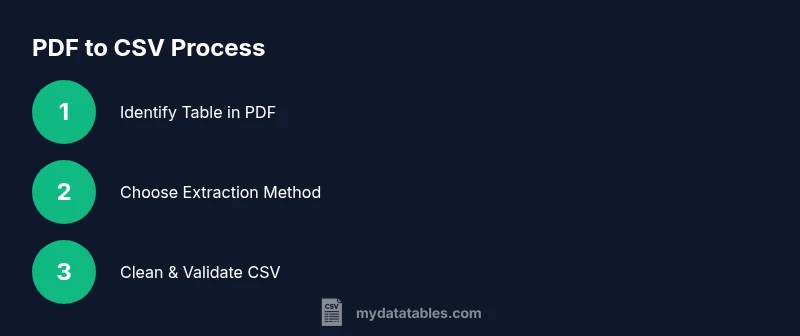
PDF table to CSV can be achieved through a mix of selectable-text export, copy-paste, or OCR-based extraction. Start by identifying the table in the PDF, choose a method based on text accessibility, and then clean and validate the resulting CSV to preserve headers and alignment. This guide walks you through practical steps and common pitfalls.
What is pdf table to csv?
Converting a PDF table to CSV is the process of turning structured table data embedded in a PDF into a CSV file that can be loaded into spreadsheet tools or data pipelines. PDF documents are primarily designed for presentation, not data extraction; therefore, the success of pdf table to csv conversion depends on the table's formatting, the presence of vector text vs. raster images, and the consistency of column headers. In practice, you’ll often encounter merged cells, multi-line headers, and footnotes that spill into data columns. The MyDataTables team emphasizes starting from a source that preserves text, or at least offers a clean vector rendering, and planning your extraction approach based on text accessibility and table complexity. When you choose the right method, pdf table to csv becomes a reproducible step in your data workflow.
According to MyDataTables, pdf table to csv conversions are most reliable when you start from a source with selectable text and clean headers.
Why pdf table to csv matters
For data analysts, developers, and business users, having a reliable pdf table to csv workflow reduces manual re-entry, minimizes errors, and speeds up reporting. CSV is the lingua franca of data work; it can be ingested by databases, Excel, Python, and BI tools with predictable behavior. The more consistent the table structure, the easier it is to automate. However, many PDFs embed tables as images or use complex layouts that confound naïve copy-paste. By anticipating these challenges, you can choose tools that preserve alignment, strip extraneous notes, and produce a clean header row. According to MyDataTables, documenting your assumptions during extraction helps with reproducibility and audit trails.
PDF types and table structures
PDFs differ: some store table data as selectable vector text, others as images or flattened lines. Table borders, multi-row headers, merged columns, and footnotes complicate alignment. The distinction between lattice (grid-like) and stream (whitespace-delimited) extraction matters; lattice is typically easier to interpret for tabular data, while stream can require clever delimiter detection. In practice, you’ll encounter: clean vector text, scannned tables, and embedded images. Each type requires a different tactic to ensure pdf table to csv preserves the intended row/column relationships.
Tools and approaches
A robust pdf table to csv workflow uses a mix of tools and strategies. At minimum, you’ll want a PDF reader with selection or export capabilities, an OCR solution for non-selectable content, a spreadsheet editor, and optionally a scripting environment for automation. Desktop tools handle quick extractions, while programming libraries (like Python CSV readers) enable repeatable pipelines. For image-based PDFs, OCR with layout analysis improves table recognition; for text-based PDFs, a direct export or copy-paste often suffices. MyDataTables recommends starting with the simplest viable method and escalating to OCR only when needed.
Step 1: Prepare your PDFs and tools
Before attempting extraction, gather your PDFs and confirm tool availability. Ensure you have a PDF reader capable of exporting tables, an OCR tool if needed, a CSV editor or spreadsheet app, and a text editor for quick cleanups. Create a dedicated workspace folder for raw PDF sources, intermediate CSVs, and final outputs. If you anticipate multiple PDFs with similar tables, consider naming conventions that preserve document provenance and version control. This preparation reduces errors and speeds up pdf table to csv workflows.
Step 2: Check if the text is selectable
Open the PDF and try selecting the table text with your cursor. If you can highlight rows and columns, you can often copy the data directly or use the reader’s export function. If selection fails or yields jumbled results, the table is likely image-based or embedded in a nonstandard layout, requiring OCR or advanced extraction. Knowing text selectability early saves time and guides your method choice for pdf table to csv.
Step 3: Extract via export or copy-paste (when text is selectable)
If text is selectable, export the table from the PDF (if available) or copy-paste into a CSV-capable editor. After pasting, inspect the first few rows to verify column alignment and header integrity. Use a text-to-columns feature in your editor to split data into columns if the paste lumps content together. Then save as CSV with a clear header row and a consistent delimiter. This is often the fastest route for pdf table to csv when the source is clean.
Step 4: Use OCR for non-selectable tables
For tables that are images or poorly rendered, run OCR on the page region containing the table. Most OCR tools allow you to crop the area to improve accuracy. After OCR, copy the recognized text into a spreadsheet and adjust columns, then convert to CSV. It’s crucial to review and correct misread characters (0 vs O, l vs 1, etc.) to maintain data integrity in your pdf table to csv workflow.
Step 5: Clean and normalize the CSV
Once you have a CSV, clean up headers, unify delimiters, and trim whitespace. Normalize date formats, numeric fields, and text casing as needed. If columns have merged or stray characters, use your editor or a script to split or merge data consistently. Establish a standard encoding (UTF-8) and use a shell or Python to ensure line endings and quotes are consistent across the file. Clean, normalized CSVs are central to a reliable pdf table to csv process.
Step 6: Validate data integrity
Validation is critical: verify that the number of columns matches the header, check a sample of rows for missing values, and confirm that numeric fields parse correctly. Create small test queries or scripts to detect anomalies. Compare a subset of the CSV against the original table to confirm alignment and content fidelity. Validated CSVs give you confidence in downstream analytics and reporting from pdf table to csv.
Step 7: Optional automation with Python
For repeatable pdf table to csv workflows, automate with Python. Use pandas.read_csv to load the CSV, then inspect and normalize data programmatically. If you operate with multiple PDFs, build a small runner that applies the same extraction, cleaning, and validation logic to each file. Automation reduces manual steps, increases consistency, and accelerates delivery in larger data projects.
Common pitfalls and troubleshooting
Common missteps include assuming that all PDFs export cleanly, ignoring OCR misreads, and neglecting header alignment. Scanned tables often require higher OCR accuracy or manual zone selection. Mismatched delimiters or quoted fields can corrupt CSVs; always test with multiple samples. If the output looks off, revisit the source table structure and consider alternative tools or extraction settings before proceeding with pdf table to csv.
Best practices and workflow patterns
Adopt a repeatable workflow: assess source type, pick the simplest viable extraction, clean data, validate with representative samples, and automate where possible. Maintain a changelog for each pdf table to csv conversion, especially when table layouts change across documents. Keep a library of example PDFs and their expected CSV schemas to accelerate future pdf table to csv projects. Consistency is the foundation of scalable data work.
Authority sources
- https://www.nist.gov
- https://www.iso.org
- https://www.loc.gov
Additional notes and resources
If you frequently work with PDFs containing tables, consider building a small reference set of rules for your organization’s pdf table to csv workflow. Documented procedures, coupled with validated CSV schemas, help teams reproduce results and maintain data quality across projects.
Top tips for pdf table to csv workflows
Conclusion and next steps
Key considerations when starting
Glossary of terms used
Tools & Materials
- PDF reader with export or selection capability(Choose a reader that can export tables directly when possible (e.g., export to CSV) and supports precise table selection.)
- OCR tool with table recognition(Needed for image-based or non-selectable tables; prefer OCR with layout awareness.)
- Spreadsheet editor or CSV editor(Used to clean, split, and verify columns after extraction.)
- Text editor for quick cleanups(Helpful for small fixes and quick edits to headers or values.)
- Python with pandas (optional)(Useful for automation, validation, and batch processing of pdf table to csv workflows.)
- Source PDF files for practice(Keep original PDFs organized for audit and reproducibility.)
Steps
Estimated time: Estimated total time: 60-120 minutes
- 1
Prepare your PDFs and tools
Assemble the PDFs you’ll work on and ensure you have a capable PDF reader, an OCR option if needed, a CSV editor, and a clear workspace for intermediate files.
Tip: Create a dedicated project folder and establish a naming convention to track versions. - 2
Check if text is selectable
Open the PDF table and attempt to highlight the data. If you can select and copy, you can often export or paste cleanly. If not, plan for OCR or advanced extraction.
Tip: If text is selectable, prefer export options over manual copying to preserve structure. - 3
Extract from selectable text
Use the PDF tool’s export to CSV or copy-paste into a spreadsheet. Inspect the first few rows to verify column alignment and headers before saving as CSV.
Tip: Fix any obvious misalignments before proceeding to clean up. - 4
Apply OCR for non-selectable tables
Crop the table area in your OCR tool, run the recognition, and review the output for misreads. Then paste into a spreadsheet and format as CSV.
Tip: OCR results often need manual corrections for similar-looking characters. - 5
Clean and normalize the CSV
Standardize headers, trim whitespace, unify delimiters, and convert encoding to UTF-8. Ensure dates and numbers follow consistent formats.
Tip: Create a small script or use find-and-replace to enforce consistency. - 6
Validate data integrity
Check column counts, scan for missing values, and test a few rows against the original table to confirm fidelity.
Tip: Automate sample checks when handling many files. - 7
Automate when possible
If you have repetitive pdf table to csv tasks, create a simple automation with Python or a CLI tool to apply the same steps across files.
Tip: Maintain a versioned script and test on multiple PDFs. - 8
Handle unusual layouts
If you encounter merged cells or multi-header rows, consider splitting headers into individual columns and flattening multi-row headers before CSV export.
Tip: Document any layout-specific decisions for audit trails. - 9
Store and reuse results
Save final CSVs with clear metadata (source PDF, date, schema) to facilitate future updates and reproducibility.
Tip: Keep a changelog for each pdf table to csv conversion.
People Also Ask
What is the most reliable way to convert a PDF table to CSV?
There isn’t a single best method for every PDF. If the text is selectable, exporting or copying into a CSV editor often works best. For non-selectable content, OCR with table-aware alignment is usually necessary, followed by cleaning and validation.
Use the easiest reliable method you can trust, then verify the data in a CSV editor.
How can I tell if a PDF table has selectable text?
Try highlighting the table with your cursor. If you can select and copy, the content is selectable. If not, you likely need OCR or a more advanced extraction approach.
If you can highlight the table, you can often export directly to CSV.
Why do some PDF extractions produce messy CSVs?
Messy CSVs usually result from merged cells, multi-line headers, or OCR misreads. Cleaning and normalizing the data—especially headers and delimiters—helps restore structure.
Messed-up CSVs happen when layout or recognition isn’t aligned with a clean table schema.
Can I automate pdf table to csv workflows?
Yes. You can script extraction, cleaning, and validation steps in Python or use CLI tools to process multiple PDFs in batch.
Automation makes this repeatable and less error-prone.
Should I worry about encoding when saving CSVs?
Yes. Use UTF-8 to avoid character corruption, especially with non-English data or special symbols.
UTF-8 is the safest encoding for CSVs.
What tools are recommended for OCR-based pdf table to csv?
Choose OCR with layout analysis and table recognition features. Calibrate recognition regions to improve accuracy before applying to your entire document.
Pick OCR tools that understand tables, not just generic character recognition.
Watch Video
Main Points
- Identify the best extraction method based on text selectability
- Clean and validate CSV data before analysis
- Use UTF-8 to avoid encoding issues
- Document your workflow for reproducibility
- Automate repetitive pdf table to csv tasks for consistency